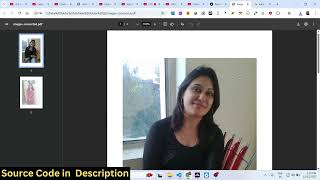

AI Background Removal in Browser
42sDemonstrates a free AI-powered background remover that works entirely in the browser, which is impressive and useful for creators.
▶ Play Clip"Title suggests a tutorial but delivers a product demo — useful for buyers but not for learners."
This video demonstrates a full-stack Next.js application that functions as a Canva clone for image and PDF editing directly in the browser. It includes tools for background removal (using TensorFlow), background color change, image-to-PDF conversion, PDF merging, splitting, and PDF-to-Word conversion. The app is a single-page application with no backend, and the source code is available for purchase.
The presenter built a full-stack Next.js application that acts as a Canva clone for image and PDF editing, running in the browser.
An AI-powered background remover is demonstrated. It uses a free library (TensorFlow) to remove backgrounds from images, with no paid API required.
Users can download the processed image easily after background removal.
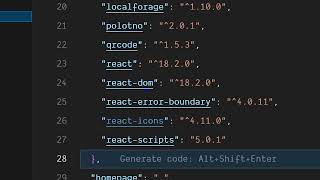
The project uses Next.js, TypeScript, and open-source libraries: PDF-lib for PDF processing, jsPDF for PDF manipulation, and TensorFlow for background removal.
The app runs locally with 'npm run dev' and can be easily deployed.
Users can change the background color of an image by selecting a color from a color picker and clicking 'change background'.
The source code is available for purchase via a link in the description, delivered through Google Drive.
Users can select multiple images and convert them to a single PDF file.
Users can select multiple PDF files, reorder them, and merge them into one PDF.
Users can split a PDF into multiple files by specifying page numbers or ranges, and name each split.
The app can convert a PDF file into a Word document (.doc).
The application includes six tools: remove background, change background, image to PDF, merge PDF, split PDF, and PDF to Word. It is a single-page app with no backend.
This Next.js application demonstrates a powerful, all-in-one image and PDF editor that runs entirely in the browser using free open-source libraries, making it an attractive solution for developers seeking to build similar tools.
What library is used for background removal?
TensorFlow.
01:12
Which libraries are used for PDF processing?
PDF-lib and jsPDF.
01:12
How do you run the application locally?
Run 'npm run dev'.
01:38
Is there a backend server for this application?
No, all processing happens in the browser.
02:39
How many tools are included in the application?
Six: remove background, change background, image to PDF, merge PDF, split PDF, and PDF to Word.
07:03
What formats can the PDF to Word tool output?
It converts PDF to a Word document (.doc).
05:52
Can you specify page ranges when splitting a PDF?
Yes, you can specify multiple ranges like 5-8 and 13-16.
05:01
Free Background Removal
Demonstrates using TensorFlow without a paid API, which is cost-effective.
00:16Browser-Only Processing
All processing is client-side, eliminating backend costs and complexity.
02:39Multiple PDF Tools
The app combines several PDF manipulation tools in one interface, improving workflow.
03:34Single Page Application
The entire application is a single page, making it easy to deploy and maintain.
07:03[00:02] you I built out a full stack project in NexJS. Uh it's actually a Canva clone image and PDF editor which directly runs in the browser. We are running it on localhost 3000. This is actually the demo. So with the help of this you can
[00:16] have this background remover tool where you simply select your image. After selecting that image, uh you will see the this is the original uh you will see the this is the original image and this AI will run uh actually
[00:30] image and this AI will run uh actually remove the background and the image will background is removed here and the result is shown to you and now we have this two buttons here. You can download the output image very easily.
[00:44] So you can just see here how easy it is. I built out this application in nextJS. uh it's actually using uh free libraries. We are have we are not using any paid API for removing the background. If you are interested in the
[00:59] source code, I've given the link you can directly purchase the full source code. So each and every component is divided into its respective TypeScript file here. So you can see it has multiple components. So once you get the source
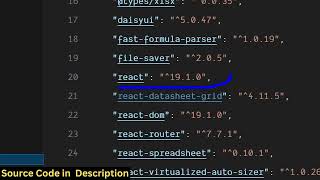
[01:12] code, you will be able to see how I coded this entire fullstack application. If I show you the package.json file, we are running it. We are using some open-source libraries which are PDF lib for PDF processing, JSPDF again a PDF
[01:26] processing and TensorFlow. We are using the TensorFlow library for the removing the background and we are using the latest version of text and react. And we
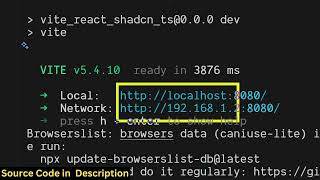
[01:38] started this application at localhost locally. It's very easy for you to deploy this as well. npm rundev. So it is simply running it locally. Apart from that we also have the feature if you want to change the background of your
[01:53] images you simply select your image file. After selecting that image file this interface will open. So here you can actually select a background color uh from this color picker. Simply select the color and click on this button
[02:08] change background. After you simply select the option the image background background color will be applied here. First of all, the background that you see is removed here and then this background color is applied here
[02:24] automatically. Here you can also change here. You can do this with any image. It will save you a lot of time because you don't require any software editor for this. You can use this application. Once you purchase the source code
[02:39] automatically from Google Drive, the source code will be downloaded and it's actually using NexJS. It's a single page application. All the processing is happening directly in the browser. There is no back end to it. All the
[02:52] application it's a single page tool. And then we also have the image to PDF tool as well. So it's a ultimate tool. It has a bunch of tools. First of all, we have the remove background tool. Then we have the change background tool. Then we have
[03:05] the change background tool. Then we have this image to PDF tool. So this tool this image to PDF tool. So this tool also if you select a bunch of images then um after selecting the images the images
[03:19] will be selected then you simply click convert and after that all your images will be converted to a PDF file here. So it's really easy as you can see both the images are successfully converted to a PDF file. Then we also have the merge
[03:34] PDF file. Then we also have the merge PDF. So you basically select bunch of PDF files and then it will merge those PDF files for you.
[03:51] sorry, PDF file. So as you select a bunch of PDF files, [snorts] now you can actually select the order.
[04:03] You can even change the order as well and click on merge PDF. So now the output file will get downloaded automatically.
[04:16] this file the two pages in this file is successfully merged and you will see this notification the total size the total pages are successfully merged. So it's an ultimate Canva clone image and PDF editor. uh if you are interested in
[04:33] this uh the link is given you can directly purchase it and then PDF directly purchase it and then PDF simulator if you have a long PDF file and if you want to split this across multiple pages then you can use this
[04:47] tool. So now it will need to specify which pages you want to split. So from 1 to 23 this is here you can simply split out individual pages as well. So this will create 23 separate PDF files like
[05:01] this. And you can basically provide a range as well. So if you want to split the PDF from fifth page to 8th page. So here you specify the ranges. You can specify multiple ranges right here from 5 to 8
[05:18] and then from 13 to 16. So now it will create two PDF documents. Here you can name your split. So I can say split one, split two. So now this will create two PDF files. If I
[05:35] click the button right here, so two files will be downloaded automatically. The first one will be from page number 5th to page number eight. Likewise, in this way you can split out a long PDF into multiple pages. And then
[05:52] we also have the tool for converting your PDF into word do word word document. This is a really premium tool with the help of which if you have a PDF file then you can convert that PDF file into a doc file. So simply select your
[06:08] PDF file and then it will convert that PDF to word document. So as you click the convert button. So now the file is successfully downloaded and now you click the download button here.
[06:24] So it says single page SAS software as a service service tool. If you are interested in this purchasing it the link is given in the description. So each and every component
[06:38] description. So each and every component is coded inside Typescript. has been successfully
[06:50] successfully created.
[07:03] file here. So this is a professional Canva clone image and PDF editor. It has all these six tools available. It's a single page application. You can easily deploy this. Once you get the source code, you will
[07:19] be able to modify the source code or add additional features as well. So the link is given. You can directly purchase it.
⚡ Saved you 0h 07m reading this? Transcribe any YouTube video for free — no signup needed.