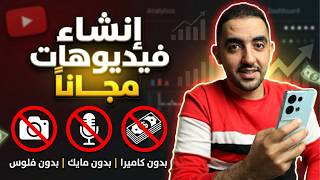

Create YouTube Videos Without Camera or Editing
45sImmediately hooks viewers with the promise of effortless content creation, a highly sought-after skill.
▶ Play Clip"Title promises content from nothing, which is true, but hides the language trick and warnings about demonetization."
This video demonstrates how to create YouTube videos without a camera, editing software, or microphone using YouTube's built-in AI tools, specifically the Gemini integration. The creator shows how to generate videos from text, create motion animations, convert images to video, and add music, all within the YouTube app. However, he warns that overusing these tools can lead to channel demonetization due to non-original content policies.
The video claims you can create YouTube videos without a camera, editing software, or microphone, using only YouTube itself.
To access the Gemini feature, you must change the YouTube app language to English and wait 10-15 minutes.
After changing language, tapping the plus sign shows the Gemini icon, which offers six content creation options.
You can create a video by typing a prompt; the AI generates a video scene. The example shows a video about increasing views.
You can add a picture and apply motion to it, making the image move. This is free compared to paid apps.
You can convert a video into a picture or a picture into a video, with AI adjustments based on commands.
Generate backgrounds from images, usable as green screen or video backgrounds. Examples include travel or historical scenes.
The tool can generate music tracks (3-4) with licenses for use in content.
Overusing AI-generated content can lead to channel rejection due to non-original content policies. Use sparingly.
YouTube didn't specify usage limits; the creator advises limited use for monetization-focused channels.
YouTube's built-in AI tools offer powerful content creation capabilities, but creators must use them cautiously to avoid demonetization. The video emphasizes that while these tools are free and easy, over-reliance on AI-generated content can harm channel monetization.
What language must the YouTube app be set to in order to see the Gemini icon?
English
00:52
How long should you wait after changing the language for the Gemini icon to appear?
10 to 15 minutes
01:05
How many content creation options does the Gemini icon offer?
Six
01:36
What is the term used for the text input that generates a video?
Prompt
02:08
What is one warning given about using AI-generated content on YouTube?
Overuse can lead to channel rejection due to non-original content.
09:39
Content from nothing
Introduces the core promise of creating videos without traditional equipment.
00:04Gemini icon appears after language change
Reveals a hidden requirement to access the feature.
01:21Warning about non-original content
Crucial advice for creators to avoid demonetization.
09:26[00:04] Creating YouTube videos without a camera, without editing software, without any effort, and without without editing software, without any effort, and without using a microphone – content from nothing! Pay close attention because you'll only be using YouTube itself. But be aware of
[00:23] YouTube itself. But be aware of one condition for using this update. First, if you have YouTube open like this and tap the plus sign, and then like this and tap the plus sign, and then look at the top here while making a shortcut, you'll see that nothing
[00:38] appears as long as your app is in Arabic. To benefit from this update, before doing anything, pause the video here, go to your profile picture,
[00:52] video here, go to your profile picture, tap it, then tap the tap it, then tap the gear icon, then select Languages. gear icon, then select Languages. Choose the app language, select English,
[01:05] Choose the app language, select English, and change it. Wait approximately 10 and change it. Wait approximately 10 to 15 minutes. After that, what will appear? Pay attention: tap the plus sign again, and then in the shortcut, you'll see the Gemini icon above.
[01:21] shortcut, you'll see the Gemini icon above. 3. This icon allows you to create multiple content types. I'll create multiple content types. I'll explain in detail. If we click on this icon,
[01:36] explain in detail. If we click on this icon, six things will appear: 1, 2, 3, 4, 5, and 6. six things will appear: 1, 2, 3, 4, 5, and 6. As a content creator, AI can As a content creator, AI can create a video for you. This video can be created from text
[01:51] you type, or it can create a or it can create a motion animation, convert an image to a video, create a motion animation, convert an image to a video, create a
[02:08] background image, or add music. Let's start with one thing at a time. First, for example, I'll go to " Create a new video." I'll click here and then enter the text I'll write. Here, you should write something called "Prompt." You get this prompt from the GPT chat, which is the scene
[02:23] you want to generate. For example, I'll tell it to create a video about increasing create a video about increasing views, showing someone in front of the camera
[02:37] views, showing someone in front of the camera recording a video, and then I'll send it what they're doing. It takes 10 minutes, 10%, 15%, 16%, it takes its time, and then it
[02:51] 10 minutes, 10%, 15%, 16%, it takes its time, and then it generates this video for you. You can use it on and you'll own all the rights and ownership because you generated it from YouTube itself. Pay attention
[03:03] because you generated it from YouTube itself. Pay attention or maybe I'll postpone it to another video. Please listen to the video until the end. Then it keeps working, and the
[03:16] process varies depending on whether you're using an email, a computer, or a mobile phone, or even different internet connections. My second internet connection takes much, much less than this one, which is Vodafone, because Vodafone is faster. Okay, so it created a video of someone standing in front of a camera
[03:32] talking about increasing views. But be aware that there's a very difficult problem here: everything being said is in English. So you can create content targeting
[03:45] English speakers, but continue with me. The three points in front of you... no, when you say... It's points in front of you... no, when you say... It's wrong to report it. No, you download it, and we'll install it on wrong to report it. No, you download it, and we'll install it on
[04:00] freely, then click "Next" and upload it to YouTube. Okay, that's for YouTube. Okay, that's for creating the video, the first part. The second part is when you do a movement. For example, this movement starts by adding a
[04:17] movement. For example, this movement starts by adding a picture. Okay, just a second, I'll add a picture and come back. picture. Okay, just a second, I'll add a picture and come back. One second, I'll add a picture and come back. One second, I'll add a picture and come back. We choose this random picture. Okay, and what do
[04:30] We choose this random picture. Okay, and what do we do? What will it do here? It we do? What will it do here? It will apply this picture to my face, will apply this picture to my face, meaning it will make me, Youssef, with my picture and face, do the same
[04:43] meaning it will make me, Youssef, with my picture and face, do the same
[05:04] movement. Of course, this is available on Google Play, it's available on V3, it's available everywhere, but it's a paid app. It's available on many apps, but it's a paid app. Here, you can use this for free, meaning you don't need to pay money to do this movement. And be aware that these movements are repeated and renewed, trends emerge, and something happens every now and then, so it will start The verse shows you the new things as they come out. We'll watch the video now and evaluate it from your point of view. Look, look how I'm doing, with a moving penguin
[05:22] view. Look, look how I'm doing, with a moving penguin [laughs]. try to upload it or adjust it and upload it to YouTube. Of course, we won't do that. Okay, this is the
[05:34] delete stage. This is the stage for creating the movement. Now, let's talk about photo-video. creating the movement. Now, let's talk about photo-video. You choose, for example, a video like this one. You tell it to make this video into a picture, or to make this picture into a video. It starts adjusting it for
[05:49] you in more than one way. It might tell you what you want to do. You give it a command, or something. Based on that command, it makes this picture change, it makes this picture
[06:01] this picture change, it makes this picture do something else. Do you understand? I think this topic has become widespread recently. I mean, you can give it a picture, and it will convert it for you, picture, and it will convert it for you, for example, to a person saying anything. But be careful, it's all in
[06:14] English. Okay, of course, I I can't do these things because I don't like doing them, but these things because I don't like doing them, but you can try them at your leisure. This image is for you can try them at your leisure. This image is for describing something, like, for example, describing a background,
[06:27] like this animation. Create this background, and I can use it in two ways: I I can use it in two ways: I can use it as a background, like this, can use it as a background, like this, for example, and use this image and start using it,
[06:42] for example, and use this image and start using it, or I can use it to create a video and work with it as a background, which is the background. Okay, the green screen background is fine. So here, from this image, you can put yourself in a place, a
[06:56] completely normal place, without anything happening. You can go to Sharm El Sheikh and talk, for example, or make stories about, for example, Sharm El Sheikh and talk, for example, or make stories about, for example, the people who were making the story of Prophet Joseph and the whale swallowing Prophet Noah, religious things you want, or
[07:12] historical things, or anything in Iran, anything like that. Keep in mind, he made a video for you from Keep in mind, he made a video for you from this image, understand? So here, you can generate an image, and based on the image... You can use this image as a video or as a background. You'll have
[07:28] your own green screen and can use it as a background or convert it to a video as you like. This is done through what? As we said, through the image. This image is the background. The same thing applies here. We
[07:41] can say it's a background. Animation is the same thing. We use it as a background. Okay, we use the first image and the second image. We can create the first one directly using our own tools.
[07:54] Look, it's used. The same thing applies here. We use it as a background. Look, it's used as a background. The same thing applies to the other side. Okay, let's go to the plus sign and then to the image. So this is the thing
[08:06] that is the background. This background is the background. These two are considered one and very close to each other. If it's this or that, the second one uses the image, and If it's this or that, the second one uses the image, and through it, you can access the image, which is the
[08:21] shorts, and make it a background. This can be a direct background. So, the two are very close to each other, and you can convert the image to a video from either of them. The generated image How is it generated? Through the Prompt. You give it to YouTube or to this tool. Now, let's talk about something
[08:38] else: we can create music, and we can use this music for anything we want. It gives you, for example, three or four tracks. You can three or four tracks. You can download these four and use them in any
[08:53] content you create. There are no problems. After it finishes, it gives you music. After it finishes, it gives you music. You can use this music in your content. It will even tell you the licenses are available. Just a second, there's the track. Here, you've given me one. But
[09:09] this time, pay attention, it gives you four or five, because maybe I tried many and it only gave me one. Okay, of course, all of this is music. There's music that speaks, and its rights. Look at its licenses. There's music that speaks. There are some things like this. Of course, you have to
[09:26] course, you have to know that using all of these things, even if it's 100% harmful, will know that using all of these things, even if it's 100% harmful, will negatively affect you. You have to use these things carefully. To a negatively affect you. You have to use these things carefully. To a small extent, I will explain all of this in a full video when I
[09:39] small extent, I will explain all of this in a full video when I talk about the non-original content that of this tool may lead to your channel being rejected due to
[09:51] tool may lead to your channel being rejected due to non-original content. Why is that? I will explain it in detail, but you must know that your use of this tool must be limited. Its must be limited. Its use must be limited. Don't use and don't
[10:05] make a video every three minutes, and don't make a video out of nothing. Don't make videos of cows speaking of nothing. Don't make videos of cows speaking Arabic or cows eating sharks. Don't do those weird things; they're no longer available on YouTube, they're no longer acceptable. You need a
[10:22] concept for your videos, a well-thought-out idea, and the production of that idea needs to be well-done. Don't just upload it and throw it away. that idea needs to be well-done. Don't just upload it and throw it away. You understand what I mean?
[10:34] From my perspective, if you added this tool here for us to use, you should have known that using it could ruin a content creator's channel if they don't understand it, and they might get
[10:49] monetized. So you should have known that when you or YouTube put it on, they should have made it clear to the content creator that its use is limited. But YouTube didn't specify, didn't clarify. YouTube left it open for anyone to use as they please. Here, I
[11:06] left it open for anyone to use as they please. Here, I think YouTube think YouTube targets channels that aren't monetized, channels whose goal is fame, trending, and things like that. But if your goal is monetization, you
[11:19] things like that. But if your goal is monetization, you need to... Your use of the app will be very, very limited, need to... Your use of the app will be very, very limited, more than you can imagine. We'll explain more things in the coming period, God willing, because there's another update coming soon. On the other hand, there's also some
[11:36] well, because it will start reaching you in the coming period, God willing. Thank you all. This was your number one YouTube content reference. I swear I'm making this video while I'm tired, but I hope if I'm
[11:48] not up to par this time, please excuse me. I'm really tired. Have a good day. this time, please excuse me. I'm really tired. Have a good day.
⚡ Saved you 0h 11m reading this? Transcribe any YouTube video for free — no signup needed.