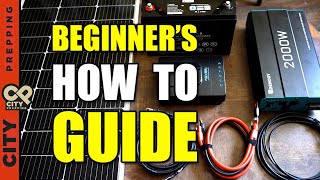

DIY Solar: 4 Key Components Explained Simply
44sClear, high-level overview with a promise of simplicity hooks viewers who feel overwhelmed by technical jargon, making it highly shareable for beginners.
▶ Play Clip"Title accurately reflects the content: a step-by-step guide for beginners."
This video provides a beginner-friendly guide to building a DIY solar setup, covering the four primary components: solar panels, charge controller, battery, and inverter. It offers a step-by-step assembly process with practical tips for customization and safety.
Introduction guide for first-time DIY solar builders, providing a high-level overview without overburdening with technical terms.
Four primary components: solar panels collect energy, charge controller regulates energy to batteries, inverter converts stored energy to usable electricity.
Three primary cable sets: charge controller to battery, battery to inverter, solar panel to charge controller.
Phillips screwdriver (large and small), press and wrench or socket wrenches, needle nose pliers.
Connect charge controller to battery before solar panels to avoid damage. Use BAT+ and BAT- terminals.
Unscrew battery bolts, connect negative cable to negative post, then positive cable to positive post. Finger tighten initially.
Set battery type (e.g., lithium) and voltage (12V or 24V). Optional: temperature sensor and Bluetooth module.
Use extension cables with MC4 connectors. Observe polarity. Connect negative first, then positive to PV+ and PV- terminals.
With panel in sun, charge controller shows incoming charge. Battery is being charged.
Disconnect solar panel and charge controller first. Connect inverter cables to inverter, then to battery. Add fuse on positive cable (175-200A for 2000W inverter).
After inverter connected, reconnect charge controller cables to battery terminals, ensuring lugs are flush without washers between.
Turn on inverter; pure sine wave output allows powering electronics. Discharge battery only to 20% capacity to avoid damage.
Building a DIY solar setup is straightforward with the right components and steps. The video provides a complete guide from connecting components to testing, emphasizing safety and customization.
What are the four primary components of a DIY solar setup?
Solar panels, charge controller, battery, and inverter.
00:30
What is the function of a charge controller?
It regulates the energy from solar panels before passing it to the batteries for storage.
00:44
Why must the charge controller be connected to the battery before connecting the solar panels?
Connecting solar panels first can damage the charge controller.
01:39
What do the terminals BAT+ and BAT- on a charge controller connect to?
They connect to the battery (positive and negative).
02:05
What does PV stand for on a charge controller?
Photovoltaic, referring to power from solar panels.
06:59
What two settings should be configured on the charge controller?
Battery type (e.g., lithium) and system voltage (12V or 24V).
04:43
What is the recommended fuse size for a 2000-watt inverter?
175 to 200 amps.
09:36
To what percentage of capacity can a battery be safely discharged under load?
20% of the battery's capacity.
12:51
What type of inverter output is safe for powering electronics?
Pure sine wave.
12:23
First Charge Success
Moment of triumph when the charge controller shows incoming charge, confirming the system works.
07:13Inverter Connection Spark
The spark when connecting the inverter is expected, providing a memorable safety tip.
10:16System Test Success
Powering devices with pure sine wave confirms the entire setup is operational.
12:10[00:01] In this video, I'll do an introduction guide to building your own DIY solar setup. If you're trying to understand and learn this for the very first time, this video is for you. I'm not going to overburden you with technical terms, but rather provide a high-level overview
[00:15] while still showing the step-by-step process of assembling everything that I believe anyone can perform. The advantage of learning how to build one of these is that you easily can customize your setup, modify in the future as your needs change, and most importantly, develop an important
[00:30] So let me start off by giving you a quick overview to explain how the system works. There are four primary components. Solar panels collect energy from the sun and then pass the energy via cables to what's called a charge controller.
[00:44] A charge controller regulates the energy from the solar panels that it then passes to the batteries where the energy is stored. In order to get the energy out of the battery, we need to convert it to usable electricity through a device called an inverter.
[00:57] This is the device that we plug into items that we want to power, such as your phones, laptops, or refrigerator. As far as connecting all of these components, there are three primary sets of cables that you can purchase that already have the proper connectors on the ends and are set up to be
[01:12] used in this system. Cables to connect the charge controller to the battery, cables to connect the battery to the inverter, cables to connect the solar panel to the charge controller. We will cover a few other miscellaneous items throughout this video, but at the core, that's
[01:26] As far as tools go, here's what you'll need. Phillips screwdriver, large and small, press and wrench or socket wrenches. Needle nose pliers will also come in handy. Step 1. Connecting the charge controller to the battery.
[01:39] Let's grab our battery, charge controller, cable to connect our battery, and our small Phillips screwdriver. Please do this step before connecting the solar panels to the charge controller, as it will damage the charge controller without first connecting to the battery.
[01:53] If you look at the charge controller, and this is common amongst most of these devices, you'll have six places to plug in cables. On this one, you'll see two holes with PD plus and PD minus.
[02:05] PD simply means photovoltaic. This is where we'll connect solar later. The next two holes are what we're interested in at this step, VAT plus and VAT minus. This is where we'll connect the cables from the charge controller to, you guessed it, the battery.
[02:21] The last two holes are load which we don't cover in this video. Let's grab our cable to connect the charge controller to the battery. These particular cables have lugs on one end that will connect to the battery, and the other ends are stripped which will connect to the charge controller.
[02:36] You will notice that these cables are both black, so you need to pay special attention to these when connecting them to the battery in order to keep the positive and negative connections correct. Ok, let's connect our two cables to the charge controller by inserting the stripped ends of
[02:51] the cables into the charge controller. Use your Phillips screwdriver and turn timer clockwise in both the BAT plus and BAT minus terminals which opens a connector.
[03:13] we'll take our two cable ends which are stripped and slide them in one at a time to the terminal. As we slide each end we tighten the screw down turning clockwise You want to tighten these firmly to avoid the cables coming out Be sure to test by getting a light pull on the cables to ensure that they do not slip out
[03:35] Next, we'll connect the cables to the battery. To do this, first we'll unscrew the bolts in our batteries. Next, we'll take the negative cable and connect it to the first battery.
[03:53] Now before you do this, double and triple check that your negative cable is connected to the VAT- connector on your charge controller. I then place the negative cable lug to the negative battery post and insert the bolt tightening
[04:06] it down. I won't tighten it overly tight at this point as we're going to add the inverter cable later. Finger tight at this point is fine. Now I'll connect the positive cable to the battery using the same approach as with the negative cable. Again, let your finger tighten down the nut.
[04:28] Now that we have the charge controller connected, you'll notice the charge controller screen is turned on. You can go through it at this time to configure settings based on your model. I found this particular model is easier to configure with their app than using the interface options on the charge controller itself.
[04:43] But do whatever is easiest for you. There are two primary settings that you're going to want to configure. You'll want to define the battery type that you're connected to. In this case, we're connected to a lithium battery. Next, we want to define whether we're connected to a 12 or 24 volt battery.
[04:59] In this case, we're connected to a 12 volt battery. This charge controller comes with a temperature sensor which can easily be plugged in. If you buy a charge controller without one, it is highly recommended that you purchase this to monitor the temperature of where you store your batteries.
[05:15] Additionally, this charge controller has an optional Bluetooth module that you can connect that allows you to observe the information for the charge controller through your app. This completes step one. Step two, connecting the charge controller to a solar panel.
[05:30] For this step, we're going to grab our 100-watt solar panel. You can add more panels, but for simplicity's sake, we're going to stick with one panel in this video, and extension cables with MC4 connectors on one end that are stripped on the other end.
[05:43] For this step, you'll need just a small Phillips screwdriver. During the process of connecting the cables, it is important to observe the plus and minus signs on these cables that come off the solar panels when connecting to the charge controller.
[05:57] In order to go from the cables on the solar panels to your charge controller, you'll need the extension cables with film C4 connectors on one end and are stripped on the other end. Okay, I'll keep the solar panel out of the sun for now.
[06:10] Connect our extension cable to the cables coming off the solar panels that will run to the charge controller. I have two black cables, and that's fine, but just be careful to keep track of which is positive and which is negative.
[06:22] Even adding a small piece of tape on one end and writing a plus or minus sign might help a bit to keep things straight. Now, with the strict end of the cables, I'll start with the negative end and insert it into my charge controller.
[06:36] Give it a slight tug to ensure it does not come out. Next insert the positive cable into the PV plus connection and tighten it down Remember we have two holes in our charge controller marked PV and PV Again PV is short for Photovoltaic Power
[06:59] which is the power that's coming in from our solar panel. Now, let's put our solar panel into the sun and see what happens. So now our solar panel is in the sun and we're connected. As you can see on the front of the charge controller, we're showing a charge coming in.
[07:13] Now we're officially charging our battery. With this setup, I can view this information on my app as well, along with information on how charged the battery is. So, now we're harvesting power from the sun and storing it in the battery to be used later to power appliances and devices.
[07:28] That's pretty cool, right? So, up to this point in the video, we have confirmed our solar panel, our charge controller, and battery setup worked. Now, we're going to move forward in our final step to pulling power from the battery. This completes step two.
[07:40] Step three, connecting the battery to an inverter. an inverter. Before we proceed to this step, we need to bring in the solar panel disconnected. When working with this system, we don't want to interact with our setup when actively pulling
[07:52] power from the solar panels. To do this, we'll simply disconnect the cables from the solar panels connected to the PV plus and PV minus connections on the charge controller. We're also going to disconnect our charge controller from the battery. To do this,
[08:07] unscrew the positive bolt first on the battery and remove the positive charge controller cable. Next, unscrew the negative bolt on the battery and also remove the negative charge controller cable. Now that we've disconnected our solar panel and charge controller from the battery, let's connect our inverter to the battery.
[08:23] To do this, let's first connect our cable to the inverter first, not the battery first. To do this, connect the positive inverter cable to the positive inverter post, and then connect the negative inverter cable to the negative post on the inverter.
[08:41] Thank you.
[09:11] Now we are ready to connect the inverter to the battery.
[09:36] But before we do this, it is recommended that we put a fuse on our positive inverter cable. I have a 2000 watt inverter, so 175 to a 200 amp fuse works just fine. I'll post a link below where I purchased mine.
[09:50] When connecting the fuse to the positive inverter cable, be sure that the fuse is flush with a lug. Make sure that there is no washer in between the inverter cable and the fuse. Now bring the negative cable from the inverter and connect it to the battery.
[10:16] Then using the bolt on the cable that connects the fuse to the cable place it on the positive battery terminal It going to spark but this is to be expected Now let's senior tightening these bolts down to allow us to test this out. We'll tighten it much tighter momentarily when we add the charge controller back on.
[10:34] We have completed the connection of the inverter to the battery. We can plug in devices and appliances and power them as shown here. Earlier we disconnected the charge controller but we're headed back now.
[10:46] We're basically just repeating step one at this point. I'll begin by removing the inverter from the positive terminal and negative terminal of the battery.
[11:01] Bring the negative cable from the charge controller and connect it to the negative post of the battery along with the lug connecting the negative cable to the inverter and tighten down the bolt with a wrench.
[11:15] Next, I'll bring the positive cable from the charge controller and add it to the positive post on the battery along with the lug from the cable connecting to the inverter.
[11:29] Again, I'll tighten this down with a wrench. It's important to note that when tightening the lugs on cables to the batteries that there's
[11:41] no washer in between the battery posts and the lugs on the end of the cables. You want these lugs flush on the battery posts. We do want the washers on top of the lugs, pushing them down to the battery posts though.
[11:53] Finally, we'll connect the solar panel back to the charge controller. the negative cable first, then the positive cable.
[12:10] Step 4. Testing our setup. Alright, it's the moment of truth. We've got solar charging the battery, so let's turn on the inverter and power some devices. Excellent.
[12:23] Everything is operating as expected. I've got a pure sine wave coming out the inverter which means we can safely power our electronics and appliances. We can power most devices that you can normally power through a typical wall socket in your
[12:35] home such as a TV or refrigerator. One important detail about discharging the battery. There's a level of charge that you don't want to exceed when drawing power with the inverter. You can safely discharge down to 20% of the battery's capacity under load with the inverter
[12:51] powering devices. If you go under 20% of the battery's capacity while you have a load on it, you can damage the battery. You can add a battery monitor to the battery to keep track of that. But this battery does come with a Bluetooth and I can monitor that information in the
[13:05] app. Hopefully this video gave you enough information to get you started on your first DIY solar setup. It's really not as challenging as you may think. If you follow the steps outlined here, you'll have everything that you need.
[13:18] Again, I'll post links to everything that we covered in the description and comment section below. I'll pin a comment to link all the items. If you have any thoughts, any feedback, any questions, again, feel free to post those below. As always, stay safe out there.
⚡ Saved you 0h 13m reading this? Transcribe any YouTube video for free — no signup needed.