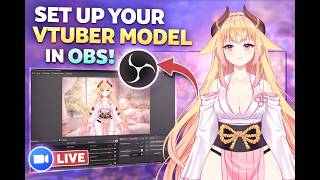

AI Summary
This video is a beginner-friendly tutorial demonstrating how to set up a VTuber model in OBS using VTube Studio. The creator walks through the entire process, from applying a green screen background in VTube Studio to configuring a Window Capture source and adding a Chroma Key filter in OBS. The final result is a clean, transparent VTuber avatar ready for streaming.
Chapters
Open VTube Studio and go to 'Change Background' to select a green screen background for your model.
In OBS, click the + symbol and add a 'Window Capture' source, naming it appropriately (e.g., VTuber model).
Select 'Windows 10 and up' in the Window Capture properties, then close the window.
Access Filters via the source's options, then add a Chroma Key under 'Effect Filters' and set the color to green.
Double-click / configure the source to connect VTube Studio as the application, then click OK.
Ensure VTube Studio is not minimized; otherwise the model will disappear from OBS.
Without the Chroma Key filter correctly applied, the green screen remains visible.
Mentioned in this Video
Tutorial Checklist
💡 Key Takeaways
Start with a green screen background in VTube Studio
A green screen background is the foundation for the chroma keying process in OBS.
00:18Use 'Window Capture' to pick up your VTuber app
Window Capture is the correct OBS source; many users initially try the wrong type.
01:12Add a Chroma Key filter to remove the background
The Chroma Key filter is essential to make the model's background transparent.
02:15Minimizing VTube Studio hides your model
This pitfall is common and easy to fix—just keep the app visible in the background.
03:30Full Transcript
[00:00] Hello, my name is Vtuber Kasumi and today I just want to go over how to set up your Vtuber model in OBS. Okay, so firstly we are going to want to double click on our screen and then it pops up
[00:18] this window on the left hand side. Then we're going to select the change background right here. we're going to select i believe it's background eight we're gonna select that one it brings us
[00:31] to a green screen make sure to click this cancel button right here to close out of that bar once you're done with that we are going to click on your obs mine looks a little funky right now
[00:48] I'm going to close this window so you can see what I'm doing. Now that we in here to add your VTuber model you going to go down here to click this plus symbol And then when you click that plus symbol you going to look for window capture
[01:12] Click on it. Name it VTuber model. I'm putting the X's because I'm going to delete this after this video. So don't copy that.
[01:24] Make it whatever you want. for example vtuber model because it's going to be your character click okay now it's going to prompt you to this window um go ahead and select windows 10 and up click okay so now you're going
[01:43] to notice like hey where's my vtuber model okay don't worry don't worry about that just yeah um click on your vtuber model the one you just made should have the name on it in your sources tab Then to the left we going to see this option It says filters Click on it Now we don worry about this first part but we go down below it below it says effects filters click this plus symbol
[02:15] then we're gonna add a chroma key just click okay it doesn't matter what the name is and then you're gonna select green um don't really i don't really mess with these settings but whatever you want to put on them
[02:33] like make them match mine if you'd like i don't know what the effects do for the different colors so just click close now we have the chroma key added under the effect filters click close
[02:45] then come back to your your VTuber model double click on it then make sure your VTube studio is open as you see mine is down here then you're going to click on
[03:03] Hold on one second I have to open it first you gonna select YouTube studio and
[03:17] then click OK now as you can see my VTuber model is now on here just make sure that your VTuber model is not minimized because if for example if I
[03:30] click this minimize button boom she's gone so just make sure you have it open in the background so that your VTuber model will appear. Now if you do not add your chroma key correctly, for example if I delete this we're gonna have that
[03:48] green screen again. So just make sure to apply your chroma key exactly how I said and then ta-da! Your Vtuber model is now here. Thank you again for watching. If you like content
[04:07] like this make sure to hit that thumbs up button and I will see you next time. Bye-bye!