
Stream Deck for Productivity, Not Streaming
40sChallenges the common perception of the Stream Deck, revealing its use for productivity and smart home control, which is a fresh, unexpected angle.
▶ Play Clip"The title accurately promises a setup guide for productivity and content creation, and the video fully delivers with detailed, actionable steps for social media, smart home, and Adobe apps."
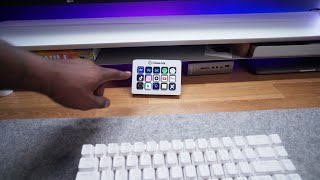
This video provides a comprehensive guide to setting up an all-white Elgato Stream Deck for productivity and content creation. The creator demonstrates how to customize the device with folders, pages, and plugins for smart home control, social media management, and Adobe Creative Cloud apps.
The creator is not a streamer but uses the Stream Deck for productivity, including social media, smart home control (LIFX, Cololight LEDs), and Adobe apps.
The Stream Deck comes in 6-, 15-, and 32-button versions. The 15-button version is the sweet spot and the only one available in white.
The 15 buttons can be expanded with folders and pages (up to 10 per profile) to access many more functions, making the device nearly limitless.
Elgato sells six custom plates for personalizing the Stream Deck.
The white Stream Deck includes the device, a white or black stand, a USB-C to USB-A cable, and a quick start guide. Dimensions are 3.3 x 4.6 x <1 inch.
Download software from Elgato's website (Downloads > Stream Deck). Profiles act as separate Stream Deck setups for different programs.
Plugins from the Stream Deck store (e.g., Spotify) allow drag-and-drop configuration. The creator shows controlling music (next/previous track, volume).
LIFX smart lights can be toggled on/off with a plugin. The creator demonstrates controlling a LIFX Beam and desk strip.
The Cololight plugin allows toggling a color light mix on and off.
Icons can be set from files, Elgato's software, or downloaded icon packs (e.g., Premiere Pro, animated GIFs). Only JPEG and PNG are accepted.
Folders can store grouped actions (e.g., Spotify controls) with a back button to navigate back.
System presets allow creating a button to open a specific URL (e.g., the creator's YouTube channel subscribe link).
Hotkeys (e.g., Shift+Command+3 for screenshot) and 'Open' actions for launching apps (e.g., Lightroom) are demonstrated.
The creator shows a default profile with multiple pages for Premiere Pro editing, including basic editing and fine-tuning tools, and an Epidemic Sound page for music.
Custom color label buttons (red, blue, etc.) are programmed using F12 as a shortcut, allowing quick clip labeling.
Buttons for YouTube Studio dashboard, comments, gmail, and downloads are configured. A text plugin provides pre-set replies.
The creator tried integrating IFTTT but found it too complex and hopes for simpler implementation.
The Stream Deck is a powerful productivity tool for content creators, offering extensive customization for streamlining workflows. The creator recommends it for speeding up tasks like social media management and video editing.
How many buttons does the all-white Stream Deck MK II have?
15 buttons.
0:58
What file types does the Stream Deck software accept for custom icons?
JPEG and PNG files.
7:15
How many pages can each profile on the Stream Deck support?
Up to 10 different pages.
9:55
What is the role of 'Profiles' in the Stream Deck software?
Profiles act as separate Stream Deck setups for different programs or use cases.
2:54
Which shortcut does the creator use for the red color label in Premiere Pro?
F12.
11:20
What is the purpose of the 'Keystroke' action in the Stream Deck system presets?
To simulate a keyboard shortcut (e.g., Shift+Command+3 for screenshot).
8:47
Repurposing Stream Deck for Productivity
It challenges the common assumption that the Stream Deck is only for live streaming, opening it up to a wider audience of content creators and power users.
0:32One-Click Website Access
Demonstrates how a single button can replace several manual steps (opening browser, typing URL, etc.), streamlining access to frequent resources like a YouTube channel.
8:10Color Label Shortcuts in Premiere Pro
Shows how custom hotkeys (F12 for red) can be mapped to Stream Deck buttons, turning a multi-step editing task into a single press.
10:47IFTTT Integration Challenges
Acknowledges a real limitation: while many integrations are seamless, more complex services like IFTTT are not yet user-friendly, providing honest feedback.
12:53[00:00] this is a stream deck
[00:02] but i'm not a streamer today i want to
[00:04] share with you guys how i set up my
[00:06] all-white stream deck as a content
[00:08] creator's dream
[00:10] let's talk about it
[00:24] so
[00:32] youtube what's good it's your boy will
[00:34] back in the building with another video
[00:35] welcome back to my channel if you're new
[00:37] here what's good if you enjoy content
[00:39] like this maybe consider hitting
[00:40] subscribe if you are a returning
[00:42] subscriber what it do what's good that
[00:45] your boy up i got a really dope video
[00:46] today we're going to be checking out the
[00:48] brand new all white mark ii version of
[00:52] the stream deck today i'm going to be
[00:53] showing you guys how to set up a stream
[00:55] deck for productivity such as social
[00:57] media quick buttons smart home control
[00:59] with lifx and cola light leds and adobe
[01:03] creative cloud apps the stream deck is
[01:05] offered in a six button version a 15
[01:07] button version and a 32 i think the
[01:10] sweet spot is going to be the 15 button
[01:12] and also that's the only one that you
[01:13] can get in white right now just because
[01:15] you only have 15 buttons you still have
[01:17] access to so much more that we'll go
[01:20] over later you can do things like add
[01:21] folders to go inside of a menu to go
[01:25] inside of another menu to go inside of
[01:26] another menu or you can even do pages
[01:29] where you can scroll over to another
[01:31] page this thing is really limitless as
[01:33] of right now elgato sells six custom
[01:35] plates that you can purchase separately
[01:38] to add to your stream deck to customize
[01:40] it and kind of make it yours let's go
[01:41] ahead and get inside this so we can
[01:43] actually play with the stream deck let's
[01:45] go first thing you get out of the box is
[01:47] your stream deck this is the all-white
[01:49] one as you see you also get a white
[01:51] stand or a black stand depending on the
[01:53] version that you go with you get a
[01:54] matching usbc to usba cable and a quick
[01:57] start guide the size of this stream deck
[01:59] is going to be 3.3 inches by 4.6 inches
[02:03] by less than an inch it also has you
[02:06] know the elgato branding on it i guess
[02:09] if you were building like a desk you can
[02:11] kind of like integrate it inside of the
[02:13] desk i do love just how small this is if
[02:16] you just look at like the footprint at
[02:17] the bottom of the stand there is
[02:20] rubberized padding as well so it's not
[02:23] going to like slide off your desk so
[02:24] whatever first thing you're going to do
[02:26] is go to elgato's website right side you
[02:29] click on downloads you're then going to
[02:31] pick on select product you're going to
[02:33] scroll down to you see stream deck
[02:35] that's what the software is called and
[02:37] depending on your operating system
[02:39] you're going to choose mac or windows
[02:41] once you download and install the app it
[02:44] will now pop in like so right here this
[02:46] is like the basic information about your
[02:48] stream deck stream deck name and then
[02:50] right here these are going to be
[02:51] profiles and profiles is basically like
[02:55] a brand new stream deck think of it like
[02:56] this right now this is a profile that i
[02:58] have and then this is another profile
[03:01] that i have
[03:03] and this is a new profile these
[03:05] different profiles can be used for
[03:06] different programs if you click right
[03:08] here this is the stream deck store
[03:10] really what's cool in here is going to
[03:11] be the plugins plugins are basically
[03:14] pre-made uh effects for apps this is the
[03:18] spotify plugin once you sit up here and
[03:20] install it like so
[03:22] now when you come back to your stream
[03:24] deck these are the plugins right here on
[03:27] the right side so all of these plugins
[03:29] are from that stream deck library that i
[03:31] just showed you and now what this does
[03:33] is it already has some predetermined
[03:36] effects and it makes it so simple that
[03:38] all i got to do is drag and drop and
[03:40] let's say i do next track here
[03:43] previous track here i had a volume and a
[03:46] volume right what's really cool about
[03:48] this is as you just seen all i did was
[03:51] just drag and drop everything onto this
[03:53] and it just popped up right here and now
[03:55] to make it work all i got to do is just
[03:57] press this button
[03:59] right so if you notice all i did was
[04:01] press that one button it immediately
[04:03] opened up my spotify
[04:05] and it should be playing but it's not so
[04:07] i'm gonna hit it again now it's playing
[04:09] oh
[04:10] let me turn it down before copyright
[04:12] really cool how you can even see the
[04:15] artwork you know right here the next
[04:17] track will go to the next track as you
[04:19] just seen right there and i could go to
[04:21] the previous track that just made life a
[04:23] little bit easier it made it simple to
[04:25] configure because this is a plugin that
[04:28] stream deck has already have built into
[04:30] their interface so another app here that
[04:33] i really like is going to be
[04:35] the lifx so
[04:37] this will only work with lifx smart
[04:40] lights so i'm gonna grab this toggle
[04:42] lifx power on and off you know you will
[04:45] have to like log in and configure this
[04:47] but that's the easy part you should know
[04:49] how to log in and all that i'm not gonna
[04:50] show you so right now i have my lifx
[04:52] beam i'm gonna select in my desk strip
[04:54] we're just gonna go ahead and tap it and
[04:58] i think you can tell yeah you gotta tell
[04:59] because my face got darker over here and
[05:01] if i tap it again it just comes right
[05:03] back on we're gonna go to another cool
[05:05] one that i love it's gonna be color
[05:07] light i'm gonna
[05:08] select uh let's do color light mix and
[05:12] all i gotta do is just tap this
[05:15] and as you've seen
[05:16] the color light mix cut off and then if
[05:19] i tap it again it comes back on so now
[05:21] we're gonna go ahead and get into some
[05:23] more advanced stuff all right
[05:25] so if you notice when i drag and drop
[05:28] these specific apps like apple music
[05:30] lifx and cola light you can click right
[05:33] here this drop down and you can set from
[05:36] file you can create an icon with
[05:38] elgato's software which is free and you
[05:41] can also open up the stream deck icon
[05:43] library so we're just going to select
[05:45] this real quick inside of here these are
[05:48] all of the different icons that you can
[05:52] download right so real quick if you go
[05:54] back here to the stream deck store now
[05:56] we go to icons these are actually
[05:58] different icon packs i have the premiere
[06:00] pro icon pack that's how i was able to
[06:04] set all of my premiere pro shortcuts up
[06:07] you still have davinci resolve
[06:09] you have after effects it's not like a
[06:12] lot in here but they there are some
[06:14] useful icons that can help you and now
[06:16] we go open stream deck library
[06:18] that is where all of the icon packs that
[06:21] you download so another one you
[06:24] definitely gonna need is gonna be this
[06:25] animated gif one right here i'm pretty
[06:28] sure you can download your own gifs and
[06:30] program them but unfortunately i didn't
[06:33] go that deep into it there is limited
[06:36] animated gift pack right here and we're
[06:38] just going to go ahead and toss one on i
[06:41] think it's pretty cool
[06:42] so
[06:43] let's do that
[06:45] so as you can see now you got this
[06:47] moving guy
[06:49] in order to actually get
[06:51] official app icons you have to actually
[06:54] download it from the internet so i'm
[06:55] going to type in lifx app
[07:00] logo i'm going to get this lifx icon so
[07:02] i'm just going to go ahead and save it
[07:05] and then i'm going to select from file
[07:07] and if i go to my
[07:10] downloads and i click on lifx logo 2 now
[07:14] you can see the lifx logo right here
[07:16] which makes more sense the only file
[07:18] types that this will accept is going to
[07:20] be jpeg and png files so we're going to
[07:24] now do something a little bit more
[07:25] advanced now i know you guys know you
[07:27] can create folders in here but i'm going
[07:29] to show you useful ways to use it real
[07:31] quick i'm just going to create a new
[07:32] folder i am actually going to drag and
[07:34] drop all oh nope
[07:38] drag that into the folder
[07:41] this now right here i can go
[07:44] i'm gonna select from file and i already
[07:47] got the spotify
[07:49] app logo here so i'm just gonna
[07:52] find that real quick so boom now you can
[07:55] see the spotify logo and now when we
[07:57] click into
[07:58] that spotify logo now it brings up the
[08:01] spotify
[08:02] preset buttons that we already set and
[08:04] then inside the folder you always have
[08:06] that back button to go revert back so in
[08:09] system these are predetermined plug-in
[08:12] presets again
[08:13] that you can basically drag and drop so
[08:15] we're gonna do a website right i'm gonna
[08:17] go to my
[08:19] youtube channel and right now would be a
[08:21] good time to tell you to subscribe to my
[08:22] channel i'm gonna go ahead and copy my
[08:24] url for here i'm gonna paste this
[08:28] we're gonna select file and we're gonna
[08:30] use this youtube icon
[08:33] boom and as you see it's already right
[08:35] here right so now when i tap this icon
[08:39] it goes to my youtube channel like how
[08:40] dope is that right
[08:43] now i know you probably like oh wow
[08:46] that just saved me tom so we're just
[08:47] gonna do a regular hot key
[08:49] if i select right here and i do a
[08:52] keystroke i'm gonna do shift command
[08:54] three and that is a screenshot if i hit
[08:57] that logo
[08:58] it's gonna just take a screenshot as you
[09:00] can see right here at the bottom this is
[09:02] the screenshot that i just took this is
[09:04] one of my favorites this is open i can
[09:06] make this button open a app or a file
[09:10] very self-explanatory we're gonna go to
[09:12] choose and i forgot you have to actually
[09:14] click the icon of the app and as you see
[09:16] with this it brought in the logo
[09:19] with this application which is good but
[09:21] it doesn't do it all the time so just
[09:23] keep that in mind now when i hit the
[09:25] lightroom classic button
[09:27] lightroom should open up
[09:30] any day now
[09:32] again
[09:32] this is all about productivity here
[09:35] that's what we're trying to create we're
[09:36] trying to create faster processes to do
[09:39] things so we could get more things done
[09:42] i feel like i explained to you guys a
[09:44] lot about
[09:45] how to kind of use this interface so now
[09:47] i'm going to go ahead and switch to my
[09:49] profile so i can show you all the cool
[09:51] stuff that i did this is my default
[09:52] profile right here these are pages right
[09:55] each profile can do up to 10 different
[09:58] pages this is my premiere pro button so
[10:01] if i select on premiere pro now it goes
[10:05] into another folder first page is like
[10:08] the basic editing stuff this is for all
[10:10] the stuff that i need to do like once i
[10:13] first start the session and then the
[10:15] next page is more for like fine-tuned
[10:18] editing with just the press of that one
[10:20] button premiere pro is now opening once
[10:22] i open up premiere pro i like to hit
[10:24] this button this is going to be my
[10:26] epidemic sound page this is the website
[10:28] that i use for all the music including
[10:31] the one that you're listening to right
[10:32] now so then i will go ahead and i will
[10:34] click import
[10:35] and this is now me important clips so
[10:38] once i select the clips i need i import
[10:41] them now i got save right
[10:43] that takes way less time than
[10:46] obviously doing it manual another cool
[10:48] thing i want to show you guys is this so
[10:50] i went ahead here and set up these
[10:53] labels and basically what a label is is
[10:55] these different colors on my
[10:59] timeline of clips i made these custom
[11:01] because i wanted to do the color labels
[11:03] that i'm showing you now normally again
[11:05] these are not here but i programmed them
[11:08] by simply dragging and dropping them
[11:10] so yeah it's very self-explanatory you
[11:12] just drag and drop right so now what i
[11:15] do is make f12 which is gonna be red
[11:19] this custom key
[11:20] so we're gonna go here to here
[11:24] and now here and then now you see i have
[11:26] f12 to be the shortcut for the color red
[11:30] which also is associated with this you
[11:32] can
[11:33] do pretty much anything that you desire
[11:36] with this so again this just makes life
[11:38] easier all i got to do is select the
[11:40] clip and then if i hit red now it just
[11:43] changes red blue
[11:45] whatever color i want what i can tell
[11:47] you is this is a game changer for me and
[11:51] my setup when it comes to video editing
[11:53] my tick tock i got instagram on my
[11:56] youtube so if i just go click on this
[11:58] button this brings up my youtube creator
[12:01] studio dashboard right here this is
[12:03] going to bring up my comment section how
[12:05] i showed you guys earlier how you can
[12:07] add this little text plugin um i
[12:10] basically just made some predetermined
[12:12] uh comments that i typically reply to so
[12:16] i got t a b and if i
[12:19] tap that you can see it says thanks a
[12:21] lot bro if i hit mtc it says more to
[12:24] come thanks for your support this is my
[12:27] youtube sub count i just basically
[12:29] triggered this button so it just pulls
[12:31] up my sub count this is my mail one so
[12:34] if i click on this it opens up another
[12:36] window this is my gmail mail
[12:38] and this is my yahoo what's also cool is
[12:41] it opens up in the same exact size so if
[12:44] i make it like this and then i hit close
[12:46] and now i hit my downloads again it
[12:48] opens right back up from memory now i
[12:50] don't know if that's a stream deck thing
[12:52] or if that's apple but either way it's
[12:54] pretty cool you do have if then than
[12:57] that if you've never heard of if-then
[12:58] and that you got to check them out but
[13:00] i'm gonna be honest with you guys so i
[13:01] tried to set this up to show off in this
[13:03] video
[13:04] and i just didn't get it they need to
[13:07] make this way more simpler everybody
[13:09] thinks of a stream deck and you just
[13:11] think of streaming so
[13:13] i hope that this video was helpful
[13:15] i know i really have been enjoying the
[13:18] stream deck having this around on my
[13:20] desk at my fingertips to speed up my
[13:23] productivity to do things like
[13:25] youtube comments and open up premiere
[13:27] pro go directly to any of my social
[13:30] media sites and i mean come on bro it
[13:32] just looks cool on a desk like can we
[13:34] all just admit it it was a lot of
[13:36] information in this video i really hope
[13:37] that you guys enjoy and got some value
[13:40] out of the content today what i'm gonna
[13:42] do is i'm gonna hook you guys up with
[13:44] all of the icons that i found on the
[13:46] internet that you see on my stream day
[13:48] it took me so long to find all this and
[13:51] do all that
[13:52] and i'm just trying to be helpful to
[13:54] help you guys out to help speed up the
[13:55] process because that's what we want
[13:57] right you watching this video because
[13:59] you want to be more productive or you
[14:02] trying to find solutions to make life
[14:04] easier for you i'm just always looking
[14:06] for the most efficient way to do things
[14:08] and so far the stream deck has done me
[14:11] justice with all that being said guys i
[14:13] will leave links down in the description
[14:15] to pick up all white stream deck or a
[14:17] black one or any of the faces with all
[14:20] that being said guys thank you so much
[14:22] for checking out this video i really
[14:24] hope that you guys got some value out of
[14:26] the content today if you did please
[14:27] don't forget to leave a boy a big thumbs
[14:29] up if you hung out this long and you
[14:31] made it to the end of the video you
[14:32] gotta go ahead and hit subscribe holla
[14:34] at your boy but thank you so much for
[14:36] watching i'ma highlight y'all next week
[14:38] in my next video
[14:40] deuces
[14:48] [Music]
[14:57] you
⚡ Saved you 0h 15m reading this? Transcribe any YouTube video for free — no signup needed.