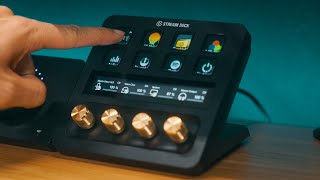

What is the Elgato Stream Deck Plus?
44sOpens with a dramatic introduction that hooks viewers curious about the device.
▶ Play Clip"The title promises a comprehensive guide, and the transcript delivers exactly that, covering profiles, audio, smart home, and monitoring."
The Elgato Stream Deck Plus is a powerful tool that redefines how content creators, gamers, and professionals control their digital environments. This guide explores its profile functionality, audio integration, smart home control, and system monitoring capabilities, showing how it simplifies and enhances workflows.
Create individual profiles for gaming, streaming, or work scenarios using the Stream Deck software. Click the profiles icon, hit the plus icon, name the profile, and drag-and-drop actions from the sidebar to the keys.
Assign keys for launching games, executing macros, adjusting volume, and accessing in-game commands for a smoother gaming experience.
Assign keys for scene transitions, audio controls (mute/unmute, volume), sending chat messages/emotes, and starting/stopping the stream.
Assign keys for launching applications, opening websites, managing system controls (brightness, volume), executing macros, and opening files/folders.
Seamlessly integrate with Spotify (skip tracks, adjust volume), Discord (mute, deafen, adjust user volumes), and Elgato Wave Link (adjust audio channels, mute, monitor switching).
Control Elgato RGB light strips, Elgato Key Lights, Philips Hue lights, and Philips Smart plugs directly from the Stream Deck Plus.
Use plugins like System Monitor or Hardware Info to display real-time CPU usage, memory load, GPU stats, and even room temperature on the Stream Deck.
The Stream Deck Plus is a compact yet feature-rich device that simplifies streaming, audio control, smart home management, and system monitoring, making it an essential tool for a streamlined digital experience.
What is the first step to set up a Stream Deck Plus profile?
Identify your work scenario (gaming, streaming, or work) and create a new profile in the Stream Deck software.
00:44
How do you create a new profile in the Stream Deck software?
Click the profiles icon at the top right, hit the plus icon, and name the profile.
00:59
What actions can be assigned to a gaming profile?
Launching games, executing macros, adjusting volume, and accessing in-game commands.
01:14
What actions are recommended for a streaming profile?
Scene transitions, audio controls (mute/unmute, volume), sending chat messages/emotes, and starting/stopping the stream.
01:34
How can the Stream Deck Plus integrate with Spotify?
Assign a button to skip tracks or adjust volume without switching screens.
02:30
What Discord features can be controlled with the Stream Deck Plus?
Quick mute, deafen toggle, and individual user volume adjustment.
02:55
What is the benefit of combining Stream Deck Plus with Elgato Wave Link?
Adjust volume of each audio channel, mute channels, and use monitor switching for real-time feedback.
03:21
How can you control Philips Hue lights with the Stream Deck Plus?
Toggle on/off, dim, or switch scenes to match the activity.
04:42
What can the Philips Smart Plug be used for with the Stream Deck Plus?
Power on/off traditional electronics like fans, lamps, or coffee makers.
04:56
What system monitoring information can be displayed on the Stream Deck Plus?
CPU usage, memory load, GPU stats, and room temperature.
05:13
Profile Functionality
Core feature that allows users to organize tasks by scenario, making the device versatile.
00:44Audio Integration
Demonstrates how the device simplifies multi-platform audio control, a key pain point for streamers.
02:30Smart Home Control
Expands the device's utility beyond computing into physical environment management.
04:02System Monitoring
Provides real-time PC stats at a glance, useful for performance tuning during demanding tasks.
05:13[00:00] in the heart of the digital age where
[00:01] content creators and Gamers strive for
[00:03] Perfection a powerful tool has emerged
[00:05] to change the way that we interact with
[00:07] our creativity and social audience
[00:09] welcome to the world of the Elgato
[00:10] stream deck plus a device that's
[00:12] redefining the way that we control our
[00:14] live streaming and content creative
[00:16] Endeavors as we explore the stream deck
[00:18] plus and share its potential we'll
[00:19] unravel the impact it can have on those
[00:21] who get to know this creative tool
[00:23] inside and out it's about more than just
[00:25] mastering a piece of tech it's about
[00:27] discovering how the stream deck plus
[00:28] changes the way we interact in our
[00:30] digital spaces together we'll learn not
[00:32] only how to get the most out of our
[00:33] stream deck plus but how it can simplify
[00:36] or enhance our digital Adventures the
[00:38] Elgato stream deck plus is a game
[00:39] changer for managing your workflow
[00:41] whether you're gaming streaming or just
[00:43] getting through your daily work tasks
[00:44] one of its strong suits the profile
[00:46] functionality let's start by identifying
[00:48] your work scenario it's as simple as
[00:50] pinpointing what you do most do you game
[00:52] are you streaming or are you working
[00:54] from home now with these in mind you can
[00:55] create individual profiles for each
[00:57] scenario using the stream deck software
[00:59] creating a new Pro profile is a breeze
[01:01] just click on the profiles icon at the
[01:03] top right of the stream deck software
[01:04] hit the plus icon and voila you're set
[01:06] to create a new profile and now you can
[01:08] name it based on its purpose like gaming
[01:10] streaming or working from home and
[01:12] you're good to go now on to the fun part
[01:14] setting up the gaming profile select the
[01:16] gaming profile and then drag and drop
[01:18] actions from the right hand sidebar to
[01:20] the key on the stream deck think about
[01:21] what you do most in your gaming sessions
[01:23] launching games executing macros or key
[01:26] combinations adjusting volume and
[01:28] accessing in-game commands assign a key
[01:30] for each and you're set for a smoother
[01:32] gaming experience now for the streamers
[01:34] out there a streaming profile is where
[01:36] it's at selecting the streaming profile
[01:37] then drag and drop the actions you need
[01:39] from the right hand sidebar to the Keys
[01:41] assign the keys for scene transitions
[01:43] audio controls like mute unmute and
[01:46] volume adjustments sending chat messages
[01:48] or emotes starting stopping the stream
[01:50] and handling recording controls and now
[01:53] you can see why managing your stream is
[01:55] just a button press away and for you
[01:56] work Warriors an office profile is a
[01:59] lifesaver again it's about dragging and
[02:01] dropping actions from the sidebar to the
[02:03] keys on the stream deck assign the keys
[02:04] for launching frequently used
[02:06] applications like your email PowerPoint
[02:08] opening frequently visited websites or
[02:10] managing system controls like screen
[02:12] brightness and volume you can also
[02:14] execute macros for repetitive tasks and
[02:16] opening frequently accessed files or
[02:18] folders it's all about making those
[02:20] daily tasks a bit less tedious setting
[02:22] up profiles for each work scenario not
[02:24] only keeps you organized but also makes
[02:26] toggling between tasks almost enjoyable
[02:28] have you ever wondered how you can
[02:30] seamlessly integrate your stream deck
[02:31] plus with some of your favorite audio
[02:33] platforms first on the list Spotify with
[02:35] the stream deck Spotify transformed into
[02:37] a hand-free experience picture this
[02:39] you're deep into a tasks but that one
[02:41] track that you're not in the mood for
[02:43] comes up no need to switch screens or
[02:45] fumble around a dedicated button on your
[02:47] stream deck can skip it or bring back
[02:49] that favorite song you just can't get
[02:50] enough of in addition you have control
[02:52] over your music volume right there at
[02:54] your fingertips now let's chat about
[02:55] Discord we've all been there animated
[02:57] discussions game strategy sessions or
[02:59] General banter your stream deck becomes
[03:01] your personal communication switchboard
[03:03] quick mute functions for those
[03:04] unexpected background noises a swift
[03:06] death and toggle when you need a brief
[03:08] reprieve and the absolutely gutsen
[03:10] feature of individual adjusting user
[03:12] volumes is at your touch so if your
[03:14] friends Mike is a tad bit too loud or
[03:17] soft you can get it just right with one
[03:19] click and last but not least my favorite
[03:21] Elgato wavelink for those who seek
[03:23] absolute perfection and audio this combo
[03:25] is like a symphony adjust the volume of
[03:27] each audio Channel ensuring that your
[03:29] game audio doesn't drown out your voice
[03:30] or your background music do you need a
[03:32] Moment of Silence from a particular
[03:33] Channel mute it without missing a beat
[03:35] plus with monitor switching you can
[03:37] choose when to hear specific channels
[03:38] giving you a real-time feedback and
[03:40] lastly for our streaming Community the
[03:42] union of stream deck and OBS is pure
[03:44] gold no more on-the-fly panics during
[03:46] live streams want to mute a game audio
[03:48] during a cut scene one press adjust your
[03:50] microphone's volume in the middle of a
[03:52] stream again without breaking a sweat in
[03:54] essence the stream deck plus isn't just
[03:56] a tool it's an extension of your audio
[03:57] environment a bridge between you and the
[03:59] best audio experience across platforms
[04:02] now we're getting to my favorite
[04:03] transitioning into a smart environment
[04:05] is a breeze with the stream deck plus
[04:07] let's kick off things with the Elgato
[04:09] RGB light strips with a simple tap
[04:11] adjust the colors and brightness to
[04:12] create Ambience that suits your mood or
[04:14] your setup whether it's a chilled out
[04:16] blue for a relaxed Vibe or fiery red to
[04:18] amp things up controlling it right from
[04:20] the stream deck plus makes it all that
[04:22] much more fun and easy now you've heard
[04:24] me say it before lighting is crucial
[04:26] especially when you're on camera that's
[04:28] where the agato key lights step in
[04:29] control your brightness and color
[04:31] temperature effortlessly from your
[04:32] stream deck plus a soft warm light for
[04:34] cozy stream or a bright cool light for
[04:36] those energetic Vibes tailoring your
[04:38] lighting with such a Simple Touch the
[04:40] smart lighting saga continues with
[04:42] Philips Hue Lights your stream deck plus
[04:44] lets you toggle them on or off dim them
[04:46] down for a cozy atmosphere or switch
[04:48] scenes to match the activity whether
[04:50] it's movie time game time or anytime
[04:52] switching the light scenes is just a tap
[04:54] away but the Smart Control doesn't stop
[04:56] at lighting with the Philips Smart plug
[04:58] virtually any electronic can join the
[05:00] smart home bandwagon connect your
[05:02] traditional fan lamp or coffee maker to
[05:04] a Philips Smart plug and now you can
[05:06] power them on or off right from the
[05:07] stream deck plus it's about bringing the
[05:09] ease of Smart Control to the not so
[05:11] smart Gadgets in your home now let's
[05:13] switch gears and talk about system
[05:14] monitoring with the stream deck plus
[05:16] with a bunch of plugins available on the
[05:18] Elgato store keeping an eye on your PC
[05:20] and your environment is a breeze plugins
[05:22] like system monitor or Hardware info are
[05:24] perfect for getting real-time updates on
[05:26] how your PC is doing with these you can
[05:28] check out your CPU usage memory load and
[05:31] going on with your GPU right from your
[05:33] stream deck it's a quick and easy way to
[05:35] know what's happening under the hood
[05:36] while you're deep in a game or working
[05:38] on a project but it's not just about
[05:39] your PC you can also monitor your room's
[05:42] environment want to know your room
[05:43] temperature or even change it there's a
[05:45] plug-in for that you can have this info
[05:46] displayed right next to your system
[05:48] stats making it a One-Stop shop for all
[05:50] the vital stats so that's a stream deck
[05:52] Plus for you compact yet loaded with
[05:55] features whether you're streaming
[05:56] tweaking your audio playing with lights
[05:58] or keeping an eye on your system every
[06:00] press makes things a bit simpler and if
[06:02] you dive deeper into your stream deck
[06:03] and discover a new way to interact with
[06:05] your Tech drop them down below in the
[06:07] comment I would love to know what you
[06:08] come up with catch you next time and
[06:09] remember the stream deck plus is your
[06:11] shortcut to a more streamlined digital
[06:13] experience
⚡ Saved you 0h 06m reading this? Transcribe any YouTube video for free — no signup needed.