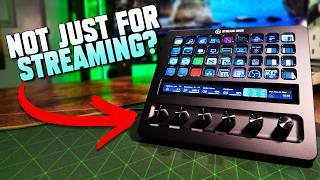

Non-Streamer's Guide to Stream Deck
45sChallenges the stereotype that Stream Deck is only for streamers, appealing to creators with complex setups.
▶ Play Clip"The title is highly accurate; the video thoroughly demonstrates a real non-streamer setup and workflow with the Stream Deck Plus XL, delivering exactly what it promises."
The video demonstrates how a non-streaming content creator uses the Elgato Stream Deck and Stream Deck Plus XL to streamline daily tasks like lighting control, audio switching, monitor management, and app launching, emphasizing the device's value beyond live streaming. The creator shares his personalized configuration and highlights how the device serves as a central hub for his workflow.
The creator introduces the Elgato Stream Deck and Stream Deck Plus XL from the viewpoint of a daily content creator, not a streamer.
Elgato is described as a 'prosumer' brand, balancing professional features with consumer accessibility, used in newsrooms and pro setups.
The utility of Stream Decks hinges on the creator's specific content workflow; not everyone needs such a device, especially those who succeed with minimal gear like an iPhone.
Using Voice Monkey, the Stream Deck triggers Alexa routines to turn lights on/off and change colors without voice commands, integrating with non-Elgato smart lights.
The top-left section includes buttons to toggle all lights on/off, preset lighting positions, and brightness controls for left/right panels.
The two dials control brightness and temperature of left and right lights, with stacked functions (press to switch between intensity and warmth).
A button opens a default browser for music streaming; the mute toggle pauses only the music source without affecting other apps like DaVinci Resolve.
Buttons for extend, PC only, ultrawide, and back monitor allow switching display modes and primary monitor without opening Windows settings.
A dedicated button toggles HDR on/off in Windows, solving screenshot issues caused by HDR's inconsistent handling in Windows 11 and Microsoft Edge.
These buttons change which display is primary, useful for recording games on a secondary monitor without adjusting in-game settings.
Buttons switch between audio outputs (studio headphones, speakers, gaming headset) without opening Windows audio settings, using fuzzy matching for reliability.
Buttons show speed test results, RAM usage, and ping, with configurable test intervals and visual feedback on the Stream Deck screen.
A button hides all desktop icons and windows with one push, useful for recording or filming the desktop cleanly.
A free Voice Monkey subscription enables the Stream Deck to send commands to Alexa, turning all office lights and plugged devices on/off silently.
Buttons open frequently used apps (DaVinci Resolve, CapCut, Notion, Steam, Elgato Camera Hub, OBS, Feedly) and display a dot when the app is running.
The Stream Deck can control camera settings (refocus, effects, zoom) if using Elgato webcams, though the creator only uses it to open/close the app.
A button shows the creator's subscriber count (e.g., 73.9K), serving as a motivational benchmark, though with limited granularity (4 digits).
Buttons snap windows to predefined positions on the ultrawide monitor (left small, middle large, right small, split screen), improving multitasking.
The last two knobs display current weather and time, adding a desktop-hub feel to the Stream Deck without being essential to workflow.
Dial stacks allow controlling Discord user volume and Spotify playback, with stacked access via button press to cycle between functions.
The Elgato marketplace offers plugins like DaVinci Resolve Fast Lane for editing shortcuts, soundboards, and system control, adding advanced functionality.
The creator concludes that Stream Decks are valuable for any content creator needing automation, with increasing benefits for those using multiple Elgato products.
The Stream Deck Plus XL becomes a central hub for the creator's daily workflow, automating lighting, audio, monitor, and app management. Its value scales with the complexity of one's setup, offering significant time savings for non-streaming creators.
Elgato Stream Deck
tool
Elgato Stream Deck Plus XL
tool
Elgato Wave 3 microphone
tool
Elgato Wave DX XLR microphone
tool
Elgato Wave XLR interface
tool
Elgato Prompter
tool
Elgato Camera Hub
tool
Elgato 4K webcams
tool
Voice Monkey
tool
Amazon Alexa
tool
Amazon plug
tool
DaVinci Resolve
tool
CapCut
tool
Notion
tool
Notion Calendar
tool
Google Calendar
tool
Steam
tool
Feedly
tool
OBS Studio
tool
Meld
tool
Windows 11
tool
Win Tools
tool
Elgato Marketplace
tool
Beacon Studio
tool
SteelSeries Arena 9 speaker system
tool
SteelSeries Nova Pro Omnis headphones
tool
Microsoft Edge
tool
Discord
tool
Spotify
tool
Harris Heller
person
Casey Neistat
person
What service allows the Stream Deck to control Alexa without voice commands?
Voice Monkey
[12:04]
What is the approximate size difference between the Stream Deck and the Stream Deck Plus XL?
The Stream Deck Plus XL is roughly double or triple the size of the original Stream Deck.
[5:10]
What are the two settings controlled by the stacked dials on the Stream Deck Plus XL?
Brightness (intensity) and temperature (warmth) of the left and right lights.
[5:34]
What does the 'HDR toggle' button on the Stream Deck do?
It toggles HDR on and off in Windows settings, useful for fixing overblown screenshots in Microsoft Edge when HDR is enabled.
[7:49]
How does the audio device switching button handle naming inconsistencies?
It uses a 'fuzzy' match in a drop-down to find the correct audio device even if the naming scheme or plug changes, with a 98% success rate.
[10:15]
What actions do the 'ultrawide' and 'back monitor' buttons perform?
They change the primary display to the ultrawide monitor or the back monitor, respectively, without opening any settings menus.
[8:31]
What are the three pre-built window positions set up with the window mover buttons?
One smaller window on the left, one larger window in the middle, and one smaller window on the right.
[16:00]
Which applications have their open status indicated by a dot on their Stream Deck button?
DaVinci Resolve (and the dot disappears when the app is closed).
[13:13]
Prosumer positioning
Clarifies that Elgato gear sits between professional and consumer tiers, making it accessible yet versatile for serious creators.
[1:00]Lighting control with presets and knobs
Demonstrates efficient management of multiple light panels via one-touch presets and dual-function dials, a practical time-saver.
[4:37]HDR toggle solves screenshot issues
Highlights a common Windows 11 pain point (HDR screenshots) and offers a streamlined fix through a single button press.
[7:49]Fuzzy audio device matching
Showcases a clever software feature that maintains reliability across audio hardware changes, reducing workflow friction.
[10:15]Voice Monkey integration for silent control
Illustrates how free third-party tools can extend the Stream Deck's functionality to control smart home devices without voice commands.
[12:04]Dial stacks for Discord and Spotify
Reveals how stacked dials allow controlling multiple applications (e.g., Discord user volume and Spotify) from a single knob, maximizing limited physical controls.
[17:08][00:00] This little thing is an Elgato
[00:01] Streamdeck and then this big thing is a
[00:03] Stream Deck plus XL and I'm not a
[00:06] streamer but I'm someone who has gotten
[00:07] a lot of use out of both of those over
[00:09] the years so I thought it'd be
[00:10] interesting to share a different kind of
[00:12] perspective on Elgato's Stream Deck gear
[00:14] outside of the Twitch and Kick and
[00:15] YouTube live streaming world because
[00:17] it's something a ton of people don't
[00:18] really talk that much about. And
[00:20] depending on your gear and your setup
[00:22] and the kind of content that you make,
[00:23] you could get a lot of mileage out of
[00:24] this stuff too. Now before we get going,
[00:26] Elgato sent me both of these to check
[00:27] out and this one came from the Doom the
[00:29] Dark Ages collab and I bought this cover
[00:31] to put on it because you can interchange
[00:33] what the covers actually look like and
[00:34] then I got the Stream Deck plus XL a
[00:36] couple of weeks back and I've kind of
[00:37] baked that into the setup and found
[00:39] something to do with all the different
[00:40] buttons and knobs and things that I
[00:42] never knew that I really needed but
[00:44] Elgato's always been super interesting
[00:45] to me going all the way back to when I
[00:47] first started making content because
[00:48] they've always had really good gear but
[00:50] they've always been at that kind of
[00:51] prosumer level and I think I heard that
[00:53] term from Harris Heller or somebody a
[00:55] couple of years back and I've just kind
[00:56] of stuck with it because it's true. It's
[00:58] professional consumer stuff. You look at
[01:00] something like the Stream Deck plus XL
[01:02] and you could easily see that in a
[01:03] newsroom or in a live setup and I will
[01:05] say I know professional people that
[01:07] actually use Elgato gear in their real
[01:09] professional world setups. In fact, they
[01:11] have an entire professional line that
[01:13] they kind of made just because people
[01:14] were using it for that. And then you get
[01:16] down to the audio stuff which Elgato's
[01:18] been putting a lot of money into over
[01:19] the past few years like the Wave 3, the
[01:21] Wave DX XLR mic, the Wave XLR itself
[01:24] which is a really good interface for
[01:26] what it is. And all of that gear is good
[01:27] but it's not necessarily what a
[01:29] professional audio person would go for
[01:31] compared to what you might find from
[01:32] somebody like myself that started off
[01:34] with a Blue Yeti from 2009 and then just
[01:37] gradually upgraded through stuff over
[01:39] time. Elgato makes a ton of great steps
[01:41] but the trick in finding value in stuff
[01:42] like the Stream Deck and the Stream Deck
[01:44] plus XL is in aligning with the kind of
[01:45] content creator that you are because a
[01:47] ton of people don't need anything that
[01:49] I've talked about here so far. We're
[01:51] living in a time where the most popular
[01:52] people online are blowing up with
[01:53] nothing but an iPhone. I I I look at
[01:55] Case so all the time as somebody who has
[01:57] driven completely by his personality and
[01:59] the setup doesn't matter at all. He has
[02:01] just been killing it with exactly pretty
[02:02] much what he started with and is doing
[02:04] great. But, if you want to go for a
[02:05] higher quality podcast production or
[02:07] just a set kind of like I've got, then
[02:09] this kind of stuff can come in handy.
[02:11] But again, it comes down to what kind of
[02:12] content you want to make and what kind
[02:14] of creator you are personally. So, to
[02:16] talk about the Stream Deck and the
[02:17] Stream Deck Plus XL properly, we've kind
[02:19] of got to start off with the kind of
[02:20] content that I make and that is
[02:22] short-form content every single day. I
[02:24] put out at least one video a day if not
[02:25] two or more depending on what's going
[02:27] on. But, the content that I make,
[02:28] whether it's the gaming news, which is
[02:30] my bread and butter, or the product
[02:31] reviews, or the game reviews are all
[02:33] driven by information. And over the
[02:35] years, I've upgraded the audio and video
[02:36] gear. I've added a couple of Elgato
[02:38] Prompters on the middle and right. And
[02:40] then I've got different speakers and
[02:41] headsets and headphones. Tons of
[02:42] different stuff like that. There's a lot
[02:44] going on here. And a lot of the gear in
[02:45] my setup, specifically the lights on my
[02:47] right and left plus the prompter in the
[02:49] middle and the prompter on the right are
[02:50] made by Elgato because they do make some
[02:52] of the best prosumer level content
[02:54] creator gear that's out there, for sure.
[02:56] Which is a lot of the reason I find a
[02:57] ton of value in the Stream Deck and the
[02:59] Stream Deck Plus XL because a lot of
[03:00] this Elgato stuff works directly with
[03:03] both of those devices to kind of make
[03:04] them one-stop shop hubs. But then, a lot
[03:06] of the stuff behind me also isn't
[03:08] actually Elgato gear. Because what a ton
[03:10] of people don't realize is that I
[03:11] control all the lights in the office
[03:13] with my voice and now with the Stream
[03:14] Deck Plus XL. So, I can say, "Alexa,
[03:16] turn off the office."
[03:19] "Alexa, turn on the office."
[03:22] And now we're back. "Alexa, make the
[03:23] office red."
[03:26] Perfect. So, when I'm recording
[03:27] something about Diablo, immediately
[03:29] change that, throw some Diablo gameplay
[03:30] up on the monitor, and I'm good to go.
[03:32] Maybe some Xbox news drops. "Alexa, make
[03:34] the office green."
[03:36] And we're ready to record. And the way
[03:38] all of that works is that the light bars
[03:40] on the left, middle, and right are all
[03:41] connected to Alexa and then down below
[03:43] the desk, I've got an Amazon plug and
[03:45] also one on the left. So, everything in
[03:47] here is basically kind of on the same
[03:48] circuit if that's the right electrical
[03:50] terminology. So, having all of that in
[03:52] the back of the setup also works really
[03:54] well with the Stream Deck because that
[03:55] makes this even more of a hub for me to
[03:57] control every single little thing. And
[03:59] the other thing that I almost forgot to
[04:01] mention here is that my monitor
[04:02] situation is very, very weird. So, like
[04:04] I said, I've got one prompter here, one
[04:06] prompter here, an ultra-wide monitor
[04:08] down below, and then this monitor on the
[04:10] back that are all routed into the one
[04:12] computer. So, that's four different
[04:13] monitors that I kind of have to
[04:14] manipulate all the time to do different
[04:16] stuff. Which is another reason why I
[04:18] love the Stream Deck Plus XL. So, let's
[04:20] go ahead and get into it. This is the
[04:21] configuration that I've landed on over
[04:23] the course of the past couple of weeks,
[04:24] and I think this is potentially one of
[04:26] the most convenient and handy ways to
[04:28] control tons of stuff in my setup
[04:31] without having to open up a ton of
[04:32] different windows or click between
[04:33] programs. These are some really handy
[04:35] things. So, let's go from left to right.
[04:37] Up here on the top left, you've got
[04:38] toggling the lights on and off. So, if I
[04:40] literally push this button, boom, my
[04:42] lights go off. If I push this button,
[04:44] boom, my lights come back on. And then I
[04:45] can also control those lights with all
[04:47] of those different buttons down below
[04:49] and the two knobs. I've got default left
[04:51] and default right, and these are pretty
[04:52] much my presets. So, when I sit down in
[04:54] the morning and I turn on the lights
[04:55] like we just did, I'll hit both of
[04:57] these, and boom, my lighting is exactly
[04:58] the way that I want it to create a kind
[05:00] of shadow on my face and make a shot
[05:01] that's a little bit more dynamic. Then
[05:03] we've got four buttons that were
[05:04] actually carryovers from the original
[05:06] Stream Deck when I imported this profile
[05:08] over onto the Stream Deck Plus XL, which
[05:10] again is roughly uh double if not triple
[05:12] the size of this one. I'm not going to
[05:14] count those real quick, but these
[05:16] buttons were always super useful because
[05:18] they pretty much uh increased and
[05:19] decreased the lighting on the left and
[05:21] the right respectively. So, this was a
[05:22] great way to add a little more
[05:23] brightness if for some reason my ISO was
[05:26] changed or something like that, and I
[05:27] needed to record something really
[05:29] quickly. Super simple way to do that.
[05:31] But, I've since replaced that with the
[05:32] knobs that are down there on the left.
[05:34] Now, the cool thing about the Elgato
[05:35] software is you can stack things here.
[05:37] So, right now I've got brightness left.
[05:39] If I push this, it turns into brightness
[05:42] right. So, you can see they're both set
[05:43] at 27 and 3% just like the presets. But,
[05:46] let's say I'm thinking that my right
[05:48] needs to be a little brighter. I want a
[05:49] more even shot. I can then turn that
[05:51] knob, crank it up, and now it's matching
[05:54] on 27 on both sides. But now let's say
[05:56] this looks a little bit washed out
[05:57] because my right panel is always a
[05:59] little bit uh colder when it comes to
[06:01] the temperature of the light. I can then
[06:03] go over here, toggle this to the right,
[06:06] and make it a little bit warmer. So,
[06:08] maybe I want to feel more like that. Or
[06:09] if I want it colder, I can do stuff like
[06:11] that. So, you've got so many options
[06:13] that are just built in here with this
[06:14] couple of knobs to where you don't have
[06:16] to go in and tweak software on the fly.
[06:18] If you're ready to record and you want
[06:20] to make a slight tweak, this is ready to
[06:21] go. But going back up to the buttons for
[06:23] a minute, next to lights turning on,
[06:24] I've also got a music stream shortcut
[06:26] that literally just opens up a default
[06:28] web browser. Super simple thing. And
[06:30] then also I've got this toggle to mute.
[06:32] So, this is from Win Tools, a super
[06:34] handy widget or series of widgets you
[06:36] can get from the Elgato marketplace
[06:37] because they've got tons of stuff you
[06:39] can pick from. If what they have out of
[06:40] the box isn't going to be enough for
[06:41] what you want to do. But what I use this
[06:43] for is if I'm listening while I'm
[06:45] writing a script, I can hit this button
[06:47] and it pauses the output for that
[06:49] specific application. So, instead of
[06:51] having a pause shortcut, which they have
[06:53] here built in right out of the box by
[06:55] default, this actually just turns off
[06:57] the audio coming out of the source that
[06:58] I would be using music for, so it
[07:00] doesn't affect anything else on the
[07:01] machine like DaVinci Resolve if I'm
[07:03] editing there, or maybe I'm playing a
[07:05] video on the back monitor. It doesn't
[07:08] pause that in the middle of my recording
[07:09] and then I not know it. So, it's a way
[07:11] more convenient way to do that. Then
[07:12] we've got extend and PC only, then
[07:14] ultra-wide and back monitor. And these
[07:16] are four of the buttons that I use the
[07:17] most. And so, what these do is extend
[07:20] turns on all of the monitors, so I can
[07:22] manipulate programs and throw a window
[07:24] up on this prompter, that prompter. I
[07:26] can use this entire real estate and then
[07:28] throw something up on the back monitor,
[07:29] no problem. But if I'm booting up a game
[07:31] and it's having an issue reading the
[07:32] monitor, or I want to save some of the
[07:34] power because driving all of these
[07:35] different screens can take a lot of
[07:37] power out of the GPU, I can hit PC only
[07:39] and then and just does the output on my
[07:41] main screen and turns off the two
[07:43] prompters and the monitor back there.
[07:44] And it looks like these are Windows
[07:45] display settings, which also happens to
[07:47] be what HDR toggle is. And this is a
[07:49] super convenient one for me because if
[07:52] you're like me and you talk about
[07:53] current events like gaming news, you're
[07:55] probably taking a lot of screenshots to
[07:56] throw in YouTube videos. And if you're
[07:58] taking a lot of screenshots, depending
[07:59] on the way that you do it, that can be a
[08:01] big pain if you're on Windows because
[08:03] Windows 11 and HDR just do not get
[08:06] along. So, with screenshots in Microsoft
[08:08] Edge, for example, which is something I
[08:09] take a lot of throughout the week,
[08:11] depending on the website, depending on
[08:13] the instance, I don't know, it seems
[08:14] very inconsistent, those HDR screenshots
[08:17] might look completely outblown. So,
[08:19] instead, if that happens, having to go
[08:21] in and toggle HDR off, go back to the
[08:23] program, take your screenshot, this
[08:25] button literally does it in the Windows
[08:26] settings for you without having to open
[08:28] any kind of Windows at all. But I don't
[08:30] want to skip over ultrawide and back
[08:31] monitor because these are two of the
[08:32] newer additions to my entire little
[08:34] stack here that I've got on the Stream
[08:36] Deck, but they're very useful because
[08:37] these change what your primary display
[08:40] is at any given time. So, for example, a
[08:41] couple of weeks back I was recording
[08:43] Battlefield 6 footage for a previous
[08:44] session before season 3 dropped, and I
[08:46] wanted to record in 16 by 9. So, instead
[08:49] of having to crop down and change the UI
[08:51] on this big super ultrawide, I was like,
[08:53] "No problem. I'll just play it back
[08:54] there on the other monitor and move my
[08:55] keyboard and mouse back there." When
[08:57] Battlefield 6 boots up, it automatically
[08:58] goes to what your primary display is.
[09:00] So, instead of having to go in, tweak
[09:02] the settings in Battlefield, try to move
[09:03] it around, I was just able to push this
[09:05] button, it boots up back there, I set up
[09:07] OBS on this main monitor, and I'm good
[09:09] to go. Then when I'm done recording and
[09:10] I want to go back and edit my footage
[09:12] into DaVinci Resolve, I can hit
[09:13] ultrawide and now this is back to being
[09:15] my primary display, so my timeline opens
[09:17] up and we're good to go. Again, no
[09:19] Windows menus, no display settings, it
[09:21] just works. But now I want to bounce
[09:23] back to what's up here next to that mute
[09:24] button, and this would be my headphone /
[09:27] audio section. And I've got a ton of
[09:28] different audio equipment in this setup
[09:30] right now. I've got a pair of studio
[09:31] headphones that are going into my Beacon
[09:33] Studio, which I picked up over the
[09:34] weekend. Uh then I've got the
[09:36] SteelSeries Arena 9 speaker system and
[09:38] then also a SteelSeries Nova Pro Omnis
[09:40] set of headphones for gaming as well.
[09:42] And so throughout the week, depending on
[09:44] what I'm doing, I'm switching back and
[09:45] forth between those multiple times
[09:47] throughout the day. I pour a cup of
[09:49] coffee, get some lo-fi going in the
[09:50] morning, figure out what I'm going to
[09:51] make a video on, switch to my studio
[09:53] headphones to edit the video that I
[09:55] record, then I go back to the
[09:56] SteelSeries speakers, then when I get
[09:58] home from work, potentially I might want
[10:00] to throw a game on, play some
[10:01] Battlefield or something, and then I
[10:02] need a gaming headset. So, I'm going
[10:04] back and forth. Which is where the audio
[10:06] device buttons come in, and these kind
[10:07] of function like toggles. So, right now
[10:09] I've got it set to my headphones coming
[10:10] out of the Beacon Studio, and then my
[10:12] speakers, which are the SteelSeries
[10:13] Arena 9s. And then this device matching
[10:15] drop-down right here lets you choose
[10:17] between an exact match where it's got to
[10:19] be verbatim exactly what you've picked
[10:21] or fuzzy. So, if you just have one set
[10:23] of SteelSeries Arena 9s, if for some
[10:26] reason the naming scheme changes or the
[10:28] maybe plug you've got it in changes,
[10:30] it'll try to find the right match so you
[10:32] don't have any kind of issues when you
[10:33] push that button, and it should work all
[10:34] the time. And 98% of the time it works
[10:37] for me. That 2% is like whenever I've
[10:39] changed something, so like whenever I
[10:41] unplugged the Beacon Studio, it didn't
[10:43] automatically assign whatever I plugged
[10:44] in next. So, it's absolutely no problem
[10:46] with any of the software, it's literally
[10:48] just a user error, but it's just
[10:50] something you've kind of got to remember
[10:51] to go in and do if you change things
[10:52] around like I do. So, if I'm on the
[10:54] speakers listening to music, I can hit
[10:55] that one button, switch to the
[10:57] headphones, then I can hit the other
[10:58] button, switch to my gaming headset, and
[11:00] again, no going into Windows audio
[11:02] menus, no changing things around, no
[11:04] going into any kind of weird software.
[11:06] Like I've been saying, it just kind of
[11:08] works. Then to the right of that, you've
[11:09] got three that are honestly kind of
[11:11] fillers, but they're nice to have at a
[11:12] glance. So, here we've got a speed test,
[11:14] and you can set this to do it however
[11:16] often you would like. So, I've got it
[11:17] set to every 60 minutes, and you can
[11:19] have that on your screen at any time.
[11:20] Then when you push the button, it'll
[11:21] automatically run one of the tests. So,
[11:23] you can see right now running a speed
[11:25] test, and then boom, you've got like a 2
[11:26] ms response time, 550 down, 950 up,
[11:29] we're doing great. And next to that,
[11:31] we've got RAM usage, so if I'm recording
[11:33] something or playing a game, I can kind
[11:34] of keep an eye on that. Plus ping, if I
[11:36] want to make sure that my connection is
[11:38] really good to the server. So, again,
[11:40] really nice stuff to have. Not a
[11:42] necessity at all, but I got to say that
[11:44] does look pretty cool on the Stream
[11:46] Deck. And then top right, I've just got
[11:47] a shortcut set up to clear everything on
[11:49] the desktop, which is super handy if I'm
[11:51] filming something on the desk and I've
[11:52] got a camera coming this way recording
[11:54] my desktop. I can just get everything
[11:56] gone without having to minimize all of
[11:58] the windows and then get them all back
[11:59] up with the push of a button. Now, let's
[12:01] make our way down to the middle chunk
[12:02] with office on and office off. Now, this
[12:04] is something that I found on Reddit that
[12:06] I think is super cool. So, I was trying
[12:08] to find a way to instead of me
[12:10] controlling the lights with my voice, I
[12:12] could just have them on my Stream Deck.
[12:14] So, if I didn't want to make a lot of
[12:15] noise and I still wanted to have my
[12:17] lights on, I can push a button and boom,
[12:19] the entire office turns on. Push it
[12:21] again, boom, entire office turns off.
[12:23] The way that this works is that a
[12:24] service called Voice Monkey can create
[12:26] prompts that you can then connect to
[12:28] your Alexa account. So, when you do
[12:30] that, you can basically kind of feed
[12:31] Alexa things without actually saying
[12:33] anything with your own voice. And I'm
[12:35] sure that I'm turning on everybody's
[12:36] Echo devices right now. But, I set it to
[12:39] say the exact same thing I say when I
[12:40] want to turn the office on. So, instead
[12:42] of me having to say that out loud, if I
[12:44] want to turn the office off, I can just
[12:45] push this button and I think I pushed
[12:47] the wrong one. I opened DaVinci Resolve.
[12:49] Oh, no. Trying it one more time, pushing
[12:51] the office off button, everything in the
[12:52] office goes off, then pushing it and
[12:54] turning it back on, boom, everything's
[12:56] on. No voice control needed at all. Now,
[12:58] if I wanted to, I could pay for the
[12:59] premium version of Voice Monkey and add
[13:01] all the different colors that I would
[13:02] normally want to have an entire panel
[13:03] set up just to do that, but feel like
[13:06] that's a little bit overkill, so I'm
[13:07] just going to keep the basic Voice
[13:09] Monkey subscription, which is free. So,
[13:10] you can just make an account and all of
[13:12] this stuff just kind of works. Now, like
[13:13] I mentioned, I accidentally pushed
[13:15] DaVinci Resolve and you can actually see
[13:16] that. So, that dot on the DaVinci
[13:18] Resolve button means that it's open. So,
[13:19] if I go back and I close that, that dot
[13:21] should disappear in a minute once the
[13:23] entire program gets gone. And boom,
[13:25] DaVinci Resolve has now closed. But,
[13:27] these are all just shortcuts to some of
[13:28] the stuff that I use the most every day.
[13:30] So, like I said, I edit in DaVinci
[13:31] Resolve. I've got CapCut for my
[13:33] captions. Then, I'm a big Notion guy, as
[13:35] well. I make a ton of videos throughout
[13:37] the week. I've got embargoed stuff that
[13:38] I know that I can't talk about until a
[13:40] certain point. And then, I've got some
[13:41] brand deals that are coming. So, to keep
[13:42] everything organized all in one go, I
[13:45] use Notion where I built out this entire
[13:47] dashboard to keep track of everything
[13:48] I've got going on. And that plugs into
[13:50] Notion Calendar, that then plugs into my
[13:51] Google Calendar, so I can see exactly
[13:53] what I'm doing on any given day,
[13:55] potentially two, three, four weeks out.
[13:57] And that's really nice. I'm sure they've
[13:59] got tons of other stuff I could do, but
[14:00] these are just shortcuts to open Notion
[14:02] and Notion Calendar if I need to get to
[14:04] things at a glance. Of course, Steam
[14:06] shortcut. And then, the Elgato Camera
[14:07] Hub. Now again, this just opens and
[14:09] closes the application. But, if I did
[14:10] want to, there are tons of different
[14:12] things you can throw on here between the
[14:13] dials and the keys for the Elgato Camera
[14:16] Hub. And if you want to kind of file
[14:17] things down, you can just say Camera Hub
[14:19] and see everything you can do right now.
[14:21] Now, the Camera Hub could be its own
[14:22] video. But, if you're somebody who uses
[14:24] the Elgato 4K webcams or anything like
[14:26] that, you've got a refocus button, you
[14:28] can apply an effect, you can add a lot
[14:30] to your shot, tons of different stuff
[14:31] you can do in here just at the push of a
[14:33] button on a Stream Deck. And they've got
[14:34] even more over here on the dials, too.
[14:36] And I've thought about using some of
[14:37] these, but for me, I just use the scroll
[14:39] wheel on my mouse to go up and down on
[14:40] the prompter. But, you can adjust the
[14:42] camera here. You can change the prompter
[14:43] control, the prompter display if you
[14:45] want, prompter appearance, prompter
[14:47] scrolling. So, if you just kind of want
[14:48] to go back and forth on that with just
[14:50] one of the dials on the device, you can
[14:51] do that, too. Tons of different options
[14:53] here, but I've just got it set to where
[14:54] it just opens and closes. And then, of
[14:56] course, OBS, which is what I normally
[14:57] record in. Although, I am recording in
[14:59] Meld today, so I might throw Meld on
[15:01] here, too, and maybe replace this other
[15:03] button above it, which is Feedly.
[15:04] Because of the way social media is right
[15:06] now, especially in the gaming space, I
[15:08] just set up my own RSS feed with direct
[15:10] sources to GameSpot and IGN and Game
[15:12] Informer and Polygon and all the other
[15:14] different sources that are out there to
[15:15] try and figure out what's going on
[15:17] throughout the day without having all
[15:18] the noise that comes from a lot of
[15:20] what's going on across all the different
[15:22] social media platforms. And the last
[15:23] kind of nice to have button is my
[15:25] YouTube subscriber count. Now, this is
[15:26] not the ideal option. I've still kind of
[15:28] been thinking about getting one of those
[15:30] subscription counters you can have on
[15:31] your desktop because I love looking at
[15:33] numbers. It is not healthy, but I love
[15:35] looking at numbers. On my key it just
[15:37] says 73.9, but if you're somebody who's
[15:39] working your way up, it should be able
[15:40] to get more granular with just having
[15:42] four digits available to show on the key
[15:44] itself. But, for me it's also a nice
[15:46] benchmark where I can see it go from
[15:47] 73.9 to four tomorrow and then to five
[15:50] and to six and it kind of feels good to
[15:52] show that progression even if it's not
[15:54] as granular as I would personally like
[15:56] it. And then we've got window mover.
[15:58] Now, this is super handy for somebody
[15:59] like myself because depending on what
[16:01] I'm doing, I might want my screen set up
[16:03] in a slightly different way. So, I like
[16:04] having one on my left that's a little
[16:06] smaller, one on my right that's a little
[16:08] smaller, and then one big window in the
[16:09] middle because again the super ultra
[16:11] wide is super handy for that kind of
[16:12] thing. So, if I'm on a browser and I
[16:14] wanted to take up the middle of the
[16:15] screen, I can push this button and that
[16:16] window automatically snaps to the middle
[16:18] of the screen. Or if I want to throw my
[16:20] YouTube stats up on the right, I can
[16:22] push this button and boom, it goes over
[16:23] on a small window on the right without
[16:25] messing up the other ones on the screen
[16:27] either. And then these two buttons are
[16:28] pretty much the same, but they just
[16:29] split the screen down the middle. Now, I
[16:31] would like to see a third option added
[16:33] because what I do when I have DaVinci
[16:34] Resolve open is that I have one larger
[16:36] window and then one smaller window on
[16:38] the side. Did not have that in the
[16:40] options down here, but yeah, it's okay.
[16:42] And finally, we've got the last two
[16:43] knobs. Now, I would consider these to be
[16:45] kind of filler again like some of the
[16:47] other shortcut buttons that I've got up
[16:48] on the top that are nice to have, but by
[16:50] no means are integral to your workflow
[16:52] at all. But, as somebody who likes to go
[16:54] for a run from time to time or might be
[16:56] going and driving somewhere, seeing the
[16:58] weather at a glance, being able to see
[16:59] the time at a glance, it kind of makes
[17:01] this more of a hub for your desktop
[17:03] versus just like a utility key panel.
[17:05] And then over on the right you've just
[17:06] got the time, but there's so much more
[17:08] you can do here going into the options
[17:10] tab because you can throw something like
[17:11] Spotify on there and actually have it
[17:13] running, see what song you're listening
[17:15] to, if you want to throw a user volume
[17:16] control on here with one friend that's
[17:18] always coming into Discord way too hot,
[17:20] you can do that, too. And then you can
[17:21] stack these things, too. So, if you want
[17:23] to throw a dial stack on here and you
[17:24] wanted to go in and actually add, let's
[17:26] say, Spotify and you wanted to throw the
[17:29] user volume control on there, then you
[17:31] would go back out and you can push this
[17:33] button and toggle between them. So,
[17:34] you've got Discord control on one,
[17:36] Spotify on the other. So, you can really
[17:38] kind of do what you can do with the rest
[17:39] of the folders on the regular Stream
[17:41] Deck keys and have more things here than
[17:43] you would think. Which again, going back
[17:44] over to the left, is kind of what I did
[17:46] here where I've got one dial just for
[17:48] the brightness and one dial just for the
[17:49] temperature instead of having those two
[17:51] things take up four different dials and
[17:53] that's kind of all I could do. Now, this
[17:54] is just my setup right now and there's
[17:56] so much more you can do because again,
[17:58] you can make entire different pages of
[18:00] stuff. Like you can literally go and
[18:02] just change everything and have a second
[18:04] panel that's just as big as this one
[18:06] with six new dials, all of these
[18:08] different keys for a totally different
[18:10] use case. And then going to the Elgato
[18:12] marketplace, there's even more you can
[18:13] do over there. And this is where I think
[18:15] a ton of people that are way more
[18:16] hardcore than me are going to find a ton
[18:18] of value in the Stream Deck Pro XL
[18:19] because you've got stuff like DaVinci
[18:21] Resolve fast lane that gives you tons of
[18:22] different options to bake directly into
[18:24] DaVinci Resolve. So, this can kind of
[18:26] become like an editing hub for you. And
[18:28] you see some that we've already talked
[18:29] about here, too, like the window mover
[18:31] that we just discussed. They've got Mac
[18:32] icons if you want to use one of these on
[18:34] a Mac, different kinds of styles if you
[18:36] really want to get in here and make this
[18:37] thing your own. But for me, having owned
[18:39] the original Stream Deck as well as this
[18:41] new Stream Deck actually, now that I
[18:43] think about it, I had the original one
[18:44] way back in the day. Uh and then the
[18:46] Stream Deck plus XL plus everything else
[18:48] they've got in the Elgato stack, the
[18:50] marketplace is really kind of where
[18:51] you're getting a ton of value out of it.
[18:53] Again, you can see screen savers, sound
[18:55] boards, different plugins, which I think
[18:57] is really where these things really pop.
[18:58] Like the control center to control all
[19:00] of my lights, that's what I use for
[19:01] that. YouTube stuff, if you're live
[19:03] streaming there or on Twitch, streamers
[19:05] get a ton of use out of these. But that
[19:07] kind of brings me back to the top, the
[19:08] value in a Stream Deck goes way beyond
[19:10] streaming for somebody like me that's
[19:12] just editing stuff throughout the day
[19:14] and has a lot of automation baked into
[19:15] their workflow. Now, if you have more
[19:17] Elgato products, you are inevitably
[19:19] going to get more value out of just
[19:21] having a Stream Deck or a Stream Deck
[19:23] Plus or even the Stream Deck Plus XL,
[19:25] for sure. But, I'd love to hear it from
[19:26] you down below. If you're in the Elgato
[19:28] world, whether it's the original Stream
[19:30] Deck, which is still supported, or the
[19:31] new Stream Deck, or the big one, or the
[19:33] small one, whatever you've got, how are
[19:35] you going to use it outside of just the
[19:36] live streaming space? Because I feel
[19:38] like these things get a lot more mileage
[19:40] than they're given credit for. And of
[19:41] course, huge thanks to Elgato for
[19:42] sending me one of these to check out and
[19:43] bake into the setup because it is
[19:45] getting a ton of use, and I'm excited to
[19:47] continue exploring and trying new stuff
[19:48] with it and baking it deeper into the
[19:50] setup as the years go on because so far,
[19:52] so good. And of course, if you're new
[19:53] here, you like what you see and what you
[19:55] hear, hit that subscribe button for
[19:56] videos like this and gaming news shorts
[19:58] throughout the week to keep you in the
[19:59] loop, and I'll catch you on the next
[20:01] one.
⚡ Saved you 0h 20m reading this? Transcribe any YouTube video for free — no signup needed.