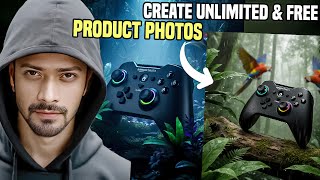

Stop Losing Money on Bad Product Photos
44sDirectly addresses a common pain point for online sellers, promising a free solution to boost conversions.
▶ Play Clip"Delivers on the promise of a free AI tool for product photography, though the 'unlimited' claim is slightly overstated."
This video demonstrates how to create professional-looking product photos for e-commerce using a free AI tool called Photo (likely 'Fotor' or similar). The host, Rana, walks through three key steps: removing the background, replacing it with a suitable scene, and enhancing image quality. The tutorial also covers using ChatGPT to generate effective prompts for the AI tool.
Poor product images lead to low conversion rates and wasted money on Facebook ads for online sellers.
1) Remove the background, 2) Replace it with a fitting scene, 3) Improve overall photo quality.
Drag and drop a product photo into the tool; it automatically separates the product from the background.
The reference tab lets you upload a similar product photo to match its style; the prompt tab allows custom text prompts for scene generation.
Selecting 'product may change to match the scene' and clicking generate produces a photo with matching bubbles, liquid, and background.
Using a detailed text prompt creates custom scenes, like foam dripping from a product, without needing a reference image.
Upload your product photo to ChatGPT and ask it to write three detailed prompts for a specific scene (e.g., jungle). Copy and paste these prompts into the tool.
You can download images with or without watermark and choose resolution before saving.
The explore section offers templates for cosmetics, food, drinks, accessories, etc., which can be used as backgrounds or references for your product photos.
All generated images and uploads are stored in the 'My Files' area for easy access.
The video provides a practical, free method to create high-quality product photos using AI, which can significantly improve e-commerce conversion rates. It emphasizes the ease of using both reference images and AI-generated prompts to achieve professional results.
What are the three rules for creating amazing product photos?
1) Remove the background, 2) Replace it with a fitting scene, 3) Improve overall photo quality.
00:41
What are the two options in the 'Generate Background' feature?
The 'Reference' tab (upload a similar product photo) and the 'Prompt' tab (write a custom text prompt).
01:36
How can you get prompts for your product photos using ChatGPT?
Upload your product photo to ChatGPT and ask it to write three detailed prompts for a specific scene (e.g., jungle).
04:01
What does the 'product may change to match the scene' option do?
It allows the AI to adjust the product to fit the generated scene, creating a more cohesive photo.
02:05
What options are available when downloading the generated image?
You can choose the format, whether to include a watermark, and the resolution.
05:57
Three Rules for Product Photos
Provides a clear, actionable framework for improving product images.
00:41Using ChatGPT for Prompts
Shows a clever workaround for users who struggle with writing effective AI prompts.
04:01Pre-designed Backgrounds
Highlights a time-saving feature that eliminates the need for custom prompts.
07:40[00:01] online. Whether you're selling products on Amazon, eBay or your own e-commerce website. This is the common problem that people face when they just start their online product selling business. Hey guys, Rana here and today's video I'll
[00:14] show you guys how you can turn your ordinary images into amazing looking product photos for your online business using a free tool called Photo. If you expect to sell your products with these type of product images, then you are
[00:28] wrong here. These type of product images won't bring conversion. So you end up losing money on Facebook ads. Let's say you're done with product research and then you just list your product on your own e-commerce website. But one thing is
[00:41] missing which is highquality product images. So without wasting more time, let's jump right in. To create amazing product photos, there are three simple rules you have to follow. First you have to remove the background and then you
[00:55] have to replace the background that fits perfectly with your product. So in the final step or in the final rule you have to improve your product photo quality. So let's dive in and let's see how you can do it. So first thing you have to
[01:10] click on the generate background button here. Just drag and drop the photo that you have. So I have this product photo over here. If I open it you can see this is the product photo. This is a body wash. Let's drag and drop this photo
[01:23] right here. Now it will separate the product from the background. Now wait for a few seconds. Creating project. So as you can see background has been as you can see background has been separated or you can say remove it. Now
[01:36] you have two options right here. We have the reference tab and we have the prompt tab. In the reference tab, you can add a reference photo of a product that you want to create a similar version of it. So I do have a reference photo. So this
[01:50] is the reference photo. If I open it, you can see this is the reference photo. So I'll use this product as a reference to create similar kind of photos. So let's go ahead drag and drop this photo right here. It's uploading. So reference
[02:05] photo has been uploaded. Now simply select this option. The product may change to match the scene and then simply click on generate button and within few clicks or few seconds it will generate the amazing looking product
[02:20] photo for us. Okay. So let's go ahead click here and as you can see we got the amazing looking product photo right here just by using this reference image. Amazing right? We have all the bubbles right here. We have the liquid on the
[02:37] floor. We got the amazing similar kind of background. [music] All right. So this is the one example. You can generate more images just by clicking here. It'll generate more images for you. Or you can select
[02:50] another sample just by clicking here. Let's go back and this time I'll use the same product without any background. And I'm going to use a prompt option to create amazing product photo. Okay. So I'm going to use this prompt right here.
[03:05] This is a long prompt. If you do not know how to write a prompt for your product, don't worry. I'll show you how to write a prompt for you. Even you are not a prompt ninja. You're still able to write prompts for your products. Okay?
[03:20] Later I'll show you how to do it. But now let's click on the generate button. Now wait for few seconds only and we will see the results right here. All right guys, so let's go ahead click on the result. Click here. Okay. So as you
[03:33] can see we got the amazing looking results. We got the forms over the results. We got the forms over the product, some forms on the floor and some form are dripping down from the product. And this way you can create
[03:46] even more amazing product photos using the prompt option. So now let me show you how you can write prompts for your product photos. Let's go back. Let's go to home. Just by click here and go
[04:01] [music] to home and click on generate background. Now here we are going to drag and drop another product photo right here. But before that let's go to chat GPT or you can use any AI language model. I'm going to use a free version
[04:16] of chat GPT as you can see here. Just click here upload your product photo. So I'm going to upload this product photo. This is a wireless remote control. You can upload any kind of product photo. Just upload the product photo and type
[04:30] something like I have this product photo. Your job is to write three fully detailed text prompt that creates amazing product photos with jungle scene. You can customize this prompt as per your liking. So I prefer jungle
[04:44] scene for this one. You can add more later. I'll show you how to create different types of scenes for this product. Okay. So let's click here and let's see what we'll get. Okay. So chat GPT has given us these prompts. Let's
[04:59] copy these prompts one by [music] one. So you can see how easy it is to get a prompt for your product. So let's come back to Fio. Upload your product photo over here. Just drag and drop your product photo. Separating product from
[05:12] the background. Creating project. And here we go. We got the product without background. Let's come to the prompt tab. And in the prompt box, [music] delete the previous prompt or paste your new prompt that you get from chat GPT
[05:27] and simply click on generate button. And let's see what will we get within few seconds. So let's go ahead click on the result. All right guys, so as you can see 4D has generated this amazing photo for us. Let's try different prompt.
[05:42] Let's use this second prompt. Let's copy this one. Come back here. Go back. Let's replace this prompt with this one. Click generate and wait for a few seconds. By the way, you can download this photo just by clicking here and select the
[05:57] remove background option. And you can choose the resolution as well and download it. Okay. So, you can see we got another photo. Just click here. So, as you can see, we got a new generation on this image. You can see we have some
[06:12] butterfly over here and we have the some water drops over the product which looks amazing. And we have the jungle scene. Let's try something different. Okay, let's come back to chat GPT. And this time I'm going to type something like I
[06:26] [music] Xbox. Just click here. Let's copy any prompt. Let me copy this one, the second one. Come back here. Go back in the prompt section. Delete the previous one and paste the new and click generate.
[06:41] And let's see what will we get. Okay, let's click on the result. So as you can see guys, we got the amazing results. Let's try different prompt. Let's use this one. First one. Copy it. Come back here. Paste it. Generate. Okay, let's
[06:56] click on the result. All right, guys. So, as you can see, we got another miniature Xbox photo. As you can see, product looks absolutely amazing on this picture. So this way you can get unlimited prompts from chat GPT for
[07:12] completely free and see what fits best for your [music] product. Once you're satisfied with your product image, just click on the download button and select the format from the list and select the watermark option. This is the without
[07:26] watermark. And if you select this one, you will download the image with watermark. And you can change the resolution from here or simply click on the download button and your image will be download as you can see. Okay. So
[07:40] this is how you can use this feature. Let's go back to home. If we go back to home, use this tool sharp image tool and improve your product photo. All right. If you go to explore section here you can see we have different kinds of
[07:54] product templates or backgrounds for cosmetics for package food and drinks cosmetics for package food and drinks accessories clothes and shoes and so on. So basically you can use these pre-esigned background for your own or
[08:09] your existing product photos. You can use them as a reference image or you can use their background for your own product photos that blends perfectly with your product. Just click on any image and upload your own product photo.
[08:24] Let's upload this one previous one. Now wait for the results and see what happen. Now click on the result. So you can see guys, we got the amazing result. The background blends perfectly with this product. Okay, you can generate
[08:38] more just by clicking here. So this way you can use these pre-esigned backgrounds for your own product photos. In the my file you can see all the files all the photos that I have generated previously. As you can see these are my
[08:54] uploads and these are my generations. So that's the pretty much it guys. If you found this tool useful please check out all the important links in the video description as well as in the pin comment and do let me know if you found
[09:07] this video valuable. So, thank you so much for watching this video. Till then, I'll see you guys with another AI tools and another AI amazing videos. Till then and another AI amazing videos. Till then I'll see you guys next


⚡ Saved you 0h 09m reading this? Transcribe any YouTube video for free — no signup needed.