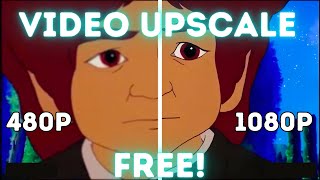

Free AI Video Upscaler That Blows Your Mind
45sPeople love discovering completely free tools that deliver professional-grade results, making this a high-share and save clip.
▶ Play Clip"The title accurately describes the tool and its free nature, and the video delivers on showing its capabilities, though it's better for animation than live-action."
This video introduces a free AI video upscaler called the waifu2x extension GUI, which uses video2x to upscale images, GIFs, and videos. It demonstrates the setup process and tests the tool on both animated and live-action clips, showing impressive results for animation but limited improvement for live-action.
The tool is called waifu2x extension GUI, uses video2x, and is completely free. Download from GitHub link in description, scroll to readme, and hit 'download latest stable build'. Only for Windows.
Extract the 7z file (may need 7-Zip), then double-click the batch file to launch. Choose language (English), wait for GPU compatibility test, and click OK.
Drag video into the tool, set desired resolution (e.g., 480p to 1080p), apply, set scale ratio (e.g., 4), choose engine (Real-ESRGAN recommended), and set style (2D anime for animation). Optionally enable frame interpolation.
A 10-12 second Lord of the Rings clip was upscaled from 480p to 1080p in 43 seconds with significant quality improvement.
A Simpsons clip was upscaled in 45 seconds, showing crisp results even with credits on screen.
A Fresh Prince clip showed minimal improvement, indicating the tool is better for animated videos. Trying different models didn't help much.
What is the name of the free AI video upscaler tool?
waifu2x extension GUI
Where can you download the waifu2x extension GUI?
From the GitHub link in the description.
00:17
Which operating system does the tool currently support?
Windows only.
00:17
How do you launch the program after extracting the files?
Double-click the batch file.
00:52
Which model is suggested as the best for upscaling?
Real-ESRGAN.
02:18
How does the tool upscale videos?
It takes all frames from the video, individually upscales them, and then sticks them together again.
04:18
What type of video does the tool work best for?
Animated videos (2D anime).
05:21
How long did it take to upscale the 10-12 second Lord of the Rings clip?
43 seconds.
03:07
Free AI Video Upscaler Introduction
Introduces a completely free tool for upscaling videos, which is rare and valuable.
Using Real-ESRGAN Model
Identifies Real-ESRGAN as the best model for upscaling, a key technical insight.
02:18Fast Upscaling Speed
Demonstrates that a 10-12 second clip can be upscaled in just 43 seconds, showing efficiency.
03:07Better for Animated Videos
Reveals that the tool is significantly more effective for animated content than live-action.
05:21[00:00] So in this short video, we're going to be taking a look at this insane completely free AI video upscaler and from what I've seen This thing works amazingly well. So let's jump straight in. It's called the WIFU 2X extension GUI. Yes, that's what it's called. It uses video
[00:17] 2X and it can upscale images, gifts and videos using a bunch of different models. So like I said, this is completely free. Just head over to the GitHub link in the description. Then you want to scroll all the way down here to the readme and just hit download latest stable build. Now as you can see, this is only for windows at the moment. Then we have
[00:34] these different sources where you can download it from just hit GitHub and it will download a compressed file. Now it is a seven zip file. I'm not sure if Windra or other programs can actually unzip that. If that's the case, just download seven zip. It's free as well. And we're going to extract all the files here. Once that's done, you can delete the compressed file and you'll
[00:52] find a few files and this folder here. All you have to do is just double-click this batch file and it will open the program for us. You can choose your language. We're obviously going to do English. Now it will perform a compatibility test for your GPU. So just wait for that finish. Hit OK. And we can click away these notifications as well. So we're just going to hit OK there. And this is what it says my video card can support. Now currently I do have a GTX 1080 in my PC, which is a OK card, but it's a bit old.
[01:21] But even this old card can run all of these things. As you can see, only not the GTX super solution because it's not an RTX card, but we don't need that. All we need is this. So you'll see there are loads of settings to change, but don't worry. It's actually really simple. So we're going to give this a go with an animated video and a real life live action video. First of all, we're going to try it with this clip of the 1978 Ralph Bakshi Lord of the Rings movie. For reference, here is the original video. Yes. It was pity. Pity and mercy.
[01:51] And now Frodo, the decision lies with you. So as you can see, that is pretty bad quality. So I'm very interested to see what this tool can do. So once we've dragged that in there, here you can see the resolution that you want the video to be.
[02:06] Just to show you this is 480p right now. That's 854 by 480. And I want to increase that to 1080p full HD. So you want to make sure that you hit apply here and it will apply the resolution to what you want.
[02:18] Now at the bottom here, we have scale ratio. I'm just going to increase this to 4. See how good that is. And then we want to choose our engine here. Now it does seem like the real ESR can might still be the best model for upscaling, as this is the one I use for my normal image upscaling.
[02:33] So the only other thing you have to do is make sure that you change this to the style of the video. So for this one, we're going to do 2D anime. Now this is also possible to do frame interpolation, which just means that it will basically add new frames into your video to make the FPS higher.
[02:49] We don't really need to do that. So that's all we need to do. You can specify an output folder. If you leave that blank, it will just go to the folder where you uploaded the input from. And all you have to do is hit start. And there we go, it's done. Now you can see that only took 43 seconds. Now this is only a 10 or 12 second clip I believe. So let's have a look what it did.
[03:07] Yes, it was pity, pity, and mercy. And now Frodo, the decision lies with you.
[03:19] Wow, so that is so much better than the original. I'll put two of them side by side right now for you to see. Yes, it was pity, pity, and mercy. And now Frodo, the decision lies with you.
[03:36] Absolutely incredible. By the way, only a tiny percent of you are subscribed to the channel. And I'm going to try to make so much valuable content this year. So subscribe will mean the world to me. Let's try it again with this Simpson clip here's the original.
[03:48] I'm sorry, but we're not supposed to put butter on the milk dots. You're not supposed to go to the bathroom without washing your hands either. Too shy. Now I purposely left the credits coming on screen there. So let's see how crisp it can make this one. Let's just delete this one here.
[04:05] Drag in the Simpson's clip. Again, make sure to apply the customer's solution. And let's hit start again. And there we go. It's done. That took 45 seconds this time. Let's take a look. I'm sorry, but we're not supposed to put butter on the milk dots.
[04:18] You're not supposed to go to the bathroom without washing your hands either. Too shy. Wow, that is absolutely amazing. So you probably guessed the way this works is it takes all the frames from the video and individually upscales them with this model.
[04:34] And then sticks them together again to make a new video. Okay, so that was animated video. What about real live videos? Now by the title of this tool, you can already guess that it's sort of aimed more towards animate. But let's give it a go. Here I have a clip from Fresh Prince.
[04:48] So let's take a look at that quickly. Oh, yeah, it's the cops outside. What? Alright, that's it. So when we drag that in here, again, apply the same resolution.
[05:05] This time we want to change this to real life and hit start again. So for some reason, my OBS stopped recording, but here is the output video. I will put them both side by side on screen right now.
[05:21] So as you can see, this program is way better at upscaling animated videos as opposed to real life videos. Because I'm sure this model should be the best one.
[05:35] But just as a test, let's try this waifu 2XNCNN Vulcan model. Throw the original one in again, apply the pixels, make sure this is on 3D real life, and let's start that. And there we go, that took 1 minute 16 this time.
[05:48] So let's take a look at this one.
[06:01] So I don't really see a lot of difference in that one at all. But yeah, from what I've seen, this thing is amazing for animated videos and just not so good at live action videos. Now there is this anime 4K upscale model. And this is perfect if you want to upscale an anime from 1080p to 4K.
[06:17] And this one will work really well, and it's very fast too. If you like this short video, you'll love this one on AI Image Enhancers as well. And I'll see you next time.
⚡ Saved you 0h 06m reading this? Transcribe any YouTube video for free — no signup needed.