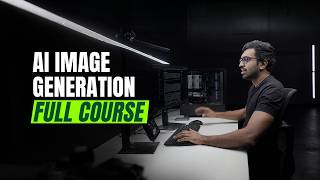

Stable Diffusion: Free AI Image Generator
44sHighlights a completely free, open-source alternative to paid AI image tools, appealing to cost-conscious creators.
▶ Play Clip"The title accurately promises free AI image generation, and the tutorial delivers on that promise with a comprehensive guide."
Stable Diffusion is a free, open-source AI image generation platform that offers more control and customization than paid alternatives like Midjourney or DALL-E. This tutorial covers installation, basic usage, and advanced techniques like inpainting and image prompting.
Unlike paid platforms, Stable Diffusion is completely open-source and free, allowing anyone to create images with text prompts.
Stable Diffusion runs on your own GPU instead of the cloud, giving you full control over every setting.
It's an image generation model by Stability AI that turns text prompts into images. Being open-source means it's free and customizable.
Focus is a user-friendly interface for Stable Diffusion, like a car built around the engine, providing buttons and controls.
Download from GitHub, extract the file, and run the .bat file. The download is about 50 GB. Default models include standard, anime, and realistic.
The interface has an image generation window, text prompt input, and options like input image and pain enhance for post-processing.
Specific details like 'cyberpunk city at night with glowing neon lights and cinematic lighting' yield better results.
Use image upscale to increase resolution by 1.5x or 2x, with a fast option for quicker processing.
Inpaint allows you to brush over areas to refine details. Options include inpaint (subtle variation), improve detail (increase resolution), and modify content (dramatic changes).
Use image prompt with Pyrocheni (maps character positions) or CPDS (uses contrast/color) to generate images similar to a reference.
Add negative prompts like 'not safe for work' to avoid unwanted content. Default negatives include unrealistic, saturated, big nose, etc.
Drag images into inpaint to fix specific issues like broken limbs or incorrect outfits, using references to anchor details.
Use content expansion to extend an image to landscape format, generating left and right sides with a prompt for background details.
Stable Diffusion offers powerful, free image generation with extensive customization. With practice, you can create high-quality images and refine them using tools like inpainting and image prompting.
What makes Stable Diffusion different from other AI image generators?
It is completely open-source and free, allowing local GPU usage and full customization.
00:14
What is Focus in the context of Stable Diffusion?
Focus is a front-end interface that allows users to interact with the Stable Diffusion model easily.
01:53
What is the approximate download size for Stable Diffusion?
About 50 GB.
02:36
What are the three default models available in Focus?
Standard, anime, and realistic.
02:44
What is the purpose of negative prompts?
To specify elements you do not want in the generated image, such as 'not safe for work'.
10:06
What does the Pyrocheni option in image prompt do?
It maps the position of characters from the reference image into the new image.
11:48
What does CPDS stand for and what does it do?
CPDS uses contrast, color, and saturation to generate a similar image to the reference.
11:56
What are the three options in the inpaint tool?
Inpaint (subtle variation), improve detail (increase resolution), and modify content (dramatic changes).
07:47
How can you expand an image to landscape format in Focus?
Use content expansion to generate left and right sides with a prompt for background details.
15:20
Stable Diffusion is open-source and free
This is the key differentiator from paid platforms like Midjourney and DALL-E.
00:14Focus as a user-friendly interface
Makes Stable Diffusion accessible to non-technical users.
01:53Specific prompts yield better results
Demonstrates the importance of detailed descriptions in AI image generation.
05:14Inpainting for targeted refinement
Allows precise editing of specific areas without affecting the whole image.
07:34Negative prompts for content safety
Highlights the responsibility of users to avoid generating harmful content.
10:06[00:00] Generative AI has opened the door to
[00:02] allowing anyone to create incredible
[00:04] images just using a computer and a few
[00:07] text prompts. Now, the platform that
[00:08] gets the least amount of attention is
[00:10] Stable Diffusion, but it might just be
[00:12] the hidden gem you're looking for.
[00:14] Unlike other major generative AI
[00:16] platforms like Adobe's Firefly or
[00:18] OpenAI's Dali or even Midjourney, Stable
[00:20] Diffusion is completely open source,
[00:23] which in short is free. So, I'd want
[00:25] Padme to wear her iconic [music] white
[00:27] turtle attire. See that image is coming
[00:29] in. It's looking great. There's a few
[00:31] issues going on in the lower parts of
[00:32] the frame. In this particular section,
[00:34] I'm changing how the body structure
[00:36] looks. Again, let's increase that to
[00:38] four images. Okay, we're going to pause
[00:40] it right there. Remember, there are no
[00:42] limitations in the software, which means
[00:44] the responsibility is on you.
[00:49] Stable diffusion lets you run on your
[00:51] own GPU instead of on the cloud, which
[00:53] allows you to tweak every minute setting
[00:56] that you can think of. Now, if that's
[00:57] not enough to convince you to learn this
[00:59] software, it's also the only platform
[01:01] with zero limitations, but it also comes
[01:04] with its own drawbacks. It's tough to
[01:06] get started with, but that's where we
[01:08] come in. Today, we're going to help you
[01:09] with everything from getting started,
[01:11] installation to even more complicated
[01:13] things like perfecting your prompts and
[01:15] getting the best possible image. Now,
[01:17] today's episode is a little bit
[01:19] different. It's just you, me, and a
[01:21] computer. And we're going to get through
[01:22] this together. It's also the first time
[01:24] that we haven't had someone behind the
[01:26] camera, so expect things to go wrong.
[01:30] First off, what is stable diffusion? In
[01:32] short, it's an image generation model
[01:34] created by stable AI. It turns text
[01:37] prompts into images. What makes stable
[01:40] diffusion really special is that it's
[01:42] open source, which in short means that
[01:44] it's free, but it also means that you
[01:46] can download it, bring it into your own
[01:48] computer, and customize it to your own
[01:50] art style.
[01:53] Now, in a majority of this video, we
[01:54] will work with a software application
[01:56] called Fucus. This is a front-end
[01:59] interface that allows us to interact
[02:01] with the stable diffusion model. Now,
[02:03] don't let any of those words scare you
[02:05] off. Think of stable diffusion as the
[02:07] engine, the code that's doing all the AI
[02:09] image processing. Focus is like the car
[02:12] that's built around the engine. It's
[02:14] what has all the buttons and the
[02:16] controls and the interface that allows
[02:18] you to interact with the engine without
[02:20] really messing around with the tech.
[02:22] Okay, enough talking. Let's jump into
[02:24] the application. The first thing you
[02:25] want to do is go to the GitHub
[02:26] repository for Focus. We'll leave a link
[02:28] in the description. After you download
[02:30] the file, you want to extract the file
[02:31] and you'll see and run.bat. You want to
[02:33] click on the run.bat file and start the
[02:36] installation process. Remember, the
[02:37] download file will be around 50 GB. So,
[02:40] make sure you have that capacity before
[02:42] you get started. By default, you'll get
[02:44] the standard model, but you'll also get
[02:45] the option to run the animate and
[02:47] realistic models as well. For right now,
[02:49] we're not going to change any of the
[02:50] default behavior of the software, which
[02:52] means as it launches, it'll look for new
[02:54] models, keep the software updated, which
[02:56] is generally what you want. But if you
[02:58] want to change that, you can use these
[03:00] two command lines. Let's do realistic
[03:02] right now. And now we just let it do its
[03:03] thing. Another quick tip that I like to
[03:05] use is keeping task manager open. As
[03:08] long as I see activity on the GPU, I
[03:10] know that the software is working with
[03:12] the GPU to get it collected.
[03:15] Awesome. And we are finally ready to
[03:16] start generating images. You'll notice a
[03:18] few things. The image generation window
[03:20] at the top, the text prompt window at
[03:21] the bottom where we can type things like
[03:23] cats on a window lid. And at the bottom,
[03:25] you can see input image. We'll go into
[03:27] that in detail. It's something that I
[03:29] use in great detail. Pain enhance, which
[03:31] we won't talk about too much.
[03:32] essentially post-processing steps that
[03:34] you can take on your final image to
[03:36] increase the resolution and detail. As
[03:38] we hit generate, you can see that there
[03:40] is an immediate spike in your GPU. So,
[03:42] you'll notice the image comes in a
[03:44] little fuzzy, then it cleans up over
[03:46] time. Okay, with those images in place,
[03:47] we can look at them in detail by
[03:49] clicking on each individual image. The
[03:50] second image is a really good example of
[03:52] the kind of problems that this kind of
[03:54] model has. You can see that the eye on
[03:55] the left is perfect, but the eye on the
[03:57] right just doesn't have the detail we
[03:58] need. So, there's two things that we can
[04:00] think about at this point. We can click
[04:01] on advanced and we can first look at the
[04:03] presets. We are using the realistic
[04:05] model which is what generates such fine
[04:07] detail but there's lots of other
[04:08] variations that you can try out here.
[04:10] There's also performance depending on if
[04:12] you want to take a qualitative or
[04:13] quantitative approach. Right now we're
[04:16] prioritizing speed of delivery, but we
[04:18] can also change that to quality to
[04:20] generate higher quality images. Now a
[04:22] feature that I use all the time is
[04:24] changing the number of images, but for
[04:26] right now let's do four images.
[04:29] >> [music]
[04:31] >> That's pretty incredible. The first
[04:32] three images have come in. I love the
[04:34] detail here. There's lots of detail in
[04:36] the hair and in the eyes. Both eyes look
[04:38] perfect. The second image is not quite
[04:40] as good. It has really great
[04:41] perspective. Lots of detail in the
[04:43] bricks and the window, but not quite as
[04:45] much detail on the cat itself. You can
[04:47] see that the eye on the right isn't
[04:48] perfect. Okay, this is great perspective
[04:50] cuz there's a beautiful window. It's a
[04:52] low angle shot. Again, not quite as much
[04:54] detail on the cat itself. And the final
[04:56] image has also come through. Oh, this is
[04:57] amazing. And you can see the cat looking
[04:59] through the window. Lots of detailing on
[05:01] the glass and the light and the texture
[05:03] on the skin. We're going to build a
[05:04] crazy Star Wars poster no one has ever
[05:06] seen of Padme fighting off Anakin
[05:09] Skywalker. But first, let's build a
[05:11] cyberpunk city with crazy [music]
[05:12] detail.
[05:14] So, you can notice the kind of detail
[05:16] that I'm putting in here. I'm I'm
[05:17] writing out very specifically what I
[05:19] want to see. So, a cyberpunk city at
[05:21] night. So, I'm specifying what the
[05:23] lighting looks like. Glowing neon
[05:25] lights. someone have that look where
[05:26] there's lots of light from the buildings
[05:27] themselves. And I'm specifically calling
[05:29] for cinematic lighting. With AI models,
[05:32] the more specific details you can give,
[05:34] the more likely you are to get a
[05:35] successful final image. Okay, so those
[05:38] two images have come through. They're
[05:39] both fairly similar, which is something
[05:40] I don't really like. Ideally, I want
[05:42] variation on shot. Also, something I
[05:44] like to do is watch the model as the
[05:46] image generates just to see if it's
[05:48] something that's in alignment with what
[05:50] I want. If it's completely off, I can
[05:51] choose to skip through that image. Okay.
[05:54] And that's pretty great. Everything's
[05:55] generally looking okay, but nothing is
[05:57] specifically looking good. That's also
[05:59] another problem with the AI generation
[06:00] model for wide and detailed shots. It's
[06:03] harder to get fine details correct when
[06:05] there's lots of details spread across
[06:07] the image. Let's say we love this image
[06:08] in general, but we want to enhance
[06:10] certain details. With that in mind,
[06:12] let's refine our model some more. Okay,
[06:14] now we've got two new images. Let's look
[06:16] at both of them. I love the detailing on
[06:17] this. Generally, everything seems okay.
[06:19] There's lots of lost details in the
[06:21] buildings in the background, but I think
[06:22] I can generally fix those as we go. The
[06:24] second image is a lot softer and there
[06:27] is a lot of billboards and written
[06:29] detail which [music] I probably won't be
[06:31] able to fix. What if we have a great
[06:32] image, but we want to refine that image.
[06:34] That's where image input comes in.
[06:36] First, if you want to take this image
[06:38] and we just want to scale it up, bring
[06:39] in new resolution, we can use image
[06:41] upscale. So, you just drag that image in
[06:43] here. First, we look at the bottom row.
[06:45] Upscaling by 1.5, upscaling by 2x. that
[06:48] essentially just expands the resolution,
[06:51] maintaining as much of the image as
[06:52] possible. And then you have upscaling
[06:54] fast 2x, which is the same thing, but it
[06:56] processes it a little faster with a
[06:58] little less accuracy. So, first let's do
[06:59] a 1.5 upscale. Now, as that image comes
[07:02] in, we can see we already have a lot
[07:04] more detail. Okay, the first image is
[07:06] in. Let's take a look at what that looks
[07:07] like. So, you're already seeing so much
[07:09] more detail in the building in the
[07:10] foreground. All the problems of the
[07:12] background have now been resolved. All
[07:14] the lines are straight. All the windows
[07:15] are visible. Generally, everything's
[07:17] looking good. There is still a little
[07:19] bit of specific problems I'm seeing,
[07:21] especially on this billboard on the
[07:22] right, parking lot down below, but the
[07:24] cars don't look perfect. We can work on
[07:26] those specifically. Okay, let's look at
[07:28] this image with some detail. That's not
[07:30] going to work cuz it's so close to the
[07:32] foreground element, which is this
[07:33] building. So, to refine this, we're
[07:34] going to use impaint. This allows you to
[07:36] refine and work on specific details of
[07:38] your image with great detail. There's a
[07:40] brush, and anything you brush over will
[07:42] then be changed. Anything that's outside
[07:45] the brush radius will not be affected.
[07:47] So, we've got three options here.
[07:49] Impaint, improve, and modify. Impaint is
[07:51] a great technique if you want to change
[07:53] something of your image with subtle
[07:55] variation and keep the general look of
[07:56] the image the same. The first thing
[07:58] you'll notice is that the GPU is using
[07:59] all of its processing power on just that
[08:01] one zone of the image, which means
[08:03] you'll get a lot of resolution in just
[08:05] that one area. Has a little motel
[08:07] looking building with a swimming pool in
[08:09] front. It's lots of details in terms of
[08:11] cars and people, which may not be what
[08:13] we want because it's going to attract a
[08:14] lot of attention. And then the second is
[08:18] a black building with a few windows. You
[08:20] can see that I can actually drag the
[08:22] image from my image generation window
[08:24] into my impaint window. This is a pretty
[08:27] common technique of refining your image
[08:29] as you move it back and forth within the
[08:31] software itself. And this is a good time
[08:33] to talk about the other two impend
[08:35] features as well. Improve detail is used
[08:37] very often. This is when you want to
[08:39] increase the resolution of something in
[08:41] the background, right? We can see far
[08:42] more detail in that image. You can see
[08:44] the specific floors of the building. You
[08:47] can see through some of the windows. You
[08:48] can see some trees and shbery brought in
[08:50] front of the building. Really quickly,
[08:52] let's look at modify content as well.
[08:54] This is a powerful tool when you want to
[08:55] make a dramatic shift of your image and
[08:58] then later go back and refine it using
[09:01] the refineer tool. So, let's look at one
[09:02] of these. And that's what that car path
[09:04] looks like. Again, here you can see a
[09:05] lot of imperfections in the car, in the
[09:07] floor, in the building next to the car
[09:08] park. All of which will need to be
[09:10] refined if you want to use it in your
[09:12] final image. But for right now, we're
[09:14] just going to revert back to the image
[09:15] that we had and look through our final
[09:17] settings. At this point, you probably
[09:19] get the idea of image generation, but
[09:21] let's dive into something a little bit
[09:22] more obscure that uses more advanced
[09:25] features of the software.
[09:29] So, [music] let's think of something
[09:30] that we can't find on the internet.
[09:32] though. Anakin Skywalker and Padme
[09:35] lightsaber dual Star Wars franchise high
[09:37] detail cinematic lighting at night.
[09:39] [music] All right, let's see what this
[09:41] looks like. Again, let's increase that
[09:42] to four images. Okay, we're going to
[09:45] pause it right there. So, this is where
[09:47] you need to be careful as you generate
[09:49] images. You need to make sure that you
[09:50] don't generate any images that's not
[09:52] safe for work. And this is a good time
[09:54] as any to talk about the power of these
[09:56] creative tools. Remember, there are no
[09:58] limitations in these software, which
[10:00] means the responsibility is on you. Make
[10:02] sure you don't create any content that's
[10:03] harmful, misleading, or violates
[10:06] privacy. Another tool that we can use to
[10:07] safeguard our content is negative
[10:09] prompts. Now, these are things that you
[10:11] don't want in your image. So, by
[10:13] default, I'm getting things like
[10:14] unrealistic, saturated, big nose,
[10:16] painting, drawing, sketch. These are all
[10:19] prompts that have come in default by the
[10:21] software. But now, I'm going to also
[10:22] include not safe for work as a prompt.
[10:25] And you can expand on that list. Okay.
[10:27] And those images have come through. They
[10:29] both have their own challenges. So over
[10:31] here, both Anakin and Padme are sharing
[10:33] a lightsaber, which doesn't really make
[10:34] the most sense. In the second image, I
[10:36] kind of have their hands crossed over.
[10:38] Both which we can fix. And we can do
[10:40] that by bringing this image, dragging it
[10:42] in using impaint and correcting for. But
[10:45] we're not going to do that right now
[10:46] because there is a holistic problem in
[10:48] the image. And that's the fact that I
[10:50] don't like the perspective that we're
[10:52] getting. Ideally, I'd want to see
[10:53] something similar to the Star Wars
[10:54] poster. It's a low angle shot with lava
[10:57] in the background and each character
[10:58] fighting aggressively against each
[11:00] other. Now I could give this in the form
[11:03] of a prompt, but I can also use image
[11:06] prompt. Image prompt essentially allows
[11:08] you to input an image and generate a
[11:11] similar image. Now, but for right now,
[11:13] let's turn off all of our advanced
[11:15] features. You can go over to image
[11:17] prompt and you can drag your image in
[11:19] and you have a few features that will
[11:20] show up. Now, if you don't have this bar
[11:22] at the bottom, you just want to scroll
[11:23] down to the bottom and click advanced.
[11:26] That'll give you four options. Now,
[11:27] image prompt will generally scan the
[11:29] image very similar to a textbased
[11:31] prompt. It'll attempt to understand
[11:33] what's happening in the image and it'll
[11:34] generally use that as a suggestion for
[11:36] generation. You can see that it's
[11:37] generally taking the idea of the image
[11:39] and generating something similar. But in
[11:41] this case, what we really need is
[11:43] something that's visually similar. So,
[11:45] we have two real options. Pyrochni and
[11:48] CPDS. Pyrochani essentially maps the
[11:50] position of characters and takes it into
[11:53] your new image which would be ideal for
[11:56] this particular image and CPDS
[11:58] essentially uses contrast, color and
[12:00] saturation to generate a similar image.
[12:03] So in this particular case, Pyrocheni
[12:05] would work perfect. Okay, we've got four
[12:07] images in. Let's let the remaining
[12:08] images come in. Let's look at the first
[12:10] one. So this first image, the first
[12:11] thing you'll notice is that it's fairly
[12:13] low resolution. There's not a lot of
[12:14] detail in the face structure. The
[12:16] lightsaber's broken. I don't like how
[12:18] the sand looks relative to the mountain.
[12:20] The second image is much better. And
[12:21] then it's converted Obi-Wan into some
[12:24] version of Anakin. So, that's really
[12:26] great in terms of perspective, in terms
[12:27] of each lightsaber. Lightsabers are red,
[12:30] but I'm assuming I can make those
[12:31] changes. Third image. I don't like it as
[12:34] much. The resolution is not quite there.
[12:36] The perspective isn't great. Anakin's
[12:38] looking a lot bigger than Padme. It's
[12:40] probably one we're going to avoid. Image
[12:41] four. That's looking much better. I love
[12:44] the perspective of this. This next image
[12:46] is completely broken. perspectives are
[12:48] wrong. Seems to be a dual lightsaber
[12:49] which Padme is holding from the wrong
[12:51] side. So, we're not going to use that
[12:53] image. Final image looks like two Padme
[12:55] fighting each other. Again, it's less of
[12:57] a problem because I know I can change
[12:59] one of those characters, [music] but I'm
[13:00] not a big fan of the perspective. I'm
[13:02] not a big fan of the background. So,
[13:04] with all of that in mind, I think I'm
[13:06] going to go with this image as the image
[13:08] I'm going to refine to final.
[13:11] Okay. Okay. So, the first thing I'll do
[13:12] is drag that image into impaint and
[13:15] start erase my previous painting and
[13:17] start working on specific sections of
[13:20] the image. So, I'd want Padme to wear
[13:22] her iconic white battle attire. So,
[13:24] these images are already more in
[13:26] direction of where it needs to be. This
[13:28] time, I'm only going to change up the
[13:29] outfit itself. Just highlighting very
[13:31] specifically. So, our first section of
[13:33] images are coming in and they're all
[13:34] looking pretty great. So, I love the
[13:36] position here. Doesn't look perfect in
[13:38] terms of outfit. Second outfit looks
[13:40] much better, but there's lots of
[13:41] problems with the hand structure. The
[13:42] hand seems a lot smaller than it needs
[13:44] to be. The foot structure isn't great.
[13:46] This third image is better in terms of
[13:48] hand structure, but there is a broken
[13:49] limb right here, and there's a few
[13:51] issues going on in the lower parts of
[13:53] the frame. So, here's a pro tip. In this
[13:54] particular section, I'm changing how the
[13:56] body structure looks, but I don't really
[13:59] want to change the general position. I
[14:01] find that it's helpful to highlight only
[14:03] parts of the image. So you'll notice
[14:04] here I've left the foot open and the
[14:07] back of the ankle open as well along
[14:08] with the waist of the character. That
[14:09] way I can change just the middle section
[14:11] of the image without affecting the
[14:12] overall look of the Now I'm liking the
[14:14] overall structure here. I just want to
[14:16] fix this broken limb. I'd like to change
[14:18] the shoes the character is wearing.
[14:19] Maybe reduce some of this armor. And
[14:21] that's what I'm going to do now. Now you
[14:22] can see that after a certain point I'm
[14:24] going to start running parallel
[14:25] processes. In this section I've
[14:27] highlighted Padme's hair very
[14:28] specifically. So I'm trying to get her
[14:30] hair tied up and it's proving to be a
[14:32] little bit difficult. But the important
[14:33] point here is that you need to keep a
[14:35] reference ready. I'm trying to match
[14:37] those references. Having a reference
[14:39] will always help get the details right
[14:41] and anchor your character in reality.
[14:43] So, one thing we'll definitely need to
[14:45] do is work on character features,
[14:48] especially in the face. You want to have
[14:49] as much detail as possible in the face.
[14:51] So, even if things aren't perfect, most
[14:54] people won't notice. And you can see I'm
[14:57] already painting in the second image
[14:58] while that first image is generated. I'm
[15:00] going to need to work on that next. So,
[15:02] Anakin, Star Wars, detailed face, it's a
[15:04] lot better. We're not going to perfect
[15:07] anything. We're going to do the best we
[15:08] can and really just go through all of
[15:10] the different tools and functions. If
[15:12] you'd want to see us explore that in
[15:14] another video where we deep dive into
[15:16] creating hyper realistic images, let us
[15:18] know in the comments below. Now, in this
[15:20] next section, I want to show you how to
[15:21] expand an image. Now, you've probably
[15:22] seen something similar if you've used
[15:24] Adobe's Photoshop with content of
[15:26] airfield, but it's quite powerful in
[15:28] focus because you can really control and
[15:30] refine how the expansion work prompt you
[15:32] put in here is very specifically the
[15:34] information that you want in the
[15:35] background and in the expanded areas.
[15:38] But ideally, I'd like to have this in
[15:40] landscape format. So, what I'm going to
[15:41] do is I'm going to take that image, put
[15:43] it back into content expansion, and just
[15:46] generate the left and right side of the
[15:48] image. Okay, that's looking really
[15:50] great. I love how that looks. Now, I
[15:51] don't really like how the characters are
[15:53] standing. I'm seeing a lot of
[15:55] imperfections in the hand structure,
[15:57] mannequin's leg structure, but generally
[15:59] this is a great starting base
[16:00] considering we generated this image in
[16:02] under an hour. That's a really great
[16:04] starting point. Now, there's a lot more
[16:05] you can do here using the refiner tools.
[16:07] You can bring in things like smoke and
[16:09] fog. You can work on the character
[16:10] outfits, bring in detail, so things like
[16:12] the shoes and the hair. I'll also look
[16:14] back at my references and really
[16:16] understand where I missed the ball. And
[16:17] that brings us to the end of this
[16:19] episode. If you like this video, hit the
[16:21] like and subscribe buttons. Now, there
[16:23] is a lot more we can do to perfect this
[16:25] photo.
⚡ Saved you 0h 16m reading this? Transcribe any YouTube video for free — no signup needed.