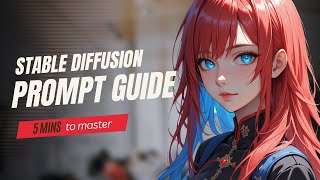

Decoding Stable Diffusion Symbols
45sViewers are confused by symbols in prompts; this clip demystifies them quickly.
▶ Play Clip"Title accurately describes a basic tutorial on Stable Diffusion prompts; content delivers exactly that."
This video explains the meaning of symbols in Stable Diffusion prompts and how to write effective prompts. It covers basic principles, weight adjustments, advanced syntax, and recommended prompt structure.
Prompts are separated by commas; words at the front get higher weight; keep prompt words within 75 for best control.
Parentheses increase weight by factor 1.1 per layer; curly braces increase by 0.05; square brackets decrease weight by factor 0.9 per layer.
Use colon after word in parentheses to set exact weight (recommended 0.3-1.5). Example: (cherry blossoms:1.2).
Format: <lora:trigger_word:weight>. Tensor offers one-click LoRA trigger words.
Underscores connect words so Stable Diffusion treats them as a single concept (e.g., milk_cake).
Use [prompt:number] to start prompt at that step; [prompt::number] to end at that step; [prompt1:prompt2:number] to switch prompts; vertical bar for alternate sampling.
Line 1: quality/style words; Line 2: main subject description; Line 3: environment/lighting; Line 4: LoRA trigger words.
Use general negative prompts; Flux model doesn't allow custom negative prompts. Tensor's workbench supports language input and translation.
Mastering prompt syntax and structure helps generate more accurate images. Tensor provides free online models and daily credits for experimentation.
What is the default weight of each prompt word?
1
0:31
How much does one layer of parentheses increase a word's weight?
1.1 times
0:58
What is the effect of one square bracket on a word's weight?
It multiplies the weight by 0.9.
1:27
How do you set an exact weight for a prompt word?
Use (word:value) where value is between 0.3 and 1.5.
1:36
What is the format to call a LoRA in a prompt?
<lora:trigger_word:weight>
2:00
What does an underscore do between words in a prompt?
It links the words so Stable Diffusion treats them as a single concept.
2:18
How do you make a prompt start at a specific step?
Use [prompt:number] where number is the step to start.
2:40
What does [prompt1:prompt2:0.7] do?
It uses prompt1 for the first 70% of steps and prompt2 for the remaining 30%.
3:00
What is alternate sampling and how is it triggered?
It alternates between two prompts each step, triggered by a vertical bar between prompts in parentheses.
3:12
Weight Priority
Explains that words at the front have higher weight, a key principle for effective prompts.
0:31Direct Weight Adjustment
Provides a simple method to set exact weights, crucial for fine-tuning image generation.
1:36LoRA Integration
Shows how to call LoRA models using angle brackets, enabling specific styles or features.
2:00Recommended Prompt Structure
Offers a structured approach to writing prompts, improving consistency and quality.
3:28[00:00] what do all those symbols in stable
[00:01] diffusion really mean how can we write
[00:03] prompt words so that the pictures we get
[00:06] are more what we want when you see those
[00:08] complex stable diffusion prompt words do
[00:10] you feel confused too don't worry this
[00:13] video will help you with all kinds of
[00:15] problems when you fill in prompts first
[00:18] off let's check out the basic principle
[00:20] of prompt words prompt words are
[00:22] separated by commas and you can put
[00:24] prompt words on different lines but you
[00:26] still need a comma at the end of each
[00:28] line as for weight each prompt word has
[00:31] a default weight of one but the words at
[00:33] the front get a higher weight so put
[00:36] important words at the front if you can
[00:38] finally keep the number of prompt words
[00:40] within 75 if there are too many words
[00:43] they won't have much control over the
[00:45] picture next up let's talk about what
[00:48] each symbol means first off there are
[00:50] parentheses square brackets and curly
[00:53] braces these are mainly used to tweak
[00:55] the weights of keywords when you put a
[00:58] hint word in parentheses it's weight
[01:00] becomes 1.1 you can use up to three
[01:02] parentheses at the same time when n
[01:05] parentheses are used the weight of the
[01:07] hint is 1.1 to the power of n curly
[01:10] braces are also for increasing the
[01:11] weight of a hint curly braces are used
[01:14] to increase weight too each layer of
[01:16] curly braces increases the weight by
[01:18] 0.05 the adjustment with curly braces is
[01:21] much smaller than that with parentheses
[01:24] square brackets are used to decrease
[01:26] weight one square bracket makes the
[01:27] weight of a hint word 0 point 9 times
[01:30] less three square brackets make the
[01:32] weight 0.7 to 9 the easiest way to
[01:36] adjust weights is to add a colon after
[01:38] the hint word in parenthesis and then
[01:40] fill in the desired weight value
[01:42] directly after the colon It's
[01:43] recommended to set this value between
[01:46] 0.3 and 1.5 for example if you enter
[01:49] cherry blossoms kittens green leaves and
[01:52] set a different weight value for cherry
[01:54] blossoms you can control the proportion
[01:56] of cherry blossoms in the whole picture
[01:58] the pointed bracket are mainly used to
[02:01] call Laura the format is Laura trigger
[02:04] word weight value after calling Laura
[02:07] images with specific features can be
[02:09] generated it should be noted that in
[02:11] tensor Laura tritter words can be
[02:13] directly used with one click which is
[02:16] very convenient underscores act as a
[02:18] link to make the keywords more closely
[02:20] connected for example a milk cake might
[02:23] be understood by stable diffusion as a
[02:25] glass of milk and a cake but if milk and
[02:28] Cake are connected by Under scores then
[02:30] stable diffusion will understand milk
[02:32] and cake as a whole next let's check out
[02:35] some Advanced syntax now how do we
[02:38] control when a prompt kicks in first off
[02:40] you can use a combo of square brackets
[02:43] and colons there's a number after
[02:45] cologne it means the prompt starts
[02:47] rendering from that point a double
[02:50] cologne that means the prompt in
[02:51] parentheses renders till that point when
[02:55] there's one prompt it's like this but
[02:57] there can be two prompts in parentheses
[03:00] like this the two prompts are separated
[03:02] by a cologne so for the first 70% of the
[03:06] rendering stone is on and for the next
[03:08] 30% flower is on if the two prompts in
[03:12] parentheses are separated by a vertical
[03:14] line like this it's alternate sampling
[03:17] so red hair and blue hair prompts
[03:20] alternately and you'll end up with red
[03:22] and blue hair after you get the hang of
[03:24] the basic syntax let's check out the
[03:26] recommended way to describe the overall
[03:28] prompt words picture quality and
[03:31] painting style words have a big impact
[03:33] on the overall look of the picture so
[03:35] it's a good idea to write them on the
[03:37] top I've got some tips on picture
[03:39] quality prompts mostly they work for
[03:42] everything but for different styles of
[03:44] pictures there will be some specific
[03:46] quality words too like pixel style Pixar
[03:49] style ink painting style and so on add a
[03:52] comma at the end of this and you can
[03:54] start a new line if you want then
[03:56] there's the description of the main part
[03:58] of the picture my character age
[04:00] hairstyle hair color what they're doing
[04:03] and so on the more detailed you are the
[04:06] more accurate the generated picture will
[04:08] be add a comma after writing and start a
[04:11] new line next up is the description of
[04:13] the lighting in the environment like a
[04:15] Snowy Evening or a Sunny Meadow add a
[04:18] description of the lighting used at the
[04:20] end of this the last line is for adding
[04:23] the trigger word of the Laura you want
[04:25] to use after positive prompts fill in
[04:28] the negative prompts
[04:30] generally just filling in some general
[04:32] negative prompt is fine if you're using
[04:35] the flux model it won't let you fill in
[04:37] negative prompts on your own when you're
[04:39] using tensor's classic workbench you can
[04:42] just fill in the prompts in the language
[04:44] you know after that click the
[04:46] translation button right below when
[04:49] you're out of ideas for the prompts you
[04:51] can choose to generate them randomly or
[04:53] by recognizing pictures oh and you can
[04:56] also check out the posts recommended on
[04:58] the homepage to get some
[05:00] inspiration there are a bunch of tensor
[05:02] models for you to pick from all of
[05:04] tensor's models are online no need to
[05:07] download they're one click and don't ask
[05:10] too much of your graphics card best of
[05:12] all they're free you can get free
[05:14] credits every day by doing some stuff
[05:17] click the website link under the video
[05:19] to give it a try any questions or things
[05:22] you want to hear about next time just
[05:25] subscribe me in the comment section see
[05:27] you
⚡ Saved you 0h 05m reading this? Transcribe any YouTube video for free — no signup needed.