
Design Your Twitch Channel in 2026
45sOpens with a comprehensive list of design elements, immediately solving a creator's pain point.
▶ Play Clip"The title accurately promises a full Twitch channel design tutorial, and the video delivers exactly that."
This video provides a comprehensive guide to designing a Twitch channel, covering everything from profile banners and offline screens to OBS scenes, alerts, and subscriber badges. The host demonstrates how to use assets from streamdsgn.ru to create a professional-looking stream setup.
The video covers designing a Twitch channel with an avatar, banners, buttons, frames, start/end/break scenes, chat scene, stream transition, emojis, subscriber badges, channel points, and notifications.
The site streamdsgn.ru offers good design assets for streamers. The link is provided in the video description.
The host shows how to add an avatar and profile banner to the Twitch channel.
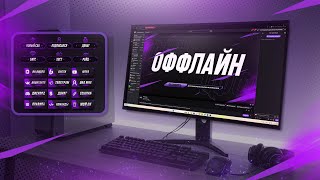
To add an offline banner, go to the channel and video materials tab, then the brand tab. The offline banner appears when the stream is offline.
Click on edit panels and the big plus sign to add descriptions and clickable links. Using markdown improves the design.
The host demonstrates adding a donation button by copying the donation link from Donation Alerts and pasting it into the panel.
Markdown can be used to add icons, colored lines, and bold text. For example, three asterisks at the start and end of text makes it bold.
The host shows a designed panel with an icon, text, and a purple line, demonstrating the use of markdown.
Drag the required files (start, end, break scenes) into OBS. Don't forget to enable loop for looping scenes.
A stinger transition is triggered when switching scenes. The host shows how to add it in OBS.
To add a frame to the webcam, simply drag the frame image into OBS and position it over the webcam source.
Add a new scene for chat and stream statistics. The host shows how to add the chat overlay and stream stats.
Add notifications for subscribers and donations using a service like Streamlabs or similar.
The host shows how to add custom emoticons to the channel.
Icons for subscribers can be added as subscriber badges.
The design works not only for Twitch but also for Kick, YouTube, and VK Video Live.
The host encourages viewers to visit streamdsgn.ru for more designs and to look forward to future content.
The video provides a step-by-step guide to fully design a Twitch channel using assets from streamdsgn.ru, covering panels, scenes, transitions, and alerts. It is a practical tutorial for streamers looking to enhance their channel's visual appeal.
What site is recommended for streamer design assets?
streamdsgn.ru
00:17
How do you add an offline banner on Twitch?
Go to channel and video materials tab, then brand tab.
01:11
What markdown is used to make text bold in Twitch panels?
Three asterisks at the beginning and end of the text.
03:09
What should you enable for looping scenes in OBS?
Enable the loop option (tick on repeat).
03:58
What is a stinger transition?
A transition that is triggered when switching scenes.
05:11
How do you add a frame to a webcam in OBS?
Drag the frame image into OBS and position it over the webcam source.
05:34
Which platforms does the design work for besides Twitch?
Kick, YouTube, and VK Video Live.
16:13
Streamdsgn.ru Resource
Introduces a dedicated resource for streamer designs, central to the tutorial.
00:17Donation Button Setup
Practical step for monetization, showing integration with Donation Alerts.
01:49Panel Design with Markdown
Demonstrates how to use markdown for visually appealing panels.
03:28Stinger Transition Explanation
Clarifies what a stinger transition is and how to add it.
05:11Multi-Platform Compatibility
Highlights that the design works on multiple streaming platforms.
16:13[00:01] beautifully design a Twitch channel, adding an avatar, banners, buttons, a frame, a start, end, and break scene, a chat scene, a stream transition, emojis, subscriber badges, channel points, and subscriber and donation notifications. The
[00:17] site streamdsgn.ru has good design for streamers. Come on in, make your choice, the link will be under this video. Let's add an avatar and profile banner. [music]
[00:46] So, we've added the profile banner and avatar . To add an offline banner, we need to go to the channel and video materials tab, and then to the brand tab. [music]
[01:11] To see what the offline banner looks like, you need to go to the chat.
[01:24] click on edit panels and click on the big plus sign. Here we can add various descriptions, make them clickable if we descriptions, make them clickable if we add a link to them.
[01:49] suggested, the description and buttons will look much better. Let's do this using one button as an example, and then you'll figure it out. So, let's add a button. This figure it out. So, let's add a button. This button will be our donation button. We
[02:07] To make the donation button clickable, we need to find the donation link and add it to the button. To do this, go to the Donation Alerts website and go to the donation page section. Copy the link and paste.
[02:27] donation page and they can donate to us. Let's now make a nice description for the button. Here we can write some information. And here, various markups are also available. If you use it, the design
[02:41] will look much better. We can, for example, first add an icon like this, and then write something, and then a purple line will appear. It
[02:57] all. It is possible, for example, to do this, uh, add some more inscription and add add some more inscription and add two dots. Then there will be bold font.
[03:09] bold hiccup. For this you need three points. at the beginning and at the end of the desired points. at the beginning and at the end of the desired text. It
[03:28] This is the interesting design we came up with. Now let's add scenes for OBS. Beginning, end and break.
[03:58] Drag the required file onto each scene . [music] Don't forget to add a tick on repeat.
[04:56] Let's add a stinger transition. [music] It is
[05:11] stinger transition is triggered when we switch scenes.
[05:34] To add a frame to the webcam, simply drag it into EBS.
[05:50] Now let's move on to the chat scene. Let's add a new scene.
[06:11] Here we will add the chat itself and stream statistics.
[09:53] Let's add notifications about subscribers and donations.
[11:52] [music] Adding emoticons.
[14:21] [music] Adding icons for subscribers. Adding icons for subscribers. [music]
[16:13] Twitch, but also for Kik, YouTube and VK Videla Live.
[16:33] interesting and useful things to come. Also visit the website streamdsgn.ru.
⚡ Saved you 0h 16m reading this? Transcribe any YouTube video for free — no signup needed.