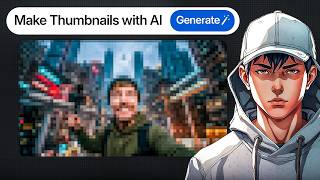

Free AI Thumbnails in Minutes
45sShows a quick, free method to create professional thumbnails, appealing to creators wanting to save time and money.
▶ Play Clip"The title accurately describes a free AI method for YouTube thumbnails, and the video delivers exactly that step-by-step."
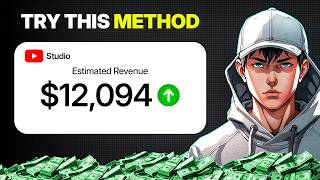
This video demonstrates a simple, free workflow for creating professional-looking YouTube thumbnails using AI tools like ChatGPT and OpenFlow. The process involves analyzing a reference thumbnail, generating prompts, and producing multiple variations in seconds.
The video starts by asking how creators make thumbnails look so good, promising a free AI-based method to recreate that style without Photoshop.
Find a thumbnail you like from any niche (business, gaming, fitness, etc.), take a screenshot, and upload it to ChatGPT.
Ask ChatGPT to break down the thumbnail style and create a complete cinematic prompt describing every visual element.
Request three thumbnail ideas for your topic based on the style. ChatGPT provides prompts and layout suggestions for each idea.
Copy the prompt into OpenFlow, set aspect ratio to 16:9, choose number of outputs (e.g., 3), select image model (Nano Banana 2), and generate.
Generate multiple versions to test differences in facial expressions, lighting, and composition for better click-through rates.
Drag the chosen thumbnail into the prompt box, upload your face image, and instruct to replace the person in the thumbnail with your face.
This free AI workflow allows anyone to create professional YouTube thumbnails quickly without Photoshop, with the option to personalize them with your own face.
What is the first step in the AI thumbnail workflow?
Find a thumbnail you like, take a screenshot, and upload it to ChatGPT.
00:13
What does ChatGPT provide after analyzing the thumbnail style?
A complete cinematic prompt describing every visual element.
00:27
How many thumbnail ideas does ChatGPT generate?
Three thumbnail ideas.
00:55
What aspect ratio should be set in OpenFlow for thumbnails?
16:9.
01:09
Which image model is recommended in OpenFlow?
Nano Banana 2.
01:21
Why is it beneficial to generate multiple variations?
Small differences in facial expressions, lighting, or composition can impact click-through rate.
01:36
How can you add your own face to the generated thumbnail?
Drag the chosen thumbnail into the prompt box, upload your face image, and instruct to replace the person with your face.
01:49
ChatGPT Creates Cinematic Prompts
Instead of a simple prompt, ChatGPT generates a detailed cinematic description, enabling high-quality image generation.
00:27Importance of Variations
Emphasizes that small visual differences can significantly affect click-through rates, a key insight for content creators.
01:36Personalizing Thumbnails with Face
Shows a simple method to replace a generated person with your own face, adding a personal touch to thumbnails.
01:49[00:01] and thought, "How did they make that look so good?" Well, what if I told you that you can recreate that style in just a few minutes using free AI tools? In this video, I'm going to show you a simple workflow that lets you generate
[00:13] professionallook thumbnails without spending hours inside Photoshop. Let's thumbnail that you like. This can be from any niche, business, gaming, fitness, finance, documentaries, literally anything. Once you've found a
[00:27] thumbnail, take a screenshot of it and upload it to ChatGpt. Now, here's where the magic happens. Ask ChatGpt to break down this YouTube thumbnail style and understand how to recreate it. Instead of giving you a simple oneline prompt,
[00:40] ChatGpt can create a complete cinematic prompt that describes every visual element inside the thumbnail. Next, ask Chat GPT based on this thumbnail style, give me three thumbnail ideas for my topic, and type your topic.
[00:55] Then AI is going to generate three ideas and it will also give you a layout for something like give me the image generation prompt for each idea. As you can see chat GPT has provided you with a complete prompt for generating the
[01:09] thumbnail. Simply copy the prompt and open flow. Then paste the prompt into open flow. Then paste the prompt into flow. Set the aspect ratio to 16 to9. Select how many outputs you want. I want three outputs for my thumbnail so I
[01:21] choose three. Then select your image model as Nano Banana 2 and generate the you may want to create multiple variations. I usually generate several versions because even small differences in facial expressions, lighting, or
[01:36] composition can make a huge impact on click-through rate. There you go. In a couple of seconds, you have three YouTube thumbnails that look completely awesome. And you can use these thumbnails in your videos completely
[01:49] free. Now, if you want, you can add your own face to the thumbnails. All you have to do is select the thumbnail you like the most and drag it into the prompt box. Then upload your face image as well. Type something like replace the
[02:01] man on the right in image one with the man in image two. And there you go. In a thumbnail with your avatar in it. And that's it. This is one of the easiest ways you can create thumbnails completely free using AI tools. If you
[02:15] forget to leave a like and subscribe to AI Vision so you never miss the next viral AI content idea. Thanks for watching and I'll see you in the next
⚡ Saved you 0h 02m reading this? Transcribe any YouTube video for free — no signup needed.