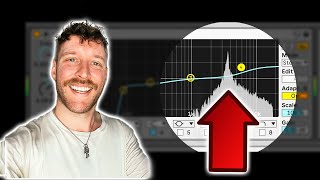

Secret 4-Step Vocal Chain (Compression Sandwich)
54sTeaches a memorable and easy-to-apply framework for vocal processing that beginners and intermediate producers crave.
▶ Play Clip"The title is accurate; the video delivers a complete system for professional vocal mixing using stock plugins."
This video presents a systematic four-step 'compression sandwich' method for processing vocals to achieve professional-quality sound using only stock DAW plugins. The creator, a professional mixing engineer, demonstrates the technique in Ableton Live, showing how compression, EQ, de-essing, and a final compressor can transform a raw vocal. The video concludes with a comparison showing stock plugins can rival expensive third-party chains.
The vocal processing chain consists of four layers: compression, EQ, de-essing, and another compression. This is called the 'compression sandwich'.
First compression limits dynamic range, making quiet parts louder and loud parts quieter for consistency.
Use a high-pass filter around 100 Hz to remove sub-bass, cut around 250 Hz to reduce boxiness, and boost around 7 kHz for air.
De-essing reduces harsh 'S' sounds. In Ableton, use a compressor with a band-pass filter set to 10 kHz, guided by a spectrum analyzer.
Final compression smooths the vocal. Use a multiband dynamics preset like 'Vocal Control'.
Add reverb via send/return tracks to keep the dry signal at full volume while adding effect.
Automate the gain of a Utility plugin to manually reduce plosives, breaths, and harsh sibilants. This is the 'secret sauce' for polish.
A chain of five stock Ableton plugins sounds nearly identical to a chain of seven expensive third-party plugins.
What are the four layers of the vocal processing chain in order?
Compression, EQ, De-essing, Compression (the 'compression sandwich').
01:16
Why is the first compression step applied to vocals?
To limit the dynamic range, making quiet parts louder and loud parts quieter, creating consistency.
04:32
What EQ setting is recommended to clean up low-end rumble in vocals?
A high-pass filter around 100 Hz to remove sub-bass frequencies.
05:14
What is the purpose of de-essing in vocal processing?
To reduce the loudness of 'S' sounds that can be overwhelming when recorded close to a microphone.
06:19
How can you achieve de-essing in Ableton if the built-in de-esser is not effective?
Use a compressor with a band-pass filter set to 10 kHz, guided by a spectrum analyzer.
07:09
Why is reverb added via send/return tracks instead of directly on the vocal track?
To add reverb without reducing the dry vocal signal's volume.
08:36
What is the 'secret sauce' technique for final vocal polish mentioned in the video?
Automating the gain of a Utility plugin to manually reduce plosives, breaths, and harsh sibilants.
09:08
Which two third-party plugins does the creator recommend as most impactful for vocals?
Waves Tune Real-Time and CLA-2A compressor.
14:04
The Compression Sandwich
Provides a memorable, systematic approach to vocal processing that works in any DAW.
01:16Purpose of First Compression
Explains that compression creates dynamic consistency, a foundational step often misunderstood.
04:32Stock Plugin De-essing Workaround
Shows how to use a compressor and spectrum analyzer to de-ess when the built-in de-esser is weak.
07:09Manual Automation for Polish
Reveals a pro-level manual technique for taming plosives and breaths, often overlooked.
09:08Stock vs. Expensive Plugins Comparison
Demonstrates that stock plugins can sound nearly identical to expensive third-party chains.
13:07[00:00] okay so if you're feeling lost when it comes to vocal production and you don't know how to get your vocals to sound as good as the Spotify top 50 or the stuff that you hear on the radio or your favorite pop singers or rappers or whatever, then you are in the right place. I've been a
[00:12] professional producer mixing engineer and mastering engineer for over a decade now and I have a system for producing vocals that's going to get your vocals to sound incredible whether you're processing your own or somebody else's and the best part is this system works whether you're using stock
[00:24] plugins or you have a bunch of third party stuff that you want to use. So first I'm going to explain what the system is and then we're going to jump into Ableton and I'm going to show you exactly out of process vocals using stock Ableton plugins and then I'm going to show you my professional vocal
[00:36] chain that I've spent the last 10 years perfecting. But first let's go to the iPad so I can teach you the concept. It'll only take a couple minutes and it's going to help you so much trust me. The way I like to think about processing vocals is we're going to build a vocal processing chain from the ground up
[00:49] and it's only four layers. The first layer is going to look like this and that is going to be compression so that's our base layer. That's the first thing we're going to do when we're processing vocals we are going to add compression. Now the next step after that is going to be EQ which stands
[01:02] for equalization. So compression EQ then after that we have DSing. Compression EQ DSing and the last step is we're going to compress again. Let me just color this in really quick.
[01:16] Okay so there you have it. I like to call this the compression sandwich and it's just an easy way to remember how to process vocals. You've got your vocals you put compression on them then you EQ them then you DS them and then you compress them again. The reason I did a burger or a compression
[01:29] sandwich is so you could actually remember this no matter what DAW you're using. You can do this with Logic, FL Studio, Pro Tools but right now I'm going to show you exactly how to do it in Ableton and I think it'll be really surprised and really impressed with just how close Ableton stock plugins come
[01:42] to sounding like the expensive third party plugins. So no excuses you can get your vocals to sound incredible using this method. If you're following along go ahead and open up Ableton and I'll meet you on the computer. Alright so now we've got Ableton open. So before we even start processing a vocal we want
[01:56] to make sure that we've recorded it as good as we possibly can. In order to help you guys do that I've created a PDF you can find the download in the description of the video and that's going to help make sure you get the best vocal recording you can possibly get. I talk about things like the right distance away to record from the microphone and other things you can do to make your voice or
[02:11] someone else's voice sound as good as possible. To definitely download that from the description before we go any further and then once you've recorded your vocal the best that you possibly can we finally get into processing. So in order to demonstrate how to process a vocal I'm going to work with my
[02:24] song called Carried. The reason I picked this one is because it's performing pretty well right now. It's averaging about 4,000 plays a day and so it's kind of relevant or whatever and let's go ahead and play some of the verse just to show you what we're working with. I choose to spend every moment
[02:39] inside you. You have my heart in my eye. Do all my affections are yours.
[02:53] Okay so I like the way that my voice sounds. What I want to do is recreate this exact vocal processing but with Ableton plugins so you can follow along every single step of the way and you don't need all these crazy third party plugins. First thing I'm going to do is just press command T and make
[03:06] a new track under these vocals. I'm going to highlight the raw vocals and paste them onto that new track. I'm going to go ahead and copy the tune over to that new vocal but I'm going to leave all the other processing off. So this is what it sounds like now. I choose to spend every moment beside you.
[03:26] This is the final product that we're going for. I choose to spend every moment beside you. If we use that four step process that I explained at the beginning of the video remember the compression
[03:40] sandwich. We use compression EQ DSing and then more compression. We should be able to get this raw vocal to sound as good as the processed one. I'm going to go ahead and change the color of our raw vocal the green so we can easily tell the difference. Okay first things first if you don't have this wave
[03:54] tune plugin you actually don't need it at all if you can sing it in tune. For me I struggle the singing on pitch so it helps me express myself and sing the way that I want to sing and even if I miss a note or two it corrects me and makes me sound better than I am in terms of pitch. These are
[04:08] the settings I use and we're in the key of e-major. Okay first thing I want to do is go over here to the left where it says dynamics open up compressor and then drag on sustained vocal lead. Let's listen to this.
[04:21] Now in Ableton you can click on these little yellow circles and that just turns plugins off and on and I like to A and B stuff as I go and hear the difference that I'm making. I choose. So that's what it off this with it on.
[04:36] Hardly noticeable difference but the reason why we're compressing initially is because when you compress you limit a signal's dynamic range meaning that the quiet parts are louder and the loud parts are quieter and it kind of just squishes everything more in the middle. So this is just to make the vocal more consistent and these quiet parts like this you are going to be a bit louder and these
[04:53] loud parts like this are going to be a bit quieter. Okay so now we have some basic compression going next thing we're going to do is go to EQ here and drag on an EQ 8. So as far as vocals go we don't need any sub bass frequencies meaning we don't need anything from like 80 to 100 hertz and lower. So what we
[05:09] can do is click on this one here on the EQ click on the arrow and make sure it's a high pass filter and then drag that up to around 100 hertz or if you want to be aggressive you can click on the times 4 that'll just make it really aggressive and then also my vocal can be a little bit boxy around
[05:23] this like 100 to 300 or 400 range. So what I like to do is click on this 2 here make sure we're on low shelf which looks like that and then I just bring it down and move it to right around 250 hertz and just play with this gain accordingly. After that I like to boost the highs a little bit so I'm
[05:44] going to click on this 4 and just drag it up. Now as far as the frequency goes you can use your ears and adjust this accordingly but basically I'm gonna put it somewhere around 7000 and just boost it up a couple dB. Real quick if you're enjoying this video I would genuinely appreciate it if you
[06:05] consider subscribing and giving me the chance to help you make the best music that you're capable of. Okay back to the video this is just gonna make the vocal a lot brighter and ultimately make it sound shinier and more expensive. A little EQ goes a long way especially for vocals. Now after that we
[06:19] want to DS and just as a reminder DSing is basically just making the S's sound a little bit quieter because when you're recording into a mic they can sound overwhelming and we want to just chill the S's out a little bit. So let's go ahead and find an S to get started. All right how about that on spend?
[06:37] What I'm gonna do is to use Ableton's plugins. Ableton doesn't have the best DSer there's a method we can use here to get decent DSing and that's under the compressor tab there's a DSer so let's just
[06:50] drag that right onto it and then after that plugin we're gonna add one more plugin under utilities called spectrum just drag that on. What you're gonna want to do is double click on spectrum and it's gonna make it real big down here and now we can see exactly where that S is poking through.
[07:03] If you look right around 10k right here on the spectrum you can see that that S is poking through a lot so what we're gonna do with the DS is click this little arrow right here it's gonna open it up so we can see everything. For filter type we're gonna click on this band pass filter and we're gonna
[07:18] change the frequency to 10k we're gonna turn the ratio up and then click on this little bent line right here and play with a threshold we can also play with a Q as well. So real quick if we turn
[07:30] it off we can hear the S before then if you turn it on it's just turning the S down a little bit we can go ahead and play with this dry wet little bit as well and make the effect a little bit less noticeable. Okay so we have our compressor we have our EQ we have our DSing and now we need one more
[07:46] compressor to kind of smooth things out and just squish everything one last time. So I'm gonna go to dynamics and then actually go to multi band dynamics go to vocal control. Also I just want to say there
[08:00] is a split band DSer here and you can play with this instead of our DSer that we used before. All these presets are here for you to play with but I'm just gonna stick to the DSer that we already have. Alright last thing I want to do for our vocals is add some effects to it so when you first open
[08:15] Ableton you're gonna have two send tracks right here and you can use these to send the vocal to some reverb which is gonna be down here on these return tracks. So if we turn this up you'll hear some reverb going onto the vocal. And the reason we want to do reverb like this is because this is gonna have
[08:36] 100% of the vocal signal and then it's gonna put reverb on top of that. We could drag reverb directly onto this vocal track and just put it right after the rest of our effects but the problem is if I drag a reverb onto it anytime I'm turning up this dry wet it's actually making the vocal quieter and it's
[08:50] turning up the reverb but if we do it this way by using the sends the vocal stays at the same volume and it adds reverb to it. Okay that sounded pretty good. Now the last step and potentially the most
[09:08] kind of secret sauce part of this whole video is I put a utility on the vocal so I go to utilities here just drag on utility at the end and then I automate this gain knob and I use this to perfect the sibilance so all the like P's and T's and C sounds as well as turn down breaths and also chill out
[09:25] some of the S's. So let me show you exactly what I'm talking about. First thing we do is once we have the utility on the track we want to enable automation view so we just click on this little slanted line up here to the upper right and then we go ahead and click on gain on this utility and that's gonna make
[09:38] it so there's a dashed red line on our vocal you can see right there and that way we can click and drag and it'll adjust the gain and if we play it it's gonna make this gain change over time and we can choose how much it changes. So if we listen to the vocal let's say that CH on choose seems a little
[09:57] bit too loud drag this make it a little bigger so we can see it. What I like to do is I like to highlight what I want to turn down. I hold shift and I click on that line and just drag it down so listen now I choose. Now the CH sound is a lot less aggressive. Now just to smooth things out I'll click a little bit
[10:15] before and after and then click to get rid of these dots just so it's kind of more smooth and slanted versus like super abrupt changes in volume. So listen to it after now. So let's go ahead and listen
[10:27] without it. We can hear the CH on choose is a bit loud and now with it we can hear that it's chilled out and sits just right in the mix. That S on beside is a little loud so I'm gonna go ahead
[10:46] and highlight that. Make sure that we're on the right automation here so I can click this arrow and just go to gain so I highlight that section I want to change. I hold shift I drag the line down and then I do these little extra dots to smooth things out. Now that's a little bit too quiet so I'm
[11:01] gonna hold shift and move that line up. Nice that sounds good. So what I do is I go through the entire vocal and I do these little animations to make sure there's no pops or clicks that are
[11:13] overwhelmingly loud and this is really like the last 10% that's gonna make your vocal sound incredible and if you don't have a DSR this is gonna really help too because you can DS stuff manually and you know it takes a bit of time to do it this way but it really does make such a big difference and a lot of
[11:27] really good mixing engineers like the best of the best they do tricks just like this to just get that vocal the sound 10% better. Now on the original vocal I've already done that with this utility so I'm gonna copy it and go ahead and just paste it and if we look here you can see all the different
[11:40] scoops that I made. There's a few on every single phrase and these little changes made a huge difference throughout the whole track. Let's listen to the original vocal. Okay it's way louder. So what we can do is honestly just turn this vocal up with this output here or another thing we could do is just
[11:57] add another gentle squeeze at the end of this. Click on this line here so we can see the output and just turn the output up so it can match the gain of the other one. All right sounds pretty close. Let's go
[12:12] ahead and listen to the section with our new vocal processing and see how it sounds.
[12:30] All right let's go ahead and listen to the original vocal processing with all the fancy plugins and see what that sounds like. I mean there's not a huge difference there. Here's the one that we
[12:53] just did. Here's the expensive processing. I honestly don't hear a huge difference. Part of me
[13:08] is pretty surprised but at the same time this is why concepts and formulas are so powerful. It's not so much about the exact brand of plugin that you use. It's more so about utilizing the tools that you have available. Now for those of you who are curious I will show you my actual vocal chain for this song
[13:23] which is just waves tune, compos and copy the settings. We have Rvox or Rvox. Then I use virtual mix rack by slate which is on these settings just more compression and EQ. Then I'm doing this for some additional EQ. Then I have a DSR from FabFilter and then I have CLA2A doing some more compression
[13:38] and then I have sooth after that and that's just chilling the vocals out a bit. So all these plugins are basically doing the same thing as this compressor, this EQ, the DSR and then another compressor. Remember the spectrum was just for us to DS properly so we don't even need that. So yeah five
[13:54] Ableton stock plugins. Basically getting the exact same processing sound. As seven relatively
[14:06] expensive plugins, I will say out of all of these there are two plugins that really really go a long way. Maybe three depending on how you want to look at it. So if you do have a little bit of a budget I would say waves tune real time is an absolute must if you struggle with pitch at all and it's
[14:21] pretty cheap. I think it's like somewhere between 30 and 50 bucks and also the CLA2A compressor I use on almost every single track. It just makes things so much more present. It just makes stuff sound better and that one is pretty cheap as well and pretty sure waves has a thing where if you buy a plugin
[14:36] you get the second one for a half offer something like that. So these two plugins are incredible. And then as far as DS and goes waves also has a DSR that's great or you can use FabFilter's DSR which is going to be a little bit more expensive but has more parameters for you to play with.
[14:49] I usually just click on mastering vocal, DSing, and music and play with it from there. But all that to say if you use the compression sandwich and you put the EQ and DSing in the middle and then you utilize that automation technique with the utility. Remember automating the gain to control the breaths,
[15:03] the S's and the sibilance. Then all you have to do is add a little bit of effects with these send-in returns and your vocal will sound wow expensive. But you can do so much with just Ableton stock plugins and I hope that you're encouraged and inspired to try processing your own vocals
[15:16] and I hope you don't feel like oh I can't do this because I don't have all the nice plugins because it does make a difference. I will say that but not as big of a difference as everyone makes it out to be and it's way more about who's using the tools and how you're using the tools then the tools themselves.
[15:29] A lot of the time. Also make sure if you're going to be recording any of the vocals that you're working with the download that PDF in the description. For some of you guys you just want to record and mix good vocals. There's going to be others of you out there who really want to take this music thing to the next level and for you guys who want to go above and beyond or take a deep dive I have a
[15:45] full step-by-step course where I can teach you how to make professional sounding music whether you've never made a song before or you've been at it for a while and you're stuck and you're just trying to improve. I'll put part of the course in the description of the video so you can watch that for free. Get
[15:57] a feel for how the course is going to be and then see if it's something that you're interested in. Okay thank you so much for watching. Seriously I really really appreciate you and I just want to say remember to stop making excuses and start making music. Cheers.
⚡ Saved you 0h 16m reading this? Transcribe any YouTube video for free — no signup needed.