
Stop Streaming to Only One Platform!
57sThe opening call-out immediately grabs streamers who are unknowingly limiting their growth.
▶ Play Clip"Useful step-by-step, but the 'free' claim only covers one horizontal plus one vertical — streaming to all three platforms at once requires the paid Ultra plan."
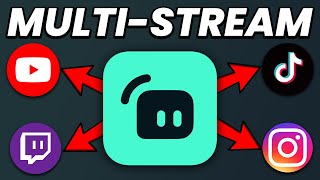
This video demonstrates how to use Streamlabs Desktop's dual output feature to multi-stream to multiple platforms simultaneously, such as YouTube (horizontal) and TikTok (vertical), for free. The host walks through enabling the feature, linking accounts, customizing each canvas, and going live, while noting limitations and the optional Ultra upgrade.
Multistreaming lets you broadcast to multiple social media platforms at the same time using one stream, helping grow your brand and audience. Streamlabs Desktop makes this possible via its dual output feature.
Click the icon next to the Sources section to open settings, then configure horizontal and vertical canvas options. The horizontal canvas is typically 1920x1080, while vertical can be 720x1280 or 1080x1920.
In the Stream tab, link horizontal platforms like Twitch or YouTube. For vertical platforms like TikTok or Instagram, create a Streamlabs account and link your social accounts centrally.
TikTok can be linked via the merge option in the Streamlabs dashboard and logging in through TikTok. Instagram requires entering its stream URL and stream key.
Hover over any source to reveal 'hide from horizontal' and 'hide from vertical' icons, allowing you to show or hide elements independently on each canvas.
Copy and paste sources, then use the Alt key (Option on Mac) to resize them and position them properly for the vertical layout. Locking a source locks it on both canvases.
Click the Go Live button, add a destination like TikTok, and confirm. The stream will push to both YouTube (horizontal) and TikTok (vertical) simultaneously.
If not approved to go live, apply via the provided link. With an established channel and proof of ownership, approval can come within about 20 minutes.
The free version supports one vertical and one horizontal platform. Streamlabs Ultra is required to stream to more than one vertical and one horizontal platform at the same time.
The multistream chat lets you interact with viewers on all platforms. Note that recording only captures the horizontal scenes.
Streamlabs Desktop's dual output provides an easy, free way to multi-stream to one horizontal and one vertical platform simultaneously. With proper canvas customization and account linking, creators can expand their reach without expensive equipment.
What feature in Streamlabs Desktop enables multistreaming to different canvas formats?
Dual output.
00:17
What are the two canvas types available in dual output?
Horizontal and vertical.
00:30
What resolutions are available for the vertical canvas?
720x1280 or 1080x1920.
00:42
What is required to link Instagram as a streaming destination?
The stream URL and stream key from Instagram.
01:54
How do you hide a source from only the vertical output?
Hover over the source and click the 'hide from vertical' icon.
02:23
Which key do you hold to resize a source proportionally in Streamlabs?
Alt (or Option on Mac).
03:46
What happens when you lock a source in dual output?
It locks on both the horizontal and vertical canvases.
04:13
How long did the creator say TikTok live approval took?
Within about 20 minutes.
05:18
What does Streamlabs Ultra unlock for multistreaming?
The ability to stream to more than one vertical and one horizontal platform simultaneously.
06:02
What does the recording feature capture during multistreaming?
Only horizontal scenes.
06:34
Dual Output Feature
This feature is the core enabler of multistreaming to horizontal and vertical platforms from one Streamlabs project.
00:30Per-Canvas Source Control
Hiding sources on one output without affecting the other is essential for creating clean, platform-optimized layouts.
02:23Fast TikTok Approval
TikTok live approval can be obtained in about 20 minutes with an established channel and proof of ownership, making multi-platform streaming accessible.
05:18Free vs Ultra Limitations
Understanding that the free tier supports only one vertical and one horizontal platform sets clear expectations for creators considering multi-streaming.
06:02[00:01] sessions to more than one social media platform what are you doing seriously you do this thing called multistreaming it allows you to grow your brand and audience across multiple platforms at the same time using just one stream how
[00:17] would you accomplish that using streamlabs desktop well it's actually quite easy let me show you right now you can see my streamlabs desktop project open here and what they have added to their software is a thing called dual
[00:30] output this feature can be easily enabled by going to this icon here next to the sources section and when you click on that this is going to open up your settings menu where you're going to be presented with your horizontal in
[00:42] vertical canvas options so under horizontal you can see that my canvas is a 1920x 1080 and then if I go to the vertical tab this is where I can adjust be streaming in so that can either be 720 X 1280 or 1080p X 1920 the next
[00:59] thing we're going to want to do is head over to the stream Tab and within here different locations you're going to be streaming to so if you've typically just been streaming in horizontal format to Twitch or YouTube you probably already
[01:13] have that linked and set up here but if you want to stream to Instagram or Tik Tok in vertical format you're going to want to go ahead and create a streamlabs straightforward to do you're just going to sign up with an email and that will
[01:27] social media accounts that that you have centrally to one single streamlabs account from there you can go ahead and link your Tik Tok account it will bring up your streamlabs dashboard and from there you can go ahead and select the
[01:41] merge option and that'll bring up Tik tok's website where you can log in using one of the options there and that will link your Tik Tok with your streamlabs account now when you go back into your streamlabs desktop stream settings you
[01:54] will see the account linked now in order to link your Instagram you will need to have your stream URL and stream key from this platform in order to stream to it once you're good with your settings go ahead and select the done option to
[02:07] going to be presented with your two canvases the horizontal should be on the left and then your vertical on the right if you select any of your sources you're going to see that they map to both the horizontal and vertical output now let's
[02:23] say you want to hide certain elements on one or the other outputs well if you just hover over one of the s forces let's go with the face cam border here you can go over to the right hand side and you're going to see two options one
[02:37] is going to be hide from horizontal which is that more landscape looking icon and then the other one next to that is going to be hide from vertical which is that Slimmer looking icon so let's say I don't want the face cam border to
[02:49] be in vertical all I need to do is Select that option and as you can see it is gone from my vertical output one thing that's missing out of my vertical output is my my face cam so that's one thing I did have hidden and I'm going to
[03:03] show it again right here but as you can see the elements within my vertical output are totally jacked up who's going to watch a stream looking this freaking messy I mean I wouldn't maybe you would so all we got to do is just take and
[03:18] grab the elements just like you would on the horizontal side to be adjusted accordingly on the vertical end it's looking better right since we're playing information that you can see see in horizontal you can't see in vertical
[03:32] such as that information on the right hand side where it says how many kills do I have and even when the Storm Circle is closing in so what I'm going to do is take this Elgato 4kx capture card Source I'm going to copy it and then we're
[03:46] going to paste it with crl v and what I'm going to do here is find that side and I'm going to select the alt button to bring in the sides of this
[03:58] Source if you're on Mac you can use the option key and hold it down to move it in like this but once I have what I want I can just blow it up I think that looks pretty good and then we can go ahead and lock this stuff in the place and when
[04:13] you do click the lock button it's going to lock on both the horizontal and the vertical canvases so just keep that in mind now that we have both outputs set up and ready to go we can go live by selecting the go live button on the
[04:25] bottom right hand side this is going to bring up our go live menu and and this is where we can add an additional destination to stream to I'm going to go with Tik Tok here and that's going to load up the Tik Tok channel that I'll be
[04:38] be in vertical format and then for YouTube that is what it's going to be in horizontal now with Tik Tok if you're not approved to go live on their platform there is a link right here that you can click and that will take you to
[04:51] a page where you can apply to be a streamer on Tik Tok site when you do apply it does help to have a channel already somewhat established legitimate Creator and you are on that grind you are trying to hustle but
[05:05] link on in there it could be from twitch YouTube you will need to provide a actual owner of the account but after you do that you can go ahead and submit you do that you can go ahead and submit it and literally within like 20 minutes
[05:18] I was approved to stream on Tik Tok no joke now there are some guidelines to actually keep your ability to live stream on Tik Tok without having to get reapproved again but if you are diligently live streaming and you're
[05:31] shouldn't have to worry about losing your access now for both Tik Tok and YouTube you can modify the information that is displayed to your viewers so if can modify it here but if you want to get some more details to tweak select
[05:46] the additional settings option and that will allow you to customize your stream settings for both Tik Tok and also YouTube if you want to specify another stream to more than one vertical and in one horizontal platform at the same time
[06:02] you guys can sign up for streamlabs Ultra and you'll unlock that ability now that we're all good to go I'm going to go ahead and select confirm and go live and that's going to push us to YouTube as well as Tik Tok all at the same time
[06:19] we're going to see our chat here on the right hand side as well as our multistream chat as well that way we can interact and respond to everybody's another thing to note is when you do a recording it will only record the
[06:34] horizontal scenes once you're all finished multi streaming you can end your stream just as easy as you started it by selecting the end stream option but that's all there is to it guys let me know your experience using this
[06:48] feature in the comment section below shout out to streamlabs for sponsoring this video If you guys enjoyed the video of course hit the Thumbs Up Button around here and I'll see you in the next one peace
⚡ Saved you 0h 07m reading this? Transcribe any YouTube video for free — no signup needed.