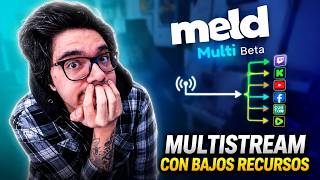

Multistream on a Low-End PC?
45sDirectly addresses a common pain point with a promise of a solution, enticing viewers with limited hardware.
▶ Play Clip"Delivers exactly what the title promises — a practical, free multistreaming method for low-end PCs, with minimal fluff."
This video demonstrates how to multistream to multiple platforms simultaneously using a low-end PC. The creator shows a practical method using Mel Studio's cloud-based multistreaming, which offloads the encoding work to the cloud, allowing even a modest laptop to broadcast to YouTube, Twitch, and Kick at once. The tutorial covers setup, configuration, and a live test, emphasizing that this approach is free and resource-efficient.
The video is sponsored by RolandRoll.com, a tool for converting long videos into vertical clips for platforms like TikTok, Instagram Reels, and YouTube Shorts. The creator recommends it for diversifying content.
The creator explains the challenge of multistreaming on a low-end PC and introduces the solution: using Mel Studio's cloud multistreaming to replicate a single stream to multiple platforms.
Steps to set up Mel Studio: log in, add streaming platforms (YouTube, Kick, Twitch) via login or stream keys, and configure the cloud multistreaming tool.
In the Cloud Multistreaming tool, add platforms manually by pasting their stream keys. For YouTube, find the stream key in the 'Go Live' section; for Twitch, it's in the dashboard settings; for Kick, in the control panel.
Copy the RTMP URL and Stream Key from the cloud tool and paste them into Mel Studio as a Custom RTMP Destination. Name it for clarity (e.g., 'MultiMel').
Recommend setting the bitrate to 6000 for a single 1080p stream, as this is what most platforms accept for decent quality.
The creator tests the setup by going live and shows that all three platforms (YouTube, Kick, Twitch) receive the stream at 1080p60, while the laptop's CPU and GPU usage remain low.
The method is free, unlike services like Restream, and can be used with any platform that supports RTMP, including TikTok (via third-party tools) and others.
What service is used to replicate a single stream to multiple platforms?
Mel Studio's Cloud Multistreaming service.
00:03:42
Why is the stream processed by a cloud service instead of the local PC?
To reduce the load on the local computer by processing the stream in the cloud.
00:03:42
Which three platforms are used as examples in the video?
YouTube, Kick, and Twitch.
00:04:25
Where do you find the Cloud Multistreaming option in Mel Studio?
In the Creator Tools section, under Cloud Multistreaming.
00:04:52
What bitrate is recommended for a single 1080p stream?
6000 bitrate.
00:07:25
Why is TikTok not directly supported in the example?
Because TikTok does not provide stream keys to all creators.
00:06:05
What are the specs of the laptop used in the demonstration?
RTX 2050, Ryzen 5 7535HS, and 8GB DDR5 RAM.
00:03:06
Cloud-Based Multistreaming
Shows a practical method to offload encoding to the cloud, enabling low-end PCs to multistream effectively.
00:03:42Optimal Bitrate for 1080p
Provides a concrete recommendation (6000 bitrate) that ensures compatibility across most platforms.
00:07:25Low Resource Usage
Demonstrates that even a budget laptop can handle multistreaming with minimal CPU/GPU load, challenging common assumptions.
00:09:43Free Alternative to Paid Services
Highlights that cloud multistreaming can be done at no cost, offering a viable alternative to paid tools like Restream.
00:10:32[00:01] channel, and yes, as you saw in the title, today I'm going to talk to you about a way we have this laptop. It only has a 3050, a seventh-generation Ryzen 5 processor, will be a perfect example to show you how this
[00:15] start writing here in the comments. Urbic costs a lot, I mean, literally just the electricity and the internet. So, if you want to know to literally any number of platforms with a low-
[00:28] spec PC, stick around for the rest of this video. And if you also want to diversify obviously bringing it from your videos or streams into a vertical format, I highly recommend you check out rollandroll.com. If you're having
[00:40] trouble getting more views lately, it probably doesn't mean your very clear to me is that if you really want to grow, one thing you need to do is make your content public everywhere, okay? Instagram reels, TikTok,
[00:52] unlike other platforms, these formats do have an algorithm dedicated to promoting content that is quite popular problem with all of this is that, for example, you have a dedicated time to
[01:06] make a long video and then you simply do n't feel like doing more than what you've already into several clips, in addition to constantly publishing them on all the a lot of time, seriously, quite a lot. And this is where roll and roll has made
[01:19] this process much easier for me, because it has allowed me to create a whole shorts, as well as in TikTok and Instagram reels. To give you a super YouTube channel. The process consists of uploading the video to the platform and after
[01:33] clips, which is actually the easiest part of the process, you can choose to edit it. That's right fully equipped editor for all your needs. Whether on the left, you can
[01:48] add transitions between each cut, of course, the typical format, and you can also adapt the text if there is any subtitles, obviously to generate anticipation at the beginning of
[02:01] etc. And you can even add resources such as stock images, GIFs, frames, and so on. This will ensure your video looks perfect with change, remove, or include, and will definitely reach your target audience
[02:16] . The easier it is to convert your distribute it across different platforms, the more opportunities you'll have to gain more views and, consequently, a constantly growing audience for
[02:30] You should definitely try roll and roll. I'll leave the link below in the description and take advantage of the Urbic code for a 10% discount. sponsoring this video. If you want to literally convert your
[02:42] streams and videos to vertical format, it's very easy to do it this way. But anyway, let's talk about what we're going to do in this video, which want to show it to you so you can apply it as soon as possible,
[02:54] because I know it's quite annoying when you want to be on several because your computer limits you. So, as I mentioned at the beginning, this is an HBTUS laptop, it has an RTX 3050, a Ryzen 5 from the
[03:07] has an RTX 3050, a Ryzen 5 from the 7000 series and only 8 GB of RAM, task manager. Okay, I just made a mistake. It's a 2050, so let's set an even better example. Yes, we have an Nvidia GeForce RTX 2050. The processor
[03:20] Nvidia GeForce RTX 2050. The processor is a Ryzen 5 7535 HS, which is obviously a laptop processor, and we only have 8 GB of DDR5 RAM. Many I don't even have a BIC video card. Well, don't worry about the
[03:32] processor with integrated graphics or even the graphics card you have from we're going to do is replicate a signal and send it to different [music] the computer, it will be processed by a Mel Studio cloud service.
[03:47] install Mail Studio. I recommend that you log in because we're going to use the multistreaming service. I'm going to logged in, so we're going to enter Ma Studio again. Once we're here in Mail
[04:01] start logging into the platforms where we want to stream. We'll find this at the bottom in settings, and we'll go to streaming outputs. Literally,
[04:13] want to use from among those available. In this case I'm going to use sends me to a page to authenticate and then we will simply have to add the other platforms, which in this case I'm going to add kick.
[04:27] already logged into my browser. And we do the same with have the three platforms that we are going to use for this example, or that is what we would normally do if we wanted to code everything inside the computer.
[04:41] Our goal is simply to encode an output and send it to different go back to the Mel Studio page and there we'll have an option called creator tools. We'll have the Cloud multistreaming one, which
[04:54] literally just adding a stream key, an output address, which is obviously part of the service that Mail Studio provides. I with the same account you used to log in to Mil Studio. And now instead of
[05:08] add the platforms we want to send to here. Let's click on add new. And here, unlike logging in, as we are doing add the stream keys manually. For example, you'll
[05:20] stream settings, and that's where your paste it exactly here. We're going to add something new, and in this case it would be the also access the control panel, server, and broadcast key by clicking
[05:35] two-step authentication, it will obviously ask for it so you can log in, copying and pasting. In this case, it would only be the and that's it. To find the stream key on YouTube, click on "Go
[05:49] live" in the top right corner, and you'll see . You can create a different one depending on whether you're going to do multiple transmissions in different formats, and you just click here on copy.
[06:01] . I think the concept is clear. When you go to add a on which you will go live. TikTok doesn't appear here because, as many of you may or may not know, I'll explain. [music] TikTok does not give
[06:14] a stream key to content creators as such. That's why we use already made a video about it, but right now I'm going to focus solely on doing the multiple streaming to those platforms with a single canvas. And once you're
[06:27] we're just going to click the auto start buttons here in all the [music] sections and here you'll have the URL and stream key that will go directly into Mel Studio. Mel Studio it's just like adding
[06:40] any other output. We'll go to custom RTMP destination and paste it here. The same applies to the stream key. It appears to us on this side. We're going to copy it and key. We see an option here that says to start this stream as soon as
[06:53] select it and we'll have it here as a generic stream output. You can obviously change the name so you know it's the MTH multistream. Let's put multith here. And that's it, we'd be
[07:07] others? No, I just wanted to show you that you could also do the entire stream directly from your resources than what I just showed you with this laptop benefit you? Probably lower latency, but in reality the quality is
[07:21] send. So, I think we're doing well on that front . However, since we're only recommend setting the bitrate to 6000. Because? Because that's what most platforms actually receive
[07:35] correctly when streaming in 1080p, which is the minimum to let's say, in terms of streaming, because everything else depends a lot on your camera, shown or explained on this channel. Let's close this option and
[07:48] go here to Stream Manager. Now we're going to click here we have several exits. We're going to turn off YouTube, Kick, and Twitch so you can see there's no
[08:00] method works. Now we're going to quickly add what a camera is. We're going to on the laptop, which is probably the only one I have. Yes, I apologize if it looks a bit rough, but it is what it is. And in audio miixer I'm going to add a
[08:14] microphone, which would probably be the one from the laptop, which would be the AMD microphone array, yes, we'll allow it. And there's the microphone. We set a voice clarity preset so that it obviously doesn't sound too noisy
[08:26] . Once we have selected multimil here, all we live. Let's do a little testing. It's supposed to be connecting and there I am sending my 6000 bitrate. We're going back to the canals. In
[08:39] of our stream. If we press play here, then you're already watching the broadcast. This is the one that will be replicated across all three of our services. Here, for example, on my Kick channel I'm sending the test.
[08:52] We can see that here the quality is automatic, obviously at 1080 60 frames. We have [music] here the encoding for YouTube. YouTube is also receiving this at a resolution of 108060 frames. And if I
[09:05] which I think is my main channel, I'm testing it People who received the notification are going to be shocked, but yes, I'm also here live with the automatic resolution of 720,
[09:19] but if I can change it here, it gives me 1080 at 60 frames. Now, I insist, I'm sending three transmissions on just one laptop with a 2050, 8 GB of RAM, and an entry-level processor. It's not really a big computer, but what I'm
[09:35] a single transmission, you can certainly do it with this equipment, and the truth is that the resources it may be using are quite moderate. of the RAM, but the CPU is actually working quite well and the
[09:49] video card is pretty basic. I even think you could open a fairly lightweight game like, I don't know, a League of Legends or [music] maybe even a Minecraft on low settings or a Fortnite on low graphics. You
[10:02] wanted to show you on this side, that now [music] Multield by Meltio is going to allow us to send to the screens we want, from the services we want without any problem, and the truth is that it's pretty
[10:16] awesome. So, if you have a low-spec PC, this will work really well for you to get the most out of your computer, whatever it may be, and send as many streams as you need. Obviously, without paying for this, it has to be
[10:29] like Restream, which, although they have free versions, the truth stream to any number of platforms they ask for payment, well everything wherever you want and you won't have any problems. And well,
[10:46] how you can do a simultaneous transmission without paying absolutely anything want. Because while I just explained it with YouTube, Kik and Twitch, there is also an option to be able to put a Custom RTMP. So, you could
[11:00] send the same broadcast to TikTok, Twitter, want with a single broadcast, even on a PC with limited resources. If you found this video helpful, enjoyed it, or plan to use it in some way,
[11:14] your enthusiasm will help me promote it on YouTube, making it you made it this far in the video, you already down emoji in the comments, because that way I know you made it this far
[11:28] are very special to me because you made it this far . You bell so that you are notified every time I upload a new video tutorial , I hope the stream goes well with cloud platforms for
[11:42] multi-streaming and that you don't have any problems reaching the places you want. And that's all, take good care of yourselves , see you later. Bye bye.

⚡ Saved you 0h 11m reading this? Transcribe any YouTube video for free — no signup needed.