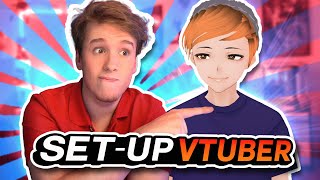

Free VTuber Models for Your Streams
45sOffers free, downloadable VTuber models, a high-value incentive that drives engagement and shares.
▶ Play Clip"The title accurately describes the tutorial, though it focuses on Twitch but works for any streaming platform."
This tutorial explains how to set up a VTuber for streaming, covering free models, editing software, and integration with OBS.
The creator offers four free VTuber models available via Discord, each with a use file and an editable file.
Vroid Studio is a free tool for editing or creating VTuber models, available on their website or Steam.
VCFace is a free, customizable tracking software for face, head, body, and limbs, used to import the VTuber model.
Select camera and microphone in VCFace for tracking mouth movement. Recommended resolution 1080p or 720p, FPS 24.
Click the plus button to add the downloaded avatar. The model will track eye movement, blinking, and body movements.
In general settings, expression detection can be set to simple or experimental. Experimental requires calibration for emotions like happy, angry, joy, sorrow.
Create a new scene in OBS, add a game capture source, select the VCFace window, enable 'allow transparency', and disable cursor capture.
In VCFace, click the box on bottom right and press space to hide menus. To add VTuber to other scenes, add a scene source and select the VTuber scene.
Setting up a VTuber is straightforward with free tools like VCFace and Vroid Studio, and the provided models make it easy to start streaming with a virtual avatar.
What is the name of the free software used to edit or create VTuber models?
Vroid Studio
01:48
What is the recommended FPS for camera tracking in VCFace?
24 FPS
03:31
What setting in OBS game capture must be enabled for the VTuber to appear transparent?
Allow transparency
05:09
How do you hide the VCFace UI menus?
Click the box on the bottom right and press space.
05:24
What are the two expression detection modes in VCFace?
Simple and experimental
04:11
Free VTuber Models
Provides four free models for immediate use, lowering the barrier to entry.
01:21VCFace Tracking Software
Introduces a free, customizable tracking tool that works with OBS.
02:26Camera and Microphone Setup
Explains the necessity of a webcam for tracking and optimal settings.
03:18Expression Tracking
Shows how to enable emotion detection for more dynamic avatars.
04:11OBS Transparency Setting
Critical step to remove background and integrate VTuber seamlessly.
05:09[00:01] youtube thank you so much for supporting what i do b tubers are awesome and not like twitch they also have an amazing community showing them love and support teaching you guys how to set up your vtubers for your streams how to add it
[00:16] into your obs and i'm also going to be providing you guys with a couple of free youtuber models for you guys to use let's go how's it going guys hope you're having a fantastic day my name is the synchro
[00:29] video tonight we're going to be learning how to set up our v tuber we're going to that are going to be really big help we're going to be getting yourself some free v tuber models for you guys to use provided by myself and created by the
[00:42] to be showing you guys a completely free tool that you can use to either edit to make your very own vtuber model we're also going to be downloading and setting and we're going to set it all up in our
[00:56] need some form of webcam for your v tuber this is mainly so then you can actually track your body movements and your face movements and stuff like that or else you'll just end up staring creepily at the camera
[01:09] consider liking and subscribing also share it around with your streamer friends so they can learn something new too alrighty let's get this started first things first we're gonna need some v tuber models and like i mentioned
[01:21] before i got you covered hop over my discord great place you'll absolutely love it scroll down to the categories over here until you see design files until you see these four cuties over here these are the four v tuber models
[01:34] you're over here just click this little button over here to download it once the zip is downloaded right click and extract once it's extracted open the folder and you should see a total of eight files two for each of the models
[01:48] one is for you to use in your vtuber software and the other one is so you can edit and make your own edits and modifications to it oh and uh speaking tools that you can use to edit the models that i've given you or make your
[02:01] very own model it's completely free and you can download it on their website or on steam now i'm not going to teach you guys how to use v-roid that's not what powerful tool that's relatively easy to use and completely free so you can edit
[02:14] the models or even make your own then v-roid studio is one that i think you guys will genuinely enjoy using alright so we got the models we got the software to edit the models if we want to do that what's next well now we need a software
[02:26] called vc face vc phase is a completely free super customizable eye face head body limb tracking software that you can import your vtuber model into and then
[02:38] easily add that into obs link to bc face is going to be in the description of this video so head over to the website download vc face extract it and then settings after you extract it run the exe and the first time you boot up the
[02:52] basic instructions on what you should do and how to add it to obs you can follow we'll be going through them again later in the video the next few pages are just basic tutorials basically teaching you how to move your model around hiding
[03:06] your ui resetting your model's position and other stuff once the tutorial is to be greeted by first thing that we should do is on the top right is select our camera and our microphone the reason we need to select it is so we can track
[03:18] mouth movement as you can see i'm moving his mouth as well once you select your camera you'll be prompted to the camera settings and the fps i'd recommend going at 1080 but if
[03:31] you can't run 1080 try 720 if you don't have the computing power with the fps i think 24 is a good number to have awesome now let's add our avatar click the big plus and let's find the avatar that we downloaded choose one of the
[03:45] models we downloaded and hit open once you've added the model just select it model open and sorted you can see that when you speak your mouth will start moving and if you have your camera looking at you it'll track your basic
[03:58] movements like eye movement body movement blinking stuff like that you clicking the settings and light settings effect settings can also give you a little more options as well you can add more tracking features for your facial
[04:11] expressions such as happy angry joy sorrow and more by going into your general settings and change the expression detecting to either simple or experimental if you choose experimental you're going to have to calibrate each
[04:26] with the software but that all tends to be personal preference now that we're done with this let's head over to obs so we can add it there so if that vc face gave you on the last part you should already have this done but if
[04:40] you waited to do it with me well let's get this party going so first of all open up your obs and let's make a brand new scene i'm gonna call it v tuber let's add a brand new source and we're gonna go to game capture let's call this
[04:55] v-tuber capture on the property window let's change the might over here to capture a specific window the window that we're going to select is going to be our vc face then scroll down a little bit and tick the box that says allow
[05:09] bit and tick the box that says allow transparency and also untick capture cursor and then click ok now you can resize your v tuber to any size that you menus that you see around the frame simply open your v vtuber software click
[05:24] this little box down over here on the bottom right and then hit space to hide the little box as well and there you go no more menus now if you want to add your v tuber to your other scenes you simply have to go to the scene that you
[05:36] wanted on on that scene look for sources click the plus and sources head over to scene and then add your v tuber scene and there you go now just resize it to whatever size you want awesome keep in mind you will have to turn your vc face
[05:51] on every time you want to stream with your v tuber it's not automatic just thought i'd point this out for those who are very very brand new into the v-tubing you can minimize your vc face after you open it you just have to have
[06:04] it running in the background well there we go my friends super simple and easy streams it's so simple and easy to do but i hope that my video was able to easier one i actually have another tutorial in the works teaching you guys
[06:18] a way so you can turn into a vtuber click of a button using my smoke effect you everybody so much for watching thank you so much for your time i hope this video was able to help you or a friend of yours in any way shape or form if you
[06:32] guys have any questions and want to learn more come check us out on twitch i starting at 4 p.m australia western standard time and i'd love to see you there that's all for this video friends i hope you all have an amazing day and
[06:45] check out some more cool tutorials and learn how to do some really awesome things with your obs then you're doing yourself a disservice by not checking out these two videos trust me you won't regret it
⚡ Saved you 0h 06m reading this? Transcribe any YouTube video for free — no signup needed.