
New OBS Plugin for Streamers!
55sQuickly introduces two new OBS plugins with gamified widgets that add interactivity to streams, appealing to streamers looking for fresh tools.
▶ Play Clip"Delivers a clear, actionable tutorial on 4K streaming, though the sponsor segment adds some fluff."
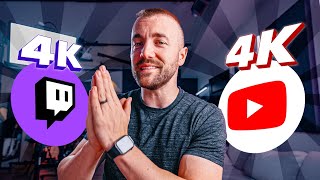
This video provides a tutorial on how to stream in 4K on both Twitch and YouTube simultaneously, focusing on the use of OBS's enhanced broadcasting feature and the Aitum multistream plugin. The creator explains the setup process, including configuring OBS settings, setting the canvas to 4K, and using the main encoder trick to avoid overloading the PC.
The creator mentions leaving for Japan and promotes two new plugins from Own3d for streamers: the train widget and spotlight widget, which gamify donations and subscriptions.
A tweet from an OBS developer revealed that 4K streaming on Twitch is now possible, but it's currently only available to experimental streamers. The creator aims to explain how to do it as it rolls out.
To stream in 4K on Twitch, go to OBS settings > Stream > Enhanced Broadcasting. This feature transcodes the stream on your PC into multiple resolutions (1080p, 720p, etc.) and sends them all to Twitch, saving Twitch money and helping streamers without transcoding options.
Ensure your OBS canvas is set to 4K resolution, as you need a 4K canvas to export a 4K file. Once enhanced broadcasting is on and canvas is 4K, Twitch will accept 4K streams.
To also stream 4K to YouTube without overloading your PC, install the free Aitum multistream plugin. Sign in to your platforms, and in the multistream settings, add a new output for YouTube with your stream key.
The creator previously tried encoding a 4K AV1 stream at 20,000 Mbps for YouTube, which crashed his PC. The solution is to switch the YouTube output to 'main encoder' in advanced settings, which reuses the encoding already done for Twitch, avoiding extra load.
After going live on Twitch first, you can go back to the multistream settings and choose a specific resolution from the dropdown (e.g., 1080p, 1440p) to send to YouTube, leveraging the multiple encodings from enhanced broadcasting.
By using enhanced broadcasting and the Aitum multistream plugin, streamers can broadcast in 4K to both Twitch and YouTube without overloading their PC, provided they use the main encoder trick and select an appropriate resolution for YouTube.
What is the purpose of Enhanced Broadcasting in OBS?
It transcodes the stream on your PC into multiple resolutions and sends them all to Twitch, saving Twitch money and helping streamers without transcoding options.
01:52
What is required in OBS to export a 4K file?
The canvas must be set to 4K resolution.
02:47
What plugin is recommended for multistreaming to YouTube?
The free Aitum multistream plugin.
03:16
What is the 'main encoder' trick in Aitum multistream?
It reuses the encoding already done for Twitch, avoiding extra load on your PC.
04:09
Why did the creator's PC crash when streaming 4K to YouTube?
He set a 4K AV1 stream at 20,000 Mbps, which was too much for his PC.
04:09
How can you select a specific resolution for YouTube in Aitum?
After going live on Twitch, go to multistream settings and choose a resolution from the dropdown.
04:48
Enhanced Broadcasting Explained
Explains a key feature that enables 4K streaming on Twitch by offloading transcoding to the streamer's PC.
01:52Avoiding PC Overload
Provides a practical solution to prevent crashing when streaming 4K to multiple platforms.
04:09Selecting Resolution for YouTube
Shows how to leverage multiple encodings to send a specific resolution to YouTube, optimizing performance.
04:48[00:01] be I don't really have a choice I'm leaving for Japan in 5 hours it's 12:30 in the morning I should be sleeping but I'm not I'm making this just [Music]
[00:15] go let me quickly tell you about these two new plugins for all you streamers just hear it out because owned is a a big reason I can pay employees owned. overlays back when that's what everybody wanted but nowadays everybody wants to
[00:30] possible and they've made a ton of widgets I worked with them to make the same two widgets that we made with meld a little bit ago the train widget and the spotlight widget now with just a couple clicks with on.pro you can add
[00:43] two really aesthetic looking elements to your stream that not only show people who your most recent donators are subscribers members but then also make it a fun gamified experience with the hypo meter where every five minutes that
[00:56] bar is going down and every time someone brings it back up to 100% the number increments by one head over to on.pro add those to your stream today and check over there put a link to it down in the description below let's talk about 4K
[01:09] because there was a tweet that came out from an OBS developer recently that explained hey you can stream in 4k on Twitch now that's a new thing you can do actually had a really hard time figuring out who could do that I had to tweet out
[01:24] it looks like it's brand new they're only giving it to experimental streamers right now but I wanted to give you guys the heads up of how to do this so as it continues to roll out you'll know
[01:36] times the first time it looked like this hold on are we good we good are we I thought that might happen and it didn't so we figured out a better way able to stream in 4k for a while but twitch this is relatively new so let me
[01:52] show you how this works so soon as you get access you know how to do it right going to work if you're using enhanced broadcast sending your stream to Twitch and OBS the way to do this is by going into your OBS settings go to the stream
[02:05] enhanced broadcasting what enhanced broadcasting does is it saves twitch a lot of money how it works is instead of sending twitch one video file like you normally do in OBS and then it transcodes it into multiple resolutions
[02:20] for your viewers to pick whatever one they want to watch you are instead doing the transcoding on your own PC you turn it on you stream your computer turns it on you stream your computer turns your stream into 1080p 720p 480p 240p
[02:33] whatever they are and then it sends all of those video files to Twitch at once streamers who don't get transcoding options but as soon as 4K streaming rolls out this is going to help everyone get 4k and 1440p streaming okay make
[02:47] checked step two make sure your stream is actually a 4K stream your canvas has is actually a 4K stream your canvas has to be 4K in order to export a 4K file so adjust that once you have those two things done enhanced broadcasting turned
[03:01] on and your canvas set to 4K and then twitch gives you the green light you are sending 4K to Twitch cool so we have 4K video sending to Twitch how do we also get 4k going to YouTube at the same time without blowing
[03:16] up your PC like I did we good well there's a secret little trick let me thing you're going to do make sure your stream key on YouTube allows for 4K next thing you're going to do is install the
[03:28] free atom multistream plugin I will link that down below it's a free OBS plugin pops right into your OBS window sign in all the places you want horizontal and vertical and in fact there will be new features coming very
[03:42] soon to that multiple new features coming very soon I can't talk about any them stay tuned now when you first add a stream already built into it that is
[03:54] are signed into with OBS and because you're signed into twitch which you will enhanced broadcasting I forgot to mention that earlier it's 1:00 in the default you'll need to go to the multistream settings go to main canvas
[04:09] and add a new output click on YouTube paste in your YouTube stream key and then click on advanced settings okay here's what I did to blow up my computer and ruin my entire stream I knew that YouTube could handle av1 which is just a
[04:22] higher quality encoder if I were to oversimplify it so I set my YouTube stream to be a 4K av1 stream that I coded at 20,000 megabits per second which is what I used whenever I just went live to YouTube and it was too much
[04:36] went live to YouTube and it was too much even for my 490 it couldn't do it but here's the secret if you switch that back to main encoder what that's doing is it's taking the encoding that's already going to Twitch and it's just
[04:48] grabbing it and sending it to YouTube and the secret kicker is if you go live on Twitch first before going live to YouTube then you go back to those settings there will be another set of settings another drop-
[05:02] down box right there that shows you all the different encodings that it's doing for twitch all the different resolutions and you can pick one because remember with enhanced broadcasting it encodes like five or six different resolutions
[05:15] the one I want to go to YouTube and that's it that's the whole tutorial how long was this video do we do it under 5 minutes I don't know I never get those right I'm editing this on the plane I'm going to get to bed I love you guys hit
[05:28] more videos like this like the button if you haven't already leave a comment down comments down below for engagement I will see you guys next time engagement I will see you guys next time happy streaming
⚡ Saved you 0h 05m reading this? Transcribe any YouTube video for free — no signup needed.