
Stream PS5 to TikTok WITHOUT a Capture Card!
55sIt promises a hardware-free workaround that saves viewers from an expensive capture card purchase.
▶ Play Clip"Delivers exactly what the title promises — a clear, step-by-step method for PS5 TikTok streaming without a capture card."
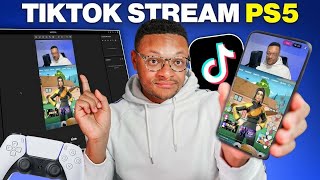
This tutorial explains how to stream PlayStation 5 gameplay with a facecam directly to TikTok without using a capture card. The method uses PlayStation Remote Play on a PC or Mac alongside TikTok Live Studio, covering setup, layout, alerts, audio, and the requirements to go live.
Stream PS5 gameplay to TikTok without a capture card using PlayStation Remote Play on a PC or Mac and TikTok Live Studio.
Visit the PlayStation Remote Play page, scroll to compatible devices, and download the Windows PC or Mac version.
Go to Settings > System > Remote Play and enable Remote Play. Also enable 'Stay Connected to Internet' under Power Saving > Features Available in Rest Mode.
Plug the PS5 controller into the computer via USB-C. To re-pair with the PS5, plug the cable back into the PS5.
Connect the PS5 to the router with an Ethernet cable; Wi-Fi can fluctuate and cause unstable streaming.
Download TikTok Live Studio for Windows or Mac, choose the correct chip (Apple Silicon or Intel), and install.
TikTok Live Studio runs tests to confirm your computer and network can handle streaming; approval is required to continue.
Add a window capture source, choose the PlayStation Remote Play window, and deselect the cursor to avoid showing it.
Duplicate the gameplay source with Ctrl+V, press Alt/Option while dragging corners to crop, and reposition to keep HUD elements like health and map visible.
Add follower, gift, and super fan alerts; customize display duration, text, sound, and appearance, or upload custom animations.
Click the red Go Live button, add a title and gaming topic, confirm settings, and monitor the stream via mobile preview and live chat.
Typically must be 16+ with 1,000 followers, or apply via the TikTok Live access form; approval can take hours to days.
Streaming PS5 gameplay to TikTok without a capture card is achievable with PlayStation Remote Play and TikTok Live Studio. The key is having proper network stability, PS5 settings, and meeting TikTok's live streaming requirements.
What is the first software you need to install to stream PS5 without a capture card?
PlayStation Remote Play.
00:01
What PS5 setting must be enabled for Remote Play?
Remote Play must be enabled in Settings > System > Remote Play.
01:24
How do you re-pair the PS5 controller after using it with your computer?
Plug the USB-C cable into the PS5 to repair it.
02:04
What network connection is recommended between PS5 and router for stable streaming?
Ethernet cable, because Wi-Fi can fluctuate and be unstable.
02:17
What are the typical TikTok streaming requirements?
Be 16 years or older and have 1,000 followers, or apply via the TikTok Live access form.
09:10
What keyboard shortcut duplicates a source in TikTok Live Studio?
Ctrl + V (copy then paste).
05:24
What key do you hold while dragging corners to crop a source in TikTok Live Studio on Mac?
Alt key (or Option key).
05:36
What audio setting should you increase if you have fans or an AC unit running?
Noise suppression should be changed from Medium to High.
07:51
What is the recommended microphone volume according to the presenter?
100% for the microphone.
07:25
What can you use to see how your stream looks with TikTok UI elements before going live?
The mobile preview option.
08:18
Use Ethernet for stable Remote Play
A hardwired connection prevents lag and disconnects, which is crucial for a smooth live stream.
02:17Duplicate and crop gameplay for vertical format
This trick preserves important HUD elements like health and map when streaming a 16:9 game in portrait mode.
04:59TikTok requires 16+ and 1,000 followers
Many users fail to go live because they don't meet TikTok's approval requirements, which is a key blocker.
08:57Start with TikTok Live Studio, graduate to OBS
Live Studio is beginner-friendly but lacks multistreaming; OBS and Streamlabs offer advanced control for growth.
09:37[00:01] I'm going to be showing you guys how you can stream your PlayStation 5 gameplay to Tik Tok without using a capture card. Now, the method I'm about to show you guys will require a PC or Mac computer so that we can first download the remote
[00:15] play software from PlayStation. I put a link to this in the description below, but once you get to this page, you're going to want to scroll all the way to to see this section where you're going to see the devices that are compatible
[00:28] with PlayStation Remote Play. We're going to want to look at the right column here where you see Windows PC and Mac. Here, you'll be able to find the Windows PC Mac download button. Go ahead and select that. Then, select the
[00:42] download button. Here, you're going to choose your operating system. Since we're going to go ahead and select the Mac option. And then from here, you're play. But to do that, you're going to need to agree to the SIE application end
[00:56] user agreement and privacy policy. Once you check that off, you'll be able to select the download option, which will put it into your downloads folder. And just go ahead through the installation process. Nothing special that you need
[01:10] to configure here. And next, we can go ahead and launch the Remote Play into our PlayStation Network account. Select confirm and continue. And before we choose to connect our PlayStation 5 console, there's a couple settings on
[01:24] the PlayStation 5 we need to make sure are set before we can bring up our remote play session. So, the first thing we're going to want to do is go to our settings, go to system, select remote play, and then make sure that remote
[01:36] play is enabled. Now, if we stay within the system settings, go to power saving, then features available in rest mode, we're going to want to stay connected to the internet to enable turning on the PlayStation 5 via the home network. Once
[01:50] have, go ahead and put your PlayStation 5 into rest mode. I'm going to go ahead and plug in my PS5 controller into the Mac via the USBC cable. And when you need to pair the controller back with your PS5, all you need to do is plug
[02:04] that USBC cable into the PS5 and it will repair. Next, we can head back over to the remote play application on our computer and we can select the PS5 option. Select okay because we just went through those settings and it shouldn't
[02:17] take much time until you see your gameplay popped up on your screen. If would use an Ethernet cable between your PlayStation 5 and your router so that you have a hardwired connection. Using Wi-Fi isn't the best way to go as your
[02:32] connection can fluctuate and be very unstable at times. The next thing we're going to want to download is Tik Tok Live Studio. I also left the link to very easy to use software, which you'll see in just a moment, and is available
[02:45] for Windows computers as well as Mac computers, which has just been recently to do on this page is select the big download button. For me, it's going to give me the Apple Silicon or the Intel option. Since I'm using an M1 computer,
[02:59] Once you have the application installed, the first thing you're going to need to do is log in with your Tik Tok account or even use your camera app to scan the QR code, which will open the Tik Tok app on your mobile phone so that you can
[03:12] you can go ahead with the normal setup and you'll see that Tik Tok Live Studio is going to put your computer and your network connection through a series of tests to see how good it is for streaming. This will tell you if you are
[03:27] capable of going live or not. As you can see, my network and hardware are over to the next step. And this is where you can tell Tik Tok Live Studio how you want your stream to look. When we do end up selecting some of the sources there
[03:40] on Mac, you're going to need to give Tik Tok Live Studio the permissions to actually use the camera microphone and screen record windows. Once you're all good there, you should have a Tik Tok Live Studio project initially set up.
[03:53] But as you guys see in my case, everything is blank and clear because I want to actually show you how you can set this up within the application we're going to double check that we're in portrait mode. And then from there,
[04:07] scenes below that. Let's go ahead and add a new source by selecting this option right here. From here, we're going to select the camera option, and we're going to select add. And then we're just going to want to choose our
[04:19] webcam. I'm just going to be using the camera that is on my laptop. So, the FaceTime [music] HD camera. There we are. You can see me. And let's go ahead and add the source. Live Studio put our camera source exactly where we needed
[04:32] it. Not too shabby at all, Live Studio. But next, we need to add our gameplay source. So to do that, we're going to select the plus button to add another source. And this time, it's going to be a window capture. Go ahead and select
[04:45] add. And then from here, we're going to select the drop-down. Scroll down until we find our PlayStation Remote Play application. Select that. We don't want the cursor in there. Go ahead and select add source. Select okay. And as you guys
[04:59] can see, our gameplay is here. We're going to want to blow this up though so that people can see it a little bit easier so it's not so small and shrunken in. But now what comes with streaming in this vertical format is that there's a
[05:12] lot of information that doesn't get captured that we can see when we're they should be able to see that too. So what we're going to do is take this gameplay source. We're going to copy and
[05:24] then just select Ctrl +V. So that way we have another copy of the exact same gameplay source. Let's make this a little bit smaller. Now, if we want to crop in on certain elements of this copy of our gameplay source, we're going to
[05:36] want to select and hold the Alt key or the option key and then drag in the corners or sides of our gameplay picture. Once I'm happy with it, I can go ahead and rearrange it somewhere. Maybe I can put it up here. Blow it up a
[05:51] important thing to incorporate so that your viewers know what your health bar is, where you are on the map, what weapons are in your inventory. Another great source that we can add to our Tik Tok Live Studio project is if we go to
[06:04] add another source, we can go to our widgets and add an alert. So, if we select that, select add. In these settings, you can configure how long the alert will show for. You can modify the text that's shown. If an alert sound
[06:17] that you can use, but you can also add your own custom alert sounds. Just like the settings for the follower alerts above, you can do the same for the gift alert as well as the super fan alert down here. Now, if we switch over to the
[06:30] appearance tab, this is where you can modify the layout of the alert, the colors of the text, as well as the image that is shown. And you'll see the don't want to stick with the basic looking image that Tik Tok gives you. Go
[06:46] on sites like Gy to get some cool gift animations that you can upload here. So that way when someone gifts or follows you, that'll pop up on screen and look a lot cooler than this, which you can preview here by selecting that preview
[06:59] source, you can go ahead and select add source. And you'll see this gray box pop up on screen. Now, don't worry, it's not going to look like this when you're live. This is just to show you how much space the alert will take up when it
[07:13] thing we're going to want to check before we go live is our audio settings. the bottom left hand side here and find the audio mixer. Going to select that.
[07:25] sources are coming through to our stream. So the microphone, I'm cool to have that at 100% like it is right now. To make sure our gameplay audio is coming through, we can just simply unmute our speakers. And if audio is not
[07:38] remote play session is not muted. And the primary microphone is my MacBook we're going to go to our settings, and we're actually going to choose our wave
[07:51] computer right here. For noise suppression, it's good to just keep that at medium, but if you have a lot of fans going or air conditioner unit blaring, then you might want to change it to high. Let's go ahead and save that. I
[08:04] might want to decrease the audio on the game play just a smidge cuz I definitely game play just a smidge cuz I definitely don't want that to go over my voice. One go over here to the mobile preview option, this will allow you to see what
[08:18] your stream will look like with all of the different Tik Tok elements over top of it while you're live. All right, we are set to go. Let's close out of that and let's go ahead and select the big red go live button. When you choose
[08:31] that, give your stream a title. You can add a topic, so you can say that it's gaming. Double check your settings to make sure that they look good. And from here you can select the go live button and that will push your stream to Tik
[08:43] side of Tik Tok Live Studio, you can view your stream metrics as well as your live chat so that you can interact and respond to your viewers. Once you're all Live Studio and select the instream option and that will finish off your
[08:57] stream. Now, for those of you that were unable to successfully push your stream to Tik [music] Tok, it might be because you are not approved to stream on Tik Tok. So, the requirements are typically that you need to be 16 years of age or
[09:10] older and have 1,000 followers on your page. But another way is to apply for access to go live. Linked also in the description below is this Tik Tok live access form where if you fill this out, you'll need to give some information
[09:25] about your other social media pages. Ideally, you'll want to have some level of traction on the one you share, but once you submit the form, it can take anywhere from a couple hours to a few days to get approved. From there, I'd
[09:37] say the next thing you can do is graduate from Tik Tok Live Studio and get yourself into an application such as Streamlabs Desktop or even OBS Studio. curve, but that's why I've made these two videos here. Tik Tok Live Studio is
[09:51] definitely a great starter app, but you can't do things such as multireaming like you can in these. So, thanks for watching. I'll see you in the next one.
⚡ Saved you 0h 10m reading this? Transcribe any YouTube video for free — no signup needed.