
Why Google Password Manager is a Risk
45sHigh stakes privacy warning about Google holding encryption keys and account compromise risks, triggering fear and curiosity.
▶ Play Clip"Delivers exactly what the title promises — a clear, practical tutorial with no fluff."
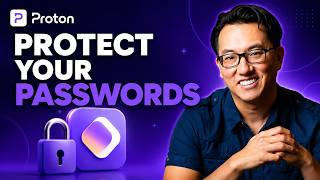
This video is a tutorial on Proton Pass, a free password manager that uses end-to-end encryption and a zero-knowledge model to keep your passwords secure. It covers setup, saving and autofilling passwords, email aliases, importing from other managers, and the free vs. paid plans.
Google holds encryption keys to passwords saved in Chrome, meaning they could access them if compelled by a court order. If your Google account is hacked, all saved passwords are at risk.
Proton Pass uses zero-knowledge encryption: passwords are encrypted on your device before reaching Proton's servers, and Proton never receives the decryption key.
You can import your entire vault from other password managers like Chrome, Bitwarden, or 1Password in a few steps.
Email aliases are fake addresses that forward mail to your real inbox, hiding your real address from websites. You can delete an alias to stop spam instantly.
You can add a PIN code that auto-locks the vault after a set time (1 minute to 1 hour) to protect against someone accessing your browser when you step away.
Free plan includes unlimited saved logins, unlimited passkeys, 10 email aliases, and access on unlimited devices—unlike most free managers that cap at one device.
Paid plans add unlimited aliases, dark web monitoring, file attachments, and emergency access. Proton Unlimited also includes Mail, Calendar, Drive, VPN, and Docs.
What is the zero-knowledge model in Proton Pass?
Zero-knowledge model: passwords are encrypted on the device before reaching Proton's servers, and Proton never receives the decryption key.
00:54
How many email aliases do you get on the Proton Pass free plan?
10 email aliases.
09:08
What does the free version of Proton Pass include?
Unlimited saved logins, unlimited passkeys, 10 email aliases, and access on unlimited devices.
10:13
How do you add a PIN lock to Proton Pass?
Go to Settings > Security, set unlock method to PIN code, and choose an auto-lock time (e.g., 1 minute).
05:49
What is an email alias in Proton Pass?
Email aliases are fake addresses that forward mail to your real inbox, hiding your real address from websites.
07:28
What features does Proton Pass Plus unlock?
Unlimited email aliases, dark web monitoring, file attachments, and emergency access.
11:00
Zero-knowledge encryption
Explains the core security model that differentiates Proton Pass from browser-based managers.
00:54Email aliases for privacy
Shows a practical way to protect your real email from spam and data breaches.
07:28Free plan includes unlimited devices
Highlights a key advantage over most free password managers that limit to one device.
10:13PIN lock for extra security
Provides a simple, actionable step to secure your vault when away from your computer.
05:49[00:00] If you're like many people these days, you've got your password saved somewhere in Chrome or Google Password Manager. And it's convenient, but Google holds the encryption keys to that data, which means they have the ability to access your passwords if they ever chose to or if
[00:15] they're compelled to by a government or court order. And because your passwords are tied to your Google account, if that account ever gets hacked, every password you have goes with it. Hi, I'm Garrick and today we're going to look at Proton Pass, a free password manager that
[00:30] encrypts everything so nobody, not even Proton itself, can see your passwords. So, what exactly is Proton Pass? At its core, it's a password manager. And like most password managers, it
[00:42] saves your usernames and passwords and fills them in automatically when you visit a website. But it goes beyond that in a couple of important ways. First, everything is end-to-end encrypted, which
[00:54] means your passwords are scrambled before they ever leave your device. Proton can't read them. Nobody can without your master password. Proton uses what's called a zero-knowledge model. That means your passwords are encrypted on your device before they ever reach Proton’s servers. Proton
[01:09] never receives the key needed to decrypt them. So, even if Proton were hacked or subpoenaed, there's nothing to hand over. Second, if you're already using another password manager, you can import your entire vault into Proton Pass in just a few steps. So, switching doesn't mean starting
[01:25] from scratch. And third, and this is the feature I really want to highlight today, it lets you create email aliases. These are fake email addresses that forward mail to your real inbox. I'll explain why
[01:37] that's so useful in a few minutes. And the great thing is all of these features I've mentioned so far are part of the free subscription plan which for most people is all you need to get started. Go to proton.me/pass in your browser. Here you can sign up as an individual. Then create your
[01:56] account with your email address and password. Now if you want you can also create a free Proton Mail account from here which gives you an encrypted email address. Think of it as a Gmail alternative built around privacy. Your emails are end-to-end encrypted, so not even Proton can read them. We're
[02:12] not going to get into Proton Mail in this video, but it's a great companion to Proton Pass if you ever want to take your privacy a step further. For now, you can just use your existing email address, the sign up process, you'll be prompted to download the Proton Pass extension for your
[02:30] browser. You can see it auto-detects the browser you're using, but you can download the plug-in for Chrome, Firefox, Safari, Brave, or Edge. I'm currently in Chrome, so I see Get Proton Pass for Chrome. That takes me to the Chrome Web Store. And here I'll click add to Chrome, then add extension.
[02:51] And depending on your browser, once it's installed, the Proton Pass icon will either appear in your browser toolbar right away, or if you don't see it, you'll see these instructions on how to add the extension to your toolbar. So, here in Chrome, it's saying to open the
[03:03] extensions menu, pin Proton Pass to your toolbar, and then click the icon anytime to open it. So, I'll come up here to extensions and click the pin button. And here it is. So,
[03:16] now I can click the Proton Pass button. And the first time you do this, you'll be asked to sign into the account that you just created. Now, if you already use a service like Proton Mail, you can use that same account. All of Proton’s services are connected under one login.
[03:34] to access all of its features. Notice all the different things you can do with Pass here, like manually create a login for a website, save a credit card, add an encrypted note,
[03:47] and so on. Basically, this is your vault and it's where all of your saved items live. Right now, it's empty, so let's add some passwords to it. The easiest way to save a password is to just log into a website like you normally would.
[04:04] As you can see, Proton Pass will automatically detect the login and ask if you want to save it. Click add and it's instantly stored in your encrypted vault. Now, if I log out of this site
[04:18] and then go to log back in, notice there's a number badge here in the Proton Pass icon here in this field. And you can see that it's displaying that it has one saved login for this site. So, I can click my login information here and it automatically fills it in. And just like that, I'm
[04:36] back in. So, Pass gives you quick access to your saved encrypted passwords with just a few clicks. And when you're signing up for a new account somewhere, Proton Pass will offer to generate a strong unique password for you. For example, first I'll click in the email field and Pass offers to
[04:51] use my existing email address or we can have it generate an email alias. I'll come back to that momentarily. I'll just use my real email for this example. And when I click in the password field, it suggests a strong password like this random string of characters you see here. Something
[05:06] nobody could ever guess. Now, if we click the button, you can adjust the password attributes, which is useful if the site you're signing up for has specific requirements for passwords, like using capital letters or a certain number of characters. Just click the auto-generated
[05:22] password and Proton Pass will fill it in. And then we can click add so that it remembers it for you so you never have to. And the next time you sign into this site, it can autofill the password it generated. Now, you might have noticed how convenient it is to
[05:35] get to your Pass vault from the browser toolbar. But you might also be wondering, "What if someone opens up my browser? Do they have access to all of my passwords?" And the short answer is yes, because by default, the security of your vault assumes you securely log into your computer.
[05:49] But if you're concerned about someone getting into your browser when you step away for a bit, you can add an extra layer of security by going to and to security. Here under unlock with the default is none and you can see that it says Proton Pass will
[06:04] always be accessible. So if your computer is unlocked so is pass. I suggest switching this to a PIN code. Then enter a six-digit code that you'll definitely remember.
[06:18] With the PIN code active Pass will auto-lock after the time specified in this menu here. You can choose from 1 minute to 1 hour. I prefer to set it to 1 minute because after 1 minute of not using it, you'll need to enter your PIN number to unlock pass, which to me isn't
[06:33] really that inconvenient and it ensures that my passwords are safe if I walk away from my unlocked computer. Notice it's asking me to confirm my PIN code before it changes this setting.
[06:45] Now, you can also manually lock Pass from this menu at any time by choosing Lock Extension, and that requires you to enter your PIN to use it again.
[06:58] Notice there is a biometrics option here, but that requires you to use the Proton Pass desktop app. And there's even an option to add an extra password to Proton Pass. So getting into your vault will require two passwords. But in this case, I'm just going to leave the PIN code option
[07:13] selected, which I think strikes the balance between security and convenience. Okay. Now, for the feature I mentioned at the start, email aliases. Here's the problem they solve. Every time you sign up for a new website or service, you're handing over your real email address.
[07:28] That company might sell it to advertisers, they might get breached, or they might just start sending you junk. And once your real address is out there, it's out there. With Proton Pass, instead of giving a website your real email, you generate an alias, which is a unique, randomly
[07:44] created address that forwards all emails directly to your real inbox. The website gets a substitute email address. You still get their emails or access to the account you created with them, but your real address stays completely hidden. And if that site ever sells your data or you
[08:01] start getting spam, you can just delete the alias. The spam stops immediately and your real inbox was never at risk. So whenever you're filling out a signup form to create an account on a site and you click in the email address field, notice the Proton Pass extension offers to either
[08:16] use my existing email or to hide my email. So, Proton Pass generates this email alias right from here. So, I can choose to hide my email. And this is the address it's generated in this case.
[08:29] And then I would just continue throughout the rest of the signup process. And the website never sees my real email. And then when the site sends me a confirmation email or a newsletter, it goes to my alias first and then gets forwarded to the email I signed up to Proton Pass with. And it looks just
[08:44] like any other email on my end. In my Proton Pass vault, I can see all of my aliases listed here. And if I ever want to stop receiving mail from a particular site, I can just toggle that
[08:56] alias off. And that temporarily stops forwarding messages to that address to my real inbox. Or I can delete this address entirely by choosing Move to Trash. On the Proton Pass free plan,
[09:08] you get 10 aliases, which is a pretty solid start. Now, a paid plan gives you unlimited aliases, but even 10 is plenty to protect yourself on the sites that matter the most to you. Now, if you've already got passwords saved in Chrome or Google Password Manager or Bitwarden, 1Password,
[09:24] or another service, you can import them all into Proton Pass without re-entering anything. First, you'll need to export your passwords from your existing password manager. Now, it is a little different for each different manager. For example, in Chrome, you'll go to to autofill and passwords
[09:42] to password manager and you'll see the option to export your passwords as a CSV file from Chrome . I don't have any passwords saved in this particular browser right now, but when you do, you'll see the option to export them. Once you do that, then go back to the Proton Pass extension,
[10:01] go to , and here choose import. Then select your password manager and you'll be prompted to choose the file that you exported and Proton Pass will pull in all of your usernames, passwords,
[10:13] and site URLs. So with the free version of Proton Pass, you get unlimited saved logins, unlimited passkeys, 10 email aliases, and access on unlimited devices, which is a pretty big deal because most free password managers cap you at one device.
[10:29] With Proton Pass, you can access your vault on your desktop computer, your laptop, and your mobile devices. And we didn't even talk about the other included features like the ability to store credit cards so you don't have to manually enter them every time you want to buy something online,
[10:43] and encrypted notes, which give you a secure place to store important info like your passport number, software license keys, and any other data that you want to keep safe. So, that's a genuinely complete password manager at no cost. Upgrading to Proton Pass Plus or Pass Family if you want to set it up
[11:00] for up to six other users, unlocks unlimited email aliases, dark web monitoring that alerts you when your credentials show up in a data breach, file attachments in your vault, and emergency access,
[11:12] which lets a trusted contact request access to your vault if something happens to you. Upgrading to Proton Unlimited also gives you access to Proton Mail, Calendar, Drive, the VPN service,
[11:24] and Docs. So, that's Proton Pass, a password manager that's free on unlimited devices with email aliases to protect your real address and end to-end encryption that even Proton can't see
[11:36] through. If you're already using Proton Mail or any other Proton service, adding Pass is a no-brainer. It's all under the same account. And if you're brand new to Proton, this is a great place to start. I'm Garrick. Thanks for watching and we'll see you in the next one.


⚡ Saved you 0h 11m reading this? Transcribe any YouTube video for free — no signup needed.