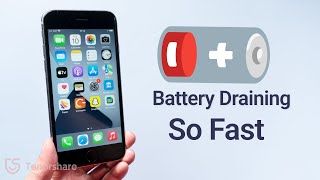

Why Your iPhone Battery Drains Fast
40sLists common culprits like background refresh and location services, making viewers feel understood and eager to fix their own battery issues.
▶ Play Clip"The title promises '7 Easy Fixes' but the video delivers 8 methods, including a software tool plug, which slightly oversells but still provides useful, actionable tips."
This video explains why iPhone batteries drain quickly and provides a series of practical fixes to extend battery life. It covers common causes such as background app refresh, location services, and battery health, and offers step-by-step solutions for each.
Apps continue to update in the background even when not in use, draining battery. Fix: Go to Settings > General > Background App Refresh and turn it off.
Hidden services constantly use location, draining battery. Fix: Go to Settings > Privacy > Location Services and turn off Share My Location and other unnecessary toggles.
Battery capacity decreases over time. Check Settings > Battery > Battery Health. If capacity is very low (e.g., under 65%), consider replacement.
iOS bugs or hardware problems like a bad battery can cause fast drain. Fix: Update iOS or consider system repair.
Go to Settings > General > Background App Refresh and disable it to save battery.
Go to Settings > Privacy > Location Services, turn off Share My Location, and disable all unnecessary toggles except Emergency SOS and Find My iPhone.
Go to Settings > Privacy > Analytics & Improvements and turn off Share iPhone Analytics to stop sending data to Apple.
Remove widgets you don't use (iOS 14+). Long-press widget, tap Remove Widget to save battery.
Go to Settings > Accessibility > Motion and reduce motion effects to save battery.
Go to Settings > Battery > Battery Health. If capacity is very low (e.g., under 65%), consider replacement.
Go to Settings > General > Software Update and install any available updates.
If all else fails, use ReiBoot (iOS system repair tool) to refresh the system without data loss. Download, connect iPhone, and click Start.
The video provides eight practical methods to fix iPhone battery drain, from simple settings changes to system repair. Following these steps can significantly improve battery life.
What is the first method to fix iPhone battery drain?
Turn off Background App Refresh in Settings > General.
01:13
Which location services should you keep enabled?
Emergency SOS and Find My iPhone.
02:13
What does disabling Share iPhone Analytics do?
Stops your iPhone from automatically sending data to Apple.
03:08
What is the recommended battery capacity threshold for replacement?
If capacity is very low, like under 65% or 50%.
04:45
What tool is suggested for repairing iOS system issues?
ReiBoot, which fixes more than 150 iOS system issues.
05:27
Background App Refresh drains battery
Identifies a common, often overlooked setting that significantly impacts battery life.
00:16Location services privacy settings
Shows how to disable data-sharing features while keeping essential functions like Find My iPhone.
01:27Battery health check
Emphasizes the importance of monitoring battery capacity as a key factor in battery life.
04:16System repair as a last resort
Introduces a software tool for fixing persistent battery issues without data loss.
05:15[00:04] Welcome back to our channel. Many people find that their new iPhone battery is draining fast after using it for a while. Today I will explain why this happens and how to solve it.
[00:16] reasons. One, background app refresh. Background app refresh refreshes the apps on your iPhone in the background. Which is to say your apps continue to update even when you're not using them.
[00:30] Two, unnecessary location services. Some programs hidden services constantly drain your battery. Three, iPhone's battery health. Maybe you have used your iPhone for a long time and battery capacity decrease.
[00:44] Four, system bugs. Over iOS system or unexpected app issues faster. Five, hardware problem. For example, bad battery, other flawed power components are to blame.
[00:59] Six, others. Well, it is not so complicated. I will help you guys. Method one, turn off background app refresh. refresh. Go to settings.
[01:13] General. Tap on background app refresh. position. This is intended to save loading time of And can also extend battery life on your iPhone. Method two, fix location
[01:27] services. Go to settings. Privacy. Location services.
[01:43] Turn off share my location. Back.
[01:59] Most of these settings are all about sending data to Apple for marketing and sending data to Apple for marketing and research. continue to function just as it always has.
[02:13] has. Turn off everything on the page. Except emergency SOS. Find my iPhone.
[02:34] Turn off significant locations. Back. Turn off all the switches under product improvement.
[02:49] That way, you will know your location is being when a little arrow appears next to your battery. analytics. Head to settings.
[03:08] Scroll to the bottom and open analytics and improvements. Turn off the switch next to share iPhone analytics. It can stop your iPhone from automatically sending data to Apple.
[03:22] don't use. If your iPhone is running iOS 14 or If your iPhone is running iOS 14 or newer. remove, then tap remove widget.
[03:36] Over time, you'll save a significant amount of battery life by turning off the widgets you don't use.
[03:49] effects. Go to settings.
[04:02] Aside from the parallax wallpaper effect on the home screen, differences. And you'll save a significant amount of battery life. Method six, check battery health.
[04:16] Method six, check battery health. Go to settings. And then tap on battery health. the battery. By the time you use your phone, your
[04:30] on your user. So, if your phone is few years old, and then you should make sure your battery capacity is good. For me, I use this iPhone for a very long time. Mine is 79%, but if yours is very low, like
[04:45] under 65 or 50, it will give you some reminders, like battery to be replaced. If there is nothing wrong about your battery, you can try next method. Method seven, check for iOS updates.
[05:01] If you're still using the old iOS system, you should update it. Tap general. Tap software update. If it shows the new iOS system, you should consider update it.
[05:15] But, I have already did it, so the update page won't show up. Method eight, repair iPhone with ReiBoot, no data loss. After trying all of the methods above and your iPhone battery is still dying
[05:27] maybe you should consider refreshing your iOS system. software. ReiBoot is an iOS system repair tool, which fix more than 150 plus iOS system issues.
[05:41] phone. Check the download link in the description and download it. Once finished install, connect your iPhone to PC. Open ReiBoot. Click the green start
[05:53] Open ReiBoot. Click the green start button. that matches your iPhone. The download process will not be long
[06:07] depending on your network condition. Be patient.
[06:22] ReiBoot will start to repair your iPhone.
[06:34] It's very easy. Okay. So, this is the solution for Hope you like it. Don't forget to give us a thumbs up if Don't forget to give us a thumbs up if you succeed in one of the methods.
⚡ Saved you 0h 06m reading this? Transcribe any YouTube video for free — no signup needed.