
Why iOS 26 Drains Your Battery Fast
44sTaps into a common pain point right after an update, promising a fix.
▶ Play Clip"Delivers on its promise with practical, actionable settings changes, though it includes a subscribe plug and some repetition."
This video provides a step-by-step guide to reducing battery drain on iPhones running iOS 26. The creator walks through several settings adjustments, including disabling background app refresh, managing location services, enabling adaptive power, and adjusting mail fetch settings, to help users extend their battery life.
Upgrading to iOS 26 can cause immediate battery drain due to certain settings being toggled on by default.
Go to Settings > General > Background App Refresh and turn it off to prevent apps from updating in the background, which is a major battery drain.
In Settings > Privacy & Security > Location Services, review apps that have used your location recently and set them to 'Never' if not needed. Also, adjust System Services to match recommended settings.
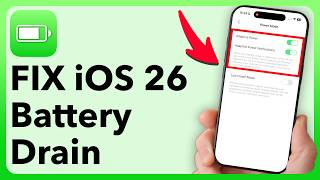
In Settings > Battery > Power Mode, turn on Adaptive Power. This feature learns your usage patterns and adjusts performance (e.g., brightness, background processing) to save battery.
In Settings > Apps > Mail > Accounts > Fetch New Data, turn off Push and set Fetch to Manual to stop constant email checking, which drains battery.
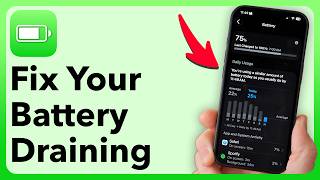
Check Settings > Battery > View All Battery Usage to see which apps consume the most power. Consider deleting apps that drain battery excessively, especially gaming apps.
By adjusting these key settings, users can significantly improve their iPhone's battery life after updating to iOS 26. The video emphasizes proactive management of background activities and location services.
What is the first setting to disable to reduce battery drain on iOS 26?
Background App Refresh
00:46
Where do you find the Background App Refresh setting?
Settings > General > Background App Refresh
00:46
What does Adaptive Power mode do?
It learns your usage patterns and adjusts performance (e.g., brightness, background processing) to save battery.
03:21
How do you change Mail fetch settings to save battery?
Go to Settings > Apps > Mail > Accounts > Fetch New Data, turn off Push, and set Fetch to Manual.
04:18
What is the recommended setting for Location Services for apps you don't need?
Set them to 'Never'.
02:11
Background App Refresh is a major battery drain
This is a common culprit that many users overlook, and disabling it can have a significant impact on battery life.
00:46Adaptive Power is a new iOS 26 feature
This feature uses machine learning to optimize battery usage, which is a notable addition to iOS.
03:21Deleting battery-draining apps
This is a practical, if drastic, step to improve battery life, especially for gaming apps.
04:48[00:02] drain in iOS 26. Now, if you just recently upgraded to iOS 26, you probably noticed just the same as me that your iPhone battery immediately starts to drain. Now, keep in mind, every time you do update, there are
[00:18] certain settings that get toggled on that will drain your battery life quicker. Let's go through all of those settings and make sure you bump up and boost your battery life on your iPhone. But first, hit that subscribe button
[00:32] down below. It really helps me out. Thanks, guys. Now, let's head into the settings app on your iPhone. We're going to do all of this in the settings app itself. The first thing that we will check is a really big culprit. So, let's
[00:46] scroll down and tap on general here, midway down. And now from here again we're going to scroll down and you can see background app refresh. Sometimes this gets toggled on or if you haven't turned it off tap on background app
[01:01] refresh. And now if this is turned on to either Wi-Fi or cell data all of these apps will be able to run and update in the background even if you don't have
[01:13] them open. This is one number one thing that causes your battery life to drain. So, I would recommend tapping on it and switching this to off. Now, after we've done that, let's go back out here, back out here to the very beginning of your
[01:28] beginning of your settings, we're going to scroll down to the very bottom and you can see privacy and security midway down. Just tap on that. Now, from here, we're going to check your location
[01:43] services. This is another big culprit. Every time your phone needs to connect to a satellite or your cell network and find your location, it drains your battery life. So, we're going to scroll through here and find any of the apps
[01:57] with that little arrow that indicates that it's used your location recently. So, for instance, Facebook. I don't need Facebook to access my location. You can go through here and find any apps that you don't necessarily want to use your
[02:11] location. And if they have used it recently, you can switch it to never. Now, I would also recommend going down to the bottom and tapping on system services at the bottom. And now from here on all of these, I would recommend
[02:25] here on all of these, I would recommend mimicking my settings. So basically, all of the ones that I have turned on are helpful and useful for find my, for emergency calls, etc. But you can see all of the ones that I have turned off.
[02:39] Make sure to turn off all of those as well. and it'll help save your battery life. Now, after we've done that, let's go back out of here and I'm going to show you a brand new feature on your iPhone settings associated with battery.
[02:53] So, I'm back at the very beginning of my settings. And from here, you can see midway down is battery. Let's just tap on that. Now, from here, you'll be able to see it's a new screen in iOS 26. and we're going to scroll down from here and
[03:08] we're going to scroll down from here and tap on power mode towards the bottom. I would highly recommend turning on adaptive power. So, if that is turned off, essentially your phone will just run normally all the time. However, if
[03:21] you turn on adaptive power, this will learn on your specific usage of your iPhone and help to tailor to give you more battery life down the road. Essentially, it will tell when it needs to reduce the brightness, reduce the
[03:37] basically running of processing and everything in the background, etc. So, I'd highly recommend turning that on. Now, let's go back out here to the very beginning of your settings. Another big culprit is your mail app, believe it or
[03:51] settings, let's scroll down to the bottom and tap on apps at the very bottom. Now, from here, all you need to do is scroll down again until you find
[04:03] do is scroll down again until you find the mail option. So, tap on that. Now, you'll be able to see mail accounts at the very top. Let's tap on that. And on here, you're going to tap on fetch new data. If you have either push turned on
[04:18] or if you have fetch turned on on any of these, I would recommend turning them off. This constantly checks for new email on your iPhone, draining your battery life. So, turn off push. And on any of these, if it is set to fetch,
[04:33] switch it to manual. And then on here, under at the very bottom under fetch, instead of automatic or hourly, make sure that is set to manual as well. Now that we've done all of those things, let's go back again to the very
[04:48] beginning of your settings. At the very beginning of your settings, we're going to find your specific culprit on what's draining your battery. To do that, we're going to tap on battery midway down. And from here, you're going to check to see,
[05:02] all right, these apps are using my battery. I'm going to hit view all battery usage. And now, from here, if I scroll down, I'll be able to see which apps are using the most battery on my
[05:16] today and it's fairly early in the morning so I haven't had a lot of battery drain. But if you do this later in the day essentially you'll be able to see on screen and background if any of these apps are using up a ton of your
[05:30] battery life. I would recommend on that specific app maybe consider deleting the app because there are some apps that when you use them especially gaming apps when you use them they drain your battery life super quickly. So, unless
[05:45] that is an essential app that you use all the time and you really want, I would recommend finding the ones that are draining your battery life and then deleting them. I hope this helps. Again, if this helped you, hit the subscribe
[05:57] button down below. It's the best way that you can say thank you. Thank you.
⚡ Saved you 0h 06m reading this? Transcribe any YouTube video for free — no signup needed.