
Kill Background App Refresh NOW!
43sThe biggest battery drainer is revealed and the solution is a simple toggle, making it a quick win for viewers.
▶ Play Clip"The title promises a fix for any iPhone, and the video delivers exactly that with clear, actionable steps."
This video provides a step-by-step guide to improving iPhone battery life by adjusting key settings. It covers disabling background app refresh, using dark mode, managing mail fetch, and limiting location services. The tips are applicable to all iPhone models from iPhone 10 to iPhone 17.
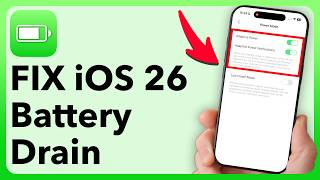
Open Settings, go to General, and turn off Background App Refresh entirely to prevent apps from running in the background.
Switch to Dark Mode in Display & Brightness to reduce battery drain from the screen.
Turn off Always On Display if available to save battery.
In Mail settings, disable Push and set Fetch to Manual to prevent constant email checks.
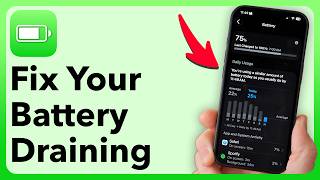
Check Battery settings to identify apps using the most battery, especially in the background.
Review Location Services and set apps to 'Never' or 'While Using' instead of 'Always'.
Disable System Services like Significant Locations and Product Improvements to save battery.
Turn off Tracking and Analytics & Improvements to prevent background data collection.
Restart your iPhone at least once a week to clear cache and improve performance.
What is the first major setting to disable to save battery?
Turn off Background App Refresh entirely in Settings > General.
00:29
What display mode helps save battery?
Dark Mode reduces battery usage significantly.
01:11
How should you configure Mail to save battery?
Set Fetch to Manual and disable Push.
02:20
How can you identify which apps use the most battery?
Go to Settings > Battery and check 'View All Battery Usage'.
03:17
What is the recommended setting for Location Services?
Set apps to 'Never' or 'While Using' instead of 'Always'.
04:01
How often should you restart your iPhone?
Restart your iPhone at least once a week.
06:05
Disable Background App Refresh
This is a single, high-impact setting that stops all apps from running in the background, saving significant battery.
00:29Use Dark Mode
Switching to Dark Mode is a simple change that reduces display power consumption, a major battery drain.
01:11Set Mail to Manual Fetch
Preventing constant email checks can save battery, especially for users with multiple accounts.
02:20Identify Battery Hogs
Using the Battery settings to see which apps consume the most power allows for targeted adjustments.
03:17Limit Location Services
Restricting location access for apps and system services can dramatically reduce battery drain.
04:01[00:02] you can take. It only takes a few minutes to fix or boost up your iPhone battery, no matter what iPhone you have, all the way back to an iPhone 10, and
[00:14] all the way up to an iPhone 17. So, let me walk you through those steps. The first thing we're going to do is open up the Settings app on your iPhone. From the Settings app on your iPhone, tap on General towards the bottom, and one of
[00:29] the biggest culprits is Background App Refresh. Just tap on that. This allows every single app that is turned on to run in the background. Now, you could just toggle these off one by one, but I would highly recommend instead just
[00:43] tapping at the top here and completely turning off Background App Refresh. This is a big one, so that you don't allow these apps to run in the background. them up. The next thing we're going to do is go
[00:58] back to the beginning of your settings. From the beginning of your settings, scroll down and tap on Display and Brightness. Now, you might not know this, but your display takes up a large percentage of the battery drain on your
[01:11] iPhone, and just by switching from Light Mode over to Dark Mode, this significantly reduces the battery usage on your iPhone. So, it might take some getting used to, but I would highly recommend just trying it out for a bit,
[01:26] switching to Dark Mode, and trying it for a day or two. In addition to that, scroll down, and if you have Always On Display as an option here, and this is turned on, I would recommend toggling that feature off.
[01:39] The next thing we're going to do is tap the back arrow till we get to the beginning of your settings. From here, scroll to the bottom and tap on Apps at the bottom. And then scroll down until we get to
[01:52] And then scroll down until we get to Mail on this list. And now, the Mail app is a big culprit. This means essentially your mail app can constantly check for new emails by default, but let's limit that similar to how we limited the
[02:07] background app refresh. So, tap on mail accounts at the top. And then tap on fetch new data at the bottom. If you have push email turned on, this again means every email that you get to
[02:20] your email account is pushed to your iPhone. So, I'd recommend toggling that In addition to that, you can see all your emails and iCloud. If you have fetch set up, it says the schedule below is used when push is off. Essentially,
[02:35] fetches for new emails. For battery battery life, fetch less frequently. Or in my case, I would highly recommend switching this to manual. This means whenever you open your email up manually, it will check for new email.
[02:49] Otherwise, it will not automatically do so. The next thing we're going to do is tap arrow. Let's go all the way back to the beginning. And now, this is personal for your iPhone. Let's diagnose which apps
[03:03] specifically are using up so much battery life, and let's help limit those so they don't use that battery life. So, from the beginning of your settings, tap on battery towards the bottom. And then you'll be able to see all of
[03:17] your battery usage. Scroll down and choose view all battery usage. I would highly recommend going through several different days and seeing which apps use the most amount of your battery, and specifically looking for
[03:32] background activity. You can see Safari and Messages and my mail, etc. are taking up lots of my battery. So, in all of these, if they are using arrow till you get to the beginning of your
[03:47] settings. And keeping in mind which apps those are, let's scroll down and choose privacy and security. From here, I would first recommend tapping on location services. If your iPhone is constantly checking your
[04:01] location or specific apps are checking your location, it'll drain your battery a ton. So, I would highly recommend going through here and any apps that you don't want to use your location, all you need to do is tap on that app and switch
[04:17] need to do is tap on that app and switch it instead of while using to for instance music, I don't need my music app seeing my location. I'm going to switch that to never. But, also tap the back arrow and scroll
[04:29] down until you get to system services You'll see a lot of different options that are default to your iPhone essentially checking your location. I've turned off almost all of these. I would
[04:43] recommend just mimicking what I have turned on and what I have turned off. through and see what makes sense for you, but this is what makes sense for me and I fairly limited it for privacy and battery reasons.
[04:57] Most importantly, you want to tap on significant locations and routes and use your Face ID and toggle this off in addition to turning off product improvements. Now, we've turned off the location, but
[05:11] let's also turn off other features that could be using your battery life for certain apps. So, tap the back arrow and then tap the back arrow again. You'll be able to see tracking for instance, if you have
[05:25] battery life. I would recommend turning that off. And then also going back out of here and then scrolling down to the bottom and you'll be able to see analytics and improvements. This essentially means
[05:39] that your iPhone will constantly be running analytics in the background draining your battery life. So, if any of these are turned on, just toggle them off and you'll see a big improvement in your battery life.
[05:52] The last thing, and this sounds counterintuitive, is to restart your iPhone every once in a while. A lot of times just a restart helps to clear the house, clear all the cache, and help your iPhone run better. So, all you're
[06:05] going to do is press and hold the volume up and side button. to power off. Turn off your phone at least once a week. It's just a really good practice to do. I hope this helps and if you enjoyed this video, check out
[06:19] you're really like that one, too. And thanks for watching.
⚡ Saved you 0h 06m reading this? Transcribe any YouTube video for free — no signup needed.