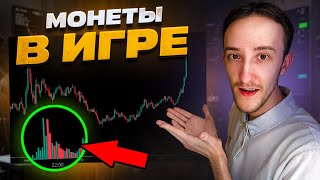

How to Spot Coins Before They Pump
43sThe promise of catching coins at the start of their growth with high relative volume is a compelling hook for crypto traders.
▶ Play Clip"Delivers a practical guide on finding active coins, though some repetition and promotional content slightly dilute the value."
This video tutorial demonstrates how to use a cryptocurrency screener to identify coins with high relative volume surges, enabling traders to enter positions at the beginning of price movements. The presenter walks through the configuration of the screener's volume surge sorting and alerts, providing specific settings for scalping and longer-term trading strategies.
Finding coins with increasing volume allows entry at the start of growth, potentially capturing large price movements.
A new 'surge in volumes' sorting feature has been added to the screener to display coins with volume spikes.
Select exchange (Binance, Bybit, Bitget), set formations to 'without formation', and optionally apply volume filters (e.g., from 5 million) to exclude illiquid coins.
Choose time range, direction (long/short), and volume surge filter. The surge value compares recent volume to average volume over a period.
Set a minimum price change percentage (e.g., 1%) to filter out coins with minimal movement despite volume surge.
Select real-time updates (every 30 seconds) to catch surges at their very beginning.
Larger time ranges (e.g., 24 hours) calculate average volume over longer periods (e.g., 7 days), providing a more accurate baseline for detecting true surges.
For scalping, use a time range of 5 minutes, direction 'all', and avoid filters to prevent empty results. Optionally, set surge filter to 2 for notifications.
Save the configured tab to see coins with the largest volume surges at the top, updating in real time.
Create an alert for volume surge, choosing time range (5 min for scalping), direction (long or all), and surge threshold (e.g., 5X) to avoid spam.
Set a minimum price change (e.g., 2%) to filter out low-volatility coins with poor liquidity and high commission costs.
Set a 24-hour volume filter (e.g., 5 million on Binance Futures) to ensure sufficient liquidity, adapting to exchange and spot/futures.
Notifications can be sent via sound or Telegram, showing surge details and allowing quick access to the chart.
A notification for MKR showed an 8.2x surge, demonstrating a clear volume spike that could be traded.
For medium/long-term trades, set time range to 24 hours to identify coins with sustained volume increases, suitable for breakout and trend strategies.
The video provides a practical guide to using volume surge sorting and alerts to identify active coins early, with customizable settings for different trading styles. By catching volume surges at their inception, traders can potentially enter high-momentum moves and improve their trading outcomes.
What is the purpose of the 'surge in volumes' feature in the screener?
It identifies coins with high relative volume increases, allowing traders to enter at the start of growth.
00:15
What exchanges are available in the screener?
Binance, Bybit, and Bitget.
00:40
How is the volume surge value calculated?
It compares the trading volume over the last 5 minutes to the average volume over the last 2 hours (or other selected period).
01:52
What is the recommended time range for scalping strategies?
5 minutes.
04:21
Why is a price change filter recommended for alerts?
To filter out low-volatility coins with poor liquidity and high commission costs.
08:26
What surge threshold is suggested for notifications to avoid spam?
5X.
07:31
How does the time range affect volume calculation?
Larger time ranges (e.g., 24 hours) calculate average volume over longer periods (e.g., 7 days), providing a more accurate baseline.
03:12
What is the recommended volume filter for Binance Futures?
5 million.
09:22
What notification methods are available?
Sound or Telegram notifications.
09:53
What is the purpose of the blacklist in the screener?
To exclude specific coins from the results.
00:54
Core Concept: Volume Surge
Explains the fundamental idea behind the strategy: catching coins at the start of volume-driven moves.
00:15Surge Calculation Method
Provides a clear formula for how the screener calculates volume surges, essential for understanding the tool.
01:52Recommended Surge Threshold
Suggests a specific surge value (5X) for notifications to filter out insignificant volume spikes.
07:31Real Example: MKR Surge
Demonstrates a real notification with an 8.2x surge, showing the practical application of the strategy.
11:30Higher Timeframe Application
Shows how the same tool can be adapted for longer-term trading by adjusting the time range.
12:42[00:03] how to find active coins. When their video we will analyze how to find coins with a high relative volume. That is, in the
[00:15] just beginning to increase in volume, if you find such coins, you can enter at the very start of their growth and take very large movements with which you can earn.
[00:27] Recently, we added a very cool feature to the screener called a surge in volumes. This is a sorting that shows those coins in which the shows those coins in which the
[00:40] such coins at the very start. Go to the workspace settings. Here we select the exchange, we have binance bybit and bitget available. Then go to formations. Here we set without formation. The third tab is filters. Here you can
[00:54] add coins to the blacklist, but this is not necessary for this sorting. But filters by volume can be applied. Here I set from 5 million so that super illiquid coins are not shown to us, but 5 million is basically the volume
[01:09] when the coin is just starting to grow, money is pumped into it, and this volume of 5 million in a few minutes can turn into 10 million or 20 million, which is why we do not use the correlation filter here. Next, we
[01:24] go to the sorting itself. Here we go to the sorting type and select the volume surge. The following settings are available. Here we can select the time range, this is the period for which all volumes will be calculated. Next, we
[01:38] can choose the direction in which our volume will go, NG or short, an increase or decrease. Next, we can select a filter by volume surge, it shows how much our volumes have increased over the selected
[01:52] period of time. For example, if we check the box and select two, then our calculation will occur in such a way that the trading volume over the last 5 minutes will be correlated with the average volume over the last 2 hours. And thus, when
[02:05] calculating surges, for example, a value of 2 can indicate a twofold increase in volume over the selected period. For example, over the last 2 hours, our average volumes in five-minute periods are 100,000 dollars if in the new five-minute period our
[02:18] volumes are already 200,000 dollars. That is, they have doubled, then we will be shown such coins if we check the box here. A price change filter is also available from. That is, if our volumes begin to enter and we
[02:31] check the box here and set 1% and when volumes enter the coin and it stands still, nothing will happen, there will be movements less than 1%, this very surge, then such coins will not be shown to us. We can also
[02:45] filter surges using this. Further here we can choose the update frequency to update in real time every 30 seconds (minute) or update manually. I set it here in real time so that
[02:58] the calculations occur instantly and I saw the very beginning of all surges. That is, when money enters the coin and the volumes increase, if our time range is set to 1 hour, then our calculations will occur based
[03:12] on the average volume over the last 2 hours, but if we set a larger time frame, for example 2612 or 24 hours, then our volumes will already be adjusted to the given time frame. For example, if you set 24
[03:26] hours, then here we will have the average volume for 7 days will be calculated. If 12 hours, 6 hours or 2 hours, then the volumes will be calculated as averages for the last 24 hours. This is done in such a way as to identify the truly average volume of the coin for the
[03:40] selected period of time, and when there is a surge in volumes, it will really seem to us that a surge has occurred and not just some fleeting movement. I also wanted to remind you that we have a Telegram channel in which we
[03:53] post current updates. What work is currently being carried out on the screen, what we are working on. So, we also have a chat screen in which you can see the current settings of the video on how to use the screen, see Answers to
[04:07] frequently asked questions, share current formations, communicate with anyone interested, I will leave links to Telegram in the description under the video. Let's now move on to the settings themselves. If we are considering scalping strategies, then the
[04:21] following settings are best suited here: a time range of 5 minutes, direction, all filters we use here are optional, but In principle, I don’t use them. Because if there are filters here, we may have an empty workspace or just a
[04:34] couple of coins. For example, let’s now set a filter of two and save it by price change, and we already have a surge. The page is empty because there are no coins that fall under these filters. But filtering is just good
[04:48] for notifications. This function is available for screens, so we will also analyze it further. For example, if you remove the filter by change and leave only the surge, then here we will already have more coins, but still not the entire
[05:00] list, and we see only those coins in which we have an increased surge over the last 5 minutes. Well, here we have, in principle, ATC at the top and we attention to what volumes we had over the last 2 hours, small, and
[05:13] indeed, now in this current candle, five-minute volumes have increased, and therefore this coin is at the top of surges, and for all coins, those coins with the largest surges are at the very
[05:27] update all sorting in real time. If you trade scalping strategies, you can use such settings on the chart. Personally, I disabled horizontal levels and daily ones, I also disabled the trend ones, I left only the
[05:41] density ones, you can copy my
[05:56] for me, in principle, this is how it all works. Next, click "save" and get a tab configured with all the surges. And now, those coins that actually have the largest volume relative to all
[06:10] other coins in the current market appear at the top. Let's now go to the alerts tab and set up an alert about the surges themselves so that we receive good formations for this strategy. Scroll down and here you can click on the "create" button.
[06:24] Next, in the alert types, select the volume surge and we can also customize the settings. We use it depending on what strategy we are trading. If we are considering scalping strategies, then we can use the following
[06:38] settings: time range, set 5 minutes, direction. An interesting point here is that if we set a price increase, we will receive notifications about a long In other formations, that is, when a coin goes long, usually, in principle,
[06:51] all pumps also go long. Therefore, if you trade more in a long formation, then you can set the direction of price change here. But if you are considering other strategies, for example, how to simply find an
[07:04] active coin itself. And from this, other strategies can be traded, such as breakouts, knives, sharpening, rebounds from densities, with such good activity, collecting volatility, then you can, in principle, set it in all directions. Thus,
[07:19] even if there is some big surge in the short, for example, the coin breaks through something or just rolls it, there will be negative news or something else in this format, then we will also receive a notification, and for shorts further along the
[07:31] surge, it is best to choose this surge X5. That is, for example, if our average volume in five-minute periods is $100,000, and in the current five-minute period in the new one it is $500,000. Then this will already be a 5X surge, and the fact that
[07:46] notification for us. If you set the surge below five There are two or three, then it will not be very indicative, and this is already such a small surge, it is best to regulate by changing the price. But for a really good surge to
[08:01] come, it is best to set five in notifications to avoid spam from notifications. And in sorting, we do not use the filter by surge or at will because there it is sorting and shows the largest
[08:13] surge, that is, at the top we have the most popular coins on which the volume is currently increasing, but in notifications here we use a surge of five and a filter by price change. That is, it will show how much
[08:26] the coin is in percentage. It has gone and from this we will no longer receive notifications. In principle, you can set 2% here because if a coin is less than 2%, there was some kind of surge, then it is a low- volatility coin and you
[08:42] won’t make much money on such coins because it will most likely not be liquid. And secondly, it will go at small percentages and due to the fact that low liquidity, you will give the most in commissions there, so it is
[08:54] best to set a filter of 2% or even more here you can do it yourself. Test and choose more comfortable settings for yourself, then move on to the filters for the volume of the coin, select the 24-hour interval and here the volume from we
[09:09] select based on the exchanges and based on where you trade spot or F, because each exchange has its own liquidity. Based on this, you need to adapt in order to find good coins on a given exchange. If we are
[09:22] considering Binance Fuge here, then in principle, you can set a volume of 5 million and this will be enough to already pay attention to this coin. 5 million in itself is very little liquidity, but since
[09:38] volumes will enter the coin, it will have a surge, then these volumes of 5 million in a short period of time can turn into 20, 30, 50, 100 million and then the increase in volumes will no longer be difficult for us, the main thing is to catch the very beginning of the
[09:53] surge in volumes. When money has just begun to enter the coin, then here we select sound or Telegram notifications, they are available on both exchanges and there, and the title of the notification here we call the notification itself. Let's
[10:07] call it a surge, you can leave it Comment next, select the coins for which this notification will come. You can put some coins on the black list if you do not need them and then click save and we receive
[10:20] such a notification about the surge in volumes and by the way, we have now received a notification, we can go to it and see what is now for the Katya coin, volumes have really started to come in in the last five minutes and we can
[10:34] measure that over the last 2 hours. What were the volumes of the coin, they were not very large, but now the volumes have grown and they have grown. Let's look here at the top right, exactly five times 5.12 in the last five minutes and on the chart we
[10:49] can notice that the volumes have increased and if you look here at the coin itself, then here we can see a breakout of the level was now on the coin there is a historical level. So, how are the volumes increased because there is interest in the coin, since
[11:02] we remember the coin setting from 2% And here the coin had a surge of as much as 45% This means that the coin is an active coin, a volatile coin, volumes have come into the coin and such coins You can also consider this notification for trading. It
[11:17] came in Telegram. We have a bot that sends just such notifications and here we can see the surge by how much it increased for the coin and the interval that we chose. By the way, recently it was even higher. I
[11:30] received a notification for the MKR coin. Here we can notice that the surge was as many as 8.2 times, this is a lot. This notification came 38 minutes ago. Let's go to it and see what we had 38 minutes ago. This is the
[11:46] candle that we had and we also see that before this there were no volumes. A candle appeared in which volumes entered and we received a clear notification. Let's
[11:58] consider other options here. I used a surge for 15 minutes. We also had X5 and from the last 760 minutes ago I received a notification for LZ 760 minutes ago. This is 12.5 hours and let's measure it. This is exactly this
[12:15] huge lango candle and pay attention to the fact that before this the coin had no volumes. And now the coin has entered the langi and has grown by as much as 10% and as soon as Volumes started to come in on this candle. I already received a notification and it was possible to
[12:30] catch a knife here, trade volatility activity, rebound from densities and earn money with this. I also wanted to show an option for how to use a surge in volumes. For higher timeframes, when we trade for the medium
[12:42] term or want to buy a coin for longer, longer- term trades, here we select the time range for the last 24 hours, click save, and here in the top, we are shown those coins in which the volume comes in very
[12:57] well over the last day, and we see what we have here in the top. Coins that were just listed, they had no volume at all, they appeared to us. A notification came, the coin began to show up in the top. Here is the Ark coin, we can notice.
[13:10] Let's open its large chart and before that, the coin had no volume at all. And now we have a very large surge and the coin is trading on increased volumes. That is, there is interest in this coin, this coin can be considered
[13:23] for trading in the top. We have two coins that were just listed, it is clear that there are Increased interest, then AKM, which began to see volumes increase on the last day, then the gas coin, also seeing increased volumes. You can also
[13:36] set up notifications for these coins on higher timeframes and use this to trade more global formations, thereby earning money on good activity. Well, this video will come to an end. Thank you all very much
[13:49] for watching. Let's shake hands. Have fun, let's stretch our bellies, let's stretch our greens. Thank you all very much. Goodbye, bye-bye.



⚡ Saved you 0h 14m reading this? Transcribe any YouTube video for free — no signup needed.