
Make $81k+ with AI Animated Videos?
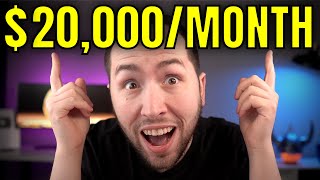
41sShows real earnings potential from similar channels, sparking desire for easy money.
▶ Play Clip"Delivers a working process but oversells earnings with hypothetical screenshots and pushes paid tools/courses."
This video tutorial demonstrates how to create AI-animated YouTube videos for the kids niche using NVIDIA AI and ChatGPT, promising fast results and monetization potential. The creator walks through the entire process from idea generation to channel setup and publishing, claiming that anyone can do it without special skills.
The video showcases using NVIDIA AI (version 3.0) to quickly create animated YouTube videos in the highly profitable kids niche.
A channel in this niche makes $81k to $1.3M per year according to Social Blade, with top channels earning millions.
The main tools are NVIDIA AI (nid.ai) for video generation and ChatGPT for script and thumbnail creation. Both have free tiers.
The recommended niche is kids' content, with examples like Cocomelon generating massive viewership.
Use ChatGPT with prompts like 'give me a few short story YouTube video ideas for kids' to get video concepts.
In NVIDIA AI, select 'Create AI Video', paste the idea, and customize options like subtitles (bold, popping effect), voice (female Midwestern accent), and music (YouTube audio library).
The generative account costs about $15/month for 15 credits, enough for one month of video creation. A free test account is available.
Ask ChatGPT to create a 1920x1080 thumbnail for the video, then download it. If too large, compress with tinyjpg.com.
Use ChatGPT to generate channel name (e.g., Storyland Kids), banner (2480x1152), and profile picture (1080x1080). Customize the channel accordingly.
Set the video as 'Made for kids', mark as AI-generated, add relevant tags using vidIQ, and choose appropriate category (e.g., Education).
The uploaded video got 530 views in the first 7 days, with 407 views in the first 2 days, outperforming the creator's early videos.
By leveraging AI tools like NVIDIA AI and ChatGPT, anyone can quickly produce animated kids' videos and start a YouTube channel with minimal effort, potentially achieving rapid view growth and monetization.
What AI tool is used to create animated videos?
NVIDIA AI (version 3.0) – also referred to as nid.ai.
01:34
What niche is recommended for this YouTube strategy?
The kids niche (e.g., Cocomelon-style content).
02:18
How much does the generative plan cost and how many credits does it provide?
It costs around $15/month and provides 15 generative credits per month.
05:56
What dimensions are recommended for a YouTube banner?
2480 x 1152 pixels.
09:04
What settings can be customized in NVIDIA AI for video generation?
Subtitles style, voice actor (e.g., female Midwestern accent), background music, and language.
04:07
What should you do if your thumbnail file is larger than 2 MB?
Compress it using tinyjpg.com.
11:07
What initial results did the creator get from the first video?
530 views in 7 days, with 407 views in the first 2 days.
12:48
Channel Earnings Revealed
Provides concrete monetization potential to motivate viewers.
00:13Using ChatGPT for Video Ideas
Demonstrates a simple yet effective technique for generating niche-specific content concepts.
03:10Editing AI Videos with Commands
Shows that AI-generated videos can be refined without re-rendering from scratch using natural language commands.
06:33Early View Count Results
Provides a realistic benchmark for expected performance, showing rapid initial growth.
12:48Call to Action for Course
Promotes the creator's paid course, indicating a revenue model beyond YouTube.
13:33[00:01] here and in this video I'm going to show you how to use a simple AI tool to create animated YouTube videos in literally minutes and we're going to be doing this in a niche that is hotter than the Sahara desert right now with
[00:13] channels making this exact type of content making insane money as you can see on social blade this channel is making 81k to 1.3 million a year and the largest channel in that Niche is making money that most of us can't even
[00:27] insane right but that's truly what's possible on YouTube and obviously I'm not saying you're going to make $93 million a year thousand a month can truly be
[00:41] first started the first couple dollars I made was everything and the best part about this strategy is you don't even need to have any special skills you don't have to know how to do graphic design or anything this could literally
[00:54] you could still follow along with this video with ease and unlike all the other channels that make similar videos to this that just show you a glimpse of how to do this I'm actually going to show you how to create the entire video in
[01:07] minutes create the thumbnail and set up your YouTube channel for success and all I ask of you is to Simply smash the like button and watch the entire video so you don't miss out on any of the steps both completely free to do so assuming you've
[01:19] get into the video all right so like I said in this video we're going to be creating animated videos using a simple AI tool and the tool we're going to be using is NVIDIA Ai and I've made tons of videos about Nido before and I think
[01:34] maybe one with Nvidia AI but this is a brand new version 3.0 which allows you to create the animated videos and it's not like stock footage or anything like that it's literally AI generated animated videos which are completely
[01:47] insane okay so the first step you want to do is create your free nid account down below and it's going to bring you to a page like this and all you do is put your email right here so test gmail.com create account and then you go
[02:03] login code here and I'm going to show you how to set all that up in a minute but what we're going to do is we're going to pair nid AI with chat GPT which is completely free by the way but before we do anything you got to actually pick
[02:18] your YouTube Niche that you're going to be creating the videos in and that Niche actually the kids Niche and if you don't know kids are watching YouTube so much these days it's Absol absolutely insane
[02:31] and the first channel is just for kids and the second if you do have a kid Coco melon you've probably heard of it my four-year-old loves YouTube She's that's the niche we're going to be doing it in the kids Niche and the first step
[02:46] is using chat GPT and you can just get a free account there is a paid account but I just use the free one but the first step is coming up with video ideas in that Niche right so what you're going to want to do is say something like give me
[02:58] a few short story YouTube video ideas for kids and then give you a bunch of different YouTube video ideas right so we'll let it do its
[03:10] thing and as you see it wrote a bunch of different things here and there's a couple different ways we can go from this right so for example like let's see sharing is caring okay so there's two ways we can do this we can take this
[03:25] whole thing right here copy it and you could tell Chad GPT write me a script for this video idea and then you paste the video idea okay and then you hit enter now it's going to write you a whole script for that and that's fine
[03:39] you can use that script but I think the cooler way is just going straight over to Nvidia Ai and actually hitting create AI video and by the way make sure you're on v3.0 right there but the first way you could do this is you could just say
[03:52] you could do this is you could just say create me a 2minute animated video using this video idea okay delete that and then just do it that way and then hit generate a video another way you could do it is just go
[04:07] to create animated film right there and you could say create 2 minutes and then you would put your topic in here so again you paste that in there and then again you paste that in there and then we take this part right there copy that
[04:20] and then paste that right there and then you can kind of make it more specific if you want to mess with the background music you can you can make this in a different different language you can add subtitles so let's do bold subtitles
[04:34] with a popping effect you can choose the voice actor so let's do female with a voice actor so let's do female with a Midwestern accent and music preference you could go use YouTube audio library only because you're free to use that in
[04:48] your videos and then over here you just hit continue okay and then it adds all those settings right there and you can even if you wanted to instead of doing it that way just say use female voice add
[05:02] add subtitles etc etc right that's another way to do it okay but now you want to hit generate a video and now it's going to bring this up and you can just keep this just like this children normal and
[05:15] continue now if you just signed up for the free nid account and you don't have an upgraded account yet it would be like you'd hit continue here if you just have the free account this is just a test account You' hit continue and you need
[05:28] generative credits okay and you can just change the amount of credits you want or what you can do is just go back to this homepage here and you can click upgrade right here and I have the generative account it's a little expensive but it's
[05:42] the only tool you need to create these videos and it's so simple and you can go with the yearly and get 20% off or go with the monthly whichever works best for you but generative is the best deal you get the most credits you get 15
[05:56] that's more than enough for a month and that's every month or you can just add on the generative credits right so do it like that so that's the different ways
[06:08] set that up and if for some reason you don't have your account yet again use the link in the description down below but assuming you have that all set up once you hit continue here it's just going to create the video for us so
[06:20] let's just wait for this a second all right and the video is done so just for example we'll hit play hello there little ones let me tell you a story about some friends and their cookies in a cozy little town there live
[06:33] their eyes are huge so that's just a quick example but it made the whole video right so I don't know you could leave it just like that or you could give it commands to edit it so you could do like uh make their eyes smaller and
[06:48] the video a little more kidfriendly generate and then we'll fix that and and if you don't want to use more generative credits you don't have to you looks once it's all finished and see what it kind of changed just so you can
[07:03] get an idea of how this works all right so now it did what we asked it to do by giving it a command and I think it looks a lot better about some friends and their cookies in a cozy little town there lived four friends who loved
[07:17] nothing more than their sweet delicious cookies yeah it's actually insane how AI can create these videos just like that and once it's done you want to hit right and once it's done you want to hit right here download and no watermarks no AI
[07:31] branding and 1080 so we'll hit continue and while this is downloading we'll go back over to chat GPT and this is why we use chat GPT we didn't actually use the script it wrote us but what you want to do is say create me a YouTube thumbnail
[07:46] do is say create me a YouTube thumbnail 1920x 1080 for this video and you can see the N video video is done right there we'll use that in a little bit but this makes it so simple because you don't have to go to canva and create the
[07:58] thumbnail like look at this this is absolutely insane what AI can do okay so now just go here download the thumbnail so we got the video and the thumbnail okay now the next step is we need to go over to YouTube and create your account
[08:12] to create a YouTube channel so I'm not going to show you how to actually enter in a Gmail and create it but once you have your account created I'm going to show you how to customize all of this okay so the first step you want to pick
[08:25] a name so customize channel right here and you could pick any kids's name for your channel like uh this was for my motivation example Channel but you could motivation example Channel but you could go over to Chad GPT again and uh give me
[08:39] go over to Chad GPT again and uh give me a few good YouTube channel name ideas a few good YouTube channel name ideas for kids channels um Storyland kits sure we'll go with that one you could pick your own but this is just an example
[08:52] okay so we're going to paste that in there and publish that all right then go back over to Chad GPT and let's say create create me a YouTube Banner image for a YouTube
[09:04] me a YouTube Banner image for a YouTube channel called Storyland kids and that's not the right size so we should say change that Banner to and you want it 2480 by 1152 and I don't know how many images
[09:19] we're probably going to find out if there's like a limit but uh yeah so we'll change that Banner image download so now will change the banner to this
[09:32] so now will change the banner to this one right here it's still not the right that let's see what it looks like and that's fine I mean you could I think
[09:45] that YouTube gives us I don't think I've ever made mine that size but that's fine you could go over to chat GPT and say put Storyland kids on one line so you can line it up so it's viewable but this is just an example make sure you set it
[09:59] up however looks good to you but then the last thing we need is create me a the last thing we need is create me a 1080x 1080 profile picture for Storyland kits all right there we go we'll download that and then go over here and
[10:13] download that and then go over here and change it to that and done all right so now we'll go over to the channel and now we're a kids channel it looks great obviously it would be better if it said Storyland kids right there but this is
[10:26] completely fine just for example okay so now what you're going to want to do is so we're going to upload it and then you just want to double click that and it will upload your video here for the title you could do something like uh
[10:40] title you could do something like uh sharing is caring helping kids learn to sharing is caring helping kids learn to share okay and that's good like that and for the thumbnail right here if you haven't like I think you have to like
[10:53] verify your account to add a thumbnail I don't know if you still have to do that but if you do you just click like verify and then you get like a text message or remember but just make sure you do that so you can upload your actual thumbnail
[11:07] there okay so if it's bigger than 2 megabytes right there you can go over to megabytes right there you can go over to a website called tiny pg.com and all you do is click here and then again you're going to go to your thumbnail and yeah
[11:19] make it smaller this is going to shrink it for us so you just click the PNG right there to download it and then we go back over here and let's try uploading it now perfect so that's our thumbnail and yes it's made for kids I
[11:35] think we have to click yes is this AI I mean I think yeah they want us to hit yes so hit yes there and then you can add tags too it does help having vid IQ right here like for example it gives us all these recommended tags and I'll put
[11:50] a link to vid IQ down below as well if you want that but we'll just add some of you want that but we'll just add some of these tags here add add I don't know why guess not anymore so we'll just add some of those tags and um then keep going
[12:04] of those tags and um then keep going video language English we could make it education right there and then go over here hit next next this isn't relevant videos but once you have other videos you can add a video for people to click
[12:19] at the end it's called an end screen but we'll just hit next next and then you want to go public and publish and now it uploaded our video right here hello hello there little ones let me tell you a story about some friends and their
[12:33] cookies guys I'm almost done editing this video but I had to show you these insane results so check this out so in the first 7 Days 530 views and most of those views as you can see right here came in the first 2 days 407 after 2
[12:48] days I need you to realize it took me months before I ever had a video that even got 100 views so there isn't really any better strategy for YouTube Than real quick but make sure you watch until the very end I have a special message
[13:04] for you and that's how you do it that's so simple to set up these videos with AI and literally AI did everything for us but this is just one of many strategies for creating faceless content on YouTube and if you want more strategies and to
[13:18] learn how to do things more in depth definitely go to my nface YouTube course at nyt.com and definitely check that out if you have any questions make sure to haven't signed up for NVIDIA already you do that with the first link in the
[13:33] say is I know I was gone for a little while again but I read through all the want to say how much I appreciate you guys for appreciating me I love you I've missed you a lot and I'll be back more than ever in 2025 so thank you for your
[13:49] than ever in 2025 so thank you for your support always and uh I love you guys that's all I got I'll see you on the next video
⚡ Saved you 0h 13m reading this? Transcribe any YouTube video for free — no signup needed.