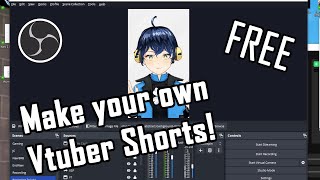

Setup OBS for Shorts
45sShows a clear, step-by-step technical setup for creating VTuber content, appealing to beginners who want to start making videos for free.
▶ Play Clip"Title accurately promises free VTuber short creation; the paid app is optional and clearly stated."
This video demonstrates how to create VTuber shorts and videos for free using OBS Studio, with an optional paid app (Premiere Rush) for extra editing. The creator walks through setting up OBS for a 9:16 vertical canvas, adding a background, capturing a VTuber model via game capture, and recording. The paid app is not mandatory but can save time when producing both wide and tall formats.
OBS (free) and a VTuber app: VC Face for 3D models or VTube Studio for 2D models.
In OBS settings > Video, set base canvas to 9:16 ratio (e.g., 1440x2560) for phone-screen content like TikTok, Reels, and Shorts.
In OBS settings > Audio, select your microphone and adjust levels using the audio mixer bar.
Click the plus icon, choose Image or Media Source, select your background, adjust to fit, and lock the source.
Open the VTuber app first, then add a Game Capture source in OBS, set mode to 'Capture specific window', select the VTuber app, enable transparency, and disable cursor capture.
Add background music via Media Source. The paid app Premiere Rush can combine widescreen and tall footage but is not required.
What canvas resolution does the creator recommend for vertical shorts?
1440x2560 (9:16 ratio) to allow zoom/crop later.
0:42
Which two VTuber apps are mentioned for 3D and 2D models?
VC Face for 3D, VTube Studio for 2D.
0:21
How do you add a VTuber model in OBS?
Add a Game Capture source, set mode to 'Capture specific window', select the VTuber app, enable transparency, and disable cursor capture.
1:46
What is the optional paid app mentioned and why does the creator use it?
Premiere Rush; it allows using one widescreen footage to produce both wide and tall videos, saving time.
2:32
Canvas size for shorts
Provides a practical resolution (1440x2560) that allows future zoom/crop flexibility.
0:42Capturing VTuber with transparency
Key technical step: using Game Capture with transparency enabled to overlay the VTuber cleanly.
1:46Paid app is optional
Clarifies that all core steps are free; the paid tool is a convenience, not a requirement.
2:32[00:00] to my Taphouse today I'm going to show
[00:03] you how I make all of my shorts and
[00:05] videos for free though I'll also be
[00:08] using one paid app which isn't mandatory
[00:10] but I like to use it before that though
[00:13] don't forget like subscribe to start out
[00:16] you're going to need a few apps and I'll
[00:17] link them all in the descriptor box
[00:18] below firstly grab yourself OBS second
[00:21] is going to depend on your YouTuber
[00:23] model if you're 3D I recommend VC face
[00:25] if you're a 2d then go for vtube Studio
[00:28] once you've got everything you need we
[00:30] can get started go ahead and open up OBS
[00:32] pick the settings and then select video
[00:34] to choose your canvas size if you want
[00:37] to make content for phone screens only
[00:39] in example Tick Tock reels and shorts
[00:42] set the base canvas resolution to a 9x16
[00:45] ratio I'd suggest a minimum of 1080 by
[00:48] 1920 but I do 1440 by 2560 so I can zoom
[00:53] crop and do other editing if I need to
[00:55] in the future when you hit OK you're
[00:57] going to see that the window has now
[00:58] changed if you want it in Normal video
[01:00] format just drop the numbers around to
[01:02] make it 16x9 in the settings audio tab
[01:05] make sure your mic is selected or you're
[01:08] going to be recording with silence and
[01:10] also make sure your audio is set to a
[01:12] comfortable level by the bar next to the
[01:14] slider in the audio mixer tab time to
[01:17] set the scene firstly select your chosen
[01:19] background you can make it an image or
[01:21] video and the limit as your imagination
[01:23] first click the plus icon at the bottom
[01:26] and select either image or media Source
[01:29] depending on what you're going to use
[01:30] name it whatever you want and click ok
[01:32] now select your background
[01:35] as you can tell I like my aesthetic
[01:37] white background so I'm going to stick
[01:39] with that most likely you're going to
[01:41] need to adjust it to fit and once you've
[01:43] done that I recommend locking the sauce
[01:44] in place like so
[01:46] next add your vtuber the app has to be
[01:49] opened before you can select it so open
[01:51] it now if you haven't already click the
[01:53] plus icon and select game capture name
[01:55] it and then change the mode to capture
[01:57] specific window then select either
[01:59] YouTube Studio or VC face both of these
[02:03] apps can make themselves transparent all
[02:05] but the v-trooper itself so click allow
[02:07] transparency and turn off capture cursor
[02:09] if you don't want to accidentally show
[02:11] that off and then click OK once again
[02:13] adjust the source until you're happy
[02:15] lock it in place
[02:17] everything you need is now ready you can
[02:20] also add background music via the same
[02:22] media tab as you would if you wanted to
[02:24] add a video background and then all
[02:26] that's left
[02:28] is to make your video
[02:30] now I did mention that there is one app
[02:32] that I use that isn't free but I do
[02:35] enjoy using it and that is Premiere Rush
[02:39] I can use one form of footage in
[02:42] widescreen and make two types of video
[02:44] wide and tall so it saves a lot of extra
[02:47] time it also lets me add extra music
[02:49] messages or whatever else I want to
[02:52] throw in but unless you want to go extra
[02:54] detailed on your video making you don't
[02:56] need it you can do everything in obs I
[02:58] hope this helps and until next time
[03:01] double daps
[03:02] [Music]
⚡ Saved you 0h 03m reading this? Transcribe any YouTube video for free — no signup needed.