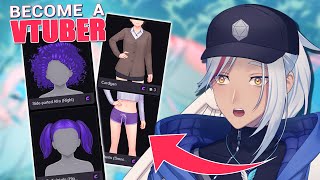

Free VTuber Model in 1 Hour?!
45sHigh-value promise of a free, easy VTuber model creation instantly grabs attention for aspiring creators.
▶ Play Clip"Delivers on the promise of an easy, free VTuber model creation, though some setup steps are glossed over."
This video demonstrates how to create a custom 2D VTuber model in about an hour using Mannequin Character Generator, without needing drawing or rigging skills, and without spending money. The process involves generating a character, exporting it, and then using Inochi Session and PuppetString for tracking and animation, followed by OBS for streaming.
Mannequin Character Generator is a free tool that generates 2D style characters. It's like a 2D version of VRoid Studio, offering presets and customization options.
The creator manually creates a character, noting that the process is similar to using a video game character creator. The tool offers many presets, but customization is limited to available themes.
After creating the model, export it using PuppetString settings. You can also export as PNG, but that keeps the mouth open permanently, which is not ideal for a moving VTuber.
Download Inochi Session (acts like VTube Studio) and PuppetString (acts as input for webcam tracking). They are made by the same people and work together.
Drag the exported model into Inochi Session. Follow the instructions in PuppetString for Inochi Session, refresh the tracking window, and select the webcam in camera settings.
Click 'calibrate head position' and hold your head steady for a few seconds. Adjust parameters like 'sync eye blink' to improve tracking.
In OBS, add a Spout capture source, then add a Chroma Key filter to remove the background. Adjust settings to clean up the key.
With free tools like Mannequin Character Generator, Inochi Session, and PuppetString, anyone can create and animate a 2D VTuber model without drawing or rigging skills, and then stream it using OBS.
What is Mannequin Character Generator?
A free tool that generates 2D style characters for VTubers, similar to a 2D version of VRoid Studio.
00:01
What is the downside of exporting as PNG?
It permanently keeps the mouth open, which is not ideal for a moving VTuber.
01:21
What are the two applications needed for tracking?
Inochi Session (acts like VTube Studio) and PuppetString (acts as input for webcam tracking).
01:34
How do you calibrate head position in PuppetString?
Click 'calibrate head position' and hold your head steady for a few seconds.
02:51
What function helps with eye blink syncing?
The 'sync eye blink' function, which should be turned on to avoid looking drunk or eye twitchy.
03:04
Free VTuber Creation
Highlights that you can create a VTuber model without drawing or rigging skills and without spending money.
00:01Tool Integration
Shows how Inochi Session and PuppetString work together seamlessly, simplifying the setup.
01:34Eye Blink Sync
Provides a practical tip to fix common webcam tracking issues with eye blinks.
03:04[00:01] custom 2D vtuber model in just 1 hour without knowing how to draw or rig and most importantly you don't have to spend a single dime this is mannequin character generator it does exactly what it says in the tin it generates a life
[00:15] 2D style character for you to use one cool feature is that it can literally depending on what parameters are selected but in this video I want to try and make my own character F so I'll have to offer manual process instead I know a
[00:30] lot of you who watch my videos aren't able to draw a rig so this might help you out a bit since it basically does both manually creating a character here is essentially the same as using a video games character creator or if you've
[00:42] ever used vroid Studio think of this as a 2d version of that while it offers a lot right out of the gate one downside I found though is that you're mostly stuck to using presets so naturally our selection is limited to what themes are
[00:54] available but there's already so much you can do with it and that I can't really complain plus this this gives me an excuse to make alternate outfit Fay in this alternate version she might not be the wizard scholar from her
[01:07] artwork but she did turn out really cute and you can still tell it's her of that we're done making the model we can export it using the puppet string settings select a place to save it and that's our model done you can also
[01:21] export as PNG if that's what you want to do but it does permanently keep your do but it does permanently keep your mouth open so I you want a like this but we want to be moving breathing vtubers with proper working mouths dang
[01:34] NAIT so in order to do that we need to download two other applications inoi made by the same people so they should work together pretty well inoi session
[01:46] is like vtube studio in that it acts like a hub that holds your model and tracking puppet string acts as the input grabbing what your webcam sees and linking it with your model in enoi session much like how V Bridger works if
[01:58] things downloaded we have to do a little bit of setup to get things working fire them both up and follow along with me first let's grab all these tiny windows viewing I got so confused when I first booted it up because I couldn't even
[02:12] find my tracking window and that's the most important part okay now that that's sorted remember the model file we exported earlier grab it and just drag it into enoi session now if you take a look at puppet string you'll see that it
[02:24] has conveniently placed instructions just for enoi session it's almost like they were made by the same people or something so let's do exactly what it says real quick and don't forget to hit refresh in the tracking window
[02:37] refresh in the tracking window too now your model might still be frozen but don't fret like Elisa said Let It Go or in this case let us go into the camera settings of puppet string and select our desired webcam below we see a
[02:51] button for calibrate head position click it stare at your screen lovingly like you're on a date and hold your head position there for a few seconds just just like when you forget what to say to your date too real yeah my bad
[03:04] and adjust any of these parameters to suit your needs but I found really helpful was the sync eye blink function as webcam tracking is notorious for not syncing your eye blinks properly you sadly won't be able to wingk but unless
[03:17] you want to look slightly drunk and eye Twitchy I suggest you turn it on tracking done now let's finish it up with OBS so we can show everyone the super cool new model we made on stream this is super simple and quick so pay
[03:31] attention or you might just miss it or you know you can just pause rewind go to your desired scene and create a spout capture to remove the background we just head down here and make a filter in the Sprout capture Source create a chroma
[03:44] Key by I dropping the background color play around with a couple settings and Yakima right here who made me aware of the softw existence I can't respond to comments so please drop some down sharing your thoughts recommend
[03:59] mendations and maybe some experiences so now your model might have been made and maybe you need some help with other vtuber related things so check out this might find useful and don't forget to leave a like And subscribe ciaoo
⚡ Saved you 0h 04m reading this? Transcribe any YouTube video for free — no signup needed.