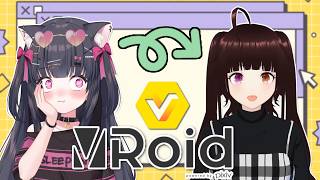

Vroid Studio UI Overhaul – More Options!
40sSurprising UI updates and increased customization options create curiosity for returning users.
▶ Play Clip"The title accurately reflects the content: the video demonstrates how to create a 3D VTuber model using Vroid Studio for free, with no hidden costs."
This video provides a step-by-step guide on creating a 3D VTuber model using the free software Vroid Studio. It covers customization options, texture editing, and how to import presets from Booth. The video also demonstrates how to set up the model for streaming using VSeeFace and OBS.
Vroid Studio is free and offers many sample models to start with or the option to create from scratch.
The UI has been updated with more customization options for clothes, hair, and other features.
Booth offers both free and paid presets; a filter shows only free presets.
Texture editing allows changing shading, skin color, and overall aesthetic by editing the texture atlas.
XP-Pen Artist Pro 14 Gen 2 tablet is used for texture drawing, featuring high pressure sensitivity and a realistic pen-on-paper feel.
Importing presets is easier now; just click import and select the texture file, but you need to know which texture to overwrite.
VSeeFace is a free, beginner-friendly tracking program for VTubing.
Use the Spout plugin in OBS for transparent capture of the model.
With all presets ready, the entire process can be completed in about 10 minutes.
What is the name of the free software used to create a 3D VTuber model?
Vroid Studio
0:09
What is the name of the marketplace where you can download presets for Vroid Studio?
Booth
1:22
How can you find free presets on Booth for Vroid Studio?
Click on the tag that shows free presets.
1:37
What technique allows you to change the shading, skin color, and overall aesthetic of your model?
Texture editing (editing the texture atlas).
2:04
What free tracking program is recommended for VTubing?
VSeeFace
7:43
What plugin is needed to capture the model with transparency in OBS?
Spout
8:10
How quickly can you complete the entire process if you have all presets ready?
10 minutes
8:42
Texture Editing for Customization
Explains how to change the model's shading, skin color, and aesthetic by editing the texture atlas, offering a way to move beyond default styles.
2:04Free Presets on Booth
Highlights that users can filter for free presets on Booth, making customization accessible without cost.
1:37Using VSeeFace for Tracking
Introduces VSeeFace as a free, beginner-friendly tracking program for VTubing.
7:43Quick Setup Time
States that with all presets ready, the entire process can be completed in about 10 minutes, emphasizing efficiency.
8:42[00:00] have you ever wanted to become a 3D
[00:01] vtuber but didn't know where to start
[00:03] well that's why it's in today's video
[00:05] I'm going to be showing you how to make
[00:06] a 3D vtuber model using a free software
[00:09] called V word Studio I made a video like
[00:11] this on my channel a couple years ago
[00:13] but this program has had a lot of
[00:16] updates since I last used it you can
[00:18] download V Studio off their website or
[00:19] steam I'll link both of them down below
[00:21] but look at this they give you so many
[00:24] sample models to start off with and if
[00:26] you want like a good base or you know
[00:28] you could create something completely
[00:30] from scratch I think I'm going to go
[00:31] with this sample model here because um
[00:33] it looks good to me wow the entire UI
[00:38] for V Studio has completely changed
[00:40] since my last video and I noticed a lot
[00:42] of you were commenting about that and
[00:43] I'm going honest with you I love it like
[00:45] seriously it's wow it's just has changed
[00:49] so much and there's just so many
[00:50] different options for like clothes and
[00:51] hair now compared to before like I it
[00:54] was very like it's not like it was
[00:55] limited per se but now there's just so
[00:57] many more options in customization
[01:00] that you could use now like look at this
[01:02] you can get really nitty-gritty with
[01:03] like the bangs the side bins the back of
[01:05] the hair now for the hair like also if
[01:08] you want to have like different ears
[01:10] that can also be done with using hair
[01:12] let me know if you would like a tutorial
[01:14] on making ears and other things with
[01:16] hair and like other cool stuff you can
[01:18] make like that in the comments down
[01:19] below oh and they have a bunch of
[01:22] different presets that you can buy off a
[01:24] booth and I love how it takes you right
[01:25] to the website with all the correct
[01:27] keywords in Japanese because I know some
[01:29] people have a a difficult time
[01:31] navigating on this website in English
[01:33] but you don't have to pay for every
[01:35] single preset that's here you see this
[01:37] tag up top if you click on this it will
[01:38] show you free presets on booth that you
[01:41] can download and impart to VW Studio
[01:43] shout out to all the amazing artists who
[01:46] are on Booth making these amazing
[01:48] presets to help creators like me make
[01:50] our models feel more unique to our
[01:52] personalities now I know some of you
[01:54] might be thinking oh this is great Mari
[01:56] but I don't really want that viroid look
[01:58] you know and I get what you're coming
[02:00] from which is why I want to introduce
[02:01] you into texture editing this is
[02:04] something that I talked a little bit
[02:05] about before in my last video but
[02:08] basically you can change the shading the
[02:10] skin color and overall aesthetic of your
[02:12] model here by editing the texture Atlas
[02:14] and you can either download like
[02:15] different presets from Booth or if you
[02:17] know how to draw them then you can
[02:19] actually draw your own textures and now
[02:22] unless if you're some kind of Ms paint
[02:23] Mouse drawing God you're most likely
[02:25] going to want some kind of drawing
[02:26] tablet to go along with that right what
[02:28] if you don't have a drawing tablet well
[02:29] that's where XP pen has you covered
[02:31] which is today's sponsor XP pen has
[02:34] amazing different tablets that you can
[02:35] use for your artistic journey I am
[02:37] specifically using their artist Pro 14
[02:40] Gen 2 which has this really cool X3 Pro
[02:43] Smart chip stylus which the original
[02:45] package comes with a lot of different
[02:46] nibs so in case if I break any or some
[02:49] get worn out I have new ones to re
[02:51] replace with has 16k pressure level so
[02:53] it has a much higher accuracy compared
[02:55] to other stylists and it has a much
[02:58] faster response time when you're
[02:59] actually actually drawing on the tablet
[03:01] this one has a 1920 by 1200 high
[03:04] resolution so the 1610 has a bit of a
[03:06] wider ratio screen which is really nice
[03:08] considering this tablet itself is a lot
[03:09] smaller compared to my other tablet I've
[03:12] used in the past so it takes up way less
[03:13] desk space for myself which is really
[03:15] important to me because I have a TW PCC
[03:17] setup and sometimes trying to make
[03:19] everything fit together on my desk is
[03:21] really difficult when I want to draw on
[03:22] stream something that I think is really
[03:24] unique about this particular tablet is
[03:26] that it has an srgb adobe RGB PCI P3 and
[03:31] like user like different types of
[03:33] switches for like color display on the
[03:36] actual tablet and I've never seen
[03:37] something like that before and the fact
[03:39] that it has like a really high color
[03:41] accuracy makes me feel like I'm actually
[03:42] really seeing the colors that are being
[03:45] emulated on my programs which you might
[03:47] think is not a big deal but it actually
[03:49] is if you're trying to draw and get the
[03:51] colors just right it also has a low blue
[03:53] light eye protection which is really
[03:55] good because my eyes are constantly
[03:57] being strained and I get really bad
[03:58] headaches whenever I'm laying up looking
[04:00] like a cooked shrimp trying to draw late
[04:02] at night and the actual glass surface is
[04:06] a proven AG EDG type of glass so it kind
[04:09] of simulates like a bit more realistic
[04:11] pen and paper experience which is super
[04:14] nice because some tablets have this
[04:16] super glossy type of feel with it which
[04:18] makes your pen slide all over the place
[04:20] and it makes a little bit difficult to
[04:21] draw but that's not the only thing
[04:22] that's really unique about this tablet
[04:23] it has a separate Wireless shortcut
[04:26] remote in it's like 10 programmable
[04:28] buttons with a little slidey wheel too
[04:31] that you can literally customize and
[04:32] have any type of shortcut keys that you
[04:34] want it also has an ergonomic design
[04:36] wrist support and what's really cool is
[04:38] that it has builtin little like leg
[04:41] stands I'm going to be using this tablet
[04:43] to help me with the texture drawings
[04:44] because it's a lot easier than trying to
[04:46] use just my mouse so thank you XP pen
[04:48] for letting me be able to try out this
[04:49] tablet and for sponsoring today's video
[04:51] now what about if you downloaded a bunch
[04:53] of presets off a booth how do you add
[04:55] them and is it complex as it was in my
[04:57] old tutorial and the answer to that is
[05:00] um it's a little bit of column A and
[05:02] column B because it is a lot easier to
[05:05] add your preset in V studio now compared
[05:09] to before in my old tutorial where you
[05:10] had to drag your folder over and all
[05:12] over and blah blah blah blah blah now
[05:14] you can just click over here to import
[05:16] your texture and then select the
[05:18] textures you want to download however
[05:20] this is where the complicated part comes
[05:23] in you see these custom textures were
[05:26] made by these artists editing these
[05:28] pre-existing textures and vro for the
[05:30] most part so on the booth website the
[05:32] artist will tell you what texture file
[05:34] to overwrite in vroid studio the one
[05:37] that I downloaded says that they use the
[05:39] long coat template and here's one thing
[05:42] that I hope the vroid studio developers
[05:45] can work on in the future and that's
[05:47] being able to hover over the name of
[05:49] each preset that they have because I
[05:50] can't tell which one is the long coat
[05:54] feature until I actually click on the
[05:56] preset and then look at the file name so
[05:59] whenever you download a preset that you
[06:01] ended up like getting on fa Booth make
[06:03] sure you check what specific texture
[06:05] name that is and well you're just going
[06:09] to have to click on a bunch of stuff
[06:10] until you find the right one I feel like
[06:12] if you start working with viewr Studio
[06:13] enough you'll get a good idea on what
[06:15] the texture file is that you have to
[06:17] edit because if you notice the texture
[06:19] file has its own unique template that
[06:22] you can also draw on in the texture file
[06:25] editor I think this is the correct
[06:26] preset it's close enough and based off
[06:29] of the file texture I it seems like it's
[06:31] the right one but I noticed that my
[06:33] shirt is clipping a bit so I need to
[06:36] erase that part and yes you can
[06:38] technically do this with a mouse cuz
[06:39] again this is free right but honestly
[06:42] I'm kind of glad that I'm using this XP
[06:45] pen tablet because it gives me way more
[06:48] control and it's a lot faster to erase
[06:51] and draw on this I really like how in V
[06:53] Studio you can draw in the actual
[06:56] application like sure you can also take
[06:58] these texture files and open it in like
[07:00] Photoshop or clip Studio paint but like
[07:03] the whole point of this video is that
[07:04] I'm trying to do all of the stuff within
[07:06] the programs that way it stays like free
[07:09] because I remember a lot of people were
[07:11] complaining about in my old video about
[07:14] the $15 Hannah app tool that I had
[07:16] included as a bonus for the perfect lip
[07:18] sync and so in this video we're not
[07:20] including that because that way it's
[07:22] completely free we don't get perfect
[07:24] lipsing tracking so I'm going to have to
[07:26] rely on like webcam tracking in a little
[07:28] bit when we set up our model but hey you
[07:30] know what it's completely free now that
[07:32] I have finished customizing my model to
[07:34] the best of like how I kind of like it
[07:37] you know all that's left now is to
[07:38] export it and throw it into a tracking
[07:39] program and then add it into OBS and I'm
[07:41] good to go I'm going to be using VC face
[07:44] as my vtu tracking program because it's
[07:46] very beginner friendly and it's free I'm
[07:49] not going to be covering everything you
[07:50] can do in VC face because I plan on
[07:51] doing that in a future video so make
[07:53] sure you subscribe Baka otherwise you'll
[07:55] miss out now that my model is connected
[07:58] to VC face all that's left is just
[08:00] adding it into OBS and making a new
[08:03] little scenes and a source oh but real
[08:06] quick before I do that you're going to
[08:08] have to download this plugin called
[08:10] spout again that's something that I can
[08:11] cover in like a future video but I will
[08:13] link it down in my description and I
[08:15] like using spout because it makes your
[08:17] model transparent for the capture rather
[08:19] than having to a game capture and choma
[08:21] key it out because it's very old school
[08:23] so we go into OBS and then we're going
[08:25] to add a new scene we're going to
[08:27] specifically do spout we're going to
[08:28] select a VC face and then I'm going to
[08:30] set it to defaults that way it does the
[08:32] transparency and voila now I can start V
[08:35] tubing and if you're really quick about
[08:37] this with all of your presets and you
[08:39] just zoom through everything and you
[08:41] download a bunch of free things on Booth
[08:42] you could be done with this in like 10
[08:44] minutes and immediately start V tubing
[08:46] if you would like a full in-depth
[08:49] step-by-step tutorial on making a 3D
[08:51] vtuber from scratch in VR Studio then
[08:54] let me know in the comments down below
[08:55] thank you XP pen for sponsoring today's
[08:57] video and letting me being able to
[08:59] customize my 3D model with this tablet I
[09:02] can't wait to try out this tablet for
[09:03] some live 2D cubism tutorials in the
[09:05] future and with that everybody I hope
[09:07] this could help you kind of start your V
[09:08] tubing journey and start getting more
[09:10] comfortable with using other programs
[09:13] and I appreciate you so much for
[09:14] watching I'll see you next time and
[09:16] remember everything reminds you of
[09:17] something bye everyone
[09:24] [Music]


⚡ Saved you 0h 09m reading this? Transcribe any YouTube video for free — no signup needed.