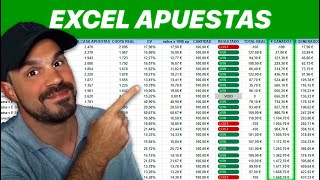

Create a Sports Betting Tracker in 5 Minutes
45sQuick, actionable tutorial hook that promises a fast result, appealing to bettors seeking organization.
▶ Play Clip"Delivers a solid, practical tutorial on building an Excel betting tracker, though it includes a promotional plug for Bet Investor."
This video provides a step-by-step tutorial on creating an Excel spreadsheet to track sports betting. It covers essential columns, formulas for calculating value (EV), profit/loss, and estimated vs. actual profits, emphasizing the importance of knowing real odds to avoid being among the 97% of losing bettors.
Start with columns for date, match, and bet placed. These are simple data entry fields without formulas.
Add two odds columns: bookmaker's odds (the odds you bet on) and actual odds (the true probability). The actual odds are crucial; if you don't know them, you're likely among the 97% who lose money.
Include columns for EV (value), euros generated per bet, amount bet, result (win/loss), profit/loss, actual profit, and estimated profit.
To calculate EV, use the formula: (bookmaker odds - actual odds) / actual odds. This shows the percentage of value in each bet.
Multiply the amount bet by the EV cell to get the money generated per bet, regardless of win or loss.
Use Excel's data validation to create a dropdown menu for 'win' or 'lost' results, making it easy to select outcomes.
Use an IF formula: if result is 'win', calculate (odds * bet) - bet; if not, show negative bet amount. This automates profit/loss calculation.
Create running totals for estimated profit (sum of EV-based profits) and actual profit (sum of real results). Drag down to autocomplete.
By following this tutorial, you can build a comprehensive Excel tracker for sports betting, enabling you to monitor value and profitability. The key to success is knowing the real odds and using value bets to ensure long-term profits.
What is the formula to calculate EV (value) in sports betting?
EV = (Bookmaker Odds - Actual Odds) / Actual Odds
02:39
Why is knowing the actual odds important in sports betting?
If you don't know the real odds, you likely belong to the 97% of bettors who lose money.
01:56
How do you calculate the euros generated per bet?
Multiply the amount bet by the EV cell.
03:23
What formula is used to calculate profit/loss for a winning bet?
Profit = (Bookmaker Odds * Amount Bet) - Amount Bet
06:04
What does the IF formula in the profit/loss column do if the result is not 'win'?
It shows the amount bet as a negative number, representing a loss.
06:47
How do you create a dropdown menu in Excel for the result column?
Click on Insert, then Drop-down menu, and add options like 'win' and 'lost'.
04:25
What is the difference between estimated profit and actual profit?
Estimated profit is based on EV and accumulates regardless of win/loss; actual profit reflects real results.
08:17
The 97% Statistic
Highlights the importance of knowing real odds to avoid being among the majority of losing bettors.
01:56EV Formula
Provides a clear formula to quantify value in each bet, a core concept for value betting.
02:39IF Formula for Profit/Loss
Shows how to automate profit/loss calculation, saving time and reducing errors.
04:55Value Bets and Long-Term Profit
Explains that with value bets, actual profits will equal estimated profits in the long run.
08:31[00:03] track of your sports betting in 5 minutes. Let's start with the columns you need to make. First, the date, the match, and the bet we
[00:15] placed. Next, we need to add two columns of odds, one the bookmaker's odds and the other the actual odds. We also need to add a actual odds. We also need to add a column for EV, value or ROY,
[00:29] column for EV, value or ROY, another for the euros generated by each bet, and to finish up we will have to add the amount we bet, the result of whether we won or lost, the
[00:42] profit and loss account, and of course, the actual profit column and the estimated profit column. The first three columns simply need to be filled in with the date of the match, the match, and the bet we
[00:58] have placed. So far I don't think there's any doubt, right? There's no need to add formulas or anything, just information about your bets. In this case, it's the bets that Bet Investor sends. You can access them
[01:14] through the link in the description. It's software that sends value bets, and you can see the incredible profits it has made in both 2024 and 2025. So, if you're interested in value betting or how to make money
[01:29] with sports betting, I recommend watching the full course. Let's move on to the next column, which is the bookmaker's odds. Basically, the odds we bet on. But the fifth column is the
[01:44] actual quota. And this one is a bit more difficult, and many people don't know how to find it. Without a doubt, this is the most important aspect of
[01:56] sports betting, because if you don't know the real odds, you probably belong to the 97% of bettors who lose money. In the
[02:08] case of Bet Investor, it is stated when the bet is sent. And if your tipster or the bet is sent. And if your tipster or software doesn't tell you the real odds, I would honestly stop giving them money because it's not legitimate. And if you place your
[02:23] own bets without software or tipsters, this free course will include a video titled "How to know if you are a winner, where I explain how to find this real odds." Taking these two columns into account, we can now easily complete the
[02:39] rest of the Excel file by introducing some formulas. To by introducing some formulas. To create the EV column, or the value or the real, we just need to put equals, open parentheses, select the
[02:54] bookmaker's odds cell, the minus symbol, and select the minus symbol, and select the actual odds cell. We close the parentheses and divide with the bar. And finally, we select the cell
[03:08] for the actual quota again. This will allow us to see what percentage of V we are getting what percentage of V we are getting in each stink. Next comes the column showing in each stink. Next comes the column showing the dollars generated on each bet
[03:23] and the amount bet. You can turn it upside down from how you're seeing it, no problem. The amount wagered is simply the money you have bet, without formulas or anything, but for the dollars or euros generated
[03:40] we do need to put a small formula. All you have to do is type equals, select the cell with the amount you bet, and then an asterisk, which in Excel means multiplication. After the asterisk,
[03:56] multiplication. After the asterisk, we select the EV cell or the value or the ROY and by using this formula you will get the money you are generating in each of the bets you make, regardless of whether you win or
[04:11] regardless of whether you win or lose. If the actual odds are higher than the odds we bet on, we are losing money because we are not making value bets. As for the
[04:25] results column, you just need to click on insert and then on drop-down menu. A box with different information will open on the right . At first it will show option one and option two, so in our case we will put win and lost and whatever
[04:42] colors you want. When the game is over, you just have to choose whether it was a winner or a loser. And now, let's move on to the And now, let's move on to the difficult and most important columns.
[04:55] First, the result. Of course, you could do it manually, but it's much faster with a formula. As you can see, it's somewhat difficult, but don't really worry because it's very easy. The
[05:10] first thing that comes is an equals and then a yes. We open parentheses and select the result cell. We put an equals sign, open quotation marks, and
[05:22] We put an equals sign, open quotation marks, and put win. We close the quotation marks and add a semicolon. It seems very difficult, but all we're saying is that if the word "win" appears in the result cell,
[05:35] then you'll have to do what we tell you now. If you wrote "acierto" instead of "win" tell you now. If you wrote "acierto" instead of "win" , then you will have to write "acierto" in quotation marks in that formula . And now we'll tell you what you have to
[05:49] do if you've earned the stink. To do this, after the semicolon, we will have to put parentheses and select the box of the odds we have bet on. An asterisk to multiply and select the box we
[06:04] multiply and select the box we have bet on. We close parentheses. We put in a minus one and again select the box for what we have bet. Basically what we are doing is multiplying the €5
[06:17] bet by the odds of 2.34, which comes out to a total of €11.7, but then we subtract the €5 we bet, since what we want to know is the profit, not
[06:30] the total of what we have been paid. And now, of course, we need to consider, what if it's lost? And instead of doing this hellish formula again, what we're going to do is put a semicolon, the minus sign, and then
[06:47] the cell for the amount wagered again. This means that if it's not a win or a correct bet or whatever you put in, it will automatically show the amount we bet, but in negative, since we lost it.
[07:02] It seems difficult, but don't worry, as soon as you start doing it by pausing the video you'll see that it's easy. The good thing about doing it with formulas is that, as you can see, you only have to do it once. Then, you simply have to
[07:17] put the mouse in the bottom right corner, click and drag down. And this way it auto-completes for all the stacks you want and you don't have to do any calculations. And that's how we get to the last two
[07:33] that's how we get to the last two columns, the famous estimated profit and the actual profit. To create these last two columns, we will initially need two rows to be able to do it correctly. Let's start with the
[07:47] estimated profit. In the first row, we will simply have to put equals and select the cell of the profit generated in that bet. And in the second row we will have to put an equals sign, select the cell above,
[08:04] equals sign, select the cell above, since we had already generated those €10.22 in the previous bet. We put the plus symbol and select the cell for the estimated profit of the second bet in this row. From there,
[08:17] we can do the same. We drag down and it will autocomplete perfectly. As you can see, the estimated profit always adds up regardless of whether the bet is won or lost. As you know, with
[08:31] value bets, our actual profits in the long run will equal the estimated profits. And now, let's get to the real benefits, which is what we all want. As before, we'll need two rows, and after that, we'll
[08:47] simply drag down and it will automatically fill in. The first one, simply an equals sign and we select the box for the result of that bet. And in the second one, the same, but adding the previous result, that is
[09:03] , an equals sign. We select the cell above, the plus symbol, and the cell with the result of setting this row. With this, you now have an Excel file with all the
[09:15] basics you need. If you want me to add any type of column or function, add any type of column or function, let me know in the comments. And remember to watch the entire free course if you want to be part of the winning 3%.




⚡ Saved you 0h 09m reading this? Transcribe any YouTube video for free — no signup needed.