
Make Your Room Look Better for Twitch
60sPractical, visual tips for improving stream aesthetics using simple decorations resonate with new streamers looking to level up.
▶ Play Clip"Delivers practical advice on channel aesthetics and branding, though some sections could be more concise."
This video provides a comprehensive guide on enhancing the visual appeal of a Twitch channel, covering room setup, branding, overlays, panels, emotes, and profile customization. It emphasizes deliberate design choices and offers actionable steps for both new and experienced streamers.
Your room background is part of your channel's look. Use lights, plushies, and decorations to create a cozy or desired vibe, even in small spaces.
If you use a V-tuber model, make sure your character and background look presentable. Add unique elements (e.g., a red version of a common dog model) to stand out.
Use Photoshop, Clip Paint Studio, Canva (beginner-friendly), or Aseprite (pixel art) to create overlays, webcam borders, and emotes.
Look for artists on social media (X, Bluesky) or browse Twitch Creative/Art category to see them working live. Avoid AI-generated or stolen art.
The creator offers free overlays and emotes on Ko-fi with a pay-what-you-want system (including $0). Also try Fiverr for paid commissions.
Set a consistent accent color in Creator Dashboard > Channel > Brand. Use a hex code from your art for perfect matching.
Profile banner should be 1200 x 480 pixels. Video player banner (offline screen) includes stream info and social links.
Upload a 59-second video introducing yourself and showing clips. Under 1 minute (Twitch limit).
Answer three questions: Who are you? Who is your channel for? What is it about? This builds character and clarity.
Use your face or character face instead of a logo for a more personal connection and easier recognition.
Panels can have text with an image header or a fully image-based panel. Images look nicer but text-to-speech won't read them, hurting accessibility.
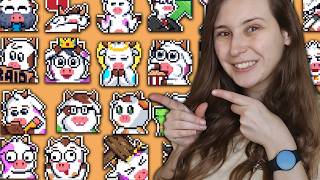
Upload subscriber and bit emotes in Creator Dashboard > Emotes. Standard (still) and animated emotes supported. Already-approved emotes can be swapped without re-approval.
Click 'Upload new standard', drop file, type name and creator, then upload.
Under Power Ups > Channel Points, you can rename the point system and upload a custom image (same sizes as emotes: 112x, 56x, 28x pixels).
Go through your Twitch profile again, check if it looks pretty and information is up-to-date and clear about your channel's purpose.
Consistent branding, custom overlays, and an inviting profile layout help your channel stand out and attract viewers. Regularly revisiting and updating your Twitch setup keeps it fresh and professional.
What are the pixel dimensions for a Twitch profile banner?
1200 x 480 pixels.
08:12
What is the maximum length for a Twitch channel trailer?
59 seconds (under 1 minute).
09:31
What is a downside of using full-image panels instead of text panels?
Text-to-speech will not read the information, reducing accessibility for visually impaired viewers.
13:35
How can you swap seasonal emotes without requiring Twitch re-approval?
If you are an affiliate and the emotes have already been approved once, you can swap them without needing approval again.
14:48
Which tool is recommended for beginners to create overlays?
Canva, because it is very easy to use.
03:08
Where can you find Twitch artists creating emotes live?
Browse the Creative > Art category on Twitch and watch streams where artists are making art.
04:20
What three questions should your Twitch bio answer?
Who are you? Who is your channel for? What is your channel about?
10:54
Why is a face profile picture recommended over a logo?
Faces feel more personal and are easier to recognize than logos.
11:10
How can you set a custom accent color that matches your art?
Go to Creator Dashboard > Channel > Brand, then paste the hex color code from your art into the accent color field.
06:50
What unique twist can V-tubers add to a common model to stand out?
Customize it with a unique color, like making a common dog model red instead of its original color.
02:14
Deliberate design choice
Emphasizes that everything visible on screen is a conscious decision affecting channel perception.
00:01Brand color consistency
Highlights the importance of a unified color scheme for channel recognition.
06:10Channel trailer length
Provides the exact allowed duration (59 seconds) which is a specific technical detail.
09:31Accessibility trade-off in panels
Balances aesthetics with inclusivity, a nuanced point often overlooked.
13:35[00:01] how to make your channel pop how how to make it look amazing this video is part of the series on how to become a successful twich streamer this is how to become a successful streamer where I help you reach your full potential enjoy
[00:15] help you reach your full potential enjoy the sponsors so buy my merch seems running not harder tree. TV yeah that's the website tree. one of the things you can do for
[00:31] this is make your room look better because if you use a camera well if your room looks good your channel looks better as well if I just use a camera like I do right now everything that you see right now is part of my channel look
[00:46] so this light right here is a choice this light right here is a choice Mario that is it's back right here Mario's a choice everything that you see in the screen is a choice that I deliberately set up like but try you have so much
[01:01] space behind you and you can do so much with it guys it's just my bed behind me I don't have space at all I just made it look pretty I just put some pretty things on it same here this is the end of my desk it's ending right into my bed
[01:17] I just made it look pretty by putting some pretty things here this is just the end of the wall I just made it pretty by putting pretty things right here and you can do that too you can do a l with lights and with pretty things like I
[01:32] don't know I like pluies so I did put a lot of fles everywhere because it gives a cozy Vibe and I love cozy Vibes so that's what I went for but you don't have to go for a cozy Vibe you can go for a manave Vibe if you want to besides
[01:47] because that is definitely a huge part of it besides from making your room look pretty you need to make your channel look pretty in different ways as well if you're a veter right away you can do the same thing right but then with your V
[02:01] chuper character you need to make sure that your V chuper character looks presentable if you have a background on your Feer character make sure that that looks pretty right or if you green screen it
[02:14] out that your feature per character looks pretty themselves preferably make it something unique if you chose something that everyone else has what can you change that it is a little bit unique for example a friend of mine used
[02:28] unique for example a friend of mine used to stream as a YouTuber character and he picked a dog that a lot of people used as well but he made him red so now he was the Red version of the dog that everybody used because that made him
[02:40] unique from the other people that used that dog okay but what can you do to actually make your channel look pretty so what can we do to make a nice overlay so what can we do to make a nice overlay to make a nice webcam border or to make
[02:55] whatever for our Channel some things you can use for example I use Photoshop for this but what you can also use is clip paint Studio I use this for my emotes for example if I want to draw something you can use coma if you don't know how
[03:08] to use things it's very very easy to use so definitely recommend that if you are not that experienced or if you love pixel art you can use aspite I do have a video on how to make emotes with aspite and it basically explains how you can
[03:23] use the program as Sprite and I'll leave that up in the card above for you if you you're yourself what you can also do is you can find somebody to make these things for you before you are going to aim at me I do not take any requests but
[03:38] how can you find somebody you can find somebody on social media so for example somebody on social media so for example on X or on Blue Sky I do have blue sky myself as well by the way guys so go follow me on Blue Sky because I bet you
[03:52] guys are not following me there yet but find them on social media make sure that you find somebody that does have a lot of references as you might find some people that copying other people or that are using
[04:05] AI to make emotes instead another easy way to find people that make twitch art is to find them on Twitch for example here we're on Twitch what we can do is we go to browse go to the creative right here and then we can
[04:20] go to Art and then I'm just going to scroll until I find somebody that makes art for emotes for example right here we have somebody that made Splatoon art this could be an emote I'm not sure
[04:34] if it's an emote but this could be an emote for sure uh right here somebody's making something that definitely looks like it something that definitely looks like it could be an
[04:49] emote let's see somebody else that I'm seeing right here I'm just quickly going through them right now
[05:03] like emotes so this is another person here's somebody that likes furries so if you're into furries seems to be that they are making furry emotes another person that is making emotes right here and right next to it there's
[05:17] another person making emotes let's just say it's not that hard to find somebody will definitely know that they're not making AI art or that they're stealing somebody else's art because you see that they're actually making art live on
[05:31] Twitch so you know they're actually artists you can also find somebody on Fiverr for example or if you do not want to pay anybody but you do want to get some emotes or you do want to get some overlays or you do want to get some
[05:44] batches I do have a Kofi page it is completely free I do have some overlays I do have some emotes I do have some batches they're all my Kofa page for
[05:56] free it's basically a pay what you want system so you can fill in Z and you'll get them for free you can also fill in $1 and you will basically donate $1 for me that's how the system works another thing that is really important to think
[06:10] about is a channel color this has to do with Channel branding because branding is really important with branding people will recognize who you are and it's something that people think about when they think about you and this color will
[06:22] be matching with you so you're going to be thinking about this color and this and this color will be coming back on your channel as well you can set a channel color if we go to our creat dashboard settings Channel brand right
[06:38] here we see profile accent color you see me with a beautiful bag of rice if you want to know more about that you should have
[06:50] know more about that you should have been there it was amazing with rice okay but you can basically choose one of these colors right here as your accent I'm just going to copy this real quick so I have my own
[07:03] color or you can just pick here by going through it and picking a color you can basically pick any color you want or as you might know you can
[07:15] select the color from any program for example Photoshop or Cana or clip page Studio or aspite and then paste the color in here and it will automatically select the color here so if you hired an artist or you made your art yourself you
[07:28] can copy one of of the color codes you used in your art and make sure that it is exactly the same as your highlight color here on your profile so do not pick one of these paste your code in here and make sure that it's exactly the
[07:41] same as your highlight color then underneath here we have a profile Banner you can have your general one which just has your name and your color in it or what you can do is you have a custom one what I have done is as you can see the
[07:56] highlight color is in here because I love to have things come back you can see you can see why it's a brand color now right things come back I've made this in Photoshop I've just put myself here I put my name here
[08:12] this is going to be a player right here and here I have some social media tags next to the player the size for the profile Banner is profile Banner is 1,200 pixels by 480 pixels by the way so
[08:26] 1,200 pixels by 480 pixels by the way so 480 like this and 1,200 like this 480 like this and 1,200 like this th200 wide 480 height then you have a video player Banner what is the video player Banner is basically an offline
[08:39] player Banner is basically an offline screen you barely see it but I would recommend having it if you end your stream people will see this for a second if you haven't rate it yet people will see this if if they are stuck because
[08:51] their rate didn't go true for them they will see this image what you can do is have the same image as you have at the end of youram stream and just plop it on end of youram stream and just plop it on here so your end screen but what I have
[09:05] is I just have my end screen and then I have some information about the stream super small in this image right now for you guys and I have some social media text so basically I made sure that I adverti my stream on this image
[09:19] basically a little chance to advertise yourself right here so I would recommend you do that then we're going to go scroll back up and click featured content and this is really important this is the
[09:31] channel trailer right here you can upload a video up to 1 minute well up to 1 minute it's under 1 minute actually so you can upload a video of 59 seconds
[09:44] actually cuz I tried one minute and it wouldn't grab head so 59 seconds what I recommend for a video like this is introduce yourself show some clips show something of what you do in your stream while introducing with a
[09:59] voice over or with a camera that you have on your face that you edit in what little bit about that so people that come to your channel will know what you're doing on your channel you're in the about section you can also write a
[10:13] little bio about yourself what are you what makes your Channel Unique what do you do so I am Trey I'm a Dutch streamer I like chill
[10:25] games what makes my Channel Unique I do have a passion for helping others improve your streams and don't be afraid to ask questions so what do you what can you expect on the channel chill games who is this channel for people
[10:39] would like chill games and what kind of people people that also have a passion for helping others so I do have that little bit of character building in my bio so I recommend having something like that in
[10:54] your bio as well who are you who's your channel for what is your Channel about I would say those three questions would be nice if those are answered in your bio a profile picture we can set that in account
[11:10] settings right here we can upload a picture I recommend having a picture of your face instead of having one of a logo just because people like faces more than logos logos do feel a lot less
[11:25] personal than a face does people will recognize your face every time not everybody would recognize your logo so I would recommend putting in your face or your character's pH if you are V then we have the panels which are on your
[11:40] profile so we go to my profile Channel and then about and here we have panels and with the panels what you can do have a little bit of an About Me
[11:52] about yourself this is just a little bit of text don't make it too long here you can write a a little bit more about yourself same with your social media there's just a couple of links here that you can post here you can post as many
[12:08] as you want so I have a lot of links here that people can click on and fight me on I love to share which emotes I have so that's why I have emote blocks right here where people can see which emotes
[12:21] we have on the Channel people can also find my merch shop and my Kofi here Discord they can also learn about the Community Values I don't like rules so I like calling them values instead I do have a wish list so if people want to
[12:35] give me something for my wish list IRL gifts they can do that here as well my computer specs uh affiliate links if they want to get free games they can save up sweater points they call in my channel they
[12:51] basically get that from watching my stream and then they can claim free games in my sweater store and they can give me tips of course as well what you can do right here is edit the panel and you can add an image this image will be
[13:05] like this about and then underneath you can write something what you can also do is add an image and have the whole text in it already as an example let's look at my friend stream luminus Nova here and they do have the images so
[13:20] basically instead of having a picture with text under needed they just have a picture so they have the text all in the picture so they they have like name Joan or Nova and then they have like the whole text in here and here as well this
[13:35] does look very nice the downside of this is the text to speech for people that can't read that that can't see basically won't work on these images so that's a big downside of it it will look more pretty but these
[13:52] functions will not work on text like this where text like this it will just not read the about but it will read that de going to need it it will it will look less pretty it will look more pretty if it's all pictures and I just talked
[14:06] here for subscribers followers and bit emotes and if you have reach twitch affiliate you should set up your own twitch emotes as well again if you haven't gotten any emotes you can go to my Kofi and get some emotes for free so
[14:21] there's no excuse to not have any emotes on your channel what you can do to set them up is go here and then go to the Crea a dashboard go to fur ws and then emotes right here you can upload a new emote and then you can choose a standard
[14:33] or an animated emote animated emotes are the ones that move so like ones like these and standard emotes are the ones that are still they're not moving that are still they're not moving standard is still animated is moving you
[14:48] basically be uploaded already and you can switch them out if you still need approval to tr this is great because these can be swapped out without approval because they've already been approved if you do not need twitch
[15:01] approval for your emails anymore it doesn't really matter you can just get to already have them uploaded to Twitch so for example I have my Christmas runs here the Christmas lur I what I can do now is I can get this Christmas lur out
[15:17] of here remove from slot and then I can get the lur back in boom and that's easily switched out easily switched out now same with this
[15:38] a real nice thing they've added if you ask ask me how do you add them just upload new me how do you add them just upload new standard just drop the file here then
[15:50] type the name behind it so for example love I already have a love one so I'm not allowed to do that typ who made the emot so for example tree which is me if you've got one for my Kofi make sure to type that I've made
[16:06] them and then upload it and then you're good to go what you can also do is set a rewards you can do that by going to power ups and channel points and then here you see customize Point display
[16:23] here you can upload an image in 112p 60 56p and 28p which is basically the same size as emotes so you can use one of your emotes for it or use anything
[16:35] else you can rename your point system and now it will show how it will look like so basically people can start Gathering Channel points in your stream right now actionable step for this video is set up your Twitch profile make sure
[16:49] it looks pretty I want you to look at it if you've already set up your profile I want you to go through it again look at it and see if you can improve something can you make make it look more pretty can you change some information that it
[17:02] will be more clear what your channel is about or that it be more accurate for bit outdated and i' love to see you in the next video in this series which is marketing for twitch streamers I'll see you there
⚡ Saved you 0h 17m reading this? Transcribe any YouTube video for free — no signup needed.