
Wave Link 3 is FREE for Any Mic?!
42sAnnounces software is free for all, sparking curiosity and downloads.
▶ Play Clip"Title accurately promises free software that works with any mic—and delivers a thorough tutorial. Minor padding but overall high value."
This video is a complete tutorial on Elgato's Wave Link 3.0, a free audio mixing software that works with any microphone. The presenter walks through installation, setup, and advanced features like channel routing and effects, making it ideal for streamers and content creators.
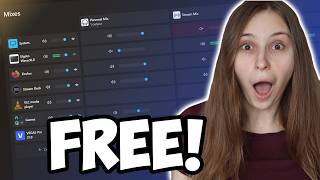
Wave Link 3 is free for everyone and works with any microphone, not just Elgato devices. It is a mixer software designed for easy audio control.
Available at elgato.com. On the homepage, click 'Get the app' or navigate to Downloads > Audio > select product to find Wave Link 3.0.
During installation, unplug any Elgato microphone or Wave XLR. After installing drivers and rebooting, plug the device back in.
After plugging in, Wave Link detects Elgato devices. The setup wizard guides through microphone positioning, gain setting (aim for 'Great' range), and headphone mix balancing.
Clip guard prevents audio clipping by automatically reducing gain when loud sounds occur. Gain lock stabilizes the gain level to avoid unwanted changes.
Effects include a low-cut filter (80 Hz), voice focus (AI noise reduction), compressor, equalizer, and noise removal. These can be applied to personal, stream, or chat mixes.
Personal mix is what the streamer hears, stream mix is what goes to OBS/streaming software, and chat mix is for Discord or other chat apps. Each can have different effect settings.
Users can create channels for specific apps (e.g., Firefox, games) and route them to different mixes. For example, system sounds can be muted on stream while keeping microphone active.
Multiple apps can be grouped into a single channel (e.g., 'Games') for easier volume control. The channel adjusts all grouped apps simultaneously.
Wave Link 3 is much simpler to set up than Voice Meter Banana, making it a superior free alternative for audio mixing.
Wave Link 3.0 is a powerful, free audio mixer that simplifies complex routing and effects for any microphone, making it a must-have for streamers and podcasters. Its intuitive interface and integration with Elgato hardware (but not required) offer a professional-grade solution at no cost.
Is Wave Link 3 free?
Yes, Wave Link 3 is free for everyone.
00:03
Does Wave Link 3 work only with Elgato microphones?
No, it works with any microphone.
00:18
What should you do during installation?
Unplug your Elgato microphone or Wave XLR before installing.
01:52
What is clip guard?
A feature that prevents audio clipping by reducing gain when loud sounds occur.
05:08
What is gain lock?
A setting that locks the gain level so it doesn't move automatically.
03:45
What are the three mixes in Wave Link?
Personal mix (what you hear), stream mix (what the stream hears), and chat mix (what Discord hears).
06:44
How do you add effects to a mix?
Click on the mix (personal, stream, or chat) and select effects like low-cut filter, voice focus, compressor, or equalizer.
06:31
How can you group multiple apps into one channel?
Create a channel, click 'Apps', and select the apps you want to group. They will all be controlled by that channel's volume.
14:07
What is the purpose of phantom power?
Phantom power is needed for some microphones to provide extra power for operation.
05:34
How does voice focus work?
It's an AI tool that cuts out background noise, like a loud ventilator.
06:57
Free and universal
Highlights the main selling point: free for everyone and works with any mic, removing a common barrier.
00:03Built-in effects
Provides professional-grade audio processing directly in a free tool, including AI noise reduction.
06:31Three-mix system
Clearly separates what the streamer hears vs. what the audience hears, a crucial concept for streaming.
08:24Channel routing flexibility
Allows per-app audio routing, giving streamers complete control over their sound sources.
11:44Comparison to Voice Meter Banana
Positions Wave Link as a superior, simpler alternative to a well-known free mixer, validating its value.
17:53[00:03] What does that mean? Because they already had Wave Link. Why Wave Link 3? Wave Link 3 is free for everyone. And it works with every microphone. You don't need to know got a microphone and
[00:18] you don't need a Stream Deck plus to unlock it. It works with anything. It's a free mixer software. And they tried making it even easier. So, we're going to jump into the program
[00:30] right now and see how it works and I'm going to explain how it works for if you still having trouble with it. No worries. True, we'll explain. First, Elgato website elgato.com. If you're
[00:44] doing that right away, you will see it right here at the front page Wave Link right here at the front page Wave Link 3.0 get the app. If you don't and this is a little bit later, what you can do is go to downloads right here and select
[00:56] your product. And you can just for example, select audio and you can select like a mixer or something like that and you will see Wave Link 3.0 and download it anyway. I just selected the microphone the Wave 3 and that software
[01:10] microphone so you will be able to download it here too. But like I said, it will be on the home page if you just going to it right now. Then it will ask you if you're sure that you want to download it because it is an
[01:24] executable and downloading executables can be dangerous. Elgato is a respectable company and it's not dangerous to do so. So, you can just install it. No scary things here.
[01:37] Alrighty, we need to read the user agreement. We definitely reading it, too. And then accept it and then we install the driver. Next, accept the terms. Next, if you have your microphone or you
[01:52] have your Wave XLR plugged in, make sure to unplug it right now. I have it unplug it for this tutorial. And we're going to retry. And next, and install. Luckily, I have
[02:07] actually hear me. All right, finish. Allow access to the All right, finish. Allow access to the microphone. That is kind of good to do microphone. Otherwise, you can't use the microphone.
[02:21] Okay, now we're connected, and it will show us some Elgato devices right here. show us some Elgato devices right here. The Wave: 3 MK2, the Wave: XLR MK2, and The Wave: 3 MK2, the Wave: XLR MK2, and the Wave: XLR Pro, and the Wave: Neo.
[02:35] And here we see our connected devices for Elgato um on Wave device. So, that could be anything from Elgato. So, I'm going to plug back in my Wave: XLR. Set up your Wave: XLR, and then we can either get started or we can skip this.
[02:50] so, we're going to get started. Connect your microphone. Well, we did that. Continue. It's going to tell us how this works, how but I've been using it already, so I know how it works. You can plug in your um your headphones.
[03:07] Oh my god, that was some audio that we could hear already. Oh, cool. That was really loud. Um you can position your mic in the right position, so you actually talk in the side and not on the side for cuz
[03:19] that's how this microphone works. And um here we can see what the ideal range is of this microphone, where it go in, and it says like great, you're you I'm sometimes a little bit quiet,
[03:33] but most of the time I am in the great range, as you can see. Um so, that's great. We can also set the input hot uh louder or less loud
[03:45] here, or gain lock in, which means that it's it's locked in that gain, so it it will not start to move around. It could be annoying. So, why would you move it set properly?
[03:58] Uh now, this is how you will hear the mix between uh what you talk and what you hear from the computer. So, basically, the computer sound and your own mic sound phone sound, how loud is that coming through your headphones in
[04:12] that coming through your headphones in comparison? I like to have um my headphone sound come through as well, uh but also the PC sound come through. So, now, I I do hear myself. I do hear myself and I do hear the computer sound.
[04:26] So, if I play this, I hear it, but I also hear myself talk right now, which gives me instant feedback if I'm talking weirdly. Okay, I'm going to continue. And now it's ready. Okay, done. I'm
[04:39] recording the screen OBS right now, and because I unplugged it and plugged it in, I think it doesn't want to like record it uh the microphone right now. So, I got to need to quickly go to properties and
[04:54] now it's selected again, and you know you guys hear this microphone again instead of this microphone, uh which probably is a lot better for you guys. I probably probably nicer. The phantom power's on.
[05:08] We don't need that on, actually. Um so, I'm just turning that off. Clip guard is nice. Um if I scream really loudly, I'm not going to do that, but it will stop it from
[05:20] clipping. Uh it will also display the clip indicator. We also discussed gain lock already. There's also these like icons it. For instance, you're you're changing your mic gain, the volume of it,
[05:34] basically, which gives you hints about like what what they do. The phantom power for some microphones is needed to give them some extra power, some extra So, extra um
[05:48] yeah, power. And this microphone doesn't need it, so you can turn it off. But, uh some microphones do need it, and then you have to turn it on. Again, here's a and the PC mix. So, this is the thing that we put uh that we just arranged as
[06:04] well. How much PC do you want to hear? How much microphone do you want to hear? And this is how loud do you want your headphone output to be? If you want, you headphone output to be? If you want, you can also put low impedance on. Optimized
[06:17] the performance for low impedance headphones. So, if you have a headphone like that, you can uh turn it on if you want to. listen it back. Cool. You can also put effects on it
[06:31] like a low cut filter automatically on on the 80 hertz. Um you can also put software effects on uh on the personal mix, on the stream mix, or on the chat mix. Personal mix is
[06:44] what you hear yourself. Stream mix is what um the stream hears. So, if you're streaming via OBS, for example, uh what you would send out via OBS. And chat mix is what you would hear via,
[06:57] for example, Discord. Um so, you could say stream mix, we're um voice focus. This is a This is an AI voice focus. This is a This is an AI tool that will cut out noise in the
[07:11] background. This way, if you have a ventilator on that's very loud, you will hear it less loudly. You can also turn them back off and on easily. You can also add a compressor, an
[07:25] equalizer, and a noise removal, which voice focus is a noise noise removal already. Um but, you can also add them for your you want to. You can have some other settings here.
[07:40] You can rename your device, you can add some colors. Um you can change them basically cuz now uh it's white when it's just standard, muted is red, and the gain color is uh orange.
[07:53] So, this is how it is with the Wave XLR. It will look slightly different if you plug in a different device. If you plug in the Wave Neo, it will look a little bit different settings, but you will have the effects here, too. You will
[08:07] have this a little bit different, you will have a couple of different options. Same with the uh Wave 3 and the Wave 3 MK2. They will be kind of similar. If can always click on this, and it will explain what the the option does. Now,
[08:24] mixes. Woo. Okay. This might look terrifying at first. well. What do mixes do and stuff like that?
[08:40] I'm going to close that. You can reopen that here by clicking on it. I'm going to make it a little bit bigger. Woohoo. So, you guys can see it a little bit Right now, seems like we have at least one output
[08:55] with this? Wave Mic 2. Why would Why would we want that as output? The output for the personal mix The output for the personal mix um should be my headphones. Okay, cool.
[09:10] That's my headphone output. Cool. We got that. that. Um we've got the microphone here. Elgato Wave XLR. I want to send that
[09:22] Ooh, oops. I hear myself double now. I hear myself double now. I want to send that to my personal mix. Ah. Okay. Um the way to fix that if you do
[09:35] this um is to stop this from happening by putting that over here. Now you don't have hear that. If you have a delay, what you can also do is just keep this on like 75 or something like that.
[09:50] And then don't have this one on. That works as well. We have the Elgato with XLR, which is my microphone, it. We love to have that go to the stream
[10:04] We love to have that go to the stream mix. So this one goes directly to OBS. And I also love that to go to something like Discord. So now it sends that
[10:18] to the stream output to my Discord output. So we could have like an icon here if you want to. We can instead of Discord chat, we can call this Discord mix, for example, if you only use
[10:33] mix, for example, if you only use Discord for here anyway. But if you use other chat software, you can just keep this a chat as well.
[10:47] Because you can use it for multiple outputs. Same with stream, you can use it for OBS, but you can also use it for other streaming software or you can use it for a totally different purpose as well.
[11:02] Just as long as you select the output stream mix, you will hear everything stream mix, you will hear everything that comes out of this stream mix side. The personal mix has the output headphones now.
[11:17] headphones now. This one doesn't have an output, but microphone is the mic Elgato, but if we select a
[11:30] here. It will basically grab everything that you put in here and have like on. Right now, that is system sounds and the microphone. I don't want the
[11:44] system sounds to come on on my stream. So, I'll move mute them. This way, if I plug in a USB or plug out a USB, people don't hear that. That's really awesome.
[11:59] awesome. Uh they only hear my microphone right now. right now. Um thing is, they don't hear a game. now. We can create a new channel for example,
[12:13] for Firefox, because we want them to hear hear the browser, whatever we want. But we want to hear the browser at least. our personal mix. Uh we can add it to our stream mix, but
[12:28] maybe a little bit less loud than we hear ourselves. Okay, do we want the chat to hear it? No, no. We only want them to hear the microphone. Then we can have the Stream Deck. The
[12:40] Stream Deck can send out uh sound alerts, and they will be played from the Stream Deck um from the Stream Deck itself. So, that I want to hear them because I want to hear the sound effects. I want the
[12:55] might be funny if Discord also hear hears those sound effects. So, I will add the sound effects to Discord, too. So, now I can play the sound effects. I hear it, stream hears it, and people in
[13:10] Discord hear it. Keep in mind that if you have push to talk, you have to push to talk while during the sound effect. And if you have voice activation, it might not pick it up as a voice, uh so it might not like be heard properly if
[13:23] it's not like a voice clip. I keep that in mind. For example, we have music on VLC player. So, you can say that the music is only music, you can listen to music yourself, but you cannot play it on stream, for
[13:40] example. Um and then we have a game, for example, A Bionic Factor. We want to hear it ourselves, and we want to the stream to hear that. Maybe a little less loud. Maybe
[13:53] we don't want to blow blow our ears on the title screen ourselves, either. And you know what's also cool? Now I have blueprints in A Bionic Factor to be two things, right? But what we can also do is we can remove this channel again,
[14:07] click on this one, and here it says apps. We can actually add apps. We can actually add um where it is, blueprints in here. And now instead of A Bionic Factor, we can just call this games
[14:21] called games, and now it's not just A Bionic Factor anymore, but it is also And if we click on it again, we can add another app. Um
[14:33] Beacon Patrol, which is another game. We can add another app, which is Cozy Crunch, which is another game. We're adding another one, Instance, another game. Let's see, what's another game? Um
[14:47] Moonlighter. Another game. Another game. Uh Shape Zoo. Um these are all unavailable right now
[15:02] because I have not started them. If I start them, they will become available. Not available because they're not an active process on my computer. Okay? because it's not possible. You can also add
[15:18] audio effects to here as well. But this is the group for games now, and we can close this window and we can set these games louder or less loud. And if you have a Stream Deck plus, you can bounce these to one of the
[15:35] wheels, right? So you can have these this output for the personal mix go this output for the personal mix go louder or less loud. So every time you start a game, you can adjust it. Or you can do it with the buttons on any
[15:49] Stream Deck by having a plus and a minus button to have it go louder and less loud. So basically you can have multiple games on one track with any problem like that.
[16:01] Same with for example, if you play music from multiple media players, I use VLC player, but maybe you use Windows Media Player as well. You can also add Windows Media Player in here by just adding it here.
[16:15] Is there anything else that you need to add? Maybe you have like editing software like Affinity, you can add that in here. like Affinity, you can add that in here. I got my
[16:32] my my editing software of course. Vegas just want to hear that myself. The stream doesn't need to hear it and my people on my chat app doesn't don't need to hear what I'm editing.
[16:47] So I can just put that in here as well. Usually what happens if you set figure out that you're going to miss a couple of apps that you haven't gotten in. If you start an app and you find out
[17:02] that you don't have audio in the app, what you just do is you create a new click on a channel that you already have, click on that app or you just create a new channel and search that app
[17:14] here. If it's like an active process, good right here. Otherwise, you just search it here and you just edit. Make sure to can hear it yourself. Or if you don't
[17:29] the stream to hear it, that's also possible. For example, you don't want this to the music to be heard yourself, but you want to to only be heard by the stream, that's also possible. You can just do it like this. I do feel like I'm
[17:41] rambling right now. I'm saying a lot of things. I'm very enthusiastic about this program and I think the thing that makes me most enthusiastic is that it's free for everyone right now.
[17:53] It is a pretty simple program, I do have to say. When I started out, I had to use Voice Meter Banana. It was really, really difficult to work with. This is a lot easier and the reason why I had to use
[18:08] Voice Meter Banana is because that was one of the free programs you could use. But now, this, if you ask me, is a way, way, way better alternative because it's a lot simpler to set up. It's a lot simpler to set up and you don't need to
[18:24] Wow. That is so nice of them. That is so nice of them. Hopefully soon we're going to be able to cover the Wave
[18:36] 3 MK2, which is coming out now as well, which is very exciting. And you we're going to be able to go over the new features of that. Very, very cool. I love I love finding
[18:48] new tech with you guys. And like I said, I have the Wave XLR, but there is a Wave XLR MK2 now as well and it has some new features as well. So hopefully we're
[19:00] going to be able to look at that. And something I have been asking for for the longest time because I would would have loved getting an Wave XLR with two inputs, and they finally finally announce one, is the Wave XLR Pro right
[19:17] here. It has two inputs. And hopefully, I don't have a timeframe for it, but hopefully, we're going to be able to cover that as soon as well. I'm just really really excited for this one because I I've I've been basically
[19:30] begging them for this for for a long time. Let me know what you think of the Wave Link 3.0 update and what you think about the fact that it's free now because I think that is quite a bargain. So, bargain that is
[19:44] free. Yeah, it's it's really cool. It's really cool. Yeah, it's really cool. Do you think it's cool, too? Let me know in the comments. And I hope you want to check out Elgato videos, I have them here somewhere. And there's
[19:59] out. Come check them out. I hope to see you there.
⚡ Saved you 0h 20m reading this? Transcribe any YouTube video for free — no signup needed.