
Why Crypto Crashes? Safe Forex Trading Explained
42sAddresses a common fear (volatility) and offers a perceived safer alternative, sparking curiosity.
▶ Play Clip"The title promises a complete step-by-step guide for beginners, and the video delivers exactly that with a thorough walkthrough of account setup, verification, deposits, and trading."
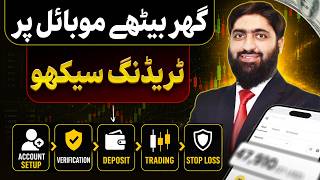
This video is a comprehensive, step-by-step tutorial for beginners on how to start trading forex and digital assets from a mobile device. It covers creating an account on the XNS broker platform, completing the verification process, making deposits, and executing trades with stop loss and take profit orders.
The video addresses the question of safe trading methods for digital assets, introducing Forex trading as a way to trade fiat currencies (USD, JPY, EUR) and commodities like gold and silver, profiting from price fluctuations.
The presenter recommends using the XNS broker for Forex and commodities trading, and Binance for digital currency exchanges. The video then demonstrates how to open an account with XNS.
The signup process involves clicking the link in the video description, registering on the XNS website, verifying the account, and creating a password. A partner code is required, which is shown on screen.
After entering phone number and email, the user must answer a series of questions about employment status, income, trading experience, and risk tolerance. The presenter advises that wrong answers are not a major issue and can be changed later.
The XNS Trade app must be downloaded from the Play Store or App Store. After signing in, the app requires email and phone verification, which involves entering codes sent via email and SMS.
Users must enter their full name (matching their ID), date of birth, country, gender, and residential address. The presenter emphasizes using the same name as on the CNIC (or equivalent ID) for later document upload.
The next step is uploading a government-issued ID (CNIC for Pakistan, Emirates ID for UAE, etc.) for verification. The presenter demonstrates uploading front and back images, after which the documents are submitted for review.
The presenter receives an email confirming that the documents are verified, and the account status changes to 'Verified'. This completes the account setup process.
The video explains two deposit methods: using a crypto wallet (e.g., USDT TRC20) or using all payment methods (bank cards, Easy Paisa, etc.). A minimum deposit of $10 is recommended to cover fees, and transfers can take 15-20 minutes.
The presenter demonstrates how to select a trading instrument (e.g., gold, BTC), choose between market and limit orders, set volume (minimum 0.01 lot), and enter take profit and stop loss levels. Trades can be adjusted by dragging the TP/SL bars on the chart.
Multiple trades are treated as separate lots. Users can close all trades at once using the cross button. The video concludes by encouraging viewers to practice and learn more in future videos.
The video provides a complete, practical walkthrough for beginners to set up a trading account on XNS, verify it, deposit funds, and execute trades with risk management tools. It emphasizes the importance of verification and safe deposit practices.
What is Forex trading?
Forex trading is the buying and selling of fiat currencies (like USD, JPY, EUR) to profit from price fluctuations.
00:32
Which broker is recommended for Forex and commodities trading?
XNS is recommended for Forex and commodities trading.
01:16
What is the minimum deposit amount recommended to avoid fee issues?
A minimum of $10 is recommended to cover fees and ensure the transfer is processed.
15:06
What are the two order types available when placing a trade?
Market and limit orders.
19:11
What is the minimum lot size for a BTC trade?
0.01 lot.
19:26
How long does document verification typically take?
3 to 7 minutes, but can take up to 24 hours in special cases.
11:17
What are the two deposit options in the XNS app?
Crypto wallet and all payment methods.
14:08
What network is used for USDT deposits?
TRC20 (Tron network).
14:38
How can you adjust stop loss and take profit after opening a trade?
By dragging the TP/SL bars on the chart and confirming the new levels.
19:57
Forex Trading Defined
Provides a clear, beginner-friendly definition of Forex trading, setting the foundation for the tutorial.
00:32Choosing XNS Broker
Recommends a specific broker, giving viewers a concrete starting point.
01:16Verification is Critical
Emphasizes that verification is essential to avoid payment issues, a common pain point for beginners.
05:09Minimum Deposit Advice
Practical tip to deposit at least $10 to avoid fee-related transfer failures.
15:06Adjusting TP/SL
Demonstrates a user-friendly feature of the app, making risk management accessible.
19:57[00:04] Greetings. Hope you are well. you get innovative educational videos not only related to e-commerce but also Now many people's questions came in the comments that
[00:20] Sir, crypto is a very volatile market. Meaning its price goes up a lot. It comes right down. The market crashes. So Sir, please tell us some safe method in which we can trade digital assets, in simple words, the
[00:32] question he asked was that Sir, please tell us a little about Forex. Brother, Forex trading is the way we buy and sell digital currency. In this way, when it comes to Forex, our fiat currencies which include US Dollars, JPY and
[00:46] all the Euros etc. are traded in Forex and we generate our profit within the gaps when their prices fluctuate up and down. Now again, for digital currency, we need some kind of exchange and we
[01:00] use Binance for that. Similarly, for Forex or commodities, like gold trading, silver trading, we also need a broker or a broker plus exchange.
[01:16] it is XNS. How to create an account on this. Now let's go to the screen and I'll show you practically how to open an account with this broker. The first step is to open an account.
[01:29] What happens next after the account is opened? How do we learn Forex? So let's not waste time and move towards the screen. Yes, we have come on screen. First of all, here you can see this peacock written below in the description of our video. We will click on this.
[01:42] The description will open. Here you will find the sign up link. You simply have to click on it and open it inside Chrome. As soon as you open it , a website will open in front of you. Till it opens, let me
[01:57] tell you one thing here. Watch the complete video step by step. If you miss even one step problems for you tomorrow. Your account will not be verified. ok sir. Here the website has opened in front of us. We will simply click on register here.
[02:12] As soon as you click on register, it will ask you to verify yourself, simple. This is a general verification of the website. As soon as it opens in front of us , we will click on verify it here and it will get verified automatically.
[02:25] Even this is not such a big rocket science. Now here if you already have an account then you will simply sign in. But since today we are learning to sign up , to create an account, we will click on Create an Account and here we will
[02:38] will click on Create an Account and here we will type it here in front of you. After that I have to set any password here. Yes, I have
[02:50] sent the email and also entered the password here. After that you have to come down here inside the partner code. Here you will click on the arrow and here you have to enter the partner code. Where do you get the code? Here you can see it written on the screen.
[03:03] Pause the video and write this partner code here. what do we do after that? Click on register. click on register [nasal sound] , now he will start asking us some questions.
[03:17] He is saying, please tell me your phone number along with the country code. ok sir. I will enter my number here. First of all it is Pakistan, so first enter 92 and then your number. And then I clicked on register.
[03:33] Like I will click on register. This is going forward now it is being uploaded. If you want to save it, save it. If you don't want to do it then you have to ignore it. Yes, we have received the email and here he will ask us different types of questions. Demo account, real account. We are
[03:47] not going into this right now. How to use the demo account ? How to use the real account ? This will be taught to you comfortably in the upcoming video. Now the dashboard of XNS has opened in front of you. But it is
[04:02] not so easy to use it on Google Chrome. It is a little difficult. What do we do? We go to our Play Store and here if you are using Google Android then go to Play Store and if you have iPhone then go to App Store and
[04:15] go to App Store and download their application. ok sir? You will come here on XNS Trade. Ok? Here their application has come in front of you. Simply you have to click on Get here and make sure you
[04:30] do this only and not anyone else. After that, as soon as you verify it, it will start getting installed here. Yes, the application has been downloaded. We will simply click on Open here. As soon as we click, this application will appear in front of us
[04:42] and let us see what we have to do here. Simple, we have to sign in and ask the app not to track. ok sir. And would like to send you the notification. Now I will say don't allow. ok sir. We will click on Sign In at the bottom
[04:56] because we have already signed up. Write the email address with which we signed up the account. After that, you have to write the same password here which you had set just a while ago. I also did it here and I signed in.
[05:09] I have to log into my phone once so that it can verify that it is me doing this. ok sir. Verification Step This Will Take About 10 Minutes Confirm Email. Meaning he is now saying that now you have to do the main work. Whenever you come to the application, first of all
[05:23] it will ask you for verification and this is very important. If you not worry about whether your account is verified or not. My payments will not stop, they will get stuck. So that's why this is the first step I'm
[05:36] teaching you. Ok? You have to click on Start Now. As soon as you click on Start Now, it will take click on Start Now. As soon as you click on Start Now, it will take say ok. [nasal sound] Click on Send Me a
[05:48] Code and the code will come and we'll paste it here. The G code is here and here we go. ok sir. Now he is asking, please verify your phone number. You are here, I am in UAE. I can do it for UAE also.
[06:03] also put the Pakistani one because most of our videos are watched by people from Pakistan. So let's do it for them. Please enter a valid phone number. Sorry, there was a mistake here. ok sir. Clicked on continue. Now I will get an SMS
[06:19] on my roaming number. Yes, there is a SIM inside it also. The G code has come 95214 also. The G code has come 95214 95214 The
[06:31] Now he is asking me to tell you my full name. You have to choose your first name very carefully. Here you have to write the same name which will be on your CNIC because we have to upload that also later. Ok? And Mirza Mohammad and here we do Arsalan.
[06:48] And Mirza Mohammad and here we do Arsalan. You have to write your last name and date of birth, whatever it is. Ok? I will also write it here. ok sir. And where did he go write it here. ok sir. And where did he go ? fixed bugs. And besides that, yes.
[07:03] This also happened. Now we have to write the country. I was born in Pakistan. So I will write Pakistan. Do it wherever you are. Select gender. Your residential address apartment will be
[07:18] now, let us write Lahore in the city here. ok sir. Let's continue. Now he will ask some questions. I have 16 questions for you. Ok? With patience and if you don't understand what doing almost the same thing. What is the purpose of opening your account? Let's make the
[07:34] Even if you do something wrong here, there will be no issue with it. What is your current employment status? You are self- employed, freelancer, whatever, business owner, you can select that here. If you continue , he will ask,
[07:49] brother, what thing is best related to your profession, occupation. He is a car dealer and an educationist. I do education because I teach, I educate. If you are an IT guy then you can do IT also. Whatever is yours, you can
[08:02] do it here. Please continue. After that please select your primary source of income. We have savings, we get salary, whatever it is, we save it, for now we pay here and continue. What is your estimated total liquid wealth?
[08:17] How much capital do you have? You can continue here by paying below $50,000. ok sir? What is your annual net income? In this also, continue by making it below $50,000. You can change this later tomorrow also. There is
[08:31] Income? Are you ready to invest in these? Continue earning more than 50% of your annual income. Ok? What is your CFD trading experience with a real money trading account during the last three years? You say yes, mostly demo
[08:46] trading. Ok? And continue by clicking Have Not Trade. Ok? How Long Would You Need to Master Trading Skills? Ah, how long does it take you to master it ? ok sir. One to six months some learning is required? Six Plus Months with Proper
[09:01] Trading. Make it six plus months. Please continue. Do you have education qualification and working experience relevant to CF Retreading? You say no. If yes then say yes. ok sir. What would be the required margin for one
[09:15] lot, this one position, if your leverage is 100? Ok? Now here he is asking you some technical questions. Ok? Here also, if you give a wrong answer, you don't need to worry about that [nasal sound]. Ok? So
[09:28] what would be the required margin for one lot. Ok? Whatever you do here, select one and continue for now. And the market is moving against my position and I'd, here also you have to select first and continue.
[09:40] What are your chances on trading with in one year become a full time professional trader become a trading go whatever. Ok ? Keep it as a prestigious, now let us take it forward by becoming a full timer. What trading instruments do you
[09:53] What trading instruments do you plan to use? Metals, Gold, Forex, plan to use? Metals, Gold, Forex, Currency Pairs. ok sir. And after that we also do crypto currency. ok sir. Commodities also do it. I will continue it.
[10:05] Ok? How did you know about the XNS for the first time? If you have done it on YouTube then do it from YouTube. Yes, please continue. Ok? After that, before engaging in trading, please consider your financial
[10:18] situation and risk tolerance. I will review all information risks. You have to pay tax here. All three have to be selected and submitted. So, our next task is to upload documents. ok sir. Name is Mirza Mohammad Arsalan Upload document here.
[10:34] What do I need to do inside the upload document ? I have to do CNIC. Ok? If you are from Dubai. You can also do Emerets ID. Data Use Agreement I will go to Confirm This Submit Document. He is asking whether he will do passport, driving
[10:47] So let us make the ID card here for now. I am doing this so that you people can understand because most of the viewers are from Pakistan. If you are from any other country, you will provide your ID proof accordingly. ok sir. I'll
[11:02] in the library. I have got these ID cards in my front and back. Submit the documents. Yes, I got the email. Your documents are under review and have been uploaded successfully. Now it is saying that this process takes three to
[11:17] seven minutes but might last up to 24 hours in special cases. So brother, this was all the work. We have done it till here. Please complete your details. It only takes a few minutes. We've done it in 4/5. After that the next work is
[11:31] deposit. But I would tell you that for that you should first learn and also complete your profile from here onwards. When you have time, it's 3/4 over. minutes. But I think this next step will happen when our account gets
[11:47] clicked here and it is saying that it is not verified yet. But it is not a matter of concern. This will be easily verified for you. But still, if you are facing any problem in verification then you can also tell us in the comment section. Otherwise, the verification issue faced by many people is that
[12:02] Otherwise, the verification issue faced by many people is that automatically gets verified. Ok? But you should not take such a big risk. You can wait and if the issue is not resolved then you can also message their help centre. Yes,
[12:16] then you can also message their help centre. Yes, we have received an email from XNS. Your proof of residence documents have been verified. And now you can start your work here after making the deposit. Here also
[12:29] it will be refreshed within some time. When you receive the email, you are good to go. Yes, our account has been verified. You can see 'Verify' written here. Ok? It was just that simple. I thought that while making the video, this
[12:42] also got verified. I have created the account. Also completed the basic course of Forex trading. But still the question of many students was that Sir, how should we make the deposit ? How do we take the trade? How do we place stop loss after taking the trade
[12:56] ? How to set take profit? Please demonstrate all these things to us once. For any beginner, the biggest fear and apprehension is that Sir, I don't know how to make the deposit? So that the money is not deposited in the wrong place and after that
[13:10] what things do we have to take care of while opening and closing the trade. We will not waste time. Let's head over to the screen and learn how to make a deposit and how to open and close your trades. and how to open and close your trades. So today basically we will
[13:24] study multiple things. Out of which first most is what is the layout of XNS app and how to deposit your funds in it and then secondly how to take the trades you want to take, how to apply stop losses,
[13:38] these are the basic concepts which will help you in using the app conveniently, okay so first and foremost if I talk about the app, then when you open it, you will see the playout basically in this way, okay
[13:53] you can add multiple accounts here and when you add an account inside it, it will be shown to you in this way. Ok? Now here you can see tabs above which include Trade tab, Deposit tab, Withdraw
[14:08] tab and Details tab which will tell you all the other account details. So first of all when you click on deposit, you get two options here. Ok? One of which is the option of crypto wallet and the option of security all payment methods.
[14:21] When you click on the crypto wallet, this crypto wallet will open from here where you From Lets I will click on USDT trc20. So from here
[14:38] will click on USDT trc20. So from here I will have a USDT trc20 address. Ok? I got this address. I basically have to copy this address and after copying, I have to go to any of my apps, it can be Binance, it can be NxC, it can be
[14:52] any other external wallet which supports USDTRc20 Tron network, I have to paste this address there, select the amount and send it. Ok? The limit here is that
[15:06] you have to send a minimum of $. But to be on the safe side, you should send a minimum of $10. Those fees etc. have to be detected. So you send a minimum of $10 so that it gets easily So you send a minimum of $10 so that it gets easily
[15:24] option is the one below, if we talk about it then All Payment Methods, when you click on All Payment Methods then in this way you will get multiple methods which X supports, in which you have Finance
[15:39] supports, in which you have Finance Pay, bank cards, you can use ETC Easy Paisa Ethereum, you can use Net Teller Screen. payment methods which can be used here. Ok? Conveniently, you
[15:54] can also top it up through crypto. You can also top it up through your bank account. You can use credit card, you can use bank transfer. I have obviously used crypto top-up options in this. So they are very fast,
[16:07] when you click on the Binance page, okay from here then it will take you to Binance with your account, here you will select the amount that can be from $100 to $2000, okay when you verify your account then your amount limits vary from $100 to $2000,
[16:23] I told you that to be on the overall safe side you should transfer $10 because obviously when you transfer it, $1 as a fee or $1.5 fee gets deducted from it. Whatever you have, if $99 comes here then you will not be able to
[16:39] transfer it from this crypto wallet to the main wallet. Ok? So on a safe side you transfer more than 100 into it. Can be $10 of $10 but above $100 you transfer to US. Ok? So here when you enter the amount, like I
[16:55] entered $10 here and after that when I continue and confirm, then after confirming, a request will come to me from here that you can connect it with your Binance account.
[17:07] Ok? Here, when you log in to your Binance account, after logging in, you will get your Binance account through which you can make payment or you can also make payment by scanning it through your Binance app.
[17:21] So these are the multiple methods that you can use to deposit funds into it. It is safe. I have used them. So there is no problem at all. So your funds come here very conveniently. It
[17:37] takes a bit of time like 15 minutes, 20 minutes. After that, the funds here should have an effect. Ok? And after that you I explained to you. So this is a proper method through which you
[17:54] So this is a proper method through which you Basically, we will look at how to open a trade with the different order types you have. How to place stop loss there.
[18:11] simple compared to the other apps we use. So first of all we select an account in funds available. This is how we selected an account. Ok? Inside this, first of all if you look here, there is a trading tab here. When you
[18:26] click on Select on the Trading tab, a tab will open in this manner. There is a tick coming up on the top left from which you can select different ticks on which you most treated are also coming. Top movers are also coming. The majors, which are
[18:39] Crypto's are coming. Metals are coming. All this stuff is coming. Ok? You can select any one trade from this. For example, I selected this gold trade. Now to take a trade inside this or if we select anything else, then if
[18:55] you go from here, you will see below that as the chart of BTC is coming here, then here your buttons are coming below. One for sell and one for buy. When you click on Buy, there are two order types that you will be asked to choose from. There is a market, there is a limit. Whichever
[19:11] you get the option to enter both take profit and stop loss on it. Ok? For example, if there is a BTC trade, then the volume asked for will be 0.01 lot. Ok volume asked for will be 0.01 lot. Ok ? Ok? 0.01 is the minimum. 0.02 can do it.
[19:26] 0.05 can do it. For take profit let we select 89,000 and for stop loss we select 84,500. Ok? Now we entered both the things and also wrote our volume for which we wanted to take the trade. As soon as you
[19:42] click on confirm, the trade will open automatically. If you look at the screen, you can also see the green Stock Take Profit bar at this place above. Ok? And below you can also see the stop loss bar.
[19:57] Ok? Now what is convenient in this? Conveniently, you can Like you click above stop loss. You move it up. Wherever you want to take me. Now if you look at the right side, the stop loss is moving.
[20:12] So we stocked it at 86,000. After that, the option to confirm or cancel will appear below. As soon as you confirm, your stop loss will be moved. Correct? Similarly, you can also move your take profit forward. Ok? We move it above 91,000
[20:26] Ok? We move it above 91,000 goes to 1001. It came down to 91. Ok? As soon as we reach here and click on confirm, you will see that your stop loss and take profit have moved above 921.
[20:41] profit have moved above 921. So in this way you can also open trades conveniently. You can also add stop losses and fake profits to them. And the best thing is that when you open a trade, if
[20:55] you open multiple trades, it is considered as a separate lot. Like I already have a trade going on. If I open another trade of 0.05 lots. Ok? So as soon as I open the trade,
[21:08] that trade will be shown to me as a separate one. Here you see I have two trade shows going on. Ok? There is one on the bottom which has take profit and SL in place and there is one on the top which we have just recently turned on. Now when you click on these trades,
[21:23] my second trade selection for which I have not placed TPO SL. So when I click on the top, the take profit option will be triggered. As soon as you drag it, you can drag it as far as you want.
[21:38] Similarly, when I click on it and click on stop loss, you can drag it downwards also. So, wherever you drag it, if you confirm it then your stop loss will also be set. So it is very simple
[21:55] and very convenient. There can also open more than one trade. You
[22:07] separate trades are considered as separate considerations. So when you can also close everyone together. You can see the cross button above. As soon as
[22:19] you click on it, all the pays will be closed automatically. Ok? closed automatically. Ok? So this is how you take trades and add stop losses and take profits. I hope today's video was very useful for you.
[22:33] today's video was very useful for you. meet you next time with another useful video. Till then take great care of yourself. Long great care of yourself. Long live Pakistan.
⚡ Saved you 0h 22m reading this? Transcribe any YouTube video for free — no signup needed.