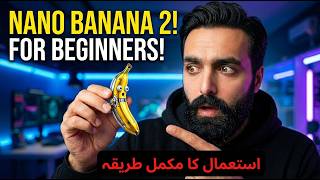

Nano Banana 2 is FREE?! Full Tutorial
44sReveals that a powerful AI tool is free, which is highly appealing and likely to drive curiosity and shares.
▶ Play Clip"Delivers a straightforward beginner tutorial, but the tool name is unclear and the content is mostly basic."
This video provides a complete beginner's guide to using Nano Banana 2, a free AI tool for generating images and videos. The creator walks through accessing the tool, setting up projects, and creating both images and short videos. It covers the credit system, aspect ratios, and download options.
The tool is accessed via Google by searching 'flow' and clicking on 'Google Labs Flow'. It requires a Gmail sign-in.
Users can choose between image and video generation. Image generation is free; video generation costs credits (20 for standard, 100 for quality).
For images, you can select landscape or portrait, generate 1-4 samples, and optionally add a photo. The script (prompt) is entered in a text field.
Videos are generated similarly but require a script and can be landscape or portrait. The tool creates realistic 8-second videos in about 1 minute.
Images can be downloaded in 1K, 2K, or 4K resolution. For YouTube thumbnails, 1K is sufficient. Videos are generated in full 4K quality.
Nano Banana 2 is a free AI tool for generating images and short videos, but video generation requires credits. It's easy to use for beginners, but video length is limited to 8 seconds.
How many credits are required to generate a video with Nano Banana 2?
20 credits for standard video, 100 credits for higher quality.
01:44
What is the maximum duration of a video generated by Nano Banana 2?
The video duration is 8 seconds.
05:15
What two aspect ratios are available for image generation?
Landscape and portrait.
01:02
How many samples can be generated at once for an image?
1 to 4 samples.
01:17
What download resolutions are available for generated images?
1K, 2K, and 4K (but YouTube only supports up to 1K for thumbnails).
03:04
What two options are available for video creation under 'ingredients' and 'frames'?
Ingredients (combine images) and frames (start and end image).
01:17
Free image generation for thumbnails
Shows a practical use case: creating multiple HD thumbnail samples for free.
01:44Video generation requires credits
Important for users to know that video generation is not free beyond initial credits.
01:44Video length limited to 8 seconds
A key constraint that affects use cases for long-form content creation.
05:15[00:04] amazing thing. There are some updates in it and I will give you guys its tutorial and show you how we will make videos in it and how to make full HD thumbnails etc. Ok? So it is a very amazing thing.
[00:19] What do you guys have to do? How to access it ? It is absolutely free stuff. Ok ? You people have to come to Google. Another writing is flow. Ok? It is best if you do it on PC. This is the first link, you have to click on the Google Labs flow.
[00:34] Ok? So now you have to come here. What do you guys have to do? Click on Create with Flow. Ok? My Gmail is already logged in. You guys will sign up for it once with Gmail. Ok? What to do now?
[00:48] I click on this simple new product project. Ok? And what this is now is a full upgrade. Its menu, everything, dashboard has changed. This is how you will see it. Ok? Below are some options. Let me tell you a little about it. If
[01:02] you click on this, there is an image and a video here. If you want to create an image then leave it as it is or if you want to create a video then click on it. Ok? In the image, you can create landscape and portrait and
[01:17] can create one to four samples. Ok? Now if I click on the video, there are some options in it. There are ingredients, there are frames, there is landscape and what are the ingredients? In this you can give some images etc. and ask brother to make a video by combining them.
[01:30] Ok? You all know that the frame is an image with start and end, so it will make a perfect video for you within that. In this way, you can also make it for landscape and ss etc. reels. In this also you
[01:44] can give one to four options. But in this the videos are not free. Videos You can see that one video requires 20 credits. Ok ? If you increase its quality then it asks for 100 credits. So this is the
[01:58] first option we have. Ok? You guys should have creditors. I currently have 100-200 creditors. Now I will make an image for you guys. Ok? For example, I want to create a thumbnail. So the size of the thumbnail
[02:12] is landscape and I want to make it four because it is absolutely free, so I will create four samples. Ok ? So what will I do here? I will give you the script here. The script is that I have a script and
[02:26] I gave it to us in the next previous video. So what I have to do in this is that I change the video title here a little bit. Ok? I do this How to
[02:38] Ok? I do this How to Use Nano Banana Too. Ok? Now I copy this script and paste it here. If you guys
[02:50] want to put your picture in it. Ok? So we will click on this picture plus. Ok? And you guys can apply it like this. I wish I could make this. Simply click on this. Right now, it will make four very good
[03:04] thumbnails for me in 1 minute. I will see which one looks the best. So I will download this. We can also download it in 1K, 2K and 4K which is amazing. But one key is enough because YouTube does
[03:20] not support thumbnails larger than one key. So its size should be the same as the one we have. Look at the amazing full HD thumbnails it creates with just one click. Ok ? You can also put your photo in it. If you want me to appear in place of this guy,
[03:36] you can upload it from here. Ok? Good sir. So this is the method of making a photo, meaning the method of making a photo with Nano Banana 2. Now I want to make a video with this.
[03:51] Ok? So making a video is very easy. What should I do? I click on New Project. What should I do? I click on New Project. click on the video and I want to make it portrait style. Ok?
[04:05] Correct. What will I do now? Whatever is there from here, I will make it forest. Ok? I will do the forest. Rather I do it too. You will make two videos of mine for Rs 40. Ok? Good sir.
[04:18] I will put the script here. So for the script you guys have chat GPT right? Ok? The chat is GPT. You guys can make it from there also. Ok. So I have created almost everything that is here. This is a script from here. Ok? I will take it from here regarding animals.
[04:34] Ok? I will paste it here. Ok? So I had made all these before and the one that is being made now has come here. Ok? Look at this. Correct? These two videos are currently being made. It takes about 1 minute and then we will check
[04:49] its quality. Anyway, you guys can almost check its quality. It produces full 4K quality type videos and creates realistic videos. Ok ? Look, the video has just been made. I play it too.
[05:15] guys. Both are same scripts, whichever I like, I will download it. We can use both. Look at this. So it is a completely real realistic video and is quite amazing. And its duration, I think, is
[05:31] 8 seconds. Ok? So if you make longer videos than this then you will have to make them in parts. Ok? You can take the script from Jimny AI or from. Look, I got this from Jimny AI. As of now, I have
[05:46] one script and I have taken many more. So this I have taken many more. So this is an amazing thing and if you guys have any questions about it, I will guide you. Ok? Inshallah see you
[06:03] Ok? Inshallah see you in the next video. Till then Allah in the next video. Till then Allah Hafiz.



⚡ Saved you 0h 06m reading this? Transcribe any YouTube video for free — no signup needed.