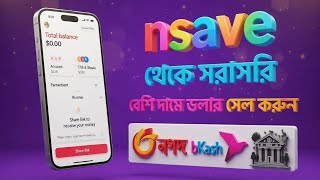

Sell Nsave Dollars in 5 Mins: bKash vs Bank
43sHigh practical value for a niche audience, with a clear time-saving promise and comparison of payment speeds.
▶ Play Clip"Delivers on the promise of selling Nsave dollars quickly, but padded with a lengthy IP proxy promo."
This video provides a step-by-step guide on selling Nsave dollars (a digital currency) through bKash or bank transfer in Bangladesh, claiming the process takes just five minutes. The presenter demonstrates a live transaction, including details on fees, remittance bonuses, and troubleshooting common issues, while also promoting an IP proxy service.
You can sell Nsave dollars through bKash or banks in five minutes. bKash gives instant payment, while bank transfers take 1-7 days due to bank working days.
The presenter shows selling $123 from ADB Media, receiving payment in bKash, and explains the process of sending dollars from Nsave to another Nsave account.
Many users face issues like 'success or failure' messages when selling dollars. The presenter attributes these to user errors and shows how to avoid them.
To send dollars to another Nsave account, click 'Save to End SE', enter the recipient's user ID, and continue. The dollars go directly to that account.
After selecting 'New Transfer', choose the country (Bangladesh), see the dollar amount and equivalent in taka (e.g., $123 = 14,873 taka), and note the 2.5% remittance bonus.
A service fee of $1.64 is charged, but transactions above $164 are fee-free. The fee is 0.90 cents for smaller amounts.
When selling to a bank, ensure the Nsave account and bank account are under the same name (NID) to avoid failures. Otherwise, you may need to contact live support.
Choose the bank (e.g., BRAC Bank), enter occupation, branch, account number, and account type. The presenter uses bKash for instant payment.
Enter first name, last name, and bKash number (without leading zero). Ensure the bKash account is under the same NID as the Nsave account.
After entering all details, click Continue. The transfer completes quickly, and the presenter shows receiving payment in bKash live.
The presenter demonstrates the transfer completing and the money arriving in bKash, including the 2.5% remittance bonus (e.g., 14,900 taka).
The presenter promotes IP proxy services (IPBox) with discounts: 35% off mobile/residential proxies and 40% off static IP proxies using a coupon code.
For static IP proxies, a 40% discount applies when purchasing 3 or more. Select country, duration (e.g., 30 days), and payment via crypto (LTC or TRX).
After purchase, access 'My Proxy' to configure. Choose mobile proxy, mix, random country (e.g., US), city (e.g., Los Angeles), and quality (high or low).
Selling during morning or daytime yields faster payments (2-4 minutes) compared to late night (e.g., 3:57 AM), which may take longer.
Late-night transactions may face delays due to no customer care. The presenter waited 4-5 hours but eventually received payment.
The presenter shows the bKash inbox with the received amount: 15,152.70 taka, including a remittance bonus of 400 taka, confirming the process works.
The video demonstrates a practical method to sell Nsave dollars via bKash or bank, emphasizing speed and the 2.5% remittance bonus. It also highlights common pitfalls and promotes IP proxy services as an additional resource.
What is the minimum time to receive payment when selling Nsave dollars via bKash?
One minute to five minutes, depending on server pressure.
00:28
What is the remittance bonus percentage offered when selling Nsave dollars?
2.5% extra remittance bonus.
02:36
What is the transaction fee for selling Nsave dollars, and when is it waived?
The fee is $1.64, but transactions above $164 are fee-free.
02:50
Why might a bank transfer from Nsave fail?
If the Nsave account and bank account are not under the same name (NID), the transfer may fail.
03:35
What is the best time to sell Nsave dollars for faster payment?
Morning or daytime, as late-night sales may take longer.
12:26
What is the discount code for IPBox proxies mentioned in the video?
35% off mobile/residential proxies and 40% off static IP proxies using a coupon code.
07:43
2.5% Remittance Bonus
This bonus adds extra value to each transaction, making the service more attractive.
02:36NID Matching Requirement
Ensuring the same name on Nsave and bank accounts is crucial to avoid transfer failures.
03:35Timing Affects Speed
Selling during business hours results in faster payments, a practical tip for users.
12:26Live Payment Confirmation
The presenter shows the actual bKash transaction, proving the process works.
13:56[00:02] You can sell Ensped Dollars through bKash and banks in just five minutes. However, there will be two recruitments here. If you sell through Number One Bikash, you will receive instant payment. And if you sell through a bank,
[00:14] you probably know the bank's operations. It is closed two days a week. Their working days are five days. So those five days are their working days. This means that if you sell through the bank, in other words, through Ensafe within five days, you will see that it takes
[00:28] one day, two days, a maximum of three days, up to seven days. you sell through bKash, the minimum will be one minute to five If the server is under pressure, what else does it take?
[00:45] receiving a payment of 123 dollars from ADB Media. I will show you the complete process from selling this 123 dollars to receiving the money in bKash. In addition, I will try to discuss all the details on how to send dollars from NSE to NSE in today's video.
[00:59] Since many of you are currently saying that when you try to sell dollars on NSE, your development is being held in a bind, meaning in a word, it shows success or failure, and NSE is not receiving dollars. So these problems are happening because of your mistakes.
[01:12] So, I'm showing you live how you can maintain this process and sell your NCAP dollars sell your NCAP dollars in just five minutes. So, you will come directly to sell the available dollars of NCAP.
[01:26] After clicking on it, you will see an interface like this. So after such an interface comes, if you want to sell from NSE to End SE, you can Save to End SE, just click here, then after clicking, whatever the End SE
[01:42] handle or user ID is, just paste that user ID here, after giving it, just click on the Continue option from here, click on the Continue option from here, but the dollar will go directly to the NSE of the person to whom you
[01:55] but the dollar will go to the NSE of the person to whom you want to send it, no matter how many dollars you want to send, I hope this is clear, brother, send it through NSE. Then come. Now you think that this is a new transfer. However, I will
[02:09] However, I will So after clicking on New Transfer, here we can now see which I gave Bangladesh. Select the country from which you are making the transaction.
[02:22] So after selecting Bangladesh, it is now available here. You could see how many dollars we will sell. Here we usually see how many dollars we will sell for. Here we usually see how many dollars we will sell for. 100 I will sell for 23 dollars. 123 dollars,
[02:36] see it live here, the value of 123 dollars is equal to 14873 taka. Another interesting thing here is that we will get a 2.5 percent extra remittance bonus. I'm telling you everything. And besides this,
[02:50] And besides this, if you look here, the transaction fee is $164. Here you see we are charging a fair service fee, see this is 0.90 cents, learn more, you understand that if you transact above 164 dollars, no fee will be
[03:07] they will deduct an extra fee or deduct a fee, actually, is it clear to you that I will sell 123 dollars now or I can sell it, brother, simply hold here, I gave you cents, they will give me this amount,
[03:22] from here, you see, we will click on this option. After clicking on it, you will see an interface like this. So after such an interface comes, you guys will have
[03:35] individuality here. Another issue has not been cleared yet. If you want to sell dollars to the bank from Nsave, you should definitely try. To match Nsave and bank information. Otherwise, you will fail, brother. And if it fails, it will be seen that in many cases
[03:50] talk to them on live support. Many problems are created. So, if you have created an account under the NID card in NSPay, you should also try to create an account in the bank under the same name. I hope the matter is clear. In addition, you will
[04:05] name of the bank. Then click here. Which bank will you take payment from? Although we will take it through bKash, you can see below that all banks are available. You can see which bank you will take it to. I will take it to BRAC Bank. I
[04:19] So after selecting the backing, you see that everything is taken automatically, just click here, after clicking here, they want to know the occupation, brother, from here I can give this account,
[04:33] then there are many options at the bottom, brother, I gave one, after giving it, all these will be fine at the bottom, then after coming down, you will now write the branch here, brother, you understand this much, after clicking here, which branch do you have,
[04:46] search like this, you think, say Joypurhat, you see I have taken this auto, just select it, after giving it, brother, now you have to give the account number, what is the account type, do the formalities,
[05:00] maintenance, just hit transfer, I will I will
[05:14] can see this You will see an interface like this, let's go, now
[05:26] give the first name, last name, Bikash, which is in the name, just give it, mist,
[05:38] who has the name Bikash, try to understand again, Bikash is also under that NID card, brother, after giving everything correctly, okay, occupation, we gave one before, now I have given one, brother, there is no problem, brother, this name has taken
[05:53] everything, see, after giving everything roughly, brother, in place of the phone number, now we have the Bikash number neatly without zeros,
[06:05] neatly without zeros, brother, look carefully, I have
[06:18] After clicking on it, you will see an What a simple task, brother. If you can sell this much correctly, me live immediately. You will see the payment coming. Then see here what
[06:33] transfer this for a reason? So, brother, I'm giving you the available ES here. Direct shortcut without the hassle. Everyone is able to understand. I give it. brother, I see the service payment here. Just click on it. After completing these
[06:47] two tasks, just click Continue. Then an interface like this will appear. If you look at the extra government, it means they will give us a remittance bonus of 2.5 percent. Look at my dollar rate. I'm getting 14,997,
[07:01] sorry 14,897 taka. You can watch me live on Ice Remittance. Let's say you will pay us 14,900 taka. What else? I see that I can get an extra bonus by adding remittance to it. Then the brother slid it just a little bit.
[07:15] Then I gave him my finger. You can see that I'm sending. You have to wait a little. Here is my sending transfer complete. Just look at me now, I've already received my transfer. If I reload a little,
[07:29] my progress here has taken over. You could see that he was making progress. I'm showing you live how long it takes for this payment to arrive in our bKash account. And besides this, those of you who need good quality IP
[07:43] proxy for online sector work, but if you want, these are not Mavens who are currently doing business in the old world, but they are generally but they are generally getting 40% plus 35% discount on
[07:56] two IP proxies, they are currently providing them. You can see here that you are getting 35% discount on mobile and residential proxy starting from 2 GB by using our coupon. proxy starting from 2 GB by using our coupon.
[08:09] just click on Buy Now. After clicking Buy Now, an interface like this will come up. After clicking Buy Now, an interface like this will come up. Those who use the online sector IP box will get our referral link.
[08:22] You can get them in the IP box using the coupons. Here I am giving you Here I am giving you 35 coupons, see my regular after I applied the coupon, when I clicked Apply, you could see it live here, coming in at $
[08:38] 27. After selecting the crypto, if you click on the content and make the payment via LTC or TRA or Litecoin, your traffic will be added. Hope the matter is clear? Then I'm backing out now.
[08:50] So then we'll go now, think about this, static IP proxy from here. So you will get a 40% conditions, if you purchase one or two, in this case, our coupon
[09:04] codes will not work. You can see this simply: two more than three, minimum, minimum, three, maximum, more than three. If you order, you will get a 40% discount. And from here, brother, you have to select which
[09:19] get it for 30 days. We selected the country from here, we will give the country available. See which country we will purchase for. That's why I bought it for the US. From here, our regular price is three IP proxy 14 dollars 97 cents. Just
[09:33] after clicking, you will see an interface like this. From here, we selected crypto. After that, you will see the apply coupon 14 dollars value. After applying our will see the apply coupon 14 dollars value. After applying our coupon,
[09:46] you will get these coupons here, Ma I SP, after giving the video description. Just click Apply and you will see that the value of this crypto is 14 dollars. Select it from here and get 8 payment, you will get three statuses, but your IP proxy is available
[10:02] . I hope the matter is clear. Then, after purchasing your static IP proxy, Then, after purchasing your static IP proxy, clicked on this option again. As you can see above, I clicked on My Proxy. Here you
[10:14] clicked on My Proxy. Here you Take alcohol for a few days. Then there is the live support chatting system with the people you see below. I just clicked here. 24 hours a day, if you see any issue like
[10:28] you can talk to them on live support from here, brother, live support, but you can solve your problems, actually, brother, the matter is pretty clear, now let's go, how to get IP proxy,
[10:42] from here we will just click on the setting now, those who have taken mobile proxy, just click here, I currently have Paji GB plus available traffic, you could see live, Paji GB plus traffic, now to get IP proxy, from
[10:55] can select resident install or mobile proxy, I will take mobile proxy, select it, give it, from here you can see, you can take mix, you can also take this, I take mix, give it, random, after clicking on random, I will take any
[11:08] country, let's say I will take United States, just select it, give it from here and not give us the facility, see everything, reason high quality, if I click here, see this I will not take high quality, I will take low quality, everything is there, let's say
[11:21] gave California, I think I will take city from here, I gave Los Angeles, after selecting ISP, see this, high quality means best, brother, after giving it, it will be sticky from here, it will be selected on the stick so
[11:35] that it does not rotate, if you want, you see here, other secret gives maximum 120 minutes, you can give up to 1000 here,
[11:47] this is not the best, an opportunity, then which HTTV basex pipe do you want to take, just select here, brother, if everything is fine, how many pieces will you take from here, just say I will take 500 pieces, I will take 5000 pieces, here I gave it,
[12:00] or that you like, the best IP proxy at the moment is not Maven. If you want, not Men IP Proxy, check our referral link in the video description
[12:14] and use the promo code. Those of you who work in the online sector can service or facility, but they are providing it, so you can see it here in progress. But I am selling something live, brother, at
[12:26] 3:57 am, that is, at 4:00 am. You will try to maintain a little time, brother, not too late at night, and then try to sell in the morning or during the day, then you will see, brother, immediately
[12:41] within two to four minutes, the money will come to your bKash, so I don't have much time for this now. I will show you live, but there is no tension, brother, see it, it has taken 100% in progress, when it comes to my bKash, I will show you the rest of the steps completely live. I
[12:55] hope the matter is clear. So finally, from Ensafe, our dollar is moving towards development. So I got an extra bonus too. I'm showing you everything live. So you can see here that there is another thing that hasn't been mentioned before.
[13:10] When you withdraw the dollar from Endef. But it turns out I was making this video after 3am yesterday. So, at this time of night, there's no customer care line. So in this case, try to
[13:27] your money will arrive immediately. I've been waiting for about four to five hours. So you can see if I can reload it for you live. You see, it was in progress. But that is complete. And
[13:40] I'll show you the transaction directly at bKash. I only had about 14,900 rupees. So his 2.5 percent remittance bonus, Gov means how much money the government has given me, I will show you live, so I
[13:56] went directly to Bikash, okay, sorry, after coming to Bikash, I clicked on the inbox from here, you can see the total here, but see how much money he has see the total here, but see how much money he has given me, brother, this is the remittance that is being given to me, but
[14:09] again I have deducted the remittance that is being given to me, so you can see it live from here, 15,15270 taka, but I am
[14:21] getting a remittance bonus of 400,400 taka. So, in this way, you can sell NSEPA dollars directly through bKash or through the bank. see that you can sell fairly quickly, but you will immediately receive the money in your pocket. So,
[14:37] due to everyone's request, I'm showing it live. Many people want to see it. This way, you can sell the dollars after receiving them from NSE. So see you in the next new update video. So see you in the next new update video.



⚡ Saved you 0h 14m reading this? Transcribe any YouTube video for free — no signup needed.