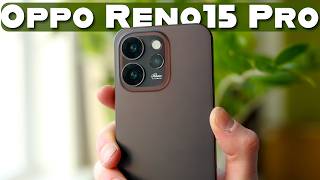

Why Phone Cameras Got It Wrong
45sChallenges the industry norm by highlighting the neglected front camera, sparking curiosity and debate.
▶ Play Clip"Delivers on the promise of showcasing the ultrawide selfie camera, but it's a sponsored ad with some fluff."
This video is a sponsored review of the Oppo Reno 15 Pro, focusing on its ultrawide 50MP selfie camera. The creator takes a Valentine's Day trip to New York City with his wife, demonstrating the phone's camera features in real-world scenarios, including low-light performance, dual video mode, AI editing tools, and collage creation.
The video highlights that most phone launches focus on front-facing cameras, and the Oppo Reno 15 Pro aims to change that with a 50MP selfie lens. The creator plans to test it during a Valentine's Day trip to NYC.
The front camera is 50MP and can shoot 4K video. It has a wide field of view (0.6X) that can smoothly zoom to 1X, allowing for more content in frame and better stability.
The ultrawide lens captures more of the scene, fits more people in frame, and allows for reframing in post. It also provides better stability when walking.
The phone supports dual video mode, showing the front camera feed in a circle within the rear camera feed, useful for reaction videos and vlogs.
The photos app has a collage feature that lets users combine multiple photos, rearrange them, zoom in, and use 'pop out' to make subjects stand out. It also supports motion pop-outs with live photos.
The primary rear lens is 200MP, with a telephoto lens that offers 7X zoom with good sharpness and bokeh. Low-light performance is impressive, capturing warm, dim lighting accurately.
The AI editor includes features like AI eraser to remove unwanted objects, AI re-compose to improve framing, and AI portrait glow to adjust lighting with four styles: natural, flashlight, studio, and rim light.
Unlike many phones, the front camera's portrait mode is not overly cropped, allowing for more background context. The cutout is accurate, and blur can be adjusted in post.
The Oppo Reno 15 Pro's ultrawide selfie camera and AI editing features make it a compelling choice for content creators and social media enthusiasts, encouraging more spontaneous photo-taking and creative expression.
What is the resolution of the front-facing camera on the Oppo Reno 15 Pro?
50 megapixels
00:15
What is the maximum zoom level of the telephoto lens on the rear camera?
7X
07:47
What are the four lighting styles available in AI portrait glow?
Natural light, flashlight, studio light, and rim light.
10:51
What is the advantage of the ultrawide selfie camera for stability?
Wider cameras are generally more stable because they are less cropped.
02:02
How does the AI eraser feature work?
It allows users to select and remove unwanted objects from a photo.
09:06
Ultrawide selfie advantages
Explains practical benefits of a wider front camera for content creation.
01:36Dual video mode demonstration
Shows a unique feature for vlogging and reactions.
02:55AI collage with motion pop-out
Demonstrates a creative way to combine photos for social media.
04:42Low-light performance of rear camera
Highlights the camera's ability to capture accurate colors in dim environments.
07:35AI editor tools
Shows how AI can enhance photos by removing distractions and improving lighting.
08:53[00:01] lot, and of all the phone launches this past year, almost all of them focused on about front facing cameras, yet that's what we use for video calls, recording short form content, stories on socials, group selfies, and well, this, the Oppo
[00:15] Reno 15 Pro, is changing that. It has a 50 megapixel selfie lens with some my wife and I are going to New York City for the weekend for a little Valentine's phone with me and see, you know, how we can capture some memories on the trip
[00:29] able to do. Now, this video is sponsored by Oppo, so I'll be telling you what's new with this phone and showing you the photos so you can decide for yourself if start off this trip, we went to the train station, saw a beautiful sunrise,
[00:42] kind of low-ish light performance right here. Great color. I actually really train station, in my opinion, is doing a little bit of renovations with it, but it's a beautiful train station
[00:55] some pretty wide-angle photos with the front facing lens to really show off like the chandeliers behind us. Now, on the train ride, I took a little video thought it looked like so cool and cinematic to see the the sunrise through
[01:08] there. And by the way, the front and all the rear lenses are able to shoot in 4K. All right, so just got off my train in New York City, and looking at the front facing camera here, you can see a pretty big advantage of the Oppo Reno here. So,
[01:21] you can see that not only is it a 50 megapixel camera that can shoot in 4K, but when I compare it side by side with just a regular phone here, you can see of view. This is a very wide. This is 0.6 X right now, and you can zoom in
[01:36] very smoothly up to 1X if you wanted more of a cropped in shot like that. But going back to 0.6X, this has a couple big advantages. One, you can really capture everything. You can also get more people in frame, and you can
[01:49] reframe this if you needed to. So, in the future, if I wanted to use this as like a square video, or even if I wanted to hold it back and crop it into, you know, 16 by 9, I could totally do that. And probably my favorite part is that
[02:02] it's a lot more stable. Wider cameras are just generally going to be a lot to be more cropped. And you can see that when I'm walking right here. I have a order to use these cool features, I need to take some photos. I tried some
[02:15] more light from the side, more light behind me, some dynamic range going on. know how these actually perform. see I have a bunch of different shots, and I also used the rear lenses as well. Got some ultra-wide shots of some
[02:29] skyscrapers, zoomed in on some pigeons, some other cool things in New York. All want to head over to the hotel and check in. We got a kind of cool hotel for the night. Um I saved up like a ton of points for this one. Kind of balled out
[02:41] going to look like. And I'm actually going to film this using dual video mode. All right, let's see what this room is.
[02:55] Look at the bathroom. So, I pretty much never book fancy hotels, but I had a bunch of hotel points. And ooh, look at that. Look at this view. I had a bunch of hotel hotel points, so I was like, might as well when I'm in New York, you
[03:09] and stay somewhere cool. So, dual video here. You can see obviously filming me, reaction, pretty awesome. And you can also see everything else around you. So, this is like circle inside the picture. But we can also, check this
[03:23] have like got to be so much older than the other things around it. Look at Awesome. This is I'm excited. I'm excited to stay in this one. Whoa, look
[03:37] how old that building is, too. Wow. Yeah, probably my favorite part about staying in New York is definitely the views from the hotel. So, that's a pretty fancy-looking bed there. Let's do a little bathroom tour here. Let's see
[03:50] a little bathroom tour here. Let's see what we got. Shower, nice. Bathtub. Never get hotels with bathtubs in them. Two of me. And
[04:03] a phone in the in the bathroom. In the toilet. Fascinating, fascinating. It's above my tax bracket to understand why that's there, but that is so cool.
[04:15] So, you can also do dual view where like I am the main shot and you can see what around there. So, kind of a different style there's World Trade Center over there. So cool. All right, so now I'm off to
[04:29] this cool little restaurant bar that apparently is from like revolutionary war times like 1700s. Um pretty excited, but again, look at here. That's incredible. Really cool
[04:42] vibe on the inside and uh so yeah, great spot for photos. But one thing is whenever I go to these places, New York City, cool restaurants, whatever, I me and sometimes you just have photos of just one person or just a photo of like
[04:55] just that. Maybe you could post a slideshow, but there's a cool feature on this phone that you have. So, if you go into your photos app and then I can just So, maybe I like this one, I like the skyscraper, and I feel like the pigeon
[05:09] kind of captures a vibe, too. On the bottom I can tap on collage and you can maybe I want to go with this one right here and you can choose which photos in right here and you can choose which photos in which spots and you just tap
[05:22] and drag them over to the other spots. Maybe I'm in the corner, maybe the pigeons are down there. I can also zoom in on individual things and what's called pop out. So, if I tap on me right there, I can pop out and it'll basically
[05:37] and have me kind of in front of everything else. You see right there if I zoom in, I can show myself in front of the skyscraper, and I can have the pigeon pop out as well. I'll tap on that. And you've just got a fun
[05:49] can easily post as one photo on your socials. But maybe instead, let's go went to, and maybe I want to get Let's do a collage of these four photos here. photos, and you've got different layouts that you can go with. So, maybe this one
[06:04] rack all the way up on the left side. You can zoom in and reframe that. We've got the food over here. Maybe the food should be like between us. Maybe that them. So, maybe I'm going to pop out just a little bit here, just so I'm not
[06:17] too far lost in the corner. And let's make There we go. So, actually, I think one, capturing the vibe of the whole restaurant. You've got the food, you've do that in just one shot. So, I'm going to save this one. And again, that is
[06:30] have right there. And check this out. You can also make motion pop outs as well. So, if I select some live photos, like maybe this one where we're just toasting our drinks, I can put that into that same collage and make it pop out so
[06:42] it moves. So, I'll just select maybe four photos. One of them Maybe all of a motion photo. Then for collage, you just select motion, and you'll see right be playing. It's going to be moving. But we can rearrange these. Maybe I put the
[06:56] wine bottles back over here. I move where we are on top and bottom. Then I have that not only moving, as you can see right here, but I can also make it pop out. So, if I just select pop out for that one, I can then resize it and
[07:09] front of everything, and it plays like a motion photo, but in the collage. And it's also like it detects the subject, pops that out, and it still tracks movement surprisingly well. So, this
[07:21] makes a really cool just very postable thing for social media. Not only is it a there's a little bit of movement there as well. Now, there are a bunch of other this phone, but first, we need to get some more photos. The next thing we went
[07:35] to was this really cool museum about the American Indians, talked about the history, really cool artifacts in there. I didn't take too many photos. I wanted to be respectful, but I also thought like the ceiling looks so cool in there.
[07:47] primary rear lens, which is 200 megapixels, and you've got a telephoto get really nice optical photos, or you can zoom in 7X, and because it's a good resolution camera, you're still able to get really nice sharp photos even at 7X,
[08:02] and it gives you a nice separation from the background, a nice bokeh effect. And was also really, really dark in there. Keep in mind, this is a 250-year-old they didn't have a lot of light in there. And yet, these photos really
[08:15] accurately captured how like warm and dim the lighting was. It didn't make it look too much like broad daylight, but it still brightened everything up just sharp and you could really see it. Like the food, for example, I think this is a
[08:28] exposure goes. And there are some other really neat features you can use from the photos of the front or the rear lens. So, the next thing we had planned, we went back to the hotel, got changed. We were dressing up to go to a ballet.
[08:40] ballet a lot growing up. She was super excited about it, and I was excited to go as well. So, uh first, we took a selfie. This is not portrait mode, just you're able to capture a lot of things around you, like I said, with the
[08:53] want everything in there. So, like the little plow sign above, I kind of wish that wasn't there. So, if you just tap on the edit icon on the bottom, we can tap on AI editor. There are a ton of options in here, but I want to tap on AI
[09:06] what you don't want. So, I don't want that plow sign up there. It's going to gets rid of that. And as you can see, that is no longer a distraction in our photo. Like this big orange sign, didn't
[09:19] way more focused on us. We also have AI re-compose, which is going to use some of the best practices of framing shots, and it's going to do that for you. So, make us more of a focal point rather than a corner, because like I said, I
[09:32] background here, and sometimes you want it to be a little bit more focused on the subjects of the shot. Then, another thing we have is portrait mode on here. lens, on a lot of other phones, it's just too cropped in. It doesn't really
[09:45] phone around and using the rear portrait lens. But, on this phone, again, you're able to use portrait mode, still capture a lot of stuff around you. It's not too noisy. And if you zoom in, you can see a pretty decent cutout. The hair was very
[09:58] accurate, um a lot of blur behind me, and you can actually edit that again. If I tap on the pencil icon, I could then tap on portrait, and we can choose what make it super blurred behind me, or you can make it look a little bit more
[10:11] natural, uh almost like a standard shot, but just slightly more blurred out on done, and now it's going to save that as the new portrait shot. And using the more, and you're getting so much more separation from your background. And
[10:25] fan of telephoto lenses, because you just have like no distortion, you get a when you combine that with portrait mode, you're able to get this really cool environment, this really cool light setup right here. But, what you're able
[10:38] to do even further is, maybe it's not the quite the right lighting you want. portrait, or really any photo for that matter, you can tap on AI editor, you can go to AI portrait glow, and there's four different styles of lighting here.
[10:51] It can choose from natural light, flashlight, studio light, and rim light. subject. And as you can see right here, it knows we're outside, it chose natural light I'm going to go with to make it either brighter or not as bright. And if
[11:06] I go back to the selfie of us in the restaurant, I try the AI editor here, probably not going to choose natural light here. It's going to choose a we're in a different environment. So, it's intelligent in deciding the correct
[11:18] lighting based on where you are in the photo. So, here, it could say basic dim environment. And while we were in there, I took a selfie, lighting was not not the best selfie, to be honest. But, if we go to, again, the AI editor, we
[11:32] can change the lighting. This time it chose flashlight, so I'm able to choose instead of being really dark, you can get the right exposure just on your face. And last but not least, let's make one more motion pop-out collage to end
[11:45] good. Like we've got We went to dinner, by the way, after the show, but nice little rose there. We've got us standing outside the ballet and I have got like Let's see Let's select all four of those photos. Go to collage. We'll make this
[12:01] out. I think that would be really cool to have that pop out. So we'll tap it, tap pop out. Now the rose pops out right over there. I think that looks That of like the summary of the Valentine's Day trip we did. So that is the Oppo
[12:15] Reno 15 Pro. I had a great time in New York City and having so many camera lot more fun. I also just filming this video felt more encouraged to take more photos throughout the day and I'm really happy that I did. Hope you enjoyed this
[12:28] Bryan and I'll see you in the next video.

⚡ Saved you 0h 12m reading this? Transcribe any YouTube video for free — no signup needed.