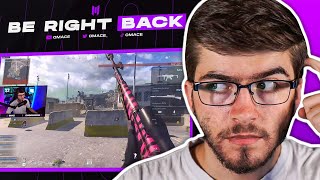

Upgrade Your BRB Screen with Random Clips
45sViewers love quick fixes to improve their streams, and this offers a simple solution to a common problem.
▶ Play Clip"Delivers exactly what it promises: a simple, effective tutorial for adding a clip player to your stream."
This video is a tutorial for Twitch streamers who want to replace the standard 'BRB' (Be Right Back) screen with a dynamic clip player. The host demonstrates how to use the Twitch Guru tool to automatically display popular clips from your channel on your live stream, and then how to integrate it into OBS Studio.
The video addresses the issue of boring BRB screens and introduces a solution: a random clip player that takes clips from your Twitch channel and plays them live on your stream.
The first step is to go to twitch.guru/tools/clips. You enter your Twitch channel name, and the tool shows a preview of the clips it will use, prioritizing your most popular ones.
You can adjust the sound settings, including muting the clips or changing the master volume to ensure the audio is at an appropriate level for your stream.
In OBS, you add a new 'Browser' source, name it (e.g., 'Clips'), and paste the URL provided by the Twitch Guru tool. The clip player will then appear on your stream.
To remove black bars around the clip player, you can use the 'Filters' option in OBS and apply a 'Crop' filter, adjusting the top and bottom values until the bars disappear.
The clip player can be freely positioned, scaled up or down, and placed anywhere on the stream layout, offering flexibility in how it integrates with your overall design.
The video concludes by encouraging viewers to implement this easy setup to improve their streams, and reminds them to like, subscribe, and turn on notifications.
What is the URL for the Twitch Guru clips tool?
twitch.guru/tools/clips
00:15
What type of source do you add in OBS to integrate the clip player?
A Browser source.
00:59
How do you remove black bars from the clip player in OBS?
Add a Crop filter and adjust the top and bottom values.
01:31
What kind of clips does the Twitch Guru tool prioritize for your stream?
Your most popular clips.
00:44
Simple Tool Setup
The tool is incredibly easy to use, requiring only a channel name to generate a clip player.
00:15OBS Integration
The integration is straightforward, using a standard Browser source, making it accessible to all streamers.
00:59Customization Options
The ability to crop and position the player allows for seamless integration into any stream layout.
01:31[00:00] If you're tired of sending your viewers to the BRB screen where it's just plain boring old text and nothing to really keep your viewer engaged in the stream, today I'm going to be showing you guys how to change it up and add a random clip player to your stream. What this will do is take
[00:15] different clips from your Twitch and implement them straight into your stream live. And without further ado, let me show you guys how to set it up. So the first step is you're going to want to go to twitch.guru slash tools slash clips. And the process is pretty simple. All you need to do
[00:31] is put your name underneath the channel name. So for me, I'm Omaze. So I'm going to go ahead and put my name in like so. And now as you guys can see, it's going to show a nice little preview on the side of what different clips it's going to show on your stream. And it'll also show you down
[00:44] below of the different clips that it's going to use. It's going to use more of your most popular ones you can also change the sound so if you want to mute it or on i'd say keep it on so they can actually hear what's happening and then for the master volume obviously you can change the volume
[00:59] if it too loud or not loud enough and so now all you going to want to do is go into your obs and you going to go underneath your sources and click add and then you just going to click on browser you can name this whatever you want But for me I just going to name it clips And then it going to ask for a URL which is going to give you right below the master volume
[01:17] So all you're going to want to do is copy this link and then just paste it into the OBS URL. And then you're just going to click OK on this. And so now, as you guys can see, it does pop up right on my stream. If you want to get rid of the black bars on the top and bottom part,
[01:31] All you have to do is go into filters and then crop it. So if I want to remove the top part, I just increase the number like so. And now my black bar is gone. And then also for the bottom part, I just increase it until it's gone.
[01:43] And so now that is set up and good to go. And then you can literally place it anywhere you want on your stream. You can scale it down. You can scale it up. Pretty much just do anything you want with it. I think it's pretty awesome to do. And that's all you have to do.
[01:55] It's a pretty easy setup. And I hope this improves your guys' streams. I hope you guys enjoyed the video. If you haven't already, please be sure to drop a like and subscribe down below and turn on the little notification bell. And other than that, I'll be seeing you guys later. Peace out.
⚡ Saved you 0h 02m reading this? Transcribe any YouTube video for free — no signup needed.