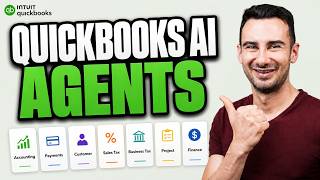

QuickBooks Just Got a Team of AI Agents
45sIntroduces a major product update that surprises users and promises time-saving AI features, a high-interest topic for business owners.
▶ Play Clip"Delivers a thorough, practical walkthrough of QuickBooks AI agents, matching the title's promise with minimal fluff."
This video provides a comprehensive walkthrough of the AI agents and tools integrated into QuickBooks Online, demonstrating how they can streamline accounting, tax, payments, reporting, lead tracking, and project management tasks. The presenter, David, explains which AI features are available on each subscription plan and shows practical examples of how to use them.
QuickBooks Online has added a suite of AI tools and agents to assist with taxes, accounting, payments, reporting, lead tracking, and project management. The video will demonstrate these features.
All plans include base AI chat, Business Tax AI for deductions, and Accounting AI for expense categorization. Essentials adds full Accounting AI and Payments AI. Plus adds AI-powered reconciliation, Sales Tax AI, and Customer AI. Advanced adds Finance Agent and Project Management AI.
The Business Tax AI identifies commonly missed deductions, such as food spoilage costs for a donut shop. Users can click 'See Full List' for a comprehensive list and 'Add Expense' to record it via the Intuit Intelligence Chat. The AI is not a certified accountant, so users should verify deductions with a professional.
The Accounting agent flags transactions ready to post, allowing batch approval on Essentials and higher plans. Auto Categorization is available on all plans, using past behavior and vendor knowledge to suggest categories. The agent does not handle split transactions, and users should verify vendors before posting.
Available on Plus and Advanced plans, this feature allows users to upload a bank statement, which the AI matches against QuickBooks transactions. It calculates ending balance and date, and flags discrepancies for review, such as a $560 charge not on the statement.
The Payments agent recommends actions like adding late fees, which can be set up directly from the card. It also suggests updating payment terms and can autofill invoices by reading contracts, notes, or emails. Users should verify line items and dates as the AI may make errors.
Available on Plus and up, the Customer agent monitors the inbox for leads, syncing new leads in about 24 hours. It scores opportunities and can draft email responses. Users can train the agent with business knowledge to improve lead scoring and email drafts.
The Sales Tax AI analyzes products and services to suggest tax rates. Users can confirm suggestions or get help. It provides a simple way to determine whether to charge tax on each item.
This newest agent drafts project templates from documents, including customer, dates, and details. On the Intuit Enterprise Suite, it can also fill in project tasks. It helps create proposals with scope, timeline, and milestones.
Available on Advanced, the Finance agent generates a monthly key financial summary with performance highlights, trend lines, and insights. Users can modify KPIs and reporting periods, drill down into pre-canned questions, and export to PDF.
QuickBooks Online's AI agents are designed to automate and streamline various accounting and business tasks, but they require user oversight and verification. The video emphasizes that these tools are not a replacement for professional advice, and users should review AI suggestions before acting.
Which AI agents are available on all QuickBooks plans?
Base AI chat, Business Tax AI, and Accounting AI for expense categorization.
00:27
What does the Business Tax AI do?
It identifies commonly missed deductions, such as food spoilage costs for a donut shop.
01:50
What is the limitation of the Accounting agent regarding transactions?
It does not handle split transaction categories; users must handle those manually.
03:51
How does AI-powered reconciliation work?
Users upload a bank statement, and the AI matches transactions against QuickBooks, calculating ending balance and date, and flagging discrepancies.
03:51
What does the Payments AI recommend?
It recommends adding late fees and updating payment terms, and can autofill invoices from contracts, notes, or emails.
05:13
How long does it take for new leads to sync with the Customer agent?
About 24 hours.
06:44
How can users improve the Customer agent's lead scoring and email drafts?
By training the agent with business knowledge, including information about the business, ideal customer, and value proposition.
07:13
What does the Sales Tax AI do?
It analyzes products and services to suggest tax rates, which users can confirm or adjust.
07:40
What is the Project Management AI's function?
It drafts project templates from documents, including customer, dates, and details, and on Enterprise Suite, fills in project tasks.
08:07
What does the Finance agent generate?
A monthly key financial summary with performance highlights, trend lines, and insights, which can be customized and exported to PDF.
08:49
AI Features by Plan
Clearly outlines which AI tools are available on each subscription tier, helping users understand the value proposition.
00:27Business Tax AI Deductions
Demonstrates a practical use case for AI in identifying tax deductions, a key pain point for small businesses.
01:50AI-Powered Reconciliation
Shows how AI can automate a traditionally manual and time-consuming accounting task.
03:51Autofill Invoices
Highlights the AI's ability to generate invoices from unstructured data like emails, saving significant time.
05:46Finance Agent Reporting
Illustrates how AI can generate stakeholder-ready financial summaries, reducing the need for manual report building.
08:49[00:00] QuickBooks Online added a whole team of AI tools and agents to make your life easier, and in this video, I'll show you what they're all about. That includes AI for taxes, accounting, payments, reporting, lead tracking, and Project Management. I'm David, I partnered with
[00:15] description below. You'll land here on the QuickBooks homepage. Now, let me take you through which agents you get, depending on your plan. It's pretty simple, the higher your plan
[00:27] On all plans, you get the base AI. It's AI chat, plus Business Tax AI to maximize your deductions, and Accounting AI to categorize your expenses automatically. The Essentials plan
[00:40] adds the full Accounting AI to categorize batches of expenses easily, and it also provides the Payments AI to get you paid faster. The Plus Plan adds AI-powered reconciliation, the Sales Tax AI, and the Customer AI that finds leads for you. Finally, the
[00:55] and a Period Reporting, and the new Project Management AI. Today, I'll use the Advanced Home Screen, you're going to see most of these AI agents pop up on the
[01:11] Business Feed. You see a preview of that here, but for more details, click on the Feed icon in the left sidebar. The Intuit Intelligence Card on the right side of the screen shows you which AI agents you have access to. As you use
[01:23] QuickBooks, you'll see those agents pop up cards inside the feed. The Finance Agent has built a monthly summary for us. The Customer Agent has given us seven new opportunities, the Payments agents recommending we add late fees, the Accounting agents telling us we've got some
[01:38] transactions ready to post, and the Business Tax AI is ready to maximize our deductions. These cards are all information only, so nothing happens without your approval. So, let's start
[01:50] a review with the Business Tax AI by clicking Maximize your deductions. The AI knows And it points out deductions that businesses like yours commonly miss. For a donut shop
[02:04] like mine, that could be something like Food Spoilage Costs. If you have a home list of categories here, and when one looks interesting, you can click See Full List.
[02:16] This gives you a more comprehensive list of deductions, and if you see one that you actually have, you can click Add Expense right next to it to open the Intuit Intelligence Chat. This walks you through recording that expense, whether you
[02:28] paid it from your business or from your personal account. Now remember, this is not a certified accountant, so make sure you run your deductions by a real person before you commit. That's going to keep more money in your piggy bank. Now let's see
[02:40] how the Accounting agent can help you every month. Back in the feed, the Accounting agent says I have four transactions ready to post, so I'll click Review All to see them. This takes you to the familiar bank transactions page. Now, notice we have
[02:52] 22 total transactions in this list, and only four are marked ready to post. These four are the ones the agent is highly confident about from your transaction history. When you a time. Now, in my experience, the agent cares a lot about getting the categories
[03:11] right, but not necessarily the vendors. So make sure they're all set before you post. This batch approval of ready to post transactions is only on the Essentials plan and higher. What is available on all plans is Auto Categorization. Next to an expense that
[03:26] see an exclamation mark or a check mark, which indicates that the AI has tried to categorize that transaction for you. This is sometimes based on your past behavior, and
[03:38] sometimes based on what it knows about the vendor. As with all QuickBooks agents, this is just a default choice. You get the final say and can make the choice here. Now the Accounting agent doesn't handle split transaction categories. You'll still need to handle
[03:51] those yourself. In the plus and advanced plans, you'll also get AI-powered reconciliation. You Accounting app and clicking Reconcile. Reconciliation just means matching your bank statement to what's in
[04:03] QuickBooks. That used to mean downloading your bank statement and then copying and pasting the Instead, now you can upload your statement and it lines everything up for you. That
[04:15] means two things. First, it gets the ending balance an ending date for you. And second, when you click Start Reconciling, it will match every transaction in QuickBooks against the It then shows you any differences between the statement and QuickBooks that you need to
[04:31] account for. Here, we've got a $560 charge which is not in the bank statement. guidance on how to handle it. We determined that this payment hasn't hit our bank account yet, so we unclear it.
[04:45] And once there's zero discrepancy between the bank and QuickBooks, you're allowed to finish the Now, back in the feed, the accounting agent also watches your spending and flags anything Any of these issues might be caused for concern, so make sure you click Review
[05:01] in faster. add late fees. You can set that up directly inside the card.
[05:13] Assuming you have a late fee policy, you can set a flat fee or a Now, QuickNote, this is not legal advice, so make sure you check your local laws You'll also see the payments AI when you choose a customer on your invoice. When
[05:30] Payments agent also makes suggestions like updating the payment terms. You can click any of The payments agent can also create an invoice for you when you click Autofill. It
[05:46] works by reading a contract, a picture of some notes, or even an email to Here's an email making a catering order for 20 dozen assorted donuts. I'm just going to copy the entire email, go back to the invoice, click Text, and then paste
[06:01] I'll click Autofill and it builds the invoice. If it's not sure about something, it'll Adele did ask for boxes with a custom logo, but we don't supply those, so I'll delete this suggestion. Looking at the line items, it did match the product, which
[06:15] But make sure you check these because sometimes the quantity won't quite be correct. Next, check the invoice date. In this case, the year got reset to 2024. Next, we'll talk about the agent which keeps you from losing leads in your inbox.
[06:30] That's the customer agent which you can access on the plus plan and up. You can get there by going to all apps, customer hub, and then opportunities. The customer agent watches your inbox for leads. To connect your inbox, click on Manage
[06:44] New leads take about 24 hours to sync, so don't treat this as an instant New leads expressing interest in your products and services arrive as opportunities and they're scored
[06:58] Clicking an email gives you a summary so you get the whole thread at a And if you want to follow up on an opportunity because why wouldn't you, you The agent will create an email response for you which you can edit and send
[07:13] Now what's new this time is that you can train your agent to create better When you click train your agent, you land on your business knowledge base. Here you can tell it about your business, your ideal customer, and your value proposition.
[07:28] So it's scoring of leads and its email drafts get better. That's in the sales tax app which you can access from all apps, sales tax,
[07:40] Now, sales tax is trickier than expenses because what you owe depends on exactly what This AI looks at all of your products and services, which there's one per row,
[07:53] If it looks correct, you can click Confirm Suggestion. If you're confused or have a This work here is a simple trick to tell QuickBooks whether or not to charge
[08:07] That wraps up the agents on the Plus Plan. Now we're on to Project Management. This is the newest QuickBooks agent and it shows up when you create a new Here we've got a proposal for a donut bar at a grand opening.
[08:22] In addition to the scope of work, we also have Project Timeline and Milestones. document to the Project Management agent for it to read it all.
[08:34] It drafts the project template for you including the customer, the dates, and the details Now, if you are on the Intuit Enterprise Suite, which is QuickBooks's newest mid-market offering, it'll go further and fill in those project's tasks from the document too.
[08:49] That brings us back to the big picture to check out the Finance agent. This is also an advanced only agent and you'll find it under the Reports tab, At the end of each month, the Finance agent generates a key financial summary. You
[09:04] You'll get a stakeholder-ready overview of your finances. Performance highlights cover key financial metrics including income, COGS, margin, and expenses, and you get informative trend lines and insights for each of those metrics month over
[09:19] You can modify this report by selecting different KPIs or a different reporting period using And if you get curious, you can drill down without building another report by clicking
[09:31] Unfortunately, you're limited to the pre-canned questions that show up on screen, but these are the types of questions that you'd have to build another pivot for by hand. When you've got the right metrics, you can click on Export to PDF to share
[09:46] To modify the report before you export it, move your mouse over any card and use the trashcan icon to delete it, or use the pencil icon to edit the When you're done, click Generate PDF to create a clean report you can share with
[09:59] That wraps up the team of agents at work for you. description below. I'm David, and I'll see you in the next one.




⚡ Saved you 0h 10m reading this? Transcribe any YouTube video for free — no signup needed.