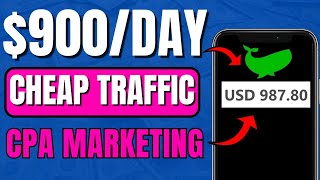

He Showed $900 CPA Payment From Tiny Ad Spend
44sOpens with a real bank payment screenshot and promises a full method, instantly hooking viewers chasing online income.
▶ Play Clip"Delivers a real step-by-step CPA method, but the 'fastest way' claim and $900 intro oversell a fairly standard paid traffic setup."
This video presents a step-by-step method for earning money through CPA (Cost Per Action) marketing using paid traffic. The creator walks through the entire process—from signing up for a CPA network and selecting an offer, to setting up an antidetect browser and proxies, and finally launching a push notification ad campaign on PropellerAds. The tutorial is practical and detailed, aimed at beginners who want to run profitable CPA campaigns with minimal cost.
The creator will show how to make money with CPA marketing using paid traffic, including the tools used, the strategy, and the types of offers promoted, with a step-by-step guide to set up profitable campaigns.
The first step is to sign up at CrackRevenue.com. The creator explains how to register using a Google account or by filling in details, then checking the captcha and clicking 'Create Affiliate Account'.
In the offers section, set the payout type to 'SOI' (single opt-in) to see only offers where users just need to input their details and trigger a pixel. The creator recommends choosing an offer with a strong landing page, such as a remote dating offer.
Copy the affiliate link and preview the landing page to understand how to promote the offer and what angle to use. This also helps in creating ad creatives that match the landing page.
Use GoLogin to change your device fingerprint, making it appear as if you're browsing from a completely new computer. This helps prevent ad accounts from being banned and allows you to create multiple accounts.
In GoLogin, click 'Add Profile', name it (e.g., 'CPA paid ads'), set a time zone, and choose the operating system (Windows, Linux, Android, etc.) to simulate a different device.
To hide your real IP, sign up at ProxyLine.net, deposit a small amount (minimum $10 via USDT TRC20), and order a proxy. Select the country (e.g., United States), number of proxies, and period (e.g., 5 days).
Copy the IP, port, username, and password from the proxy list. In GoLogin, paste the IP and port, choose SOCKS5 proxy type, enter credentials, and click 'Check Proxy' to verify it works.
Sign up as an Advertiser on PropellerAds. After logging in, deposit funds via your preferred payment method. The creator recommends using a demo account for this tutorial.
Name the campaign (e.g., 'dating camp'), create a folder, choose 'Push Notification' ad type and 'Classic Push' format. Set the billing to CPC and paste the CPA affiliate link as the target URL.
Uncheck partner traffic and keep only high-quality inventory traffic. Set the country (e.g., US), recommended CPC ($0.113), EPC ($0.07), and daily/total budget ($30/day, $60 total).
Target computers first since they convert better. Select Windows OS (10, 8, 11) and browsers like Chrome, Opera Mini, Firefox, and Edge. Exclude Windows 7 due to slow performance.
Target only English speakers, use WiFi connection (not 3G), and set proxy filter to 'No proxy' to avoid users with VPNs who can't complete the offer.
For the dating offer, target men aged 30-49 in the dating niche to increase conversion likelihood.
Set a title like 'new message' and description 'Hannah wants to talk to you'. Download a free icon from FlatIcon and use an image from the offer's landing page as the landscape image for the ad.
After uploading the creative and cropping the image, click 'Start Campaign'. The ad will be moderated and then start running, sending traffic to the CPA offer. The creator claims to have earned $900 using this method.
The video provides a complete, actionable walkthrough for setting up a CPA marketing campaign with paid push traffic. By combining a CPA network, antidetect browser, proxies, and a traffic source like PropellerAds, even beginners can start promoting offers and potentially earn money, though results depend on targeting and offer quality.
Which payout type should you select on CrackRevenue to see single opt-in offers?
SOI (single opt-in).
02:11
What does the GoLogin antidetect browser do?
It changes your device fingerprint so you appear to be browsing from a completely different computer.
04:26
Why is a proxy needed when running paid traffic?
To hide your real IP address and make it look like you're a different internet user, preventing account bans.
06:43
What is the minimum deposit amount on ProxyLine and which network is used?
$10, paid via USDT (TRC20 network).
08:16
What are the two proxy types available on ProxyLine that require different ports?
HTTP and SOCKS5.
10:57
What is the recommended CPC for high-quality US traffic in PropellerAds according to the video?
$0.113 (about 1 cent per click).
16:18
Why should you exclude Windows 7 from OS targeting?
Because Windows 7 computers can be slow and fail to load pages, wasting ad money.
17:53
What connection type should be targeted to ensure users can load pages?
WiFi, and exclude 3G light users.
18:51
Why should the proxy filter be set to 'No proxy'?
To prevent people using VPNs from seeing the ads, since they can't complete offers due to mismatched information.
19:04
What audience targeting does the creator suggest for the dating offer?
Men aged 30-49 in the dating niche.
19:30
Where can you get free icons for the ad creative?
From FlatIcon.
20:55
Avoiding Bans with Antidetect Browsers
GoLogin changes your device fingerprint, a critical technique for running multiple ad accounts without being detected.
04:26Combining Fingerprint and Proxy
The video emphasizes that matching a new fingerprint with a different IP is essential to appear as a completely different user.
06:43US Clicks for 1 Cent
High-quality US traffic at $0.113 CPC is highlighted as exceptionally cheap, making CPA offers potentially profitable.
16:18Filtering Out VPN Users
Setting the proxy filter to 'No proxy' ensures only genuinely targeted users see the ad, improving conversion quality.
19:04Launching and Earning
The final step of starting the campaign ties the whole process together, showing how the setup translates into actual traffic and potential income.
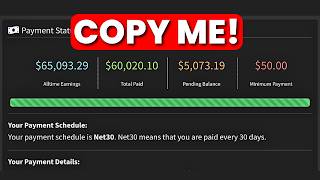
23:01[00:01] through how to get payments like this spending small amounts like this okay so you're going to be spending literally paining to make money like this okay but this so you know this actually repayment sent to me straight to my bank account
[00:15] I'm going to give the second okay so now it's done loading as you can see everything is still entered right here so what I'm going to be doing step by step how to make money with PID traffic using CPA marketing I'm going to
[00:29] show exactly the tools I used the strategy I used the kind of offers I promote so by the time you are done with this video you can go out there and set up profitable CPA campaigns so with all of that said I'm not going to waste your
[00:41] video so the first thing you want to do is to head over to this side right here called crack revenue.com okay so basically this is how the site is going to look like now I know most of you guys are finding it difficult to sign up to
[00:54] videos okay so you don't want to skip this video cuz every part of this video don't understand how to sign up to this site you're not going to be able to get into the site let alone make any money so I suggest you watch the video so you
[01:08] can be able to do this as well okay so the first thing you want to do once you are on crack revenue.com you want to go ahead and click on sign up okay so once redirect you straight to the sign up page now you can sign up with your
[01:20] Google account okay I myself I signed up with my Google account or you can come information now once it comes to the information make sure you fill in your first name here here your last name here after that input your company name okay
[01:33] company name you can skip that or you can use your name as well that also works next you put in your email address here fill in your password and check service after that you want to go ahead and check the capture and click on
[01:46] create affiliate account okay so it's that simple okay you're going to get access to your account so once you have your account you want to log in and once you log in your account is going to look something like this okay so basically
[01:58] it's going to be all zero cuz viously it's just a new account okay so the on The Dating tabs on the bottom left hand corner once you click on that send you here where you can see all the offers that you can promote okay so
[02:11] there are a bunch of offers right here that you can promote around the dating Niche okay so what I want you to do is to go ahead and set the payout type on S oi so what that will do is it's going to provide you with only the single optain
[02:24] offer okay so all they have to do is to go ahead and input their details and is going to fire and once the pixel fires you're going to get paid so what you want to do is to go ahead and find the one that seems most appealing to us
[02:37] okay how do that is very simple you want to go ahead and launch each and every view the site you want to find the offer that has a very strong landing page okay don't want to view the landing pages on this site because they have some
[02:52] sensitive content that YouTube might not like okay but in your case you can go ahead and view any of them okay so the one I normally promot remote is this offer right here okay so I going to go ahead and click on it and it's going to
[03:04] load up okay this offer is converting pretty set I've use it to make a lot of money and you as well can use it to make a lot of money so the first you want to copy the link below here okay once you copy the link go ahead and preview the
[03:17] link okay I might blow it out if it has some sensitive content okay it's not that bad okay so basically this is the landing page of the offer so all they information and you're going to get paid the EPC and the main money right here
[03:32] mind the reason why you want to check out this landing page is cuz you want to look at the landing page so we know exactly how we can promote this offer we know how much we are going to get for a single op we can decide whether or not
[03:47] don't like landing page let's say you don't know how exactly you're going to angle your promotion you can go ahead and find other offers Okay just set back check around and find a good offer for yourself okay but in my case I'm just
[03:59] want to make this video way too long looking at all the offers inside of you want to move over to the second step of this video okay so we're not going to to start running our ad and to start running your ad the first thing I
[04:14] right here called will login okay so if you're a person that runs ad on Facebook YouTube or whatever you understand that getting banned is pretty easy mostly on Facebook and some other platform so what
[04:26] this site does is it actually changes your fingerprint so it's going to seem like you are browsing from a completely different computer and if you've been when you're browsing on a new computer
[04:38] banned on any site okay this site is going to change your fingerprint you can also change your proxy so you look like a completely different internet user that way you can create multiple ads account on the internet so I normally
[04:50] use this to run my ad so I suggest you also use it too so the first thing you download and once you click on download what's going to happen is it's going to send you straight to the operating system it detects okay it detected that
[05:02] I'm on a Windows computer but you can download it for all this operating this devices right here you can launch it on the cloud and also use it there program and install it normal way you install computer programs we all know
[05:16] computer so once you install it you want to launch it and once you launch it's going to look something like this okay so once you're here yours is going to be 100% black all you have to do is to go
[05:28] ahead and click on ADD profile on the top okay so once you click on that load up this browser profile for you okay so it's going to say new browser browser profile now because we are using this to run CPA ads we're going to be
[05:41] this to run CPA ads we're going to be like CPA paid ads something like that so next we can come over here and set our time zone okay so here it says F time going to leave it at this but if you don't want to use your actual time zone
[05:54] you can uncheck this and select your actual time zone okay so I'm just going to use a random time zone in here let's just use Lagos Nigeria so once you set your time zone another tab you want to head over to is your overview okay so
[06:07] this is actually your operating systems okay so this section is where you tell go log the exact browser you want it to seem like you are browsing from so if from your Windows computer you can leave it at this if you want it to seem like
[06:19] you're browsing from Linux you can change that and also you can change it to Android Mac OS and that way it's going to seem like you're bring from a new computer okay but if you want it to see like a Windows computer and you want
[06:31] to actually change the features of the Windows computer you can click on new going to change the Windows computer you're using okay so that's how this works okay now once you change your fingerprint you want to change your proy
[06:43] okay cuz there's no reason for Maring your device fingerprint and using the change your IP address you want to click on your proxies and once you click on that you want to go ahead and get a proxy okay so to get the proxy I
[06:55] normally use this side right here called proxy line.net okay so you want to come an account how you do that is very simple go ahead and click on registration what's going to happen is it's going to send you here okay so you
[07:08] know it's a r when you see the website design okay so go ahead and input your capture and once you fill out the capture you want to go ahead and click they're going to send you your email and your login straight to your email inbox
[07:23] okay to check for that and once you have it go ahead and use it to log in and save your your password the normal way you save password inside of Google okay so once you log in your account is going to look something like this okay so this
[07:36] look like now you might want to go ahead and add a little bit of balance cuz this a paid proxy so to do that you want to click on the money section on the top right here where you can add your
[07:49] literally $10 okay so once you input the money you want to pay right here you the payment method that they have okay so you can pay with all this payment method let's say want to pay with USD for an example you can just check USD
[08:02] right here once you input the amount you want to pay you check the payment method on pay and once you click on pay what that will do is it's going to send you straight to where you can make the payment okay so over here is where we
[08:16] can make the payment okay we can very easily make the payment by copying this wallet address copy this wallet address and you want to send $10 to this usdt wallet address via the trc20 network so once you do that what's going to is
[08:29] you're going to have $10 inside of your account and once you have the $10 you can go ahead and order a proxy now I'm going to show you how to order a proxy click on New Order and once you click on New Order what's going to happen is it's
[08:41] going to send you here where you can select the country you want it to seem like you are browsing from okay so in this case I'm selecting the United choice it doesn't really matter the main goal is to make it seem like are
[08:55] browsing from completely different devices okay you can select your own just want it to seem like you are another person browsing the site that important you do this when you're running ad so in case your account gets
[09:10] bound you can actually create another one that way your business is not stuck okay so I'm selecting the United States and once I select the United States right here I want to scroll all the way down and select how many proxy I want
[09:22] going to put in one and the period I need the proxy is about let's say 5 days so I'm going to leave it on 5 days and now I want to go ahead and pay okay so pay with balance below here and once you click on that you should send you
[09:38] right here we have our proxy on our proxy session now if you want to access your proxy anytime all you have to do is to over onto proxies right here and click on all proxies okay so what that will do is it's going to send you
[09:51] straight to where all your proxies are okay now we can go ahead and copy the information on here and put together a proxy so first off is our IP address here okay once I copy my IP address I want to head back to go login and I want
[10:04] to paste my IP address on here okay so I'm going to go back so once I've copied my IP address I'm going to be needing my port code okay so the port code is below here okay so these are the port codes okay you can use any of these port code
[10:17] copy it so as I clicked on it you see I've copied the port code once I copy the port code I'm going to head back and actually paste my post code right here okay so once I paste my post code I'm going to need my log so let's grab our
[10:30] right here I'm going to click on that and I'm going to copy the username okay and next I'm going to head back paste my username right here and the final them I'm going to be needing is my password okay so let's copy our password right
[10:43] here this our password I'm going to click on that to copy it and keep in mind our proxy is a https and so five proxy so it's important you know that I'm going to go ahead and paste this in here okay so basically we have two parts
[10:57] if you paid attention correctly you notice we had two ports on the proxy side so the two ports is for two different types of proxy okay the first one right here is for hdp and the second one is for sock 5 okay so I'm going to
[11:10] copy the sock 5 proxy port okay cuz I prefer sock 5 proy I'm going to click on that and copy the so five proxy port and replace that here okay and now I'm going to click on this drop down arrow and put in my so five proxy okay so once I put
[11:22] in that my proxy is pretty much ready okay it's pretty simple you copy your IP address right here from this side I showed you how to copy your IP address you copy your IP address you come below here you copy your PO Code okay based on
[11:34] the proxy you need HTTP or so 5 once you copy your port code right here you come okay this is your username and this your password you just copy that and paste that in here your login and your password and after that you want to go
[11:48] ahead and click on check proxy to see if the proxy is active and working so it says us proxy United States New York and our proxy is working and we can can go ahead and use it now we have this Pro
[12:01] profile and once you click on create profile what's going to happen is we're going to have our profile right here okay so now we're going to proceed with wondering well why is this important why are we going through all this
[12:14] complicated process just to run our ad we want to safeguard our business okay we want to make sure that if we are banned from the site we are running ads okay so it's very important you have a backup plan okay so now we have all this
[12:28] and what that will do is it's going to run a computer browser for us that we can use to browse okay so now we want to go ahead and start running our ad and propeller ads all resources are linked in the description so you don't have to
[12:43] okay so once you here you want to go ahead and click on start if you don't click on start what's going to happen is it's going to send you straight to where you can create your account so you just want to set up an account as an
[12:56] guys confuse this but you want to set an account as an Advertiser so once you set to leave it on individual come over here filling your first and last name choose your country so once you choose your country go ahead and input your city
[13:11] phone number after that select the contact you prefer can use telegram or any of these contacts right here input them and come over here and input your details of the contact you selected after that go ahead and basically create
[13:24] an account so I'm just going to go ahead and log in into one of my My Demo account right here and show you exactly how I put together my own profitable campaign step by step okay so once you log in this is how exactly a new account
[13:38] looks like now we can go ahead and add money as a new user by very easily clicking on the money icon they accept different payment method so I'm sure you're going to find your exact payment method on there okay so once you're here
[13:50] ahead and click on create campaign now I'm going to show you exactly how to set close attention as I show you so the first thing you want to do is to go ahead and name your campaign okay so go ahead and name your campaign you can be
[14:03] like dating Camp after that you can go ahead and add a folder right here okay campaign but if you don't already it can be like dating one so once you put in create dating one and just like that you're going to have a new folder right
[14:19] folder it's pretty simple so after that you want to scroll down right here and you see the different ads that these guys have okay they have pop on they also have push notification and all this other traffic right here now what I like
[14:31] animation right here that shows you the kind of AD you are picking so this push ad is sort of like a notification that notification that comes up when you're website it's push ad okay so go ahead
[14:44] push you want to select classic push okay so uncheck this in page push I want to leave it on classic push so once you select the classic push you want to go ahead and select your CPA go okay so I'm going to leave this on CPC C click they
[14:58] just leave it on CPC and after that you want to go ahead and provide your target want to go ahead and provide your target URL now the target URL is actually a CPA affiliate link okay so go ahead and grab that right here okay copy the link once
[15:11] again head back and paste the link right here okay so once we have that want to scroll down so right here they say one V we click each creative two times in 24 hours so we can leave this on two times okay two times is pretty decent let just
[15:24] leave it on two times and next we have traffic sources okay so we want to uncheck partner traffic cuz the high quality traffic is inventory traffic okay if you take a look right here you see the exclusive inventory is a high
[15:36] quality traffic from our exclusive Supply Partners so we want high quality traffic next want to uncheck the medium and low quality traffic below here because we are just testing this okay we are just testing this medium and low
[15:48] don't want to check medium and low quality we just want high quality when really important to understand these things now once you set this you want to go ahead and set your country okay so for the sake of this video we are tting
[16:02] leave it on that next we want to go ahead and set our EPC okay we want to go ahead and set our cost per click okay so take a look at how cheap this cost per click is okay high quality traffic in that matter they say the recommended CPC
[16:18] is 0.113 that's literally 1 cent literally just going to have to pay 1 cent and you're going to get us click and if you run any kind of business online you know that us clicks are pretty expensive and
[16:32] they high quality cuz people want to pay more when they know it's us traffic okay so I'm just going to go ahead and input the recommended cost per click so I'm going to put in 0.113 okay and imp page EPC I'm going to
[16:45] be like 0.07 okay you want to leave it on the recommended CPC reason being that these guys have seen a lot of ads they've run know what works so just leave it on the recommended CPC okay it's pretty cheap
[17:00] I'm sure you can pay 1 cent okay so that's it for the EPC section next is this part okay this part doesn't really matter if you want you can add that so let's just leave it at this so next we have the campaign budget okay how much
[17:12] you want to pay for your campaigns okay so you can literally pay something like 30 bucks per day and over here is your total campaign budget so let's just be like $60 and over here you can do the same thing 30 bucks 60 bucks okay so
[17:26] budget you want to scroll down and right here is your target platform okay you want to Target the OS and all of that okay so we're going to leave this on are more likely to convert more than people that are on their phone okay once
[17:40] you set the target platform you can come over here and tget the OS okay so let's just leave this on Windows and if you want you can also add Chrome OS so let's just leave these two computers now once we have this want to go ahead and select
[17:53] the OS version so I'm going to do Windows 10 Windows 8 also Windows 11 11 we don't want Windows 7 cuz some Windows 7 computers are slow and if a computer is slow they can't load pages and if a computer account load pages they're
[18:08] to waste our ad money we don't want that we want every single scent to count after that we also have our browser section you can select any browser you want let's just do Chrome number one browser and also Opera Mini and let's do
[18:22] memo fire force you can basically select any browser you know okay so ID Chrome Oram m fire force and Microsoft Edge next real important is our language okay we don't want to go ahead and send English offer to a person that don't
[18:37] understand English cuz they're just going to look at our ad and just skip it won't be able to complete the offers cuz they can't understand what's written on the pages so we're going to Target only English next is our connection type so
[18:51] we don't want 3D light because people that use 3G light not sure 3D light can load pages honestly so I'm just going to put in wi so after that you see this important but if you don't understand you might just skip this section okay so
[19:04] if you put this on all traffic what's going to happen is someone that lives in other country that turned their VPN to us are going to start seeing your offers and these kind of people can't fill out this offer that we are promoting reason
[19:16] information their phone number is not from us and their information are from other countries so you want to put this on no proxy okay so people that has their proxy turned on can't access this offer so once you set your proxy you
[19:30] want to scroll all the way down right here and actually start doing your targeting so we're going to be targeting the dating Niche okay cuz this offer is Niche we are targeting men inside of the dating Niche and we want to Target men
[19:45] from 30 to 49 okay so once you target the age you can scroll all the way down and go ahead and add a rule if you want okay is sort of like a workflow rule okay but I'm just going to leave this right here we don't really need a rule
[19:58] the way down okay now I know this might be getting boring cuz this whole campaign thing is kind of long but it's really important you set this all up cuz is going to be showing to the wrong people and the wrong people can't
[20:11] convert which means you're losing money okay so just pay close attention we are you put in your targeting you want to scroll all the way down and right here is where you set your creative okay this is the final part where you set your
[20:25] how to set a creative how you set your Crea is very simple so you can be like new message and come over here put in the bracket one another bracket okay so message okay so next you want to put in like description okay you can be like
[20:42] like description okay you can be like Hannah want to talk to you okay so it says Hanah wants to talk to you okay so once you set this you want to go ahead and add your icon okay so for the icon want to head over to the site right here
[20:55] called flaton these icons are normally free so go ahead and and search for free so go ahead and and search for message message message notifications so here so you can scroll all the way down and choose any image of your choice but
[21:08] in my case I'm going with this one right here I'm going with this one this one one from here I going to go ahead and click on PNG right here and click on free download okay so just go ahead and download this for free you don't have to
[21:21] pay any money so as you can see this is how clean the image looks okay so once propeller ads and you want to go ahead and upload that image right here okay so crop image so basically this is how our ad is going to look like so it says new
[21:36] have our message icon right here so basically once you have your message icon right here you want to go ahead and add your landscape image so that is now to get that image you want to go ahead and grab your affiliate link right
[21:50] here okay so come over here and copy your affiliate link and once you copy and launch it on your browser right here okay so once you launch it on your images right here okay I might blow out the image but this is the first image if
[22:05] another image that's way better right here okay this is another image you can literally refresh and it's going to keep showing you images right here okay so so I'm just going to go ahead and use this exact image right here okay so I'm
[22:20] going to snip this okay and I'm going to save that and once I save the image I'm going to head back okay so now I'm going to go ahead and upload the image I just named okay and I'm going to go ahead and click on crop image okay so basically
[22:33] this is how exactly it's going to look like okay but if you want to duplicate this you can go ahead and duplicate this and create different versions of this ad creative you can come over here click on add another creative and what that will
[22:46] do is it's going to give you an option to add a different picture and the whole your image you want to scroll all the way down and actually check this boss check this you can go ahead and click on start campaign and once you start your
[23:01] moderated and you're immediately going to start getting traffic now keep in mind you're paying literally 0.01 for us high quality clicks okay us
[23:13] and if you're worried about how your campaign is going to look this is how and this is how exactly it's going to look on a Windows device okay it says Hannah wants to talk to you and all of
[23:25] look on the mark and this is how going to look on an inage push if you are paying attention you know that I only selected the windows version okay because this looks way better on a Windows device okay so once you have all
[23:38] of this ready you can very easily go ahead and click on start campaign and campaign is going to start running and you're going to start making money okay so this is how exactly I was able to make the $900 I showed you on my intro
[23:52] so you want to take this video very seriously because it's something that going to wrap this up cuz I've pretty haven't already go ahead and smash the thumbs up button so I know you like this
[24:05] and turn on post notifications so when I post marketing videos like this you be one of the first to get notified so you can start implementing the strategy before it gets saturated now if you don't like the pay traffic or you don't
[24:19] have the budget and all of that you can also go ahead and watch this video where I showed you how to get traffic for 100% free I'm also going to leave a link in fourth or fifth Link in the description so you can go ahead and check it out so
[24:31] talk to every single one of you all in the next video peace
⚡ Saved you 0h 24m reading this? Transcribe any YouTube video for free — no signup needed.