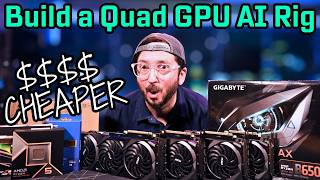

Building a Quad 3090 AI Rig on a Budget
45sShows how to build a powerful local AI system using affordable consumer parts, appealing to AI enthusiasts and builders.
▶ Play Clip"Title accurately promises a quad 3090 build guide; video delivers detailed parts, assembly, benchmarks, and cost analysis."
This guide details building a cost-effective quad RTX 3090 system for local AI inference, focusing on maximizing VRAM per dollar. It covers parts selection, assembly, power considerations, and benchmarks comparing Ollama and Llama.cpp on an AM5 platform, with an alternative AM4 build for savings.
Quad 3090 setup for LLM inference using cost-effective consumer desktop parts, optimizing spend on GPUs.
Gigabyte B650 Eagle AX has four full-width PCIe slots (first at x16, rest at x1), ideal for inference at ~$150.
Ryzen 5 9600X ($190) for DDR5 entry; 64GB GSkill Trident Z5 DDR5-6000 with AMD Expo for easy tuning.
Top slot delivers 75W, others less; use PCIe powered risers or set power limit to 175W for lower slots to avoid issues.
Ollama, LM Studio, Llama.cpp spread workload evenly; vLLM may need server-grade components for best performance.
Llama.cpp outperforms Ollama on prompt processing and text generation; e.g., GPT-OSS 12B: 1785 vs 1022 t/s prompt, 102 vs 125 gen t/s.
Idle ~150W (higher than server due to CPU cooler); water cooling recommended for noise reduction.
B550 board with five full-width slots ($99) allows up to 5 GPUs, saving on RAM/CPU if upgrading from AM4/DDR4.
Quad 3090: $3,650 total, $38.02/GB VRAM (96GB). Quad 3060 12GB: $1,550, $32.29/GB. Always optimize for total VRAM.
Five 3060 12GB: $1,775, $29.58/GB (60GB VRAM). Cheaper than server builds due to high DDR4 ECC prices.
This quad 3090 build offers excellent VRAM per dollar for local LLM inference, with Llama.cpp providing better performance than Ollama. The AM4 alternative further reduces costs, making it a compelling option compared to server setups.
What is the recommended power limit for lower PCIe slots in a quad 3090 build?
175W
08:09
Which motherboard has five full-width PCIe slots?
B550 (AM4) motherboard
18:36
What is the idle power consumption of the quad 3090 AM5 build?
About 150 watts
15:07
Which runtime showed better prompt processing speed in benchmarks?
Llama.cpp
12:32
What is the total system cost for a quad 3090 build?
$3,650
27:53
What is the price per GB of VRAM for a quad 3090 setup?
$38.02
28:10
What is the recommended RAM speed for the AM5 build?
DDR5-6000 with AMD Expo
03:45
Which GPU generation is recommended as the starting point for cost-effective builds?
Ampere (e.g., RTX 3090)
30:14
What is the total VRAM for a quad 3060 12GB setup?
48 GB
27:47
What is the main performance bottleneck when mixing different GPU models?
The slowest GPU dictates overall performance.
27:15
Cost-Effective AI Build
Demonstrates how to maximize VRAM per dollar using consumer parts, a key insight for budget-conscious AI enthusiasts.
Power Delivery Workaround
Explains how to overcome limited PCIe slot power by using powered risers or setting power limits, a practical technique for multi-GPU setups.
06:12Llama.cpp Outperforms Ollama
Benchmark data shows Llama.cpp significantly faster for prompt processing and text generation, guiding software choice.
12:32AM4 Alternative with 5 Slots
Highlights a $99 B550 board with five PCIe slots, offering a cheaper upgrade path for existing AM4 users.
18:365-GPU Setup Under $30/GB
Five 3060 12GB cards achieve $29.58/GB VRAM, showcasing extreme cost efficiency for large VRAM pools.
28:54[00:00] Looking to build a local AI powerhouse
[00:02] but don't know where to start? Then this
[00:04] is going to be a great guide for you as
[00:05] we put together a quad GPU setup today
[00:08] that really does have some excellent
[00:10] performance and is using some great
[00:12] cost-effective consumer desktop parts.
[00:14] Especially if you're looking at running
[00:15] multiple GPUs, you want to optimize what
[00:18] you're spending so you spend the most
[00:20] money on GPUs and not the rest of the
[00:22] system. If you're looking for LLM
[00:25] inference, this is going to be a great
[00:27] build for you. We're going to be able to
[00:28] run four 3090s on our AM5 platform. I'm
[00:33] going to show you some benchmarks. We're
[00:34] going to talk about the parts and
[00:36] components, and I'm also going to
[00:37] present you an alternative if you
[00:39] already have an AM4 system and some DDR4
[00:42] laying around that can save you a ton of
[00:44] money. Let's get started. The system
[00:46] we're putting together is going to be
[00:47] based off of a B650 Eagle AX. And if you
[00:51] are a owner of a AM4 platform, I'm also
[00:53] going to show you the B550, a really
[00:55] good option to save some cost.
[00:57] Additionally, of course, we're going to
[00:58] be using our Quad 3090s. These still are
[01:01] for the performance you get some of the
[01:03] best bang for the buck that you can get
[01:05] out there. We're going to look at all
[01:06] this on a cost per gigabyte sheet, and
[01:08] that will help illustrate that pretty
[01:10] well. As far as the rest of the
[01:12] components, I picked up during a Prime
[01:14] special, a Samsung EVO Plus 990. That's
[01:17] a 1 TB NVME we'll be throwing in here.
[01:20] We've also got our AMD 9600X.
[01:24] One of the cheapest ways to get into the
[01:25] DDR5 class systems. The RAM that we're
[01:27] going to be using is some GSkill Trident
[01:29] Z5. All of this is going to be going
[01:32] into our GPU rig frame. The first thing
[01:35] that we're going to do is check out the
[01:36] motherboard. This is the Gigabyte B650
[01:38] Eagle AX. And the reason this
[01:42] motherboard is one to consider strongly
[01:46] is the fact that it has
[01:54] four PCIe full width slots. That's
[01:57] pretty cool and very unusual in a AMD
[02:01] desktop system. Now only the first one
[02:04] is going to operate at the full x16. The
[02:07] rest are going to operate at X1 for
[02:10] inference work. That's fine. And this
[02:12] also allows you to have a lead GPU. And
[02:14] these GPUs here would not be useful for
[02:17] something like doing video generation
[02:19] where you need full bandwidth, but this
[02:21] one could still perform very well.
[02:23] You've got pretty much your standard
[02:24] everything else on it. It's not really a
[02:27] super fancy motherboard, but in the
[02:30] 150ish price range, it is also
[02:33] rather affordable. And we're going to be
[02:35] populating this with our Ryzen 5 9600X
[02:38] for about $190 and $195 does allow us to
[02:42] get all the benefits that you're going
[02:44] to get with your 9000 series and one of
[02:46] the cheapest prices that you can
[03:14] Next, we're going to go ahead and pull
[03:16] out our Samsung 990 EVO Plus.
[03:20] Now, this will negotiate 5 at 2 or 4x4.
[03:25] It is a cheap, but for our purposes,
[03:28] it's going to be just fine in VME.
[03:45] So, the RAM that I've got here is some
[03:47] Gskill. This is 6000 speed, DDR5, and
[03:51] it's 64 GB of it. Now,
[03:54] I don't think that it's wildly important
[03:56] to get the fastest RAM out there. I
[03:58] would recommend not spending money
[04:00] trying to do that. Instead, go for
[04:02] volume, always, and your RAM. Make sure
[04:04] it does have AMD Expo, though, on it so
[04:06] that you can just really quickly click
[04:09] click and have everything tuned and set
[04:11] so you can get optimal performance. And
[04:14] I've got links to all this stuff on the
[04:16] website with the written article with
[04:18] highresolution photography of all of
[04:20] these parts and components which should
[04:21] help you if you are putting this
[04:23] together. And so we want to populate
[04:25] this in A2 and B2 for the slots.
[04:44] And we're going to put just a little
[04:47] P-s size drop right in the center. So,
[04:50] this is a good piece of information for
[04:52] you. If you're putting a desktop
[04:54] motherboard, which has the CPU kind of
[04:57] centered a little bit further this
[04:58] direction into this frame, it's going to
[05:02] absolutely be different than if you're
[05:04] using a gigantic server motherboard like
[05:06] this, like we had used for the quad rig
[05:08] in the past, which had all the PCIe
[05:11] separated much further down this way and
[05:13] the CPU situated up this way. So, if you
[05:16] put this in, you can see that yeah, a
[05:18] tower CPU like an SP3 cooler could go
[05:22] here and blow out that direction. But
[05:24] for this, we needed a low profile
[05:26] cooler. I've got this one temporarily in
[05:28] here. It's going to be fine for now.
[05:30] It's a 65 W CPU, so it's not really
[05:33] going to generate a ton of heat. And
[05:35] I've got a ordered one that I'll be
[05:37] replacing this one with. You can find
[05:39] the link to that in the description
[05:40] below. All right.
[05:52] And there we go. And it's good to have a
[05:55] little extra power switch here.
[06:00] Since we're not in a real case, this
[06:01] will make it easy to turn it on and off.
[06:12] And both of those I'll gather up and put
[06:15] underneath there like that. When you're
[06:16] looking at your PCIe power delivery,
[06:20] this is an important consideration when
[06:22] you're using a desktop component. This
[06:24] motherboard delivers the full 75 watts
[06:26] to this top slot, but it does not
[06:28] deliver the full 75 watts to the
[06:30] remaining three slots. So, this can
[06:33] cause a problem for the power delivery
[06:35] to really powerful GPUs like 3090s.
[06:39] There are some ways around this. One of
[06:41] those ways is to use PCIe powered
[06:44] risers. Now, this is an option that if
[06:46] you do end up going that route, you
[06:48] probably want to have high-owered GPUs
[06:51] in the first place to necessitate it.
[06:53] And you also want to get ones that have
[06:54] six pin or moax power. And you do not
[06:57] want to get the ones that have the SATA
[06:59] power to them as well. You can also
[07:02] overcome this by just using some
[07:04] traditional methods that are going to
[07:05] shard the model for the LLM across the
[07:08] GPUs and distribute the workload evenly
[07:11] amongst the GPUs. This if you are
[07:13] looking at a quad GPU setup like this
[07:16] effectively means that you get about a
[07:18] quarter of the full utilization. So
[07:21] you're talking about 350 W GPUs. Each
[07:23] one of those only able to run at a
[07:25] quarter its performance. This does not
[07:27] hold true in certain LLM runners like
[07:30] VLM which are built to maximize every
[07:33] last little ounce of performance out of
[07:35] a system with great diminishing returns
[07:37] as you get approaching the edges. So if
[07:40] you are thinking of using VLM, you
[07:42] definitely would probably want to
[07:43] consider you're going to want a lot of
[07:45] RAM to augment your system and you're
[07:47] also going to definitely probably want
[07:49] to consider going towards a server grade
[07:51] component. If you are however only
[07:53] looking at O Lama, LM Studio and Llama
[07:56] C++, this is a great option for you.
[07:59] They will actually spread out the
[08:01] workload very evenly and this can be
[08:04] overcome with a generous power level
[08:06] applied. So for our GPUs here, if we
[08:09] apply a power limit of about 175 on the
[08:12] remaining three slots that are the lower
[08:14] ones, we can overcome any power outage
[08:16] potential. This also does indicate that
[08:19] if you are looking for a really good
[08:21] cost performance ratio, finding GPUs
[08:24] that are in the 175 watt category,
[08:26] things like a 5060Ti could be a great
[08:29] option as well. So for inference
[08:32] workloads, you won't be pushing your
[08:34] GPUs at 100% power utilization. Whatever
[08:37] the number of GPUs you have is, it'll
[08:39] actually usually be divided by that
[08:41] number. So in this instance, divided by
[08:43] four. And if you look at the 350 watt
[08:46] TDP that these typically have, it's
[08:48] going to be if you set it to 225 for a
[08:51] power limit or 200, perfectly fine to
[08:53] run off of a single cable. I would
[08:56] definitely say if you want to run
[08:57] multiple GPUs that are high power and
[09:00] you want to do things like image
[09:02] generation, training, or other tasks on
[09:05] them, make sure you have two independent
[09:07] connectors going to each one of these.
[09:10] But if you're just doing inference like
[09:12] we're going to set this up for, you
[09:13] don't necessarily have to worry about
[09:15] that because like I mentioned, the power
[09:17] level will be divided by however many
[09:18] GPUs you've got. Let's get these wired
[09:20] up.
[09:22] So, I've got really high quality risers
[09:24] here. These would work for most of the
[09:27] use cases that you have out there. They
[09:28] are gen fourspec. There are of course
[09:30] gen 5-spec ones out there as well, but I
[09:33] would urge you to if you are looking at
[09:35] PCIe 3x1, consider that you could go
[09:38] with much lesser risers in that scenario
[09:41] and be okay. So, for these it'll be
[09:43] fine. I'm just using them because I've
[09:45] got them here handy and they're going to
[09:47] demonstrate really well. But definitely
[09:49] check the description below for some
[09:50] links to some ideas for different ones
[09:52] that are significantly less expensive
[09:55] than these. These are pretty expensive
[09:57] still. So, let's get these separated
[09:59] out. But I got two long ones and two
[10:00] short ones. And so we're going to have
[10:03] short one, short one, long one, long one
[10:05] as far as the arrangement. So we'll get
[10:08] that first GPU plugged up here.
[10:40] looking nice.
[10:43] Very nice. Very nice. And you do have
[10:46] two M.2s. Now, sometimes these are
[10:48] shared with some of the PCIe slots, so
[10:50] I'm not sure if these are going to stay
[10:52] functional. Really, all that we've got
[10:53] left to do is power it up and get the
[10:56] system installed, do some benchmarking,
[10:58] and then we'll go through some of the
[11:00] components. Like I mentioned, if you do
[11:01] have AM4 and DDR4 laying around, you can
[11:05] go substantially cheaper. We're also
[11:07] going to get wattage on this while we're
[11:09] running it so that we can have a pretty
[11:11] good idea about what the operating
[11:13] expenses look like.
[11:16] And power on.
[11:21] Okay. So, go ahead, hit yes. So, you can
[11:24] see we've got our 64 gigs of RAM. We've
[11:26] got our R5 9600X. Got our 4800. It's
[11:30] reading as and that's because our X expo
[11:33] is not set. With the Expo set here, we
[11:35] should be okay. You can see here we've
[11:37] got PCIe 4 at 16, at 1, at 1, and at 1.
[11:43] If you haven't taken a chance yet,
[11:44] follow along with the guides on getting
[11:46] set up with Open Web UI, Olama, and
[11:48] Llama C++. Let's jump in and start doing
[11:51] some benchmarks. We have our Llama C++
[11:53] benchmarks in and we're going to run our
[11:56] Olama benchmarks on the system and this
[11:58] will give us a really good idea of on
[12:00] the same machine the difference in
[12:02] performance between using O Lama and
[12:04] Llama C++. And I urge you to follow
[12:06] along with some of the guides on the
[12:08] website to get yourself up and running
[12:10] with at least Llama C++.
[12:13] And we'll run that against GPTOSS 12B.
[12:22] And my script here runs three
[12:24] iterations. So you can get a pretty good
[12:27] reading of that.
[12:32] And we got 1785 prompt processing eval
[12:36] speed tokens per second and 102.20
[12:39] generation tokens per second. So, I've
[12:42] already got these things filled in, and
[12:44] I wanted to talk about the results of
[12:46] this so that we could see really what
[12:48] this looks like as far as a head-to-head
[12:50] comparison on the same machine between
[12:52] Olama and Llama C++. And I've got some
[12:56] charts that I think will help illustrate
[12:57] that pretty well. Click that really
[12:59] quick. Sorry for the uh insane
[13:02] brightness of this. So, our prop
[13:04] processing up here, our text generation
[13:06] down here, and our Olama Ryzen system
[13:10] versus the Llama C++ on the same Ryzen
[13:13] system. You can see that the prompt
[13:15] processing is faster across the board.
[13:18] Yet, there are some that are going to be
[13:20] significantly faster. Uh, definitely if
[13:22] you start looking at Quinn 3, it's a
[13:24] little bit tighter. Also, Gemma 3, a
[13:26] little bit tighter. But you can see that
[13:28] definitely when you get to GPTOSS, there
[13:31] are big gaps. So if you are interested
[13:34] in running GPTOSS 20B or 12B, Llama C++
[13:38] really will extra give you some extra
[13:40] tokens per second. Now on text
[13:42] generation, you can see the Quinn 3 over
[13:44] here, the A3B 32B. Pretty good results
[13:48] that we got there. 120 on the Ryzen rig
[13:51] uh for Olama, but really good 132 on
[13:54] Llama C++. Now I would say Gemma 3 very
[14:00] dense, very hard to process. So going
[14:02] fast with Gemma 3 is just very difficult
[14:05] to do with most of the runtimes out
[14:07] there and 26 tokens versus 26.5 tokens
[14:11] on the token generation side. So, not a
[14:14] huge difference there, not statistically
[14:16] significant, but once again, you get
[14:17] over to the GPT OSS's 136 to 178, like a
[14:22] massive difference. And also 100 to 125.
[14:27] Huge difference. So, if you're
[14:29] interested in running the script that
[14:31] I've got here, drop a comment down
[14:33] below. And I'm going to put this up. I
[14:35] vibe coded this. So, if it blows up, not
[14:37] on me. Uh, but definitely I'm going to
[14:39] release this somewhere so you guys can
[14:41] run this also open source it. Open vibe
[14:43] it. That should be what we call it. I
[14:45] think there's a pretty good reason to go
[14:47] with llama C++. I think I've made the
[14:50] case here. Now, let's compare just one
[14:53] other thing. So, comparing the Epic rig
[14:56] with a Lama to Llama C++, which is of
[14:59] course faster on the Ryzen rig. Now, you
[15:02] can see these are huge spreads on the
[15:06] prompt processing. And I would say don't
[15:08] look at this one and infer anything from
[15:11] it. This is actually I think not the
[15:14] right amount of prompt processing
[15:16] tokens. So I wanted to be consistent
[15:18] between the two and I'll need to go back
[15:19] and rerun this test uh with the tools
[15:23] that I have created here. But definitely
[15:25] on the text generation side I think you
[15:27] actually have a very good result that is
[15:30] accurate and 104 versus 132. Definitely
[15:34] there we see the Ryzen rig beating out
[15:36] the epic rig. Now, Llama C++ needs to be
[15:40] head-to-head with Llama C++ on the
[15:42] different rig. And as soon as I take
[15:44] this apart, I will definitely be putting
[15:45] that together. And I've got a huge rig
[15:47] that I'm building that is like, this is
[15:49] going to be crazy. Definitely make sure
[15:50] you like and subscribe. 25.4 to 26.5.
[15:53] Again, Gemma 3 27B. I use it all the
[15:56] time. Definitely a very hard model to
[15:59] run and process. GPT OSS 20B50ish.
[16:04] 50. Yeah. Yeah. This is huge. So
[16:07] definitely again the Ryzen rig kills
[16:10] because of that single thread
[16:12] performance and that does give you a
[16:14] distinct advantage over something like a
[16:15] 7702 and on the Lama Epic rig 92.8
[16:20] versus 125. So, while you can get lots
[16:24] of cheaper RAM and run bigger models,
[16:27] which is actually a benefit in and of
[16:28] itself that is not to be trivial, uh,
[16:32] you know, it it's worth it while do it.
[16:34] And also, you get all those great power
[16:36] delivery features that you have with
[16:38] wonderful, very well-gineered
[16:40] motherboards versus desktop class. Uh,
[16:44] you also at the same time don't get the
[16:46] single thread performance that you get
[16:48] with something like a Ryzen. So, it's
[16:50] not really surprising to me to see this
[16:53] system be quite a performer. And I
[16:56] expected that because of the fact that
[16:57] it has a very good single thread speed,
[17:00] better than the 7702. And as we saw in
[17:04] prior testing, it definitely has an
[17:06] impact. So, the power utilization on
[17:08] this system in a very untuned state
[17:10] here, I've done literally nothing to try
[17:12] to tame this is about 150 watts idle.
[17:16] That's actually higher than the server
[17:18] setup. That's interesting, right?
[17:19] Especially since you've got a BMC and a
[17:22] lot more sticks of RAM on there. If
[17:24] you're looking at this fan, this uh CPU
[17:26] cooler is going to be replaced. A much
[17:29] better option than this is going to be
[17:31] on the way. And it should lower the
[17:33] noise. Hopefully lowers the temperatures
[17:35] also so the fan doesn't have to run at
[17:37] an audible level the entire time.
[17:39] Certainly having a fan wall along the
[17:41] back of it that is blowing air into it
[17:44] so that the motherboard does stay nice
[17:46] and chill isn't a bad option to do
[17:48] either. I've got that set up with those
[17:50] little Silent X orange kind of well
[17:52] yellow fans. And so definitely this
[17:54] isn't as quiet as when I had the water
[17:57] cooler on just the server motherboard.
[17:59] So I would say if you did have a water
[18:01] cooler, the prior mounting guide that
[18:03] I've got linked on this page definitely
[18:06] should be something that you check out.
[18:07] I've got some modifications you can make
[18:09] that allow you to fit extra-lar GPUs and
[18:12] also fit in a water cooler at the top.
[18:14] Pretty cool, very silent, and it was
[18:17] definitely a bit overkill, but keeping
[18:19] the noise down is a big thing to me. So,
[18:21] if it's a big thing to you, also, you
[18:23] might want to consider that. If you're
[18:25] looking at whether or not you would be
[18:27] able to fit five cards onto here, maybe
[18:29] you've asked yourself that. Let me show
[18:31] you something that is a little bit
[18:32] crazy. This is the B550. Now, I
[18:36] mentioned this kind of early on. This is
[18:39] the B650. This is a newer build. This is
[18:42] DDR5. If you have DDR4, if you've got an
[18:45] AM4 CPU, I've got an AM4 CPU that I'm
[18:49] going to be putting onto this, and it's
[18:50] got DDR4, and it's sitting over there
[18:53] right now, but this is such a cool
[18:54] board. I don't know how I missed this
[18:56] board up until now, but this, as a
[18:58] consumer board, might be one of the
[19:01] coolest boards I've ever seen. Why?
[19:04] because it has five freaking full wide
[19:07] slots. Freaking awesome. Now, I'm going
[19:10] to put a 5950X on it and it's going to
[19:13] go into a server case. One of the really
[19:15] cool things about this also is this
[19:17] allows you to have the opportunity to
[19:19] get really high performance networking
[19:21] on a desktop class system. Something
[19:23] that's actually pretty hard to do. Would
[19:24] that take and necessitate one of the
[19:26] slots, probably the top slot, if you
[19:29] really wanted to go fast? Well, it
[19:30] would. But even if you look at the speed
[19:32] you could attain with a dedicated
[19:34] network card on any one of these other
[19:36] slots that are going to operate at a 1x,
[19:39] you'd be able to easily run 10 gigabit
[19:40] networking. Pretty cool for a $99
[19:44] motherboard. So if you've got an AM4
[19:46] system, this is probably a good way to
[19:48] consider. It also saves a lot of cost on
[19:51] new RAM and of course new CPU, but it's
[19:53] also a cheaper motherboard of course at
[19:55] $99 versus about $150. Not that huge of
[19:58] a difference, but five slots, that
[20:00] really is actually pretty cool. So, I
[20:03] would say that one is definitely a
[20:06] strong consideration if you have an AM4
[20:08] system. Right now, if you had to go out
[20:10] and buy DDR4, it's almost the same price
[20:13] as DDR5. Like, the prices on RAM right
[20:16] now are kind of crazy. So, that is kind
[20:18] of me helping you. And as this video
[20:20] ages, it probably isn't going to stay
[20:22] that way more than like six months is my
[20:24] guess. But probably the next six months
[20:25] is going to be a tight period of time
[20:27] for buying system RAM. So pretty cool
[20:30] consideration, good alternatives. I like
[20:32] to try to save people money. You can
[20:34] find links to that on the digital
[20:35] spaceport.com website. Links to that
[20:37] article in the description below and
[20:39] pinned comment. So, while I've got the
[20:42] 3090s in here, certainly this
[20:45] motherboard, in my opinion, has kind of
[20:47] a good use case for having a strong lead
[20:50] GPU that would be good for doing things
[20:52] like image generation, video generation.
[20:54] Most of that's going to run best on just
[20:55] a single GPU. So, having a 24 GB GPU, if
[20:59] you can find one, is going to yield the
[21:00] best that you can get. It will also give
[21:02] you better quality because you need
[21:05] really 24 GB to get the best out of what
[21:08] is available to run. Honestly, you need
[21:10] 80. But getting a GPU with 80 GB of
[21:12] VRAMm in it is insanely expensive, like
[21:15] way more than all of this. Now, the
[21:17] remaining three GPUs in a 4GPU kind of
[21:20] setup, which again, that's how many GPUs
[21:22] I've got cuz I've got a freakish amount
[21:24] of GPUs, but you could definitely start
[21:26] with just one or two in a very similar
[21:28] system to this and grow it throughout
[21:29] time. The AMD 960 XT16 GB and also the
[21:34] 5060Ti, a pretty decent option. We're
[21:37] going to look at these in the comparison
[21:38] sheet and what the prices would look
[21:40] like for doing a quad rig setup of that
[21:42] versus 3090s. And also I'm going to put
[21:45] the 3060 12 GB in surprising one around
[21:47] that. So I think you definitely want to
[21:49] stay tuned. We're going to jump into
[21:51] that sheet here and take a look at some
[21:53] of the performance that you get for the
[21:55] dollars that you spend. We'll start off
[21:58] looking at the AM5 build. That is the
[22:01] one that we put together here. And you
[22:03] can see definitely the DDR 64 GB of DDR5
[22:07] not cheap as well. You've got a bunch of
[22:10] other components. And like I mentioned,
[22:12] check out that AM4 build. Uh we'll get
[22:14] to that sheet here after this. So, as of
[22:17] the time of me putting this together,
[22:20] we're looking at right around $1,156
[22:23] just for the base system components.
[22:25] Now, this gets interesting if you look
[22:27] at a dual GPU and quad GPU option setup
[22:31] for this rig. So, we'll start with the
[22:33] 3060s. And with two of those at about
[22:36] 225 each, you're going to have 24 GB of
[22:39] VRAM. Total system cost of $166.
[22:43] And your price per GB of VRAM is $66.92.
[22:47] Might not seem bad, but just keep
[22:49] watching. Now, as you move on to your 16
[22:52] GB cards here, your third 960 XT 16 GB
[22:56] and your 5060 Ti 16 GB, you do bring in
[23:01] a bit more for the Nvidia. So, that's
[23:03] $1,896
[23:04] and $2,16 respectively, but the price
[23:08] per gigabyte of VRAM is actually sub $60
[23:11] here for the 9060 XT at $59.25.
[23:17] The Nvidia is $63.
[23:20] The surpriser for a lot of people might
[23:22] be the cost per gigabyte of VRAM for 24
[23:26] gigabyte GPUs. And the reason why is
[23:28] their cost per gigabyte per GPU is low.
[23:31] And that is because you see $750, that's
[23:34] about $1,500 for two of them. 48 total
[23:37] gigabytes of VRAM. And there is a lot of
[23:40] additional benefits to having more and
[23:42] more VRAM. So definitely consider this.
[23:45] The system cost overall does go up to
[23:47] 26.56, but the price per gigabyte of
[23:49] VRAM goes down to 5533.
[23:52] And when you add additional GPUs on each
[23:55] incremental add addition uh kind of
[23:58] helps defay some of the cost. It's the
[24:01] most optimal to get as many GPUs writing
[24:04] on a single system as possible. So if we
[24:07] go in the same order again, you'll see
[24:09] that the totals for the VRAMm double. So
[24:12] we're at 48,64 and 96 as well. The costs
[24:16] go up and that is 256
[24:20] all the way up to 4156.
[24:22] However, the price per gigabyte of VRAM
[24:25] drops quite a bit. So all the way down
[24:27] to 4238,
[24:29] 4119,
[24:31] 44.97, and 4329.
[24:34] So there is a lot of very good
[24:36] considerations that you want to make if
[24:38] you are looking the number of GPUs and
[24:40] the price per gigabyte because the
[24:42] gigabytes of VRAM is what you should
[24:44] always optimize for. I get this question
[24:47] definitely the most frequent question on
[24:48] the channel. And yes, you always want to
[24:51] go for more gigabytes of VRAM regardless
[24:54] if you go for a single GPU. Always
[24:57] optimize for as many gigabytes as
[24:59] possible and also never go under uh 12.
[25:03] really you don't want an 8 GB GPU. It's
[25:05] it's not going to be a good performer
[25:06] for you for the most part. Now, let's
[25:08] move on to the I think kind of more
[25:10] exciting option, which is you happen to
[25:13] have an DDR4 and AM5 CPU laying around.
[25:17] I think this is cool because it lowers
[25:19] that cost. And I mean, you know, there's
[25:21] a lot of these other components you
[25:22] probably could have laying around also
[25:24] is my guess. You're looking at like
[25:26] $650.
[25:28] That's pretty affordable, honestly. So,
[25:31] if you especially if you just need the
[25:33] motherboard, if you look at the cost per
[25:35] gigabyte of VRAM, we'll look at dual
[25:38] quad and since it actually has five
[25:40] slots, we'll actually take a look at
[25:41] five also. You you're looking at $45.83
[25:46] for the 3060 all the way down to $4479
[25:51] for the 3090. The 5060Ti
[25:55] is 4719 and the 960 XT 16 GB setup with
[26:01] two of those comes out to 4344.
[26:04] So you edge out a bit on the cost per
[26:07] gigabyte of VRAM by going with the 9060
[26:10] XT. However, I think it's very close and
[26:13] a very compelling argument to also
[26:14] consider a 3090. The interesting one is
[26:17] the 5060 is probably one of the weaker
[26:21] card recommendations that you would be
[26:23] looking at in most of these setups if
[26:25] you wanted to scale out. I would also
[26:27] say you're definitely with 442 GB of
[26:31] performance limiting system bandwidth,
[26:34] which that's always going to be the big
[26:35] impactor. That's, you know, same as with
[26:37] the DGX Spark, same with framework. I
[26:39] mean, it the system bandwidth is always
[26:41] going to be your dictator of where
[26:43] you're going to run into slowdown. And I
[26:46] mean the 5060 Ti 442 gigabytes per
[26:49] second, that's actually pretty
[26:51] respectable compared to what you get
[26:53] with the 9060 XT, which I believe is 322
[26:58] GB per second. Quite a big difference.
[27:01] So as you add GPUs, your speed will not
[27:05] increase the more GPUs you add unless
[27:07] you are doing a specific type of
[27:08] parallelism. But most of the time you
[27:11] want to run the bigger models. So it's
[27:12] going to shard the model across. And as
[27:15] it does that, it's going to
[27:17] unfortunately be limited to the
[27:19] performance of the GPU that is the
[27:21] slowest. So if you tossed a bunch of
[27:24] 3090s into a rig and then you tossed one
[27:26] 3060, you're going to be going pretty,
[27:30] you know, you're not going to like
[27:31] yourself because that 3060 is going to
[27:32] be your performance dictator. So, I
[27:35] would urge you to also consider that if
[27:37] you get into weird mixtures of GPUs that
[27:39] are too weird, sometimes it can have
[27:42] negative impacts. Looking at the quad
[27:44] GPU setup, you have total system costs
[27:47] ranging from $1,550
[27:49] for the four 3060s all the way up to
[27:53] 3650 for four 3090s. So, 96 GB of total
[27:59] system VRAM, 3650. That's really I think
[28:03] pretty compellingly. I mean that's
[28:05] that's good. And your price per gigabyte
[28:08] of VRAM there is 3229
[28:10] 3328
[28:12] 3703
[28:13] and all the way up to $382.
[28:18] If you're looking at your 5GPU option, I
[28:20] mean, you know, why not? you definitely
[28:23] can see that you, you know, run into 120
[28:27] potentially gigabytes of total system
[28:28] VRAM if you have 24 GB GPUs for $4,400
[28:33] of cost. And that comes out to $36.67
[28:37] price per gigabyte. And I think probably
[28:40] an interesting one here also is the 3060
[28:42] 12 GB gets you all the way up to 60 GB
[28:45] of total system VRAM. And at a cost of
[28:48] $1,775,
[28:50] that comes down to sub $30. That's
[28:52] $29.58.
[28:54] So a 4 + one good GPU setup could be
[28:59] compelling. Uh those kind of things I
[29:02] think are pretty interesting. And I
[29:04] think this is cheaper by a pretty good
[29:07] margin than what you can get for servers
[29:09] right now. mainly because of the
[29:11] insanity that is DDR4 ECC pricing which
[29:15] has gone through the roof recently.
[29:18] Yeah, definitely not going to get that
[29:20] setup for 3650 looking closer to about
[29:25] 5200 525. Uh that's getting lucky with
[29:29] some RAM also. So, when you're
[29:31] considering alternatives, I would
[29:33] definitely say this is a fairly decent
[29:35] one to consider, especially given that
[29:37] you have a variety of price points based
[29:38] upon how much VRAM and which type of
[29:40] GPUs you're putting in. You can also go
[29:42] all the way back to Pascal. Technically,
[29:44] you can go back to Maxwell, but both of
[29:46] these card generations are at the cusp
[29:48] or being retired from the driver
[29:50] support. This isn't actually as bad as
[29:53] it might sound, but definitely moving
[29:55] forward, new features that come out may
[29:57] not be supported on those cards. Those
[29:59] GPUs also sometimes don't get very good
[30:01] performance for the watts that they're
[30:02] using. The Volulta generation cards are
[30:05] just very hard to find. So, I don't
[30:07] think you're going to have a great luck
[30:09] finding any of those. They just
[30:10] seemingly are not out there in very
[30:12] significant numbers. Starting with the
[30:14] Amper lineup is pretty much where I
[30:16] think most people have the best it makes
[30:19] sense to get in. So, that's my take on
[30:22] it. And certainly do consider you don't
[30:24] have to go 3090s. you could put a
[30:26] different GPU in there just as easily.
[30:29] And so, we've covered a lot in this
[30:31] absolutely insane build, setup,
[30:34] benchmark, and valuation deep dive into
[30:37] building for newbies. So, I hope you've
[30:40] enjoyed this. And I know it's a lot of
[30:42] information. Don't feel like you can't
[30:44] go back and hit rewatch. And thanks for
[30:46] all the shares, thanks for all the
[30:47] likes, and a huge shout out and very
[30:50] much grateful to everybody who is a
[30:52] channel member. Also, the people that
[30:54] buy me a coffee. You guys really do make
[30:56] all of this possible. Everybody have a
[30:58] great day. Let me know what you think
[30:59] and I will check you out next time.
⚡ Saved you 0h 31m reading this? Transcribe any YouTube video for free — no signup needed.