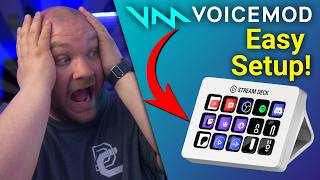
One Button for Every Reaction
38sShows how Voicemod+Stream Deck eliminates awkward pauses, instantly appealing to streamers.
▶ Play Clip Voicemod: Real-Time AI Voice Changer & Soundboard
"The title accurately reflects the tutorial content, which delivers exactly what it promises: a setup guide for Voicemod and Stream Deck."
This tutorial shows streamers and content creators how to integrate Voicemod with the Elgato Stream Deck for instant voice changes, sound effects, and audio controls. The video covers installation, customization, and bonus tips like pinning items and using the mobile app.
Install Voicemod from voicemod.net, then add the Voicemod plugin from the Stream Deck marketplace.
Drag and drop voice changers, soundboard effects, and controls (e.g., mic mute, push-to-talk) onto Stream Deck buttons.
Download pre-made profiles from the Elgato marketplace and import them into Stream Deck software.
Pin frequently used items so they stay visible across multiple Stream Deck pages.
Use the Stream Deck mobile app (Android/iOS) for a free trial with six tiles.
Where can you download pre-made Voicemod profiles for Stream Deck?
From the Elgato marketplace or by importing profiles into the Stream Deck software.
3:03
How can you try Stream Deck without buying the hardware?
Download the Stream Deck mobile app (Android/iOS) to get six free tiles.
5:14
What does pinning items on the Stream Deck do?
Pinning items makes them persistent across multiple pages on the Stream Deck.
4:03
What are the three categories of actions you can drag onto the Stream Deck from Voicemod?
Voicemod, custom, and soundboard.
1:16
List at least four control actions available in the Voicemod Stream Deck plugin.
Stop all sounds, push to talk, mic mute, turn off background effects, turn on/off voice changer, instant sensor beep, hear myself on/off.
2:24
Pinning Items on Stream Deck
Explains how to keep frequently used actions accessible across multiple pages, improving workflow efficiency.
4:03Stream Deck Mobile App as a Starter
Offers a low-cost entry point for creators to test the integration before buying hardware.
5:14Control Meets Creativity
Summarizes the core value proposition: removing friction for instant, reactive content creation.
5:35[00:00] What if every reaction,
[00:06] every fail,
[00:08] every time I land and just get
[00:09] completely crapped on, every perfectly
[00:12] timed joke
[00:14] >> I think this every time I jump.
[00:17] was just one button away. Oh, god,
[00:20] that's so good. That's so good. Today,
[00:23] I'm showing you how Voicemod and the
[00:25] Elgato Stream Deck are your perfect
[00:27] teammates for your next piece of content
[00:30] or stream. I'm also going to show you
[00:31] how to set them up so you can get the
[00:33] most out of both. This is not just
[00:35] convenience. This is full control over
[00:38] every moment. Let's set it up. The first
[00:40] step is to install and set up Voicemod.
[00:42] You can download it from our website at
[00:44] voicemod.net and the setup process is
[00:47] very straightforward. However, if you're
[00:48] not sure how to do it, I'll leave a link
[00:50] here to our quick start guide video. To
[00:52] get started, open up your Stream Deck
[00:54] software, go to the plugin marketplace,
[00:56] and search for Voicemod. This can be
[00:58] done inside the Stream Deck software or
[01:01] by going to the marketplace. You'll now
[01:02] see all of the Voicemod actions appear
[01:04] inside of your Stream Deck panel on the
[01:06] right. You can use this list as
[01:07] inspiration of what things you can
[01:09] keybind. Now comes the fun part. Let's
[01:11] get started by just dragging some things
[01:13] on and showing you how it works. Let's
[01:14] start by dropping a change voice on
[01:16] here. From here, you can see Voicemod,
[01:18] custom, and soundboard. Anything from
[01:20] Voicemod are any of the Voicemod voices
[01:23] that Voicemod has released, and there
[01:24] are a ton of these to choose from.
[01:27] Custom are any of the voices that you
[01:29] have adjusted and made any changes to,
[01:31] and soundboard are any of the ones from
[01:32] the soundboards from Voicemod or your
[01:34] personal soundboard. So, ones you might
[01:36] have added that were community voices.
[01:39] You can click them and add them into
[01:40] your soundboard and select them from
[01:42] here. For example, Corpse Husband and
[01:44] Anime Goth V2 are from the community.
[01:46] And this is an example of this is the
[01:47] Anime Goth V2. You can also play sounds
[01:50] and trigger them. You can drag this on
[01:52] and you'll be able to see from the
[01:53] soundboard, you can be able to select a
[01:55] sound. So, from here, you can see here's
[01:57] the Dark and Cyrus soundboard, and once
[01:59] I select it, you'll be able to see all
[02:00] the ones that I have attached to my
[02:02] soundboard. And some of these are from
[02:03] Voicemod, and some of these are from the
[02:05] community. So, if you want one from the
[02:07] community, add it to a soundboard,
[02:09] you'll be able to easily find it from
[02:10] here. But, you also get quick access to
[02:12] any of the ones that are under the
[02:13] Voicemod soundboards. For example, we
[02:15] have anime, and we can go ahead and
[02:17] choose the katana. Once I click that,
[02:20] yeah, we get this sound here. That's
[02:22] pretty awesome. Now, you also have some
[02:24] other ones that are pretty
[02:25] self-explanatory. We have stop all
[02:27] sounds to go ahead and end any sounds
[02:28] that are currently active. There's also
[02:30] push to talk. We have mic mute. We can
[02:32] actually turn off the background effects
[02:34] that some of the voices might have on
[02:36] them. We can turn on or off the voice
[02:38] changer, depending, and this is how
[02:39] you're able to easily turn them on or
[02:41] off and keep them selected on the page.
[02:43] There is an instant sensor beep, and
[02:44] check your ears really quick, it to
[02:47] Yeah, I didn't to say anything bad
[02:49] there, promise. You can also do hear
[02:50] myself on or off, and it'll monitor any
[02:52] of the sounds or the voices to the
[02:54] output that you've set up inside
[02:55] Voicemod. And you can see, as I add
[02:57] these in, they instantly update onto the
[02:59] Stream Deck. Something else that I also
[03:00] think is very worth it are profiles.
[03:03] These are things that are pre-done for
[03:04] you. Under the Elgato marketplace, you
[03:06] can actually type in Voicemod, and it'll
[03:08] pop up plugins, profiles, VSTs, things
[03:10] like that. Once you click profiles,
[03:12] it'll show you an entire page full of
[03:14] profiles to be able to choose. I'm just
[03:16] going to go and select a few of these,
[03:17] and I'm showing you the process of
[03:18] downloading them. I've just made a
[03:19] folder on my document side, and then
[03:21] just saved them all in there. Because
[03:23] the next step is you have to import this
[03:25] profile, and to do that, you're going to
[03:26] click under profile, and you're going to
[03:28] click edit profiles. And then at the
[03:29] bottom of the page, you're going to see
[03:31] a little arrow, and then there's going
[03:32] to be an import. From here, you're going
[03:34] to select the streaming profile, and
[03:36] once that's done, it's automatically
[03:37] loaded into here, and you can see, if
[03:39] you just click that drop-down box again,
[03:41] you can see, here's the profiles. And
[03:43] then just so that you could hear some of
[03:44] these right here, here's some of the
[03:45] sound effects that we've got. Just
[03:47] things that are pretty consistent. And
[03:48] then for some of the voices, we have
[03:49] these, like the narrator voice. We've
[03:52] got this machine sounding voice here.
[03:54] And then we also have just one that's
[03:56] just
[03:56] >> trash my dry things on a little bit
[04:00] more. I also have a couple of bonus tips
[04:02] that I think you should know. So, the
[04:03] first tip is actually pinning items on
[04:05] the Stream Deck and this can be done on
[04:06] any Stream Deck that you have. It's just
[04:08] inside the software. You see I've pinned
[04:09] a few very favorite items, things that
[04:11] are from Voicemod, a couple of Discord
[04:13] things. And then I have my main page.
[04:15] You can see they're grayed out. If I
[04:16] drag something on top of it, it looks
[04:18] like I've deleted it. But if I move back
[04:20] because they're pinned, they stay. And
[04:21] that means they actually are persistent
[04:23] across multiple pages, which is really
[04:26] nice. So, I have one for voices and one
[04:27] for sounds that just links to those
[04:29] pages. You can see some pretty popular
[04:31] things. things. Like I've got the
[04:32] narrator voice, which I really like
[04:34] using. And the robot voice also is
[04:36] another one of those that I really like
[04:38] using as well. But I can go over to my
[04:40] voices tab and you can see a bunch of
[04:41] other ones that I have options to. I
[04:44] love the collide voice. I think this
[04:46] one's really awesome. And another really
[04:48] cool one is this one which is called the
[04:50] cute sound. Um but it's really cool that
[04:52] I can just click in hit back to one and
[04:54] I'm back on my main page. I can turn off
[04:57] really quickly to get back to my regular
[04:58] voice. But then I also have a whole page
[05:00] just full of sounds, things like the
[05:02] Vegeta sound.
[05:04] It's always good. And then we have
[05:06] things just regular sounds and alerts
[05:08] that you could imagine, even the lizard
[05:10] one.
[05:11] And once it becomes second nature, going
[05:13] through these menus is really nice.
[05:14] Another cool tip is to download the
[05:15] Stream Deck software for your phone.
[05:18] Actually both on Android and on iOS,
[05:20] there is an app that actually allows you
[05:22] to get six free tiles on those devices
[05:25] and you can actually subscribe to the
[05:27] mobile version and get a bunch more
[05:29] tiles. So, it's really something you
[05:30] should try out if you don't have a
[05:31] Stream Deck and you want to see if you
[05:32] want to incorporate this in your setup.
[05:34] It's a great place to get started. So,
[05:35] as you can see, the possibilities here
[05:37] are endless. The Elgato Stream Deck is
[05:39] built for control and Voicemod is built
[05:42] for creativity. Together they remove all
[05:44] friction, no alt tabbing, no hunting for
[05:46] buttons, no awkward pauses, just
[05:48] instant, reactive, engaging content. If
[05:51] you're serious about leveling up your
[05:53] content and your streaming game, this is
[05:55] the one of the most satisfying upgrades
[05:56] you can make. Thank you so much for
[05:58] watching this tutorial, and check out
[05:59] the video on screen now for a full
[06:01] walk-through tutorial on how to get
[06:03] started with Voicemod today. We hope to
[06:05] see you in that video.
⚡ Saved you 0h 06m reading this? Transcribe any YouTube video for free — no signup needed.