
AI Summary
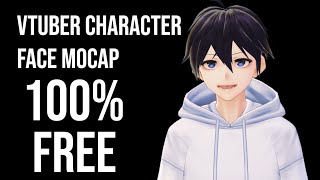
The video demonstrates how to set up a VTuber avatar completely free in about 10 minutes. The creator uses Vroid Studio to create a VRM character and VSeeFace for facial tracking, with OBS and OBS.ninja to use a smartphone as a webcam. The tutorial is practical and shows the entire process from character creation to final OBS integration.
Chapters
The creator is experimenting with VTuber setups, inspired by streamers like Code Miko, but wants to do it without spending any money.
Vroid Studio is a free Steam software for creating VRM characters. Users can start from a default or blank canvas and customize everything from clothing to facial features.
VSeeFace is a free software that captures facial expressions and transfers them to the character. It only tracks the face, not full body, but is sufficient for a free setup.
Since the creator lacks a webcam, they use their smartphone with OBS.ninja to create a virtual camera. This involves creating an invite link and adding it as a browser source in OBS.
OBS is used to combine the phone feed and VSeeFace. The creator adds a browser source with the OBS.ninja link, sets resolution to 1920x1080, and mutes the phone's audio to use a better mic.
The setup works even on an old Samsung Galaxy S5 Neo. The creator adjusts lighting and uses a global reset position hotkey (numpad minus) to re-center the character.
The character is added to the recording via game capture with transparency enabled, removing the background and allowing placement anywhere in the scene.
This free VTuber setup is surprisingly effective, even on minimal hardware, and can be completed in under 10 minutes. It's a great starting point for anyone curious about VTubing without upfront costs.
Mentioned in this Video
Tutorial Checklist
Study Flashcards (5)
What free software is used to create VRM characters?
easy
Click to reveal answer
What free software is used to create VRM characters?
Vroid Studio, available on Steam.
01:10
What does VSeeFace track?
easy
Click to reveal answer
What does VSeeFace track?
It tracks facial expressions and transfers them to the character.
02:41
How can you use a smartphone as a webcam for VTubing?
medium
Click to reveal answer
How can you use a smartphone as a webcam for VTubing?
Use OBS.ninja to create an invite link, open it on your phone, and add it as a browser source in OBS.
03:41
What is the purpose of the 'global reset position' hotkey in VSeeFace?
medium
Click to reveal answer
What is the purpose of the 'global reset position' hotkey in VSeeFace?
It re-centers the character's position, useful when the camera is not directly facing you.
08:19
How do you remove the background of the VSeeFace character in OBS?
medium
Click to reveal answer
How do you remove the background of the VSeeFace character in OBS?
Use a Game Capture source with 'Allow transparency' enabled.
09:40
💡 Key Takeaways
Inspiration from Code Miko
Highlights the appeal of VTubing and the desire to replicate it for free.
00:30Vroid Studio as a Free Tool
Shows that professional-looking characters can be created without cost.
01:10Phone as Webcam Workaround
Demonstrates a clever, budget-friendly solution for those without a webcam.
03:41Works on Old Hardware
Proves that even a Samsung Galaxy S5 Neo can power the setup, making it accessible.
07:08Transparency Integration
Key step to seamlessly overlay the avatar onto any scene.
09:14Full Transcript
[00:02] can see this we're starting this off very odd you can see my obs in here um different now i like to experiment with unreal engine and all kinds of things like that and not just unreal engine but computers in general and
[00:17] i have been watching a lot of twitch for quite a while now and one thing that got me really interested is the v2 being aspect like i don't is the v2 being aspect like i don't really watch them but the idea itself is
[00:30] very very interesting to me because they're using face captures motion character on the side of their screens or maybe in the full screen like code miko for example which is like a really really unique and cool thing
[00:43] and i was curious what i can do what i can make of it without like spending any money whatsoever because to make a good product with a good character you need purchase the uh bodysuit which is going to capture your emotion
[00:58] i'm not willing to do that right now i'm not interested in it that much but i was just curious what can i come up with just basically without spending any money whatsoever so we're gonna need a couple of things uh first we're gonna
[01:10] need a character now i found this software on steam you can download for free called v-roid studio which allows you to create the vrm characters now you can also model your own character in blender and then somehow
[01:24] make it into a vrm format and then use that one um i don't have enough knowledge in modeling and designing and all that stuff but this software will i could come up with something so i got this
[01:36] software v right and let's open this up and let's make character not to waste too much time but there's a bunch of characters over here characters that's like a default shape or you can
[01:50] click new and start from a blank canvas basically and you can adjust its clothing you can adjust the character's size the shapes of the eyes nose mouth like everything that you would do with like any other modeling character
[02:02] creating software basically um i'm not going to be really changing anything but as you can see here you can change a lot of things there are other videos that will show you how to use this specific software in particular uh otherwise well
[02:14] this tutorial is gonna be very long but i just need some kind of a character for hit export camera export and then i'm gonna hit export on the left side and this is gonna allow me to export this character
[02:28] so i'm gonna go ahead hit export provide some kind of a name problem provide some too much where is it allowed i don't care i'm gonna allow it anywhere hit okay and just save it i already have it so i'm
[02:41] not gonna bother saving the same thing over and over again okay so we have our character that's cool now we need one more thing we need some kind of a software which is going to allow us to i need to refresh this side which is
[02:56] to i need to refresh this side which is going to allow us to basically capture our face and i will transfer our facial expressions into these characters expressions and a software that i found very useful was the vc phase it doesn't
[03:11] capture the full body motions uh it just captures the facial ones but well if if it's for free now obviously you can't be too picky but this software does the go ahead and download it and i have it over here
[03:26] so once you do just extract it and just run the v face vc face xa and once we do something like this is going to pop up characters here is the default character that i
[03:41] just created and you can use your face cam if you have like a webcam or something i don't have one so instead i'm gonna be using my mobile phone for this and to achieve this result by using my mobile phone i'm
[03:55] gonna be using obs and i'm gonna be creating a obs virtual camera that we're going to set up in a second and it's very very simple it's just too simple the next thing uh settings for the quality so i have this to the highest
[04:10] fps 24 should be good enough tracking quality i'm gonna again set this to the highest one so that it can capture as many expressions of my face as possible and microphone select your microphone so that the mouth mouse mouth could be
[04:25] that the mouth mouse mouth could be moving and hit start and once we do you can see the character is moving its mouse with a mouth oh my god mouse english not like i guess not the best quality in me anyway um yeah you can see
[04:40] when i talk he talks cool let's make sure that this guy actually can move his head around as well because this is not enough and for that we're going to need to set up an obs virtual camera now make sure you have obs
[04:52] installed here that i have another instance of obs and we're gonna head to this in a second but first we need to go to a site called obs ninja you can create a reusable invite provide some info create the invite link boom there
[05:06] you go you have the invite link created as quick and simple as that now i just gotta provide this green thing on my phone so i'm gonna type that g [Music]
[05:21] y t w e and i'm not able to show you my phone but my phone basically shows me a similar icon to just what we just saw the four icons it's gonna tell you to
[05:34] share your camera once you click on it you're going to be able to see your face in a couple of seconds and there's going to be a green button called start i'm not going to click it just yet because first i'm going to set up my obs
[05:46] so we're going to need this link the pink one so if we click on it it's automatically going to copy it to our clipboard so we can go now into our obs now for this i'm gonna add a new scene you don't have to if you don't wanna but
[05:58] i'm using this scene to record this video so i'm gonna be adding another one and this basically gives me a blank canvas but i can add more things and i'm canvas but i can add more things and i'm going to be adding a browser to this
[06:11] click ok and now paste in the link that it gave you over here so this is the link and provide some sizing so i'm going to do 1920 by 1080 and i'm going to click on control
[06:27] audio via obs otherwise it's going to capture the audio from my phone and my headset mic is a lot better so i'm going to be using i'm going to be using the headset mic instead we're going to hit ok
[06:42] and under the browser you will see we have this audio line i'm going to mute this completely so it doesn't capture any audio from my phone but rather just here okay so far so good
[06:55] okay so far so good let's now hit start on our phones big big beard anyway so
[07:08] this is all good uh we can go ahead and start the virtual camera now i have a very old phone keep in mind it's a very old phone it's a samsung galaxy s5 neo so this one is really really old but i just wanted to see
[07:23] this is the oldest phone i have so i wanted to see how old of a phone can actually get this thing working and this does the trick so let's open up our v face and as you can see instantly whenever we just make
[07:36] you click start virtual camera and that you in the options selected the virtual camera and as soon as we do so you can see this is moving so i'm going to adjust the camera a little bit to have a better lighting so it can capture
[07:48] my face a lot better i have sun right behind me i have sun right behind me shouldn't be too big of an issue because you can see it can still capture my eyes
[08:07] i can open one eye the other one both of them close off and all of that stuff now you can adjust a lot of things over here like you can see i'm moving and the
[08:19] but as you can see over time the character is going to move out of its so what you want to do is hit the settings and under the settings there should be a global reset position hotkey and i set
[08:33] global reset position hotkey and i set up mine to numpad minus sign and basically this is going to allow me to this is going to be a global key so if i'm watching if i'm sitting sideways excel if a camera is on the side of me i
[08:46] can hit this button and it's going to re-center the character forward even though myself and my camera this is gonna remove some possibilities for eye checking as you can see
[08:59] uh i'm just closing one but it's closing both of them for some reason yeah it's capturing only the right eye since my camera is on the right side of but as you can see it still captures the head movement and all that stuff now we
[09:14] can adjust the smoothness of how roughly we are moving how smooth it is and all that stuff and also the range of motion so we can go ahead and move around a lot or we can barely move at
[09:27] all and again i'm going to reset this let's set this up in the obs so we are recording a video right now so i'm gonna be adding another thing into our source which we are recording
[09:40] and i'm gonna be using a game capture for this and i'm gonna select a specific window and we're gonna select our vc face software and i'm going to click on allow transparency which is going to remove
[09:54] the background so now i can hit ok and i can put my character wherever i want this guy to be and i'm just going to adjust this so it is behind the image so make sure to like if you like the video
[10:08] if you like the video and also let's remove all the ui stuff right here and then hit the space bar and as soon as we do that in the obs
[10:21] there is no background for our characters so just for a sec so that there we go so you can see a lot better now her character is over now her character is over here it looks pretty pretty darn good so
[10:34] yeah that's going to be it for this video if you enjoyed this video make good stuff i know this is something that we we normally don't do but i found this very interesting and i got interested in
[10:48] how i can make this happen without spending any money whatsoever and as you can see you can become a youtuber in 10 or less minutes so yeah thank you for watching subscribe leave a like all that good stuff and i see you in the next one