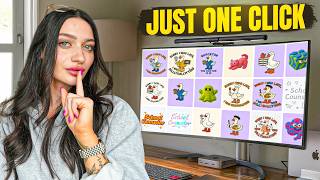

Create 50 Designs in 10 Minutes?
45sThe promise of creating 50 designs in 10 minutes is a compelling hook for print-on-demand sellers looking to save time.
▶ Play Clip"Delivers on the promise of creating many designs quickly, though the exact count of 50 is not demonstrated."
The video demonstrates how to use KD Flows, a new AI-powered feature on the KD design platform, to rapidly generate multiple print-on-demand designs from a single source image or text. The creator shows how to create variations, apply prompts, and download high-quality designs, emphasizing efficiency and creativity.
KD Flows is a new feature on KD that uses AI to generate multiple designs from one initial image or text, allowing users to create 10-100 designs in minutes.
Users can find KD Flows under the templates section on KD, with various options for creating graphics, storyboards, and product ads.
Starting with one design, users can generate a line of variations and then use AI prompts to create further iterations, saving significant time.
To start, create a new project on KD, set the artboard size (e.g., 2500x2500 pixels), and add initial text or graphics.
Smartboards allow users to create multiple variations from a single source. Click the original artboard to create new smartboards, each with its own AI prompt.
Be descriptive and specific in prompts to get better results. Use other AI tools like ChatGPT or Pinterest for inspiration if needed.
Set aspect ratio, quality, and choose transparent background to avoid unwanted backgrounds. Generate designs individually for better results in beta.
When selling on Etsy, you must create or significantly edit designs to comply with policies. Use AI as a starting point and add your own edits.
You can create new smartboards from existing designs to make variations, such as changing text or colors, and continue iterating.
Select individual artboards or all at once to download as a zip file. Use 'Remove Background' and set DPI to 300 for high quality.
KD Flows can also create standalone graphics, like a goose character, which can be used in designs or further edited.
Beyond print-on-demand, KD Flows can be used for storyboards, marketing materials, and product ads.
KD uses a credit system for AI. Users can earn free credits through challenges and use discount codes for paid plans.
KD Flows is a powerful AI tool that significantly speeds up the design process for print-on-demand, allowing creators to generate numerous variations quickly. It encourages creativity and efficiency, making it a valuable addition to any designer's toolkit.
What is KD Flows?
A new AI-powered feature on KD that generates multiple designs from one source image or text.
00:57
How many designs can you create in 10 minutes using KD Flows?
Up to 100 designs.
01:13
What is the recommended artboard size for print-on-demand designs?
2500 by 2500 pixels.
03:37
Why should you select transparent background when generating designs?
To avoid unwanted backgrounds and make it easier to place on products.
07:00
What is the Etsy policy regarding AI-generated designs?
You must create or significantly edit designs to comply with Etsy's policies.
08:45
How can you get free AI credits on KD?
By completing challenges offered by KD.
16:32
KD Flows Introduction
Introduces a new AI tool that can generate multiple designs from one source, a game-changer for print-on-demand.
00:57Efficiency Claim
Claims to create 100 designs in 10 minutes, highlighting the time-saving potential.
01:13Prompt Writing Tip
Emphasizes the importance of descriptive prompts for better AI results.
05:39Etsy Compliance
Reminds sellers to edit AI designs to meet Etsy's policies, a crucial legal consideration.
08:45Creative Use Case
Shows how to create standalone graphics like a goose character, expanding the tool's versatility.
13:06[00:03] and the main reason for that is it really is what makes or breaks your lot of people get caught up in designing. It takes a lot of time and if are your products aren't going to sell. And in today's video, I'm going to be
[00:18] sharing with you a tool that I recently discovered and have been using for my print on demand products. And I'm so excited about it. Honestly, it's a with you cuz anything that makes my life easier with print on demand, I always
[00:30] know that you're doing the same things and it can be really overwhelming trying to create designs. So, if you're familiar with KD, it is a web browser design platform that I absolutely love. I've been using KD for years and it's my
[00:43] design platform of choice when creating my print on demand products. I love it because it has so many different templates and a really good AI system. But KD just created a brand new thing on their platform called KD flows. And
[00:57] essentially, as the word flows says, you are creating different AI generated images, designs, graphics, all from one specific image. So what you can do is create 10, 15, 20, 25, you get the point, designs off of one simple design.
[01:13] And basically, it uses AI to generate all these new different creative things for you. Fast, efficient, and high quality. So, it can take you only 10 minutes to create 100 designs verse, well, we all know how long it can take
[01:25] to create one design. That makes sense, right? So, I'm going to show you exactly how it works and I'm really impressed by it. It is brand new, too. So, I'm been playing around with it a little bit. It is in beta, but um definitely
[01:39] And so, of course, everything will be linked in the description for you. And that you can get a glimpse into this and get on it. Once you're logged in here on
[01:51] the left side, you can go over to templates on KD and then scroll at the flows. Now, there is a bunch of different stuff here that you can create, but let me open one of these just to give you a better idea. So, this
[02:03] one here, they wanted to create a bunch of different graphics for a design. And what they do again is start with one specific graphic and then use AI to they initially started with and then they started giving each individual one
[02:18] here a different input to create new designs. So they started out with one design then created this line of designs and then use the AI again to generate more variations of that specific design. So you can see how this could save a lot
[02:30] of time and create a bunch of different types of designs too. And if I wanted to create a version off of this design, all I'd have to do is select this, hit smartboard, and then give it an AI prompt to change this. So I could say
[02:42] prompt to change this. So I could say make this pink and girly. Add lipstick make this pink and girly. Add lipstick and eyelashes with a smirk. Okay, generate. And let me just show you before we create our own designs how
[02:57] easy this is. Okay, so check it out. This just created the variation that I there, how this could just keep going and going and going and create all these different designs. and I can use that same exact prompt and go down the line
[03:11] So, it's just really cool and really great. So, let's go ahead and create a show you some graphics, too. So, make sure you stay to the end of the video so you can see how much this will be able to help you out in your designing
[03:24] journey. So, what I like about this too is that you can start with either a can just start from scratch with some text. So, let's go ahead and do that first. I'm going to go up to here where it says new project on KD. And when
[03:37] you're creating your artboard, um the easiest way to do this is to create into it on multiple products. So I'm going to do 2500 by 2500 pixels. Okay. And keep it just like that and hit for it to create our artboard. And so this is our
[03:52] blank initial artboard, right? And so I'm just going to add some text here. So but I'm going to start with a school counselor cuz I want to create a bunch counselor t-shirt, mug, tote bag. You get the point. So, I'm going to say
[04:06] school counselor because I want the text to be like on top of each other like that. Now, one thing to note when you're doing this is the artboard is going to be your starting point. So, if you want to have a specific font or if you just
[04:20] want to give the AI free range, that's up to you. However, I've noticed when using this, if you do start with a font, it tends to keep it pretty similar to what you started with regardless of the prompt. So, keep that in mind. So, now
[04:32] different designs, I'm going to click artboard and I'm going to hit smartboard. And I'm going to move this up. This purple is going to be my first the right, this is where I'm going to describe the AI to make the different
[04:45] edits for me, as I just did in the example. So, I'm going to make five of one and then hitting to create a smartboard because this is our starting point, we're going to keep clicking on this one and create multiple smartboards
[04:58] just to keep everything organized because whatever image you create our Smartboard off of, that's the one that it's going to pull the information from. So, as I said, make sure that you're clicking on the original one so that we
[05:11] get the correct Smartboard. So now I'm just going to move these up so that they're all spaced correctly on our page. So now I have five different artboards where I'm going to create five different school counselor designs. So
[05:25] click on the individual smartboard and each one of these is going to have their own individual prompt. So what I'm going to do is describe my edits up here on the right. Now when you're using AI, you basically want to dumb it down as if you
[05:39] want to be descriptive or vague depending on how much you want the AI to descriptive that you are, the better outcome that you'll get and you won't have to keep going in and making 15 edits. Okay? So, with this, I'm going to
[05:53] be as specific as possible and tell it exactly what I want. Now, if you're blanking on ideas of what type of design you want to create, you can always use other AIs platforms like ChatGpt or something like Pinterest for inspiration
[06:07] you're looking for. So for the first one, I'm going to say in a playful handdrawn
[06:19] chalk board font, white text with a chalk like texture surrounded by simple doodles of Okay,
[06:36] what are some things that would be in a counselor's stars, hearts, paper, airplanes, and books in a chalkboard
[06:48] and books in a chalkboard style look. Okay, I think that's good. Um, for our first design, and then I'm going to right here, pay attention. So, there's two different things here. There is an aspect ratio and then a quality.
[07:00] because that way it's better for the going to select transparent background because when playing with this it will background. So make sure you hit transparent because again we want it to
[07:13] we don't want it to like give us a school counselor background. Now once going and create all of these and then generate them at the same time. However, I prefer to do them individually. It is pretty like quick. It takes about a
[07:26] up to you how you want to do it. So I'm take a look at what it is. And as that's generating, I'm going to go to my next Smartboard and then type the edits in for my next design. Do soft watercolor
[07:40] for my next design. Do soft watercolor rainbow. This one in a clean modern sif font. And as you can see here, this one was just created. And check this out. So it created basically exactly as I said. It wanted that chalkboard style
[07:55] to this design. And it made the design for me in just a few seconds. And then I have some prompts ready to go. So, I'm just going to do the same thing and hit generate these at the same time. But as I was saying to you, because this is in
[08:08] beta, I've learned that instead of doing it all at the same time, like to do each individual one and click to generate them versus selecting all of them and then hitting generate, it just doesn't work as well in my opinion. Yeah. So,
[08:20] that's just what I've learned. I actually went over to chat, too, and I put in some prompts for different t-shirt design ideas just so I could get t-shirt design ideas just so I could get a little bit of a idea for what to say.
[08:32] a little bit of a idea for what to say. So, this one's in a bold retro '90s yellow color. Let's try this. And I'm just going to copy and paste this prompt into here and see what it creates. Working smarter, not harder. We want to
[08:45] give some point of creativity to these designs, too. even though we are using AI and also if you're selling on something like Etsy in order to be in their uh policies to sell products you do have to either create the design or
[08:59] you're making. So I do encourage you if you are going to be selling on Etsy to take these designs and then further edit them yourself. Whether that's adding um a shadow, changing around things in the background, I can give you an example of
[09:14] that we're adhering to the guidelines even though we are telling the AI what we'd like. I always like to be safe about it rather than sorry, you know. So create the designs. I love this one here. This like pastel one. Check out
[09:29] think we could do a little bit more with. So I think that I'm going to get the idea here how this AI is creating all these different designs for us. And all we did was type school counselor. Like this is so cool. And I
[09:43] think like as I said, the more descriptive I was. So like this one, see how descriptive this was verse this one, you're definitely going to get a better result. So I would definitely utilize your creativity with this. Give it as
[09:55] much info as possible. Easier to type than to like actually create the designs different things off of that. So let's wait for this last one to be done and then we'll do some further editing because once you're on here, you can
[10:08] generate again. And so like I could ask it to add color or a background or be more bold and then generate it again if I do want to. Okay, beautiful. So we designs that I would use. So I absolutely love this school counselor
[10:24] one down here. I could ask it to add in something more school-like or make it pink. Same with this one as well and maybe some color to this one. So let me show you how you could keep going. Now I want to make a variation of these two
[10:37] to do is click on it and then create a new Smartboard. So, always by the Smartboard's coming from. So, this one is creating off of this specific prompt. So, it's going to take everything from this prompt and apply it to this
[10:50] Smartboard. So, I'm going to click on the Smartboard and give it the update. So, I'm going to say keep it the same, but make it pink ombre. Add more sparkles. And then for this one, I'm going to say keep it the same, but
[11:07] going to say keep it the same, but change the text to guidance counselor. Okay, so check it out. It did exactly that. It said school counselor. Added some pink. And if I want to keep this design or keep changing it, and
[11:20] then I can just keep going. So now I can say to this one, change the text to guidance counselor. Okay. So, you see where I'm going with this now? Is if I if it's the one that I liked and do school counselor, guidance counselor,
[11:35] teacher, second grade teacher, third grade teacher, and I could have a full See this school counselor, kindergarten that's the whole idea here of creating
[11:48] So, I could sit here for like maybe 15 minutes, if that, and create 10 different designs for different professions, right? I could even go into doctors. I could go into different lawyers. So many different things here.
[12:01] And all you have to do is type in the different prompts for the designs. And this one's making me sad. So, let's go ahead and create something a little bit better. And also, there's this enhanced prompt button that will give you a more
[12:14] enhanced idea of what exactly you're trying to create. Again, everything in here is beta, but it's pretty cool that you can enhance the prompt from what KD actually says to create that. Okay, so that one's much cooler than the design
[12:26] how I could just keep creating these. And then when you want to download them, all you have to do is either select your individual artboard or you can select all the artboards at once and download them in a zip file. But let's say we
[12:39] want to take this school counselor one. I would just go up here to download. I would hit remove background and then I could change this to like 300 dpi just so it's higher quality. And then we can go ahead and download it. And this is
[12:52] beautiful, highquality, ready for a print on demand product, which is so all of these at the same time if I'd like to. Now, I think that there's wanted to show you, too, um, how you could create designs or even just
[13:06] graphics to use separately with designs. So, here's an example of that. This is a Creative Fabrica, but I wanted to do more with it, make it more my own. So, I transparent background, and then I started a Smartboard off of it. So, this
[13:21] gives you some pretty good creativity here. Um, and you can see what I did. So, I created this little goose off of this one. And then I created a ton of different smartboards. I think there's 10 here of different goosees doing
[13:34] professions. So, for this one, I asked it to make it a teacher teacher goose. And then I did a doctor, a party. And was just telling it how to make the different goosees. And then I thought,
[13:46] what a cool idea to have them all like different professions and stuff. So, design is. Like I thought this was so fun. And then I was really impressed when I asked it to add the text to it, which would save you a lot of time. I
[13:58] asked it to say, "Sorry I was late. I was dillydallying." And it like got the idea already to put the text around it in a circle. I didn't even say that. I mean, I did say letters around the goose, but I mean, I wasn't expecting it
[14:10] didn't really work out. Some of them are a little off, but obviously the more you can get them to look even better and better. And I just had so much fun with this. And then I can even like keep going. Like there's so much opportunity.
[14:24] going. Like there's so much opportunity. I could say keep it the same. Make the scrubs pink and give the goose eyelashes. Um what else? Just to make it girly. And a bow so it looks girly. And then what's
[14:41] cool about this is I could download all of these and then upload them into KD and then just use them in my designs, you know? Like that's what's so cool your whole finished design. It can create a piece of a design that you can
[14:53] it's cool. Like I know it takes a minute to generate, but like I said, this is in want KD to keep this around. I keep saying it's so cool, but it really is. seen in designing for print on demand thus far. And while that's generating, I
[15:09] only have to use it for print on demand. There's a lot of different things that you can do with the flows. So, you could do um different types of text that you could use. Could also use it to do your different story boards um for marketing.
[15:24] Here's a product ad generator, inspiration. There's a lot you can do here. So, I would recommend going to these templates. I'll leave a direct the different things that you can do. You're not limited to just print on
[15:37] what a lot of us do here on this channel, so I wanted to incorporate that. Okay, so check it out. This is so cute. Now we have a little girl goose on there and we could download and add text to this if we wanted to. There's so many
[15:51] be really cute for embroidery as well. This design, like if I actually did the text in black and then did it for embroidery on a t-shirt on Printify. little t-shirt design in just a few minutes. Can obviously make this design
[16:05] showing you the idea here. So you can either make the full design using the KD flows or you can take graphics or fonts and then later take it in to make your own design. There's so much creativity to be had here. So definitely utilize
[16:19] that. See all the different things that you can do. And this is run on KD's AI system, which is a credited system once you have an account. You'll get a account for your AI. And if you don't have any credits right now, actually, KD
[16:32] which I'll leave down below, where you can do a challenge and earn some free credits for AI. So, more credits you have, the more awesome creations you can if you don't have an account. And I have a code as well for a discount, too, um,
[16:47] on some paid plans. So, definitely something you can check out. But overall, I really am excited about this tool. This is something I'm going to be love to hear your thoughts on it. And I know AI can be a bit intimidating. Um,
[17:00] but I think that if we can use it as something as a tool like this to help us be more efficient to really bring our ideas to life because sometimes that's see something you want to recreate or you might have an idea in your mind and
[17:14] like bringing it to life is difficult if you can't draw or you don't know where to find the graphics or how to put the text. And so I think using these different tools to help us is a really really cool thing. And so I I'm all for
[17:26] using AI to make your designs better and more functional as well. And but I'd going to use this. If you want to check it out, of course, everything is below. Thank you so much for watching and I'll see you in the next
⚡ Saved you 0h 17m reading this? Transcribe any YouTube video for free — no signup needed.