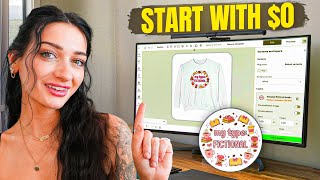

Start Print on Demand with $0
45sThe promise of starting a business with zero cost immediately captures attention, especially for aspiring entrepreneurs.
▶ Play Clip"Delivers on the promise of a free start, but includes some fluff and self-promotion."
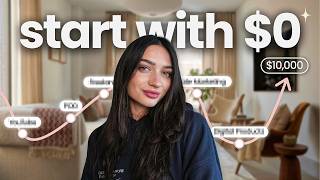
This video provides a step-by-step guide to starting a print-on-demand business with zero upfront costs, using Printify Popup and AI design tools. The host, Mac, demonstrates how to create a store, design products with AI, list them for free, and market them using Pinterest, all without needing a credit card or inventory.
The video promises to show how to start a print-on-demand business for free, including listing products, marketing, and designing with AI.
Print on demand is a business model where you sell white-label products online, sourced and fulfilled by a print provider like Printify. You design products, and when orders come in, the provider prints, packs, and ships them.
The first step is to create a free Printify account. The host recommends signing up to follow along.
Instead of traditional e-commerce platforms, the host uses Printify Popup, a free storefront option. You select 'Printify Popup' under 'Connect your store' and set up your store name and URL.
The host suggests using ChatGPT or Nameicks for store name ideas. He chooses 'Cozy Coffee and Books' as an example, emphasizing the importance of having a niche in mind.
After launching the store, you can customize it with themes, logos, and colors. The host creates a logo using Krita (KD) and uploads it.
In the Printify catalog, you can choose from thousands of products. The host selects a unisex garment (Comfort Colors 1566) and uses 'Printify Choice' for the best supplier.
Using Krita's AI features (Smartboard), the host creates a design by generating prompts from Pinterest images and using ChatGPT to refine them. He demonstrates generating a 'coffee doodle' design.
After generating the design, the host converts it to an image, removes the background, and downloads it.
The design is dragged and dropped onto the product in Printify. The host selects colors, previews, and saves the product.
The host recommends removing unwanted mockups and mentions a separate tutorial for creating AI mockups.
Printify's AI can generate product titles and descriptions. The host notes that AI-generated titles can increase sales by 35%.
With Printify Popup, you don't need a credit card upfront. You set your retail price, and Printify pays you your profit. The host adjusts the price from $51 to $38 to be more competitive.
After pricing, the product is published to the store. The host notes that the store needs to be verified to start processing orders.
The host demonstrates adding the same design to a mug, showing how to reuse designs across multiple products.
To receive payouts, you must verify your account by adding bank details or using Stripe/PayPal.
The host recommends using Pinterest to promote products for free. You can create pins with mockups and link them to your store.
Using Krita's AI, the host creates a mockup of the design on a mug held by a hand, which can be used for marketing.
The host encourages viewers to like and subscribe, and emphasizes the benefits of Printify Popup and AI tools.
The video provides a complete, free method to start a print-on-demand business using Printify Popup and AI design tools, with no upfront costs and minimal risk. It highlights the ease of use and the potential for scalability.
What is print on demand?
A business model where you sell white-label products online, sourced and fulfilled by a print provider like Printify.
00:31
What is Printify Popup?
A free storefront option within Printify that allows you to create an online store without needing a credit card or payment method upfront.
02:19
What is the benefit of using Printify Popup for payment processing?
You don't need to add a credit card; you only add your bank account to receive payouts, so there's no upfront cost or risk.
14:17
How can you generate product titles and descriptions in Printify?
Printify has an AI feature that can generate titles and descriptions, which can increase sales by 35%.
13:05
What is the recommended free marketing strategy mentioned in the video?
Using Pinterest to create pins with your product mockups and linking them to your online store.
19:55
What AI tools are used for designing in the video?
Krita (KD) with its Smartboard AI feature, and ChatGPT for generating prompts.
06:54
What is the 'Printify Choice' option?
It automatically selects the best-located supplier for the product, ensuring quickest and most efficient fulfillment.
06:26
What is the significance of removing the background from a design?
It ensures the design shows up well on the product, especially on colored backgrounds.
10:47
How can you reuse a design for multiple products?
You can upload the same design to different products in your catalog, like a t-shirt and a mug.
17:01
AI-generated titles boost sales by 35%
This statistic highlights the tangible benefit of using AI for product listings, making it a compelling reason to adopt the feature.
13:05No upfront cost with Printify Popup
This is a key differentiator from traditional print-on-demand, reducing financial risk for beginners.
14:17Pinterest as a free marketing channel
Provides a practical, zero-cost strategy to drive traffic to the store, which is crucial for new sellers.
19:55AI-generated mockups for marketing
Shows how AI can create professional-looking mockups without photography, saving time and money.
20:53[00:02] how you can start your very own print on demand business all for free. This does processing methods that are traditionally used in print on demand. And I'm going to show you a way that you can list your products for free, market
[00:17] can list your products for free, market them for free, and design them using AI my channel, hi, I'm Mac, and I post videos talking about different ways to to be a part of our community here on YouTube and make sure that you stay till
[00:31] all the steps that you need in order to start this profitable online business. print ondemand to you so that you understand if you've never heard of it before. A print ondemand business is a way to sell white label products online
[00:46] on an online store that are created and sourced from a print app. So, what you will do is you will go on a print app website such [music] as Printify, and you will select a product that you'd like to design. There's everything from
[01:00] mugs, t-shirts, shower curtains, tote bags, the list goes on and on. Once you have your product, you'll create your design, upload it to your online store, and then when you receive an order, Printify will get that order, [music]
[01:14] print, pack, and ship it for you. So, you're able to run an online business that's fully functioning from anywhere in the world. And what's great about this is you have no shipping and no inventory. So, it's honestly a very
[01:27] incredible business for beginners. And it's not going to cap you at a certain scalability. You can scale [music] as much as possible without spending thousands of dollars upfront on inventory. traditional businesses where
[01:40] you'd have to make all the products on your own. It's going to cost time and money and a lot of risk because you may not sell all the products you create. So, without further ado, let's get into it and start with our very first step,
[01:52] you're only going to need a few things to start this business method, but very first is going [music] to be a Printify account. So, I do have a link for that signed up to Printify yet, highly recommend that you do so so you can
[02:05] follow along with the tutorial. And it's completely free to sign up. So, once a few questions on Printify, you'll be logged in and shown your dashboard. It will be giving you a few different things and checklist for you to start
[02:19] creating your online store. So, you can follow that along and make sure that you fill all of that out. But very first, what we're going to do is create what's going to use what's called Printify Popup. So, under connect your store,
[02:33] this is where we are going to start creating our online store. And as you can see, there are a lot of options here. I personally love a few of these options, but today, because we're doing it a bit of a less traditional method
[02:45] you're going to select here what's called Printify Popup. Now, once you click this, it's going to give you an option to start creating your store. And the very first thing it's going to ask for is your store name. Now, please
[02:59] name. There are lots of different ways to come up with a store name. And most importantly, when you're doing this step, have an idea about what types of products you may want to sell. Now, when I say what types of products, you can
[03:12] list all different types of products on your online store, but keep in mind the type of designs that you'll be wanting to create. Maybe you're somebody that really loves coffee and you want to create a store based off of coffee and
[03:25] sports and you want to create a store off of different sports merchandise or sports on them. Give yourself a few minutes to think about what types of things that you want to sell. And then you can either use chat GPT to ask for
[03:41] store name ideas or this cool website called nameicks. I'm going to do coette coffee and books. Okay. So now here it's showing what my store URL will be for when someone's going to find my store.
[03:55] So it's coette coffee and books.printify.me storefront. Next, I'm going to select where I am located. I am located in the United States, but make sure that you do this according to your country. Then I'm
[04:08] going to click I agree to pop-up stores terms and conditions and hit continue. different options to customize your store. I personally really like the all-white theme or this like cream and black theme. I think that they feel the
[04:21] customize your store, you're going to click launch. Now, how cool is this? We already have our online store ready to start adding products to, which is really great. Now, what I'm going to do next is I'm going to click click here to
[04:35] Now, we have a few options here. You can add in a logo, a cover banner, product arrangements, and all different types of things. The most important thing here is to create a logo. So, I'm going to go ahead and create a logo very, very
[04:49] quickly using KD. And what I'm doing is just creating a 400 by 400 pixel artboard. And you can either use their logo templates and then fill in your store name, which is really easy, or you can use AI. I'm using AI here in KD
[05:03] right now because I'm going to give you that full version of the tutorial on how to design with this later on in the tutorial. Super easy to do. And then I'm just going to upload it into [music] the um store on Printify popup. Okay, so
[05:18] I just uploaded my logo and as you can see it's up here at the top now. And under themes, we have the theme that I selected. But check it out. As I said, there are ways that you can add your own custom theme. So if you want to change
[05:31] the colors to your own custom colors, you absolutely can. So this is fun. So you absolutely can. So this is fun. So let's add some pink flare here. We can have our all pink store. And I actually think the more that I'm playing around
[05:43] with this, I want the header to be white. Okay, beautiful. So now my store and change this. Don't get too stuck. And now what I'm going to do is go start adding my products. So on your Printify dashboard on the left side here, you're
[05:59] going to go down to catalog. And now on your catalog, this is all the different opportunity to list and sell on your online store. There are thousands of different types of products and Printify does an incredible job at showing you
[06:12] what you can sell and how to create different things. I always like to check have some pretty interesting stuff. Let's go ahead and select one of the most popular items in my store, which is the unisex garment guide comfort colors
[06:26] 1566. Then I'm going to go ahead and click Printify choice. That means Printify is going to find the best located supplier, the quickest, and most product on our online store. Over here, you're going to see the different colors
[06:40] product. And then, if you select this eye up at the corner here, you will see the design dimensions of how big your actual design can be. This is going to come in handy when we do create our design. So, now that I have the design
[06:54] dimensions, I'm going to go back to KD and create a new project so I can create select here t-shirt because that's about the same size of what it is that it's here's where we're going to start creating our design using AI and the
[07:08] how we made our logo. Now, I would recommend going to Pinterest to get some inspiration flowing on types of designs that you may want to create. So, I'm going to go to Pinterest and type in my
[07:20] niche. And I'm going to type book lover sweatshirt or coffee lover sweatshirt. and I'm going to kind of scroll and see if there's a vibe that I want to kind of recreate. So now I have an idea of what type of design I want to create. So now
[07:34] on my artboard, I'm going to add some text to the page here. And you can either pick a font already or you can just keep on going. So what I'm going to just keep on going. So what I'm going to do is pick my font. KD has a ton of
[07:48] really fun fonts here. Okay, I'm going to do Amber Garden. Perfect. add it in the middle here. And then I'm going to go to artboard, create smartboard. Now,
[08:00] the right hand side, this is where we're going to tell the AI what we want. Now, what I would suggest that you do is to go back over to Pinterest and type in [music] something along the lines of like what you're creating. So, for me, I
[08:15] want cute coffee doodles. And I'm going to find some that like resonate with the vibe that I want. So, like this is perfect. And I'm going to download this image. Hit save image as. And then on KD on the lefth hand side there's a chat
[08:29] bubble. In there I'm going to paste [music] the image that I just found. And [music] the image that I just found. And I'm going to ask chatgbt for a prompt to use to create a design. And so I'm going to say using this image, can you give me
[08:46] to say using this image, can you give me a prompt [music] for an AI image generator? I need a design with [music] cute handdrawn elements
[09:01] like this. But think pink and [music] brown and girly with bows and [music] stuff added
[09:14] keeping the feel of handdrawn [music] or doodled. So, in just a few moments, it's going to give us a prompt. Copy that. Hit paste over here [music] and make
[09:27] Hit paste over here [music] and make sure that I'm selected on nano banana. And once that's ready, [music] hit generate. Okay, this is super cute. I actually really like this. But what I'm going to
[09:40] really like this. But what I'm going to do is I'm going to generate this again. So, I'm going to hit Smartboard. And then now I'm creating another design off of this. And I'm just going to say change the text [music] to a light pink.
[09:54] Okay. Super cute. And then if I wanted to, I could keep going and I could ask to, I could keep going and I could ask it and make it and make the text a bit smaller. And you can keep
[10:06] playing with this until it's absolutely perfect. What's cool, too, is you can also create additional smartboards. So, I could use this exact thing here and add it here again and see if I get another outcome. Okay, check this one
[10:21] out. I absolutely love it. This is like the perfect design that I wanted. But next, what I'm going to do is have it again make the [music] text light pink and girly. We're almost done.
[10:34] quite a few AI credits. That's how it is when you design with AI. But you can do this in a matter of minutes, especially if you are using Chachi BT. Look at this. Boom. So, under five minutes, I have this beautiful design and the
[10:47] Nano Banana, like I said. So, that's linked below. Now, what I'm going to do is I'm going to select this button that says convert to image. Now, I have my is click on it and hit remove background. Super important step. You
[11:03] this shows up well on our print on demand product. [music] Now our design is ready. We're going to name our project my type fictional book design. Okay. And then I'm going to
[11:19] download it. Okay. Remove background. Download. Now I have my download ready for me. And I'm going to go back over to Printify and we're just going to drag and drop the design directly on the product. Now I can
[11:34] select different colors that I want to offer for my product. If I want maybe light blue, blue jean, there's a few really cute ones on here. And depending on what product you choose, you'll get more, you
[11:46] completely depends. Like there's a bunch of different options. Then we're going to hit preview. And we've already created our first product, which [music] created our first product, which [music] incredible. Just takes a few seconds.
[11:59] Okay, we can zoom in. My type fictional. And then here's the part where you're different colors. Make sure everything looks good. Gorgeous. And once you're happy, you're going to hit save product. And then now you're ready to start
[12:13] uploading your product to your online store that we created. Now, when you're you a ton of different mockups here. What I recommend doing is just going through and removing the ones that you don't want. [music] You just do that by
[12:26] selecting the X here. And then you'll be able to select each color and say what you do and don't want. So, I just have all the colors that I have, the front and back. And then I'm going to hit save selection.
[12:38] Now, at this moment, you do have the opportunity to upload your own mockups. I did just do a tutorial on how to create beautiful AI mockups that you can showing you. that will be linked below and on the screen for you so that you
[12:52] can come back and do that so that you can add mock-ups to your store. Now, once we've done this, Printify has an incredible update feature, which is the AI to create your listing. So, as you can see here, did you know products
[13:05] created with AI generated titles make 35% more sales? So, select this button that says improve listing. Now, we're going to generate with AI what we're going to be selling. So, [music] a cute coette
[13:21] sweatshirt for book lovers and coffee lovers. The design says my type is fictional and hit generate.
[13:39] And in just a few moments, Printifies AI, which is incredible, has generated us [music] a title and a product description. So, literally, you don't have to do this yourself. Look at this. Okay. Apply to listing. So, now when we
[13:52] scroll down, we have a full title done for us. And we have a full description done for us. We did not need to do that ourselves. Amazing. It even has all of the different things like the care instructions and the product features
[14:04] directly from the supplier. Now, we're going to go down and we're going to select our price. So, here is what I want to talk to you about and what I was mentioning before. How the pricing works different with a Printify pop-up shop.
[14:17] have to use a credit card to pay Printify every single time that you get an order on your online store. But with Printify Popup, you do not need to add a payment method at all. You do need to add your bank account so that they can
[14:31] pay you out your profits, but you do not need to have any money upfront to do they're going to pay you out weekly or monthly based on the profits that you make. So, all you need to do as a seller
[14:44] is look at the retail price of your item. So, if this retail price of this item. So, if this retail price of this item is $51, I will be making a $20 profit. Now, personally, it's a little bit high for a sweatshirt. So, if you
[14:57] want to check, you can go over to this button here called quick overview, and pricing their items. So, I'm going to select all and hit edit price. And I'm going to pick a better price. I'm going to do let's say $38 and hit apply.
[15:14] So, for one of these, it's not enough money because the 3XL is more expensive. So, I'm just going to make that one a bit more expensive because [music] it's a more expensive product. Okay. So, now I can see that I'd be making a $7
[15:28] however you want. on Printify [music] gives you lots of different things. different things that you understand. So, I'll let you choose how much you want to offer for your products, but definitely use the quick overview cuz as
[15:42] price for the product that I'm offering and what you should offer. Now, what's going to happen when you get a sale is whatever it is that you have set as your whatever it is that you have set as your profit is what Printify will um take and
[15:55] meaning that you are not losing any money if you're not making any sales. [music] You're only making money if you start making sales. So like no sales, no orders, no money spent. It's fine. There's no risk involved in this. And
[16:08] that's what's so huge about Printify creating Printify pop-up. I think it's such a great opportunity, especially for brand new sellers. So definitely try this if you want to get started online selling and you're maybe nervous or you
[16:20] answer right here. So now what I'm going to do, my product is priced. It has a everything. [music] I'm going to hit publish. And this is going to go directly onto my Printify pop-up store that I created earlier. [music] It says
[16:35] published. It's ready to go. Visit store. Boom. Check it out. Our very first product is listed on our online store. Now, as you can see, it is showing that the product is coming soon. [music] I'm going to explain that in
[16:47] our bank account so that Printify can pay us as I mentioned. But what I recommend doing before you go and do all of that is to continue uploading products. So I want to show you a bit of a hack here because we already created
[17:01] the one design. Don't think that just because you have one design that you Wrong. We're going to add it to like four different products on our online can go and create another design. So let's go ahead and add a mug. I
[17:15] absolutely love the mugs on Printify. They're really incredible. I like to do this typical 8 oz one. It's pretty cheap and it looks really nice and it's good quality. So, I'm going to go over to my library which has the design that I
[17:28] already uploaded and I'm going to start creating my mug the same exact way that creating my mug the same exact way that I created my other product. Okay, I'm going to line this up. Hit preview.
[17:40] Make sure it looks good. Okay, we do it on both sides. Beautiful. Okay, we do it on both sides. Beautiful. Actually, move it up a little bit. Actually, move it up a little bit. Make sure they're centered.
[17:59] same exact thing where I'm choosing my mockups. mockups. Just selecting [music] some.
[18:15] for us with the AI. Already has it there. If you want to add more, you hit improve listing. Add our price.
[18:27] This one says a good price is around $12.99. Let's sell it for 13. Cool. Publish again another product onto our online [music] store. Now, like I said, you do need to verify your shop in
[18:43] order for it to start being able to be processed. So, I'm going to go to pop-up transactions and hit verify account. You're going to want to add in all of your information here to start earning your money. So, there's a ton of
[18:55] different things here. It has Stripe asks how long verification takes. So, answered here, but don't be scared of this. It's super normal anytime you're personal information and it's really just going to be like your bank account
[19:08] information so that it can be deposited or if you want to use Stripe or um PayPal, like I said. So, here's an example of another Printify pop-up shop lot more products on this one. Here's this cute little cup that I have here
[19:23] you can add it to cart. I even have a different mockup photo here that looks some other mock-ups. That's something that you can do to add more flare to that after you've listed a few. So, that way when people come to your site, it
[19:39] mockup images. You know what I mean? And you even have a return policy, which is really cool for print on demand because normally returns are not accepted. But with the Printify popup, you can do returns on here. Now, bonus tip if you
[19:55] are still with me, a great way to promote your products for your online store and to get customers to your online store is to utilize Pinterest. You can post your mockup photos on Pinterest with trendy titles and do SEO
[20:11] for what your product is. And you can get traffic for free using your Pinterest pins to direct people to your online store. [music] When you go to set up a Pinterest pin, you can, like I said, drag and drop your mockup right
[20:25] directly in here. Add your Pinterest title and add a destination link. So, here is where you would put the link to that product so that when someone clicks on your pin, they're redirected directly to your store. This is a great strategy
[20:39] and like I said, it is free to do. So, anytime there is a free marketing hack, I am on it. I will also leave a link below for you on how I do Pinterest marketing if you would like to check that out. But really quickly, let me
[20:53] just show you this way that's super cool. So, what I'm going to do is I'm going to take the design that I just made and I'm going to hit Smartboard. And over here, I'm going to type again another prompt. I'm going to say [music]
[21:08] another prompt. I'm going to say [music] put this design on a white coffee mug put this design on a white coffee mug [music] being held [music] being held by a woman's hand in a pretty pink
[21:28] Focus on the mug. [music] Generate and watch this. It's going to literally create me an image mockup that I can use for marketing purposes again with that AI hack. Okay, check it out. It just made a beautiful mockup for me. Convert
[21:41] made a beautiful mockup for me. Convert to image, Okay, [music] right over to Pinterest. If you want to resize it, you can. I'm just showing you this um for purposes here. Cute
[21:56] Coette coffee mug [music] coffee mug [music] for book lovers. Perfect. Here you can your pin is about. Another great way to use Chachi PT to get a description for
[22:11] it and add in all your keywords. Okay. And then for destination link, we're going to grab the link to our store. So, I know this isn't the right store. the other one is getting approved. But
[22:25] then you would just add your link. So that way when you post this pin, somebody is automatically directed to your online store to make a purchase when [music] they clicked on your Pinterest pin. Really great way to go
[22:39] ahead and get started marketing for [music] free. Major bonus tip, like this video if you found it helpful. So here's the pin. There's my photo. If I were to click visit site, it's going to bring me directly to the online store or even the
[22:54] product depending on the URL that you used for you to purchase it. So, there you have it. That is how you're going to set up your free AI print ondemand store. I hope that this video was helpful to you. Printify has this
[23:06] amazing new opportunity called Printify Popup. It's available in a lot of countries. So, if it's available to you, I highly recommend trying this out, especially, like I said, because the payment processing is such a gamecher
[23:18] and also because they have all the new AI features. So, shout out Printify. I will have them linked below for you to try out. And then we also went ahead and used our KD and KD Flows AI, which is an incredible new update as well. And it's
[23:33] really, really great for not only making designs, but also mockup photos, as you just saw me create using KD Flows. that will also be linked in the description is going on. If you thought this video was helpful, do me a favor and leave a
[23:46] have, and make sure you're subscribed to videos like this one. Thank you so so much for watching and I hope to see you much for watching and I hope to see you in the next video and happy selling.
⚡ Saved you 0h 23m reading this? Transcribe any YouTube video for free — no signup needed.