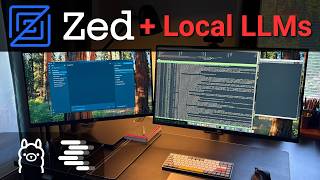

Connect Local LLMs to Zed Editor
35sShows a quick, practical setup for using local AI models in a code editor, appealing to developers interested in privacy and offline AI.
▶ Play Clip"Title accurately describes the tutorial; the video delivers exactly what it promises."
This video demonstrates how to connect the Zed editor to local LLMs using Ollama and LM Studio, both on the same machine and across a local network. The process is straightforward and requires only a few configuration steps.
Check that Ollama is working by listing models and running a test query in the console.
In Zed's agent panel settings, select Ollama provider, adjust context window size (e.g., 60,000 tokens), and click connect.
Choose the appropriate agent profile for file editing capabilities. Toggle thinking mode for reasoning models to speed up responses.
Similar to Ollama, verify LM Studio works in console, then in Zed select LM Studio provider and connect.
Add a new OpenAI-compatible provider with the remote machine's URL and port. Ensure the full path including protocol version is specified.
Connecting local LLMs to Zed editor is simple and flexible, allowing seamless switching between models on the same machine or across a local network.
What is the default URL for Ollama in Zed editor?
The default local URL with the correct port is already filled in.
1:13
Why might you increase the context window size for Ollama in Zed?
Because when the model uses tools, 8,000 tokens may be too little.
1:25
What does the agent profile determine?
It determines what the agent is allowed to do, such as editing and creating files.
2:25
How can you speed up a reasoning model's response?
By disabling the thinking mode switch.
2:42
What must be included in the API URL when adding a custom OpenAI-compatible provider?
The full path including the port number and the protocol version.
5:43
Zed Editor 1.0 Release
The video congratulates the Zed team on the 1.0 release, highlighting the editor's progress.
0:26Context Window Adjustment
Practical tip to increase context window for tool-using models.
1:25Agent Profile Importance
Explains the role of agent profiles in controlling file access.
2:22Remote LLM Setup
Demonstrates how to connect to models on another computer in the local network.
4:15[00:00] One of the editors I use is Zed editor,
[00:02] and most of the time I use it together
[00:04] with local models. So today I want to
[00:06] show you how I connect it to local
[00:08] LLM's, both models running on the same
[00:10] computer as the editor, and models
[00:12] running on another computer in the local
[00:14] network that can be very convenient when
[00:16] you want to run models on a more
[00:17] powerful machine with a stronger GPU.
[00:20] And since I usually use Ollama and LM
[00:21] Studio to run models, I'll use those as
[00:23] examples today. But before that, I want
[00:26] to congratulate the Zed editor team on
[00:28] the release of version 1.0. I've been
[00:30] using this editor since the closed beta
[00:31] days, and the progress over the last few
[00:33] years has been truly impressive. So
[00:35] let's start with Ollama. First, I'll
[00:37] check in the console that Ollama is
[00:39] working properly, so if anything goes
[00:41] wrong later, I know the issue is not
[00:42] there. First, let's look at the list of
[00:44] models available on this computer. I
[00:46] already have several downloaded. Let me
[00:48] choose Gemma 4. Now I'll launch it and
[00:50] ask it to answer something, just to make
[00:51] sure it works correctly. Yes, the model
[00:54] loaded into memory successfully, thought
[00:55] for a moment, and then gave me a
[00:57] response. So everything looks good. Now
[00:59] I know that both Ollama and the selected
[01:01] model are working. Now let's go to Zed
[01:03] editor and open the agent panel. In the
[01:05] settings for this panel, there is a
[01:06] section for LLM providers. That's
[01:09] exactly what we need. There we can find
[01:11] an option called Ollama. By default, the
[01:13] local URL with the correct port is
[01:15] already filled in here. That is the
[01:17] default Ollama address, and if you
[01:19] didn't change anything when setting up
[01:20] Ollama, then you don't need to change
[01:22] anything here either. I will only
[01:23] increase the context window size because
[01:25] when the model uses tools, 8,000 tokens
[01:28] may be too little. I'll increase it to
[01:30] 60,000 for now. That should be enough to
[01:32] start with. Now we press the connect
[01:33] button so Zed editor can verify that
[01:35] Ollama is available at that URL and load
[01:38] the list of available models. As you can
[01:40] see, a green check mark appeared along
[01:42] with the word connected, which means Zed
[01:44] successfully connected to Ollama, and
[01:46] everything is working properly. All
[01:47] right, now let's close the settings
[01:49] window and look at the list of available
[01:51] models. We can see a new section called
[01:53] Ollama, and inside it are the models
[01:55] available to us. As you can see, they
[01:57] are the same models that were shown in
[01:58] the console earlier when we launched
[02:00] Ollama. Let me also choose the same
[02:02] model here that I used in the console,
[02:04] Gemma 4. And again, just to verify that
[02:06] everything is definitely working, I'll
[02:08] type something to it. It doesn't really
[02:09] matter what. The important thing is to
[02:11] confirm that I can interact with my
[02:13] local model directly from the editor.
[02:15] Okay, the model thought for a moment and
[02:17] then replied. Great, that means
[02:19] everything is configured and working
[02:20] exactly as it should. Let me also show
[02:22] you a couple of important things you
[02:24] should pay attention to. The first one
[02:25] is the agent profile. To simplify it a
[02:27] lot, this determines what the agent is
[02:29] allowed to do. There are three built-in
[02:31] profiles, and if you want the model to
[02:33] be able to edit and create files inside
[02:35] your project, choose the right profile.
[02:37] The second thing I want to point out is
[02:39] the thinking mode switch. If the LLM you
[02:42] selected supports reasoning before
[02:43] answering, you can enable or disable it
[02:45] here. It can be useful to experiment
[02:47] with turning it on or off, especially if
[02:49] the model responds very slowly and you
[02:51] want to speed things up a bit. All
[02:53] right, now that we've covered Ollama,
[02:55] let's do the same thing with LM Studio.
[02:57] Just like with Ollama, I'll first check
[02:58] in the console that LM Studio starts
[03:00] without any problems. I'll also launch a
[03:02] model to make sure everything is working
[03:04] properly there as well. Since I
[03:05] currently have only one model loaded in
[03:07] LM Studio, that's the one I'll use. Yes,
[03:10] everything works here too. The model
[03:11] responds to my requests. Okay, now let's
[03:14] go back to Zed editor and once again
[03:16] open the agent panel settings section
[03:18] with LLM providers. This time we look
[03:20] for the option called LM Studio. Here
[03:22] again, just like with Ollama, the
[03:24] correct default URL is already entered,
[03:26] so there is nothing to change. We simply
[03:28] click connect, and Zed editor checks
[03:30] that everything is working, connects to
[03:31] LM Studio, and retrieves the list of
[03:33] available models. As you can see,
[03:35] everything went successfully. The editor
[03:37] connected to LM Studio. Now let me open
[03:39] a new chat and then choose a new model
[03:41] for that chat provided by LM Studio. As
[03:44] you can see, a new section dedicated to
[03:45] LM Studio has appeared, and since I only
[03:48] have one model loaded in LM Studio,
[03:49] there is not much to choose from. So we
[03:51] simply select that one. Okay, this time
[03:53] I'll ask the model to do something
[03:55] useful, and as you can see, it
[03:56] successfully processed my request and
[03:58] wrote "Hello world" in several
[04:00] languages. Excellent. The combination of
[04:02] Zed editor and LM Studio works as well.
[04:05] So, as you can see, connecting local
[04:07] models to Zed editor is quite simple. It
[04:09] only takes a few clicks, and by the way,
[04:12] you can switch between them at any time.
[04:14] Now let me show you a slightly more
[04:15] advanced case, when the LLM's are
[04:17] running on another computer inside your
[04:19] local network. To do that, we go into
[04:21] the model settings. The simplest way
[04:23] would be to just change the URL for the
[04:25] existing Ollama and LM Studio entries.
[04:28] If you only plan to use models running
[04:30] on another computer, then that is
[04:31] exactly what you should do. But I want
[04:33] to be able to switch dynamically between
[04:35] smaller models running on my laptop and
[04:37] larger models running on my desktop
[04:39] machine. So I'll use a different
[04:40] approach. In the header of the LLM
[04:42] providers section, there is a button for
[04:44] adding a new provider. We click it and
[04:46] choose the option OpenAI compatible.
[04:49] Then we enter a name. In my case, I'll
[04:51] call it Ollama desktop, so I always know
[04:53] what these models are. And then I enter
[04:55] the address of the other computer where
[04:57] Ollama is running.
[04:58] In the API key field, you can enter any
[05:01] text. By default, Ollama does not
[05:03] require a key. After that, we save it.
[05:05] Oh, wait, it won't let me save without
[05:07] specifying the default model name. All
[05:09] right, let me enter one of the models I
[05:11] already have loaded on my desktop. Okay,
[05:13] now that everything is filled in and
[05:14] saved, we can finally test it. I'll type
[05:17] a test message in the chat.
[05:19] Oops, it doesn't work. Looks like I made
[05:21] a mistake somewhere. But that's fine,
[05:23] we'll figure it out. Let's close the
[05:25] agent panel for a moment and open the
[05:26] settings file so it's easier to see
[05:28] where I went wrong. By the way, this is
[05:30] a very convenient feature in Zed editor.
[05:32] Every change you make through the UI is
[05:34] reflected directly in the config files.
[05:37] All right, here is the section for the
[05:38] provider I just added. So what's wrong
[05:40] here? Ah, I see it. In the API URL
[05:43] field, when adding your own LLM
[05:45] provider, you need to specify the full
[05:47] path including the port number and the
[05:49] protocol version. All right, I'll save
[05:51] the settings and try again. Success. Now
[05:54] it works. I was able to access an LLM
[05:56] running on my desktop from the editor
[05:58] running on my laptop. Excellent. I'm not
[06:00] going to demonstrate connecting to LM
[06:02] Studio on the desktop because the
[06:04] process is identical to Ollama, only the
[06:06] URL is slightly different. So as you can
[06:08] see, using local models in Zed editor is
[06:11] very simple. And on top of that, you can
[06:13] configure everything in whatever way
[06:15] works best for you. That's exactly why I
[06:17] like Zed so much. That's all for today.
[06:19] If you enjoyed this video, give it a
[06:21] like and subscribe so you don't miss the
[06:23] next episodes. See you soon. Take care.
⚡ Saved you 0h 06m reading this? Transcribe any YouTube video for free — no signup needed.