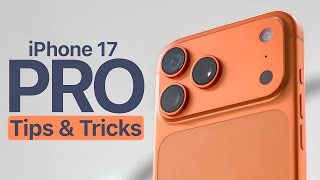

48MP Camera Hack for iPhone 17 Pro
43sHigh-value photography tip that instantly improves photo quality, appealing to iPhone users who love taking sharp pictures.
▶ Play Clip"Delivers exactly what the title promises—20 hidden tips, though some are not truly 'hidden' and the video is a bit rushed."
This video presents 20 tips and tricks for the iPhone 17 Pro, covering camera features, customization options, AI tools, and security enhancements. The host demonstrates each feature with step-by-step instructions, aiming to help users unlock the full potential of their device.
Enable ProRaw and resolution control in Settings > Camera > Formats, then switch to 48MP in the camera app for richer details.
In video mode, tap the three dots and enable dual capture to record with front and back cameras simultaneously.
Use Center Stage to auto-zoom and rotate the selfie camera, keeping subjects framed when more people join.
In Settings > Apps > Phone > Unknown Callers, enable 'Ask reason for calling' to have Siri answer unknown calls and transcribe the caller's reason.
Tap the 3D icon on any photo to convert it into a spatial scene that responds to phone tilt.
Enable in Settings > Battery > Power Mode to automatically adjust refresh rate and brightness to save battery.
Long-press home screen, tap Edit > Customize to resize icons and apply tinted colors matching wallpaper.
Create a new wallpaper and tap the spatial button to make the lock screen photo come alive in 3D.
In Files, share an MP3 and select 'Use as ringtone'—no iTunes or GarageBand needed.
Take a screenshot, circle an object, and the iPhone will search the web for it—similar to Google Lens.
In Control Center, swipe on the flashlight icon to adjust beam width and brightness.
Plug in the charger and the lock screen shows time until 80% charge; also visible in battery settings.
In Settings > Camera > Camera Control, toggle camera adjustments and customize to zoom, exposure, or focus.
In Messages, tap a chat, hit the contact name, and choose backgrounds like gradients or sky themes.
Tap and hold in Maps, then slide up/down to zoom—no pinching needed.
Enable in Settings > Face ID & Passcode to require 1-hour delay for Apple ID/passcode changes unless at trusted location.
Long-press Control Center, tap Edit Controls to add shortcuts like dark mode, low power, or notes.
In Settings > General > Autofill & Passwords, enable 'Delete after use' for verification codes.
Tap the top edge of the screen to jump to top; drag across the dot bar to switch home screens faster.
In Settings > Apps > Music, enable 'Animated Art' to see album art animate on the lock screen.
The video delivers a comprehensive set of practical tips to enhance iPhone 17 Pro usage, focusing on camera, customization, and security. It encourages viewers to subscribe for more tips.
How do you enable 48MP capture on iPhone 17 Pro?
Go to Settings > Camera > Formats, turn on ProRaw and resolution control, then switch to 48MP in the camera app.
00:02
What does dual capture do?
It records video with both front and back cameras simultaneously.
00:30
How does AI call screening work?
It answers unknown calls, asks the caller for their name and reason, and transcribes it live on screen.
01:02
What is adaptive power mode?
It automatically saves battery by adjusting refresh rate and brightness based on activity.
01:47
How can you set a custom ringtone without iTunes?
In Files, share an MP3 and select 'Use as ringtone'.
02:30
What does circle to search do?
It lets you circle an object in a screenshot to search the web for it.
02:42
How do you adjust flashlight beam width?
In Control Center, swipe up/down or sideways on the flashlight icon.
02:57
What does stolen device protection do?
It prevents changes to Apple ID or passcode for 1 hour unless at a trusted location.
04:11
How do you autodelete verification codes?
In Settings > General > Autofill & Passwords, enable 'Delete after use'.
04:39
How do you animate album art on lock screen?
Enable 'Animated Art' in Settings > Apps > Music.
05:05
AI Call Screening
Shows a practical AI application that reduces spam calls and stress.
01:02Stolen Device Protection
Highlights a critical security feature that protects user data in case of theft.
04:11Custom Ringtone
Demonstrates a simple, free method to set custom ringtones without extra software.
02:303D Spatial Photos
Introduces a novel way to interact with photos, enhancing user engagement.
01:31[00:02] features. New camera modes, cool customizations, AI tools, and a lot more. Here are the best 20 iPhone 17 Pro tips and tricks you need to try right now. First, capture in true 48 megapixels. Go to settings. Scroll to
[00:16] megapixels. Go to settings. Scroll to camera formats. Turn on Pro Raw and resolution control. [music] Now, open your camera and tap the 24 megapixel label. Switch it to 48 megapixel. You'll instantly notice richer details and
[00:30] sharper textures. Second, dual recording. Open your camera video mode. [music] Tap the three dots. Turn on dual capture. You'll now record with both the front and back cameras simultaneously.
[00:45] Third, autoframing front camera. Switch to the selfie camera. Tap the center stage button. Turn on auto zoom and auto rotate. switch to landscape when more people join the frame. Hands-free frame perfect
[01:02] shots. [music] Fourth, AI call screening. Go to settings. Scroll down. Select apps. Scroll to find the phone. Tap on it. Then scroll to the screen. Unknown caller section. [music] Select turn on ask reason for calling. Now when
[01:18] an unknown number calls, your iPhone answers first. [music] It asks them to say their name and reason, then transcribes it live on screen. No spam calls, no stress. [music] Fifth, turn any photo into 3D spatial magic. Open
[01:31] any photo in your photos app. See that small 3D icon in the corner? Tap it. Now, tilt your phone and [music] boom, your picture turns into a 3D spatial scene. Sixth, adaptive power mode. Head to settings, tap on battery,
[01:47] scroll to power mode, [music] and then turn on adaptive power. Once it's on, your iPhone automatically saves battery by adjusting refresh rate and brightness based on your activity. Seventh, resize and recolor your icons. Hold your home
[02:01] screen, [music] tap edit, then customize. Try resize apps to make icons larger or smaller. [music] Then scroll to tinted icons and match colors to your wallpaper. [music] Eighth, dynamic 3D lock screen. From
[02:15] your lock screen, press and hold create new wallpaper. Pick a photo, tap the spatial button, [music] and boom, your wallpaper comes to life in 3D. Ninth. Make any song your
[02:30] to life in 3D. Ninth. Make any song your ringtone. Open files. Select an MP3. Tap share. Use as ringtone. [music] That's it. No iTunes, no GarageBand, just pick and set. Free and simple.
[02:42] 10th. Circle to search anything. Take a screenshot, circle an object, and your iPhone instantly searches the web for it. [music] Whether it's a product, place, or outfit, you'll find it in seconds. It's like Apple's version of
[02:57] Google Lens built right in. 11th torchbeam precision. Open Control Center. Turn on the flashlight. [music] And now, swipe up and down and sideways. You'll adjust the beam width and brightness. [music]
[03:14] in your charger and now on the lock screen, you'll see exactly how long till 80%. [music] You can also check it in battery settings. Finally, no more guessing when your phone's almost done. 13th camera button
[03:29] phone's almost done. 13th camera button shortcut. Go to settings, camera, camera control. Toggle on camera adjustments. [music] Then customize it to your favorite tool, zoom, exposure, or focus. 14th.
[03:44] Customize message backgrounds. Open messages. Tap a [music] chat. Hit their name. Choose backgrounds. Add gradients,
[03:56] sky themes, [music] or matching colors for each friend. 15th. One-handed zoom gesture. In maps, tap once and hold, then slide up or down to zoom. No pinching. It's surprisingly smooth and addictive to use. 16th, stolen device
[04:11] protection. Go to settings, then Face ID and passcode. Here, find stolen device protection. Now, turn it on. [music] If your phone's stolen, no one can change your Apple ID or passcode for 1 hour unless you're at a trusted location.
[04:27] 17th. Control center customization. Swipe down. Long press on screen. Tap edit controls. Add shortcuts like dark mode, low power or notes.
[04:39] 18th autodelete verification codes. In settings, go to general. Select autofill and passwords. Then in the verification code section, enable delete after use.
[04:51] 19th. Instant scroll trick. Tired of scrolling endlessly? Tap the top edge of your screen and boom, you jump to the top instantly. And for home screens, drag across the dot bar to swipe through pages faster.
[05:05] 20. Animated album art. Inside settings, scroll all the way down to apps, then find and tap the music. Scroll down and under animated art, make sure this is turned on. [music] Because now, if you tap the album artwork from
[05:20] Apple Music, it animates on the lock screen. And [music] again, this just looks too cool. And that's it. For more interesting tips and tricks, subscribe.
⚡ Saved you 0h 05m reading this? Transcribe any YouTube video for free — no signup needed.