
Wired AirDrop: Transfer Files Faster
45sReveals a hidden, counterintuitive trick (wired AirDrop) that saves time for large file transfers, appealing to Apple users' desire for efficiency.
▶ Play Clip"Delivers a solid list of 26 features, but includes a lengthy sponsor segment and some filler; still worth watching."
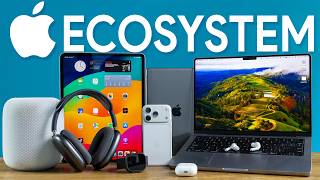
This video presents 26 tips, tricks, and hidden features of the Apple ecosystem, aimed at users who want to get more out of their interconnected Apple devices. The creator shares practical advice on everything from AirDrop and AirPods to Continuity features and smart home integration, emphasizing the seamless sync enabled by a shared iCloud account.
Connect iPhone to Mac with a USB-C cable for faster file transfers via AirDrop, especially for large files.
Connect two pairs of AirPods to one iPhone or iPad to watch the same movie or listen together, exclusive to AirPods.
Enable cellular AirDrop in Settings > AirDrop to continue sending files over cellular data when Wi-Fi is slow.
Share contact info by holding two iPhones together; enable in Settings > General > AirDrop.
Use Apple Watch to unlock Mac, iPhone, or iPad without biometrics; enable in Touch ID & Password settings.
Mirror iPhone screen on Mac to get notifications, use apps, and see live activities like Uber Eats updates.
Apple ecosystem extends to smart home devices via Matter, allowing control from iPhone, Mac, or Apple Watch.
Use iPhone as a high-quality webcam on Mac, including Desk View for showing your desk from above.
Use iPhone as a portable scanner directly in Mac apps like Notes via the paperclip icon.
Share Apple Notes with others for real-time collaborative editing, similar to Google Docs.
Insert sketches from iPhone/iPad into Mac apps, and annotate PDFs or sign documents using your phone.
Hold iPhone near HomePod to seamlessly transfer audio from AirPods to HomePod.
Apple Watch shows next turn and haptic alerts, useful for cycling or driving without verbal cues.
Copy and paste across devices using three-finger pinch gestures on iPhone/iPad and Mac.
Share cursor and drag files between iPad and Mac by placing them near each other; enable in Displays settings.
Use iPad as an extra monitor for Mac via Sidecar, with wired connection option for stability.
iCloud Keychain saves and syncs passwords across all Apple devices, a convenient built-in password manager.
Share Wi-Fi passwords with contacts and automatically join Wi-Fi on all your devices once signed in.
Sync Focus modes across devices to automatically change backgrounds and notifications based on activity.
MacBook or iPad automatically connects to iPhone's hotspot without draining battery, ideal for travel.
Use Find My to locate devices and AirTags, with precision finding on iPhone for exact location.
Move calls between iPhone, Mac, and iPad mid-call; use the phone app on Mac for full functionality.
Pair two HomePods with Apple TV for stereo sound, easily set up by placing them near the TV.
Use iPhone or Apple Watch as a remote for Apple TV, convenient when the physical remote is lost.
Switch audio between Apple TV and AirPods seamlessly, enhancing immersion or privacy.
Continue tasks like Safari browsing from iPhone to Mac or vice versa via the Dock or app switcher.
Cast your iPhone screen to Mac or Apple TV via Control Center's Screen Mirroring.
The Apple ecosystem offers a wealth of hidden features that enhance productivity and convenience across devices. By leveraging these tips, users can unlock the full potential of their Apple devices and enjoy a more seamless, integrated experience.
How can you speed up AirDrop transfers for large files?
Connect the iPhone and Mac with a USB-C cable and use AirDrop normally; it will use wired AirDrop.
00:43
What is the exclusive feature that allows two pairs of AirPods to connect to one iPhone?
Share Audio, which lets two pairs of AirPods play the same audio simultaneously from one device.
01:10
How do you enable AirDrop over cellular?
Go to Settings > AirDrop and toggle on 'Use Cellular Data'.
01:35
What is NameDrop and how is it activated?
NameDrop shares contact info by holding two iPhones together; enable in Settings > General > AirDrop.
02:55
How can you unlock a Mac without biometrics?
Use an Apple Watch by enabling 'Use Apple Watch' in Touch ID & Password settings.
02:29
What is iPhone Mirroring on Mac?
It mirrors your iPhone screen on your Mac, allowing you to see notifications, use apps, and view live activities.
02:55
How do you use your iPhone as a scanner in Notes?
In Notes, click the paperclip icon and select 'Scan Document' to use your iPhone's camera.
06:44
What is Continuity Sketch?
It allows you to insert a sketch drawn on your iPhone or iPad into a Mac app via File > Insert Sketch.
07:50
How do you transfer audio from AirPods to HomePod?
Hold your iPhone near the HomePod and it will automatically switch the audio over.
08:44
What is Universal Control?
It lets you share a cursor and drag files between a Mac and iPad by placing them near each other.
10:08
How do you enable Sidecar?
Click the Screen Mirroring button on your Mac and select your iPad, or use the green button on a window.
10:46
What is the benefit of iCloud Keychain?
It saves and syncs passwords across all Apple devices, providing a convenient built-in password manager.
11:13
How do you share Wi-Fi passwords with contacts?
When a contact tries to join your Wi-Fi, you can approve the connection from your device without revealing the password.
11:38
What is Automatic Hotspot?
It automatically connects your MacBook or iPad to your iPhone's personal hotspot when Wi-Fi is unavailable.
12:30
How can you use your Apple Watch as a remote for Apple TV?
Use the Remote app on your Apple Watch to control Apple TV, which is convenient when the physical remote is lost.
14:42
Wired AirDrop
Reveals a lesser-known method to speed up file transfers, saving time for large files.
00:43Share Audio
Exclusive AirPods feature that enhances shared media experiences, a unique ecosystem advantage.
01:10iPhone Mirroring
Brings iPhone functionality to Mac, increasing productivity and convenience.
02:55Continuity Camera Desk View
Transforms iPhone into a versatile webcam with desk view, improving video call presentations.
06:05Universal Control
Seamless cursor and file sharing between iPad and Mac, a powerful multitasking feature.
10:08Automatic Hotspot
Eliminates the need for a cellular iPad by leveraging iPhone's hotspot automatically.
12:30Hand Off Tasks
Enables continuity of work across devices, a core ecosystem benefit.
15:10[00:01] ecosystem, but honestly just barely scratched the surface. It's a huge ecosystem and can do so many cool things and yet most people just use it for iMessage on your MacBook. So in this video, I want to share with you 26 tips,
[00:14] tricks, and hidden features that I wish I knew sooner about the Apple ecosystem. And trust me, I have a really big Apple ecosystem now. I've been expanding it kind of every year with more iPhones, iPads, MacBooks, AirPods, Apple watches,
[00:28] and even some Apple TV and HomePod stuff. But before we get into number logged into the same iCloud account on all devices. Then all the basic stuff should sync up. Messages, reminders, Bluetooth devices. That's all the easy
[00:43] stuff that turns the ecosystem on. But let's get right into it with number one. way faster? Of course, AirDrop is a huge part of the ecosystem, sharing files from your iPhone to your MacBook to your iPad. I use it all the time, but you can
[00:58] actually do a wired AirDrop. So, if you're sending large files, for example, from your phone to your MacBook, you can connect the two with the USBC cable and then just do a normal AirDrop and it will use wired AirDrop to send it
[01:10] significantly faster. Number two, did you know you can actually connect two pairs of AirPods at once to one phone, which I absolutely love doing. If I'm on a plane and I have an iPhone or an iPad and my friend and I want to watch the
[01:23] same movie, we can both connect our AirPods to the same exact phone and simultaneously play that. It's easy to do and you just open up Control Center, you select media, and then you just play on both pairs of AirPods, which again is
[01:35] something that is pretty exclusive to AirPods within the Apple ecosystem. You cannot do this on an iPhone with any other Bluetooth earbuds. Number three, I've got a couple more about AirDrop, you can actually use cellular data to
[01:48] airdrop. So, if you're airdropping to somebody and it's just taking way too long, uh you can make sure that you have cellular airdrop enabled and then as you airdrop thing and it'll actually keep sending it using your cellular plan.
[02:02] It's going to take a little bit more time, of course, and it does use your you're like, "All right, I have to catch my plane. Here's the photos, and it's know. Cool feature that does exist. You can simply enable this by going into
[02:16] settings, go to AirDrop, and then just toggle this on on your iPhone. And can actually bring two phones together to airdrop, which is great if you're in a room with a lot of iPhones around and you just want to send it to one person.
[02:29] touch your phones together and the AirDrop will start automatically. Number five, did you know you can actually unlock your Mac, your iPhone or your iPad using an Apple Watch? All you do is go to Touch ID and password on a Mac for
[02:43] example and then just go to use Apple Watch. You turn it on and you're able to pretty good job and I find this is great for any devices that don't have biometrics. Number six. Okay, this is the last AirDrop one, I promise. This is
[02:55] called Namerop. You can actually share contact information. It's on by default. All you do is hold two iPhones together and it'll just airdrop essentially your it's not on for you, you just go to settings, go to general, and just go to
[03:09] enabled. Number seven, this one's actually really cool. You can configure iPhone mirroring onto your Mac. So, you're getting notifications on your Mac otherwise wouldn't get on your Mac, maybe like Snapchat or Smartome stuff.
[03:22] And you can also see live activities as well on the top. for example, when your Uber Eats driver is going to be arriving. So, you can do things on your iPhone using your iMac or MacBook while you're working. And I I find this is
[03:35] on your security camera, uh maybe your thermostat, maybe you just want to use a keyboard to type faster on your iPhone, or maybe you just want to manage your smart home devices. Since Apple works well with matter, smart home devices
[03:48] kind of become an extension of the Apple ecosystem. And speaking of which, I want sponsor of today's video, the Yuthi Omni S2. This thing is an absolute beast. vacuums, but I don't usually talk about them because a lot of them are kind of
[04:03] the same, but this one actually does a way better job, and the engineers never thought about. The vacuum is incredibly powerful, so you get deeper and longer lasting cleans thanks to the Aeroturbo module, which uses what
[04:17] It's an industry first in the robot and provides larger and consistent air flow. Combine that with industry-leading 30,000 Pascal suction pressure that can deliver the first and highest 100 air watt suction power and this combination
[04:31] performance in a robot vacuum. The module also prevents the filter from clogging, so it works completely autonomously for longerlasting deep detangle themselves from hair and the
[04:44] to reach corners. And the roller mop, getting into the mopping section, genuinely does a better job of mopping than I do, which is awesome. It's the longest mop in the industry at over 11 in and has a downward pressure of over
[04:58] 3.3 lb, which is also the highest in the industry. So, the downward pressure helps it to really scrub off some tough stains. The mop also cleans itself four times per second with the HydroJet, and there's two squeegees in there to
[05:10] prevent dripping, so it always uses a clean mop with no contamination. And I never even thought of this, but the water used is sterilized via electrolysis in the 12-in one base. So 99.9% of household bacteria are killed
[05:25] there's so much more to talk about, but this thing is smart. It makes its own map. It knows where to mop. It knows where to avoid. It knows where to boost the suction. And this thing can handle lots of surfaces. It even climbs up 2-in
[05:38] thick carpets and detects fringe carpets and kind of cleans around them from the other side so it never gets stuck on them. I can make a whole video just on more, check out the link in the description down below. I love it. My
[05:50] wife loves it. Some of my friends came over and just watched it. It It's kind has a lot of thought put into it. All right, so where were we? Number eight. Continuity camera is of course the best webcam you can get for any video calls
[06:05] Mac and you just get the incredible image quality of a nice phone camera and on it all the time. But did you know you can actually use this for desktop view?
[06:17] You just put it where it normally goes. It uses a wide-angle camera and then look like you have a camera directly above your desk. So you can write on this. You can like show images. It's really useful for showing things in a
[06:31] video call. And you can do this really easily while your phone is up there. You enable desk view and you can toggle between that as much as you need to in a call. Which by the way, if you don't already have one, you can buy these
[06:44] little iPhone mounts for your MacBook or I just 3D printed mine. It took like a couple, I don't know, 45 minutes to make it and uh it works really, really well. know you can use your iPhone as a portable scanner? Not just with Adobe
[06:58] Scan, which I kind of do love that app, but actually on your Mac in a more and then scan on iPhone. And you can do this on pages, on notes, on tons of other apps. So for example, if you are in notes, you just click on the little
[07:11] paperclip icon and then take photo or scan document and then it opens up your what you need to scan and then it just way to not have to like scan it and then send it to your MacBook and then like
[07:24] put a PDF in somewhere. Like it's just so cool. You can do it like that. And speaking of Apple Notes, it's probably my favorite software or favorite application on any Apple device. Really ties the ecosystem together so well. And
[07:36] note. It's kind of a lot like Google Docs, for example. All you have to do is down. I didn't even notice it for a really long time, but you can toggle you share it with somebody, you can both edit that in real time and you have a
[07:50] collaborative Apple Note. Number 11. Speaking of using your phone for inputs, do tons of other things using your iPhone or iPad and just sending that call this continuity sketch and continuity markup. And you can use it in
[08:05] a bunch of different ways, but I'm going to bundle it all into just one on this list. So, if you just go to file or insert, and then you select insert sketch, you can draw whatever you want on your iPad or iPhone. Uh, and that's
[08:17] bunch of other applications as well. Continuity markup then is a little bit That's going to be if you're like viewing a PDF in viewer. You can just click on the little annotate button and then click on iPhone or iPad. And uh
[08:31] draw different things that need to go to in PDF. Or what I really like to use this for is signatures. So if you ever need to sign a PDF, you can click on markup, then click on signature, and then just add a signature from your
[08:44] phone or tablet. That way you're not trying to be like a mouse wizard and and using just a mouse. Like some people can do that, but I'm just I'm not that good with a mouse. Number 12, hand off from AirPods to HomePods or Apple TV. This is
[09:00] something that is really cool. You just hold your phone near HomePods and it'll automatically switch your music over from your AirPods over to your HomePods. I find this is so useful. If I like get home, I've got my AirPods on, I'm like
[09:12] over and tap on there and it can continue a podcast or really whatever like you're really in an ecosystem when you do that kind of feature. Number 13. but the rest are going to be a lot quicker. Apple Maps does a really good
[09:27] job with Apple Watch. You can not only see the next turn, but you get haptic useful if I'm cycling or even if I'm just driving and I turn off the verbal I can look over and realize like, "Oh, my next turn is in a mile. I don't want
[09:41] to miss that." Number 14, you can copy and paste across devices. And they call this universal clipboard. But you can do this using gestures as well. So on your or whatever you want to copy, even files, you can just do a three-finger
[09:55] pinch inward, that'll copy it. And then on an iPad, for example, three-finger So those gestures are really cool. really save a lot of time from having to like tap it and hold it just perfectly so the little thing pops up to paste. I
[10:08] can copy between all of your Apple devices. Copy on your phone, paste on your MacBook. Number 15, universal iPad and a Mac. You can share your cursor between an iPad and a Mac. And
[10:21] you can also drag files between them. All you do is set them near each other the edge and you just keep dragging. It looks like it's pushing through a little wall and then it breaks through into your iPad and then you can drag files
[10:33] your your mouse over there. Um, and in order to enable this, you just go on settings on Mac, go to displays, click on a little advanced button, and then toggle all three of these on. But maybe you don't want Mac OS and iPad OS. Maybe
[10:46] you just want more Mac OS. You could do this using Sidecar where the iPad acts as an extra monitor next to your MacBook. I like this when I'm traveling To do this on your MacBook, you just click on the little screen mirroring
[10:59] button on the top and then select iPad. Or here's a cool one. You can actually over the little green bubble. Like, you know, the red, yellow, green. Hover on the green one and then select move to iPad. It's a cool way to get it over
[11:13] there automatically. And for an even more stable connection, you can also do wired connections with this. Most people don't know this, but a wired sidecar connection is absolutely a possibility, which also works well if you're using
[11:25] Ethernet, for example, on maybe a Mac Mini and you want to keep your Wi-Fi off. Number 17, keychain is a core part of the Apple ecosystem that saves all of your passwords across devices, but I mean, one password, Last Pass, Bit
[11:38] options out there, but the keychain is still pretty convenient. Number 18, Wi-Fi sharing with contacts. So, if you are on Wi-Fi and somebody else in your can I get the Wi-Fi password?" Maybe you don't know the Wi-Fi password. As long
[11:52] go to the Wi-Fi and try to sign in, it'll prompt you and you can just say yes and you can automatically get them on the Wi-Fi. But kind of similar note to this, you can also share your Wi-Fi with all your devices. So, sign in on
[12:05] your iPhone, your iPad will sign in automatically, your new MacBook will speaking of syncing up passwords and stuff like that, you can also sync focus mode. So if you go for a run or if you're going to work, you can
[12:18] automatically have all your devices act in very specific ways. Change the background on them, change, you know, a lot of stuff with the focus modes, which which is kind of the the whole point of
[12:30] the ecosystem. Number 19, most people don't need an LG or 5G iPad if you have an automatic hotspot with your iPhone. So on a MacBook or on an iPad, it'll automatically connect to your hotspot on your iPhone and just use the data
[12:43] to be the fastest. Usually, it's like five megabytes per second. But I find this is so useful if you're taking trains, which I do absolutely all the on my hotspot. It just automatically uses it on my iPhone, but it doesn't
[12:56] leave it on all the time and drain my battery. Number 20. I mean, maybe you don't use this. I use this all the time. I lose things non-stop. And using Find My to find your Apple devices, to find your items like Air Tags, or just to
[13:09] that. And that's a core part of the ecosystem in my opinion. And you can even use precision finding with Air Tags or newer AirPods using your iPhone. It like, "All right, it's like 10 feet this way." Helps you to find something if
[13:22] it's like in your couch cushion. And you can even use this on higherend Apple and help you find your AirPods. Number 21, and this is getting better and better, you can actually transfer calls between devices mid call. So obviously
[13:35] everything, so it doesn't really matter. But if you have your iPhone next to your you just want to like transfer it over from like your MacBook over to your from your desk, you can really easily do this. You just click on send over to
[13:49] iPhone. And with the latest updates, you can actually use the phone app pretty well on Mac OS. You can dial and and do everything on there. And it's all but again, it feels like it's through your MacBook. Number 22, you can connect
[14:02] HomePods to your Apple TV in stereo. So, they're nice smart speakers as it is. I don't really think series as smart as it could be yet. It's not smart at all. Don't like Siri's the the weak link in the Apple ecosystem right now. Don't get
[14:15] kind of a cool speaker. They sound pretty good and you can use them on an Apple TV in stereo. So, I would love to see an Apple soundbar someday, but at least for now, they got a lot of volume and all you do is set them up next to
[14:28] detects it. You're able to set it up really easily and you can use them in It's really cool how that actually works. Number 23, you can use your iPhone or Apple Watch as a remote for your Apple TV. I don't even know where
[14:42] the remote is for my Apple TV, so I just use my phone all the time, and you can navigate it really well. And if you lose remotes and phones, a watch is strapped to you, so like you you really can't lose that. Number 24, you can seamlessly
[14:55] I know I kind of already said this in the video, but I find this is so useful you're watching a show, just switch over to your AirPods and you can still watch on your TV connected to your AirPods. Or if you are watching like a scary movie
[15:10] and you want like an even more immersive experience, again, AirPods do an even better job there. Number 25, we only have two left here. This one is the ability to hand off tasks. And I know like handoff and air and drop and like
[15:23] Apple uses a lot of the same words for a lot of different things, but handing off tasks is kind of exactly what it sounds like. If I'm using Safari or some other app on my iPhone, for example, I can go on my Mac and on the bottom you'll see
[15:36] the doc or I actually have my doc on the left side. You'll see the phone icon show up next to Safari or whatever app you're using. If you click on that, it opens up exactly where you left off and you can continue on that device. And the
[15:48] something on your Mac and you go on your iPhone, you just swipe up to see all active apps and you'll see the little button on the bottom and you can toggle over to that. Number 26. Then you can cast your phone to your Mac or Apple TV
[16:03] very easily using screen mirroring. You just swipe down, tap on mirror, and choose your display. So those are 26 of the things you can do with the Apple you can do and I would love to hear what you guys like to do in the Apple
[16:16] ecosystem in a comment down below or what your favorite was in this video. I about the ecosystem. New things are always coming out. But I hope you enjoy this video. Thanks for watching and I'll see you guys in the next


⚡ Saved you 0h 16m reading this? Transcribe any YouTube video for free — no signup needed.