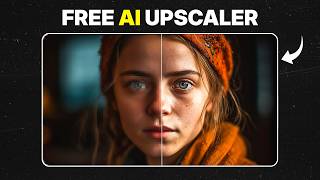

3 Free AI Upscalers That Actually Work
43sThe promise of free, effective tools grabs attention immediately, and the quick walkthrough with a hack (image-to-prompt) provides actionable value.
▶ Play Clip"Title accurately promises three free AI upscalers that work, and the video delivers exactly that."
This video demonstrates three AI-powered image upscaling tools that offer free credits, allowing users to enhance low-resolution photos by restoring details and sharpness. The tools covered are Nordy AI, Imagine Art, and Pixa.com, each with a simple workflow for uploading images and generating high-resolution results.
The video presents three AI tools that can upscale images and restore details like skin texture and sharpness, all offering free credits.
Use Nordy AI's 8K Upscaler: upload an image, optionally generate a prompt via an image-to-prompt tool, paste it, and click run to enhance details.
Imagine Art provides 100 free daily credits. Use the image upscale feature, select the Topaz model, set quality to max and 4x upscale, then download.
Pixa.com offers free credits for new users. Upload an image, choose upscale factor, and generate to improve resolution and clarity.
All three tools are easy to use and provide free daily credits, enabling quick conversion of low-quality images to high-resolution photos.
These three AI tools—Nordy AI, Imagine Art, and Pixa.com—offer effective free solutions for upscaling images, making high-resolution enhancement accessible to everyone.
What is the first AI tool demonstrated for image upscaling?
Nordy AI
00:15
How many free daily credits does Imagine Art provide?
100 free credits daily
01:23
Which model does the video recommend for best results in Imagine Art?
Topaz model
01:36
What upscale factor is suggested for Imagine Art?
4 times upscale
01:50
What is the third AI tool mentioned for upscaling?
Pixa.com
02:15
Three Free AI Upscalers
Introduces the core value proposition: three tools that actually work and offer free credits.
00:02Nordy AI Prompt Trick
Shows a clever workaround using an image-to-prompt generator to improve AI understanding.
00:15Imagine Art Daily Credits
Highlights the generous free tier of 100 daily credits, making it accessible for multiple uses.
01:23Pixa.com Free for New Users
Points out that Pixa offers free credits for new users, lowering the barrier to try.
02:15[00:02] highresolution photos, then this video Today, I'm going to show you three powerful AI tools that can easily upscale your images and bring back details like skin details and overall
[00:15] sharpness. And the best part is that all of these tools offer free credits, so anything. Let's start with the first tool, which is Nordy AI. First, go to the Nordy AI website and sign in using your Google account. Once you log in,
[00:30] you'll see a search bar at the top. Simply search for 8K Upscaler and open that tool. After opening it, scroll down a little and click on the upload button. Then upload the image that you want to enhance. Now, the platform asks for a
[00:43] prompt describing the image so the AI can better understand the details it needs to restore. If you don't want to write the prompt manually, there's an easy trick. Just go to an image to prompt generator website, upload the
[00:56] same image there, and click generate prompt. The website will automatically create a description of your image. Simply copy that generated prompt and paste it back into Nordi AI. Then click on run. The AI will now start processing
[01:09] your image and enhancing the details. After a few moments, your image will be result with the original image, you'll clearly notice the difference, especially in facial details, hair texture, and overall sharpness. Now,
[01:23] let's move to the second tool, which is Imagine Art. This platform is also very powerful, and it gives you around 100 free credits daily, so you can upscale multiple images without paying anything. To start, go to the Imagine Art website
[01:36] After logging in, click on the edit option and then select image upscale. enhance. After uploading, click on models and select the topaz model because it usually gives the best results for image upscaling. Next, move
[01:50] the quality slider to the maximum level and select four times upscale so the significantly. Once everything is set, processing your image. It may take a minute or two depending on the image
[02:03] size. After processing is complete, simply click download to save the upscaled image. When you compare it with the original image, you'll see that the details look much sharper and cleaner. Now, let's move to the third tool, which
[02:15] is pixa.com, another great platform that also includes an AI image upscaler. First, go to the Pixa website and create an account or sign in with your Google account. After logging in, go to the AI tools section and select the image
[02:29] upscaler feature. Here, you can upload the image that you want to improve. Pixa users, so you can test the upscaler without paying anything. After uploading option and select how much you want to increase the resolution. Then click
[02:43] generate or upscale, and the AI will start enhancing the image by restoring lost details and improving the overall quality. Once the process is finished, download the final result and compare it with the original image. You'll notice
[02:55] that the image looks much clearer and more detailed. All three of these AI tools are very easy to use and they provide free credits daily so you can experiment with them and quickly turn lowquality images into highresolution
[03:08] lowquality images into highresolution photos in just a few clicks.




⚡ Saved you 0h 03m reading this? Transcribe any YouTube video for free — no signup needed.