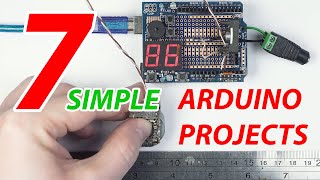

7 Arduino Projects for Beginners
45sQuick overview of multiple projects hooks viewers interested in Arduino.
▶ Play Clip"Title accurately describes the content: seven simple Arduino projects are demonstrated step-by-step."
This video demonstrates seven simple Arduino projects, primarily using the Arduino Uno board. The projects range from a water detector and automatic night light to a touch sensor doorbell and a PC gamepad controller, each explained with circuit schematics and code snippets.
The video covers 7 simple projects using Arduino boards, mostly Arduino Uno, which has enough I/O pins for most tasks.
A test sketch flashes an LED wired to digital pin 7 with a 430 Ohm resistor. The recommended output current for ATMEGA328 is 20 mA, max 40 mA, and total current for all pins must not exceed 200 mA.
Uses electrical conductivity of water. A sensor with two isolated plates is connected to 5V via a 100k resistor. When water bridges the plates, voltage drops, triggering a buzzer. The alarm can only be disabled by resetting.
Uses one LED as both light emitter and sensor. The LED is turned off briefly to read ambient light via ADC, then turned on/off accordingly. A 2-second delay is used to avoid flicker.
Uses a metal paper clip as touch sensor with a 1M resistor to ground. Relies on capacitive coupling from mains wiring. A frequency meter filters 50/60 Hz signals. Plays a WAV sample using the PCM library.
Uses a CD-ROM spindle motor as displacement sensor. Motor's commutator generates pulses proportional to rotation. Two analog inputs with polarity switching allow bidirectional counting. Accuracy adjustable via calibration factor.
Uses TSOP 1736 IR receiver. Decodes remote keycodes using the IR Remote library. Can control multiple loads (LEDs) based on specific button presses.
Emulates USB keyboard using Arduino Pro Micro (32U4). Has 5 buttons (4 cursor keys + fire). Uses Keyboard library and debouncing. Differentiates press/release events to support simultaneous key presses.
The video provides a practical guide to building seven diverse Arduino projects, from simple sensors to USB gamepad emulation, suitable for beginners to learn electronics and programming.
What is the recommended output current per pin for ATMEGA328?
20 mA, with a maximum of 40 mA.
02:19
What is the maximum total current for all pins on Arduino Uno?
200 mA.
02:34
How does the water detector sensor work?
It uses two isolated plates; when water bridges them, current flows and voltage drops, triggering the alarm.
02:48
What resistor value is used in the water detector and why?
100k Ohm; it protects the A/D input from noise when the sensor is dry.
03:55
How does the single LED night light use one LED as both emitter and sensor?
It turns off the LED briefly, reads the ambient light via ADC, then turns it on/off based on the reading.
06:43
What is the purpose of the 'shelf' variable in the night light sketch?
It compensates for the temporary offset in the A/D converter after switching from digital to analog mode.
08:28
How does the touch sensor doorbell detect a finger touch?
It uses a 1M resistor to ground and relies on capacitive coupling from mains wiring; a frequency meter filters 50/60 Hz signals.
10:56
What format must the WAV file be in for the PCM library?
11025 Hz, 8-bit, mono.
13:42
Why must the speaker be wired to digital pin 11 for the PCM library?
Because the internal timer's output is hard-wired to that pin inside the MCU.
15:01
How does the electronic ruler detect rotation direction?
By switching two analog inputs between digital output (logic 0) and ADC read, effectively flipping polarity.
16:55
What is the purpose of the calibration factor in the electronic ruler?
To compensate for amplitude variations due to motor speed, improving measurement accuracy.
18:02
Which Arduino boards can emulate USB devices?
Only 32U4 based boards, such as Arduino Pro Micro.
21:16
How does the gamepad sketch differentiate between button press and release?
It uses two sets of variables: current state and previous state. Comparing them detects press (previous released, current pressed) and release (previous pressed, current released).
23:11
What is debouncing and how is it implemented in the gamepad sketch?
Debouncing eliminates switching bounce; implemented via multiRead() that reads the button 50 times and decides state based on majority, plus a 100 ms delay.
24:34
LED as both emitter and sensor
Reveals that an LED can sense light, enabling a minimalist night light with a single component.
06:43PCM library for audio playback
Shows a clever workaround to play sampled sound on Arduino without a DAC, using a timer-based library.
12:56CD-ROM motor as displacement sensor
Repurposes a salvaged motor into a sensor, demonstrating creative reuse of components.
15:25[00:00] In this video we will look at 7 simple projects
[00:07] Most of them will be based on Arduino Uno:
[00:12] enough input and output pins for most tasks.
[00:18] working on today can be implemented using
[00:24] the Arduino IDE automatically compiles your sketch
[00:30] I would say, is its huge advantage. As you
[00:38] We will also be using this cute project board
[00:44] it you may find in the description. It fits
[00:51] bread-board, which is a compact rig, that allows
[00:57] soldering iron. Bread-board's holes are
[01:04] also the board contains dedicated holes for ground
[01:10] comes quite handy when assembling circuits... The
[01:17] way: basically it's hard to mess anything up here,
[01:22] and watch your fingers when you do it. Also note
[01:28] long. I've come across boards that were
[01:35] not necessarily that happens to you, but just
[01:42] cable will also be used to power the extension
[01:48] To make sure everything's working, let us first
[01:54] The diode is wired to digital pin 7 and positive
[02:02] I used the +5v rail here for no particular reason,
[02:05] it was easier to wire, but it doesn't really
[02:11] and you can just as well use ground to power your
[02:19] The recommended output current for ATMEGA328
[02:28] digital pins in parallel and switching them
[02:34] You have to remember though, that max total
[02:42] The first project we are going to
[02:48] Such devices rely on the electrical conductivity
[02:54] We will use a piece of standard PCB to produce
[03:01] Then, using a resistor in series, we will
[03:08] Initially our sensor will output 5v. As it will be
[03:15] between the plates. Current will flow and the
[03:22] This, accordingly, will be reflected by
[03:28] and our program, once a certain threshold
[03:34] Before we proceed to writing the sketch, we
[03:41] Let's set up an experiment...
[03:49] And the resistance of water turns out
[03:55] triggered reliably, the resistor's value must
[04:03] Basically, the only purpose of this resistor
[04:10] when the sensor is dry. If you experience
[04:17] Note, that both pins of the beeper will be
[04:22] and we will not use a ground connection here. This
[04:29] in opposite phase to create a bridge circuit,
[04:35] Ok, here's what our sketch will look like.
[04:41] and speaker pins for output, and initialize them.
[04:47] to read the value of the A/D converter and sound
[04:55] alarm() function plays tones and takes frequency
[05:04] As the sensor is flooded,
[05:09] Because flooding is an emergency, the alarm
[05:20] And... the alarm goes off again, because
[05:27] The maximum value Arduino's A/D converter
[05:34] the higher the degree of flooding. If necessary,
[05:40] value of this constant... Also, if we position the
[05:47] we can come up with water level sensor: its
[05:54] Note however, that electrical conductivity
[05:59] readings, so this method of level
[06:06] Our next device is the single LED automatic
[06:14] In low light conditions the LED lights up, and
[06:22] Here you can see the schematic
[06:27] When I said “the single LED”, I literally meant
[06:34] the LED. That's right! We are going to use the
[06:43] a light sensor, because LEDs can also sense light.
[06:50] this project will be a bit more complicated than
[06:57] microcontrollers! The problem is, the LED cannot
[07:05] But! Because LEDs switch really quickly, what we
[07:13] read the illuminance value, and then, based
[07:20] Here's the sketch source code. The LED is wired
[07:28] But how are we going to power the LED
[07:33] Actually, all analog inputs of
[07:39] if you use the appropriate pinMode command.
[07:45] And there's something else. Arduino's A/D
[07:52] This becomes even more evident if you keep
[07:58] So, to make our program more stable, we need to
[08:05] its less than 100 ms, but unfortunately,
[08:11] Also, while debugging the device
[08:16] After switching from digital to analog mode,
[08:23] This is probably caused by some transient
[08:28] we do not have time to wait for the offset to
[08:35] called “shelf” that takes care of this error.
[08:41] was found by trial and error method... If you
[08:48] you will probably have to play with this
[08:53] Here's the source code of the program. At the
[08:58] logic zero and then switch it to analog mode. Then
[09:05] performs 10 consecutive reads at 10 ms intervals.
[09:12] ADC errors and bounce. When we're done with the
[09:20] If the value read is greater than 220, we
[09:29] If the LED was turned on, we set the shelf
[09:37] Then there's a 2 seconds delay,
[09:42] Let's check it out! Ok,
[09:54] if said that the flicker is unnoticable, I would
[10:01] not necessary to read the illuminance value so
[10:08] minutes will quite suffice. The Sun doesn't set
[10:15] In that case I don't think anyone
[10:19] To adjust this interval you need to
[10:27] Our next project is the touch sensor doorbell.
[10:34] regular metal paper clip as a finger sensor, which
[10:41] We will also need a 1M resistor that we
[10:47] This device relies on the effect of
[10:52] phase wire located somewhere in
[10:56] When you touch the paper clip, the MCU registers
[11:03] action -- sounds a bell in our case. It should
[11:09] interference and noise. To protect from them
[11:17] But we have a microcontroller here,
[11:22] For the device to work properly, we need it
[11:27] on your country) Hz sine. Any other signals,
[11:36] To implement this, I wrote a simple frequency
[11:43] usually done by counting the number of transitions
[11:48] In our case it will be 25 ms – I picked it based
[11:56] pulses counted lies in the range of 70 to 150 –
[12:03] good signal... For now let us output the result
[12:13] As we can see, the program is quite stable and
[12:19] If the touch is too short, it's ignored.
[12:23] Now let's try to playback some sound. Of
[12:29] to buzz a primitive melody through the speaker.
[12:35] like a real old-school door-bell. I was able to
[12:41] sample without trouble, here's what it sounds
[12:48] a built-in D/A converter and it appears there's
[12:56] But! I found a quite remarkable library. It's
[13:04] it can play back 8-bit PCM format samples
[13:12] You need to download the library – the link is
[13:18] files into the “libraries” folder of Arduino
[13:24] PCM.c file and change the sample rate from 8000 to
[13:34] The sample file I got off the net has format
[13:42] 11025 Hz 8 bit mono – note it's the only
[13:53] Conversion is necessary because Arduino's memory
[13:59] Naturally, lowering the bit-resolution and
[14:05] case its not important. Now that we're done with
[14:11] from the WAV file and extract the raw 8-bit audio.
[14:19] Unfortunately, the Arduino IDE can not
[14:25] So, we need to convert our binary dump into
[14:31] To do it, we are going to use
[14:39] Here's what our bell sample looks like now.
[14:42] Let's save it into a separate file
[14:49] To play back the sample all we need to do
[14:55] Its only two parameters are name
[15:01] Please note, that you must wire the speaker
[15:06] assignment may not be changed. This is due
[15:12] hard wired to this pin inside the MCU.
[15:25] Our next project is the electronic ruler
[15:31] as displacement sensor. It's not secret to anyone
[15:40] However, the type of current such motor
[15:45] because the windings are constantly switched
[15:52] is periodically broken at a frequency
[15:57] This is the feature that our device will rely on.
[16:04] We will also use a two-digit 7-segment
[16:11] like in our previous sketches, data will be read
[16:18] It would be nice to implement counting in both
[16:23] in a digital caliper, for example. We know,
[16:29] change of EMF polarity on motor's output.
[16:35] We can use a resistor divider and shift
[16:41] In this case motor's positive EMF will increase
[16:48] But we would like our circuit to stay as
[16:55] We will wire the motor between two analog
[17:02] ADC ins of Arduino can turn into digital outs.
[17:10] in to digital mode and set it to logic zero
[17:16] Then we just switch them. This will
[17:22] the ADC. I should also note that solutions like
[17:23] pins are switched into different modes and sensors
[17:23] switching must happen much faster than
[17:23] The main loop of the sketch is before us. The
[17:30] We switch the A1 input into digital mode and
[17:37] If the value is greater than 0, we increment the
[17:45] and A1 are switched: A0 is now zeroed and A1 is
[17:54] counter is decremented. While experimenting I
[18:02] signal amplitude, which also affects the readings.
[18:08] factor, found empirically. The accuracy of the
[18:16] Let's check it out...
[18:22] Good! If you have an old CD-ROM sitting somewhere
[18:29] The next circuit we are going to look at
[18:37] Using this device, you can switch
[18:42] The circuit relies on the TSOP 1736 IR receiver.
[18:47] This element is not your regular photo-diode
[18:55] quality square wave signal, with noise and bounce
[19:02] In our case the IR-receiver is wired to line A2
[19:09] sketch, but we can still use all analog pins as
[19:20] to work, it also needs to be powered. LEDs are
[19:24] Hypothetically, if you want to control a
[19:30] you can get away with a simple D-type flip flop
[19:37] be very unstable, because it will react
[19:43] Like when you wanna switch channels on your
[19:48] your device will also be triggered. It may even
[19:54] bulb emits light in the infrared spectrum.
[20:01] button-presses on a certain remote control,
[20:08] Fortunately, Arduino already carries a
[20:14] To compile this sketch you need to add the library
[20:21] all you have to do is initialize it in your
[20:27] procedure compare decoded keycodes to a list of
[20:34] sketch in debug mode, read the keycodes of this
[20:40] As we can see, now pressing buttons on the
[20:49] The last device we are going to build today is
[20:59] on Arduino's ability to emulate USB slave devices.
[21:07] mouse, touchscreen, webcam, microphone, etc. To
[21:16] your Arduino to your PC using the regular USB
[21:24] Arduino boards can emulate USB port. I will be
[21:31] contain 4 cursor keys and a fire button. This
[21:38] If you wish, you can add more buttons to the
[21:45] Here is the schematic of the device.
[21:49] so we will use the INPUT_PULLUP
[21:53] To emulate USB keyboard we will use a
[21:59] For the sketch to compile successfully you must
[22:08] To use the library all you have to do
[22:14] Then, as a keypress is detected on the gamepad,
[22:17] call the corresponding library routine to
[22:23] At first glance, the algorithm is plain simple.
[22:31] In reality, it's a bit more complicated.
[22:37] you often have to hold a button down or
[22:43] For example, for them to be running, you
[22:48] For them to jump to the left, you must press
[22:54] To implement this correctly, the process of
[23:00] button press and button release. The events
[23:07] Fortunately, the Keyboard library supports this.
[23:11] Now, how do we differentiate between a button
[23:19] an old programmer's trick that accomplishes it.
[23:25] to the number of keys. There are 5 keys on our
[23:32] At the beginning of the loop we read all button
[23:39] At the end of the loop we copy these
[23:45] So, at the beginning of a new loop iteration all
[23:51] while the M varialbles will have the pre-stored
[23:58] Now all we have to do is compare these two arrays.
[24:06] current state is PRESSED -- note that PRESSED
[24:13] we send it to the USB interface. If the previous
[24:19] it means the user released the button. Send that
[24:27] the same, it means no event had happened, and
[24:34] While debugging the program I also added
[24:39] It performs 50 consecutive reads of
[24:44] Based on that it decides whether the button
[24:50] to eliminate switching bounce and is called
[24:57] LED will flash, and then a delay of 100 ms will
[25:06] have keycodes to be sent to USB interface. Space
[25:15] Shall we check it out? Looks
[25:30] And... that would be it for today! If you like
[25:37] to this channel and sharing it on social media.
[25:44] a comment. And if you'd like to drop me some
[25:50] that you can find in the description
⚡ Saved you 0h 26m reading this? Transcribe any YouTube video for free — no signup needed.