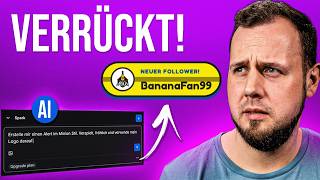

AI Generates Custom Stream Overlay in Seconds!
43sShows the instant generation of a Battlefield 6-themed overlay with bullet holes and dog tags, demonstrating AI's speed and customization.
▶ Play Clip"Title promises AI stream overlay creation and the video delivers exactly that with additional features, no fluff."
This video introduces Meld Spark, an AI agent in Meld Studio that can generate custom stream overlays, alerts, and even full layouts using natural language prompts. It demonstrates how to create and customize elements, and also covers the OBS Studio plugin version.
Meld Spark is a new AI feature in Meld Studio that integrates an AI agent to generate stream overlays and widgets.
After update, Spark is available on the right side. Opening it gives an AI agent with examples like custom overlay, starting soon, etc.
User enters a prompt (e.g., 'Battlefield 6 style, army style, dog tag and bullet holes') and the AI generates the overlay with a report.
Generated alerts can be triggered directly; e.g., clicking 'Follow Alert' shows bullet holes and dog tag design.
Users can request modifications like 'alert box with camouflage pattern' and the AI updates the overlay accordingly.
Prompt 'Build my stream layout' makes the AI configure scenes, sources (camera, gameplay), and remembers previous alerts.
Spark detects available sources like monitor, capture cards, webcam, and suggests a tactical H layout with intermission scene.
Users can upload their logo and have it integrated into alerts; copyright protection blocks unauthorized characters.
There is a gallery of pre-made overlays and widgets that can be dragged into scenes and further customized.
Spark can generate interactive chat games like Cyber Snake Chatpong, which can be controlled by chat commands.
Meld Spark also works in OBS Studio via a plugin; download from Meld Studio website and install.
In OBS, need to activate WebSocket server in Tools > WebSocket Server Settings and set a password.
In OBS, Spark can generate overlays and alerts but cannot access devices or create layouts; sources must be added manually.
Spark Free is used throughout the video; it offers unlimited access to elements and limited requests. Paid upgrade for more.
Meld Spark offers a powerful and accessible AI tool for streamers to quickly create custom overlays and layouts, with a generous free tier making it easy to get started.
What is Meld Spark?
An AI agent in Meld Studio that generates stream overlays, alerts, and layouts via natural language prompts.
00:03
How do you access Meld Spark in Meld Studio?
Open Spark from the right side after the update.
00:57
Can Meld Spark generate copyrighted characters?
No, it blocks copyright infringement and refuses to generate copyrighted characters like Minions.
06:18
What is needed to use Meld Spark in OBS Studio?
Install the Meld Spark OBS plugin and activate the WebSocket server with a password.
09:52
Is Meld Spark free to use?
Yes, Spark Free offers unlimited access to elements and limited requests; paid upgrade available for more requests.
12:14
What are the limitations of Meld Spark in OBS compared to Meld Studio?
In OBS, Spark cannot access devices or create layouts; only overlays and alerts can be generated, and sources must be added manually.
10:48
Full Layout Generation
Demonstrates the ability to create complete stream setups from a single prompt, saving significant setup time.
03:28Copyright Protection
Shows that the AI actively prevents generation of copyrighted material, protecting streamers from legal issues.
06:18Cross-Platform Compatibility
Meld Spark works in both Meld Studio and OBS Studio, making it accessible to a wide range of streamers.
09:11Free Tier Availability
Highlights that the tool is free to use with generous limits, lowering the barrier to entry for streamers.
12:14[00:03] recently introduced the new feature M Spark . And for those who don't know Mil Studio streaming software where many functions are already directly available . In my opinion, the most promising
[00:18] streaming software besides OBS Studio. M Spark is a new feature that integrates a kind of AI agent into Mel Studio, allowing you to
[00:32] shouldn't switch off either, because there is the Meld Spark OBS plugin for OBS, which makes exactly these functions available directly in OBS Studio. In this video, we'll take a look at exactly how Mil Spark works, what
[00:45] overlays it generates, and how it can be used in OBS Studio.
[00:57] 's start in Mage Studio, because after the update, the new function is now available on the right side. Spark is available there, and I can simply open Spark here, which will then give me an AI agent. Actually, it's relatively
[01:11] simple. Here I have the opportunity shown examples right away, such as a Custom Overlay, a Starting Soon
[01:23] Overlay, Beck Overlay; you can apply everything directly. There are also pre- can select here. Let's take another look at that in a moment . And there are ready-made games that are even linked to the chat , so that the chat
[01:39] can control the game via commands in your stream overlay. But to put it simply, how does that actually work? At the bottom, as with other AIs, I think that should be clear by now, you have the option to enter a prompt.
[01:52] Battlefield 6 style, army style, with a dog tag and bullet holes. Zack. It's always the same. This is where the thinking process takes place; the whole thing runs in the background, something is generated, and then you actually get
[02:08] the finished overlay or alert, or there's much more. Once everything is finished, you will also receive a report here detailing what was taken into account . You have the option to directly attack or grab this element here
[02:21] . Well, we 're in the Battlefield 6 style, that fits. I can click on it and say, for example, give me the Follow Alert, and the Follow Alert is triggered. You can also see the bullet holes here, for example.
[02:35] You can see that the whole thing is a dog tag in itself, and you also get a and of course, you can now pretty cool is that I can now say, for example , okay, it's not quite right yet,
[02:50] and I can always make change requests to this alert. For example, I can alert box. The alert box should simply have a camouflage pattern, and on the left side there is a dog tag with the icon of the user who triggered the alert
[03:03] . Then submit it again and it will be revised again and after a few seconds, sometimes it takes one to two minutes, it's all has been updated. I can then go back to Preview here and say,
[03:16] for example, "Yes, what happened?" One ZP and I already have my new element, and I mean, it looks pretty, pretty cool. Sure, you can saying, "Hey, adjust this . I want it to be different somehow
[03:28] ," but I think the principle should be clear. You can simply generate all the widgets with the agent, but that's just a tell the agent to build my entire stream layout, including where
[03:43] the camera should be, where the gameplay should be, and so on. For example, "Build my stream layout." What's really exciting is that the agent then available. It accesses the system and sees what's
[03:57] there. And the cool thing is, it also remembers what we did earlier with the alerts. Here, it suggests building a complete tactical H layout with the gaming scene, an intermission scene, a portrait
[04:10] layout, and it also finds my sources. That means it finds my monitor, it finds capture cards, it finds the webcam. Okay, and that 's it. Wow. Spark can not only generate graphics and animations,
[04:23] . So don't worry, it won't read your files and then won't read your files and then devices available in Spark Studio, such as webcams, audio interfaces, capture cards, monitors, and so on
[04:39] . Let's play through this. I'll simply answer the questions the reply: "As game source: "Should the main monitor be used, the webcam should be centered on the left, yes, use the Tactical Hlook." And off we go.
[04:53] that things keep popping up, new scenes are being created, and so on. For example, we now have the option here of a gaming scene, a portrait scene; the whole thing is ready to use and configured, and you
[05:07] a preview right away. That means I can now, for example, fire my alerts here, say the alert I've already created. I've added a complete overlay here elements, so I can access them . For example, I have my
[05:22] Tactical Handset here, which I can turn on and off whenever I want. I have the webcam, I have game capture, I have a really cool webcam frame. I think that's great too. The whole thing has been adjusted here. For example, you can see
[05:34] So, everything is being built and I can now interact with it again and again. M Spark accesses my Mil Studio and, as I said, can set things up for me. That's pretty cool. Imagine I say, for example, "Please
[05:49] logo that I uploaded for you ." It should protrude to the right behind the alert . Then I can go to "attach a file" here, select my logo, and integrate everything. Because copyright is also very important to Mel Spark
[06:02] you again in a moment. I hold the copyright here. This is my I immediately receive my new alert, and my logo is integrated here. That But if I want to generate characters, for example, Meld Spark can't do that.
[06:18] So Melt Spark can't just take, for example, a Star Wars figure or a Minion figure from you and commit copyright infringement. For example, original Minion figure. And then the answer comes here. I would love to
[06:31] the answer comes here. I would love to are copyrighted characters, I currently don't have any original Minion figures in pretty good. So, there's already a block in place to prevent any
[06:44] copyright infringements from being incorporated, which could of course cause you as a streamer [sniff] uh problems. good. But something else is also possible, which we haven't even looked at yet,
[06:57] and there are ready-made elements available. So I can access pre-made elements here. There's also a whole gallery, which I can easily open here, for example, and in the gallery I have many different categories.
[07:10] I mean, look at this Starting Soon screen with all sorts of integrate them into my setup, I can just select them, say okay, drag to scene, boom. I'm obviously not in the Starting Soon scene, but
[07:23] the whole thing is built, the widget. And theoretically, I can also customize this widget, because I think everything is finished here now. example, "change the Pokémon Starting Soon scene and add
[07:37] my logo behind it instead of Pikachu," I enter my logo again and fire it off. The scene was simply [laughter] adjusted and now instead of a Pikachu [laughter], the banana from my logo is wobbling behind it, which
[07:50] also looks pretty cool. Super further. Then I'll go back to Home here. Of course, I don't just have the individual widgets; I even have entire chat games, like Cyber Snake Chatpong,
[08:05] chat games, like Cyber Snake Chatpong, which can be controlled. That's also Chatpong here, I can create a scene , e.g., "Be right back". Then drag the Chatpong into there. Now I have a complete game that
[08:19] can be controlled; here you can see, for example, Type up or down, Type up or down, and it Type up or down, Type up or down, and it even has audio included. Do you hear that?
[08:34] you'll see that [laughter] this whole thing has blown up. I can go further . Now I'm waiting for the ball to come back. Off. Oh, wrong. And you can adjust that too. So you can go back into Spark
[08:47] and say, change Chat Pong. Instead of the ball, my logo should Instead of the ball, my logo should fly around as the game ball. Logo selected,
[08:59] fired [laughter] and now my logo is flying around here like a ball . [laughter] I can't anymore. So you can really customize everything. You just need to describe what you want.
[09:11] The more detailed your description, the better the results will be, of course. also works in OBS Studio, and we will of course take a look at that as well . If you go to the Mel Studio website and select Spark, you will find "
[09:25] Download Spark Plug for OBS"; simply download and install it on your OBS Studio. If you are using OBS Studio in Portable Mode, you can of default directory , e.g., here in
[09:39] my case, and the plugin will then be installed in your Portable OBS as well, and you will then directly receive a new document in OBS Studio. If it's not displayed, you have the option to do so via Docs above, then
[09:52] report Spark, Report Chat, Report Accounts, Report Stream Manager, or whatever you finished inside now. I can switch back and forth. However, in order for it to work and for me to have the same AI capability in OBS Studio, it also shows
[10:06] what I need. Specifically, I need to switch to Tools, adjust Websocket server settings, activate the Websocket server, and of course, assign a password . Just to be on the safe side. If I then
[10:19] click on apply, yes, the WebSocket is activated and then theoretically you would have to restart the document again. So it's not being recognized here. Then I can of course if I click on Mel Spark here now , he won't recognize it yet.
[10:33] and if it then works, the MSpark documentation looks like this simply log into Meld Studio or Meld and I already have several tabs here. Accounts opens, Spark opens, and I
[10:48] have the same functions again. Very importantly, and this needs to be Very importantly, and this needs to be said here, Meld Spark can access devices and create layouts in Meld Studio . This means Meldspark can
[11:02] create scenes for me, add sources, and Studio. However, what I can do in OBS Studio is to perform the complete generation of overlays and alerts . Selecting my
[11:18] devices, such as adding a new source here with a video recording device. I'll have to do that myself. For example, very simply, create a webcam frame in the Cyberpunk 2077 style and 16:9 fire.
[11:33] And here too, everything is created automatically and I get a source in OBS. I can now move them wherever I want. Theoretically, I could also put my camera in there .
[11:45] same thing as in Mel Studio. That means I can say, for example, "Okay, go ahead and do something with that," e.g., " Lots of subs," and then sub alerts will happen. , which is displayed by default , but I can react to it
[12:01] or try it out. So, preview, I can say, watch out, the colors are n't cool, change them, use a different font. All of this is possible, even in OBS Studio. But let's get back to the elephant in the room, because
[12:14] all of this is really cool, of course. The question is, is it free? And to be perfectly honest, I've only used Spark Free throughout the entire video . So for all generations, all tests, everything is Spark Free.
[12:28] It can be used for free. You can see it here too. Unlimited access to the elements can be used completely free of charge . A few Limited Spark Requests, but as I said, with the tests besides the video,
[12:42] I've definitely sent 50 or 60 requests . It was all free. Otherwise, those who need more can upgrade for $ per month, for example. say that you saw that too.
[12:57] But AI is certainly still a highly controversial topic. I'm curious to hear your comments. The fact is, with Spark, M Studio has created a really quickly and easily create the atmosphere you
[13:11] want in your stream. But what do you think? See you in the next video.
⚡ Saved you 0h 13m reading this? Transcribe any YouTube video for free — no signup needed.