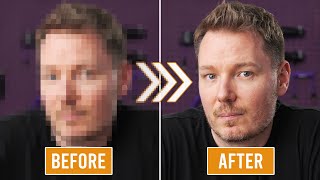

Why YouTube Hates Dark Gradients
45sReveals a surprising technical reason why dark gradients look terrible on YouTube, making creators rethink their set design.
▶ Play Clip"Title promises better uploads and delivers specific, actionable settings and insights."
The video explains how to optimize video exports for YouTube to minimize compression artifacts, covering set design, codec choices, and export settings. The creator shares personal experiments and recommends specific settings for better quality.
YouTube compresses dark gradients heavily, causing banding and artifacts. Light gradients are less problematic.
A brighter scene with more elements spreads bits evenly, reducing detail on the subject's face compared to a dark scene.
Slightly over-sharpening footage before upload results in better sharpness after YouTube's compression.
H.264 looks better than H.265 on YouTube despite H.265 being more efficient, as YouTube compresses H.265 harder.
Using a quantizer (Constant QP) leads to worse YouTube quality; variable bitrate with higher bitrate is better.
MP4 files may look slightly better than MOV files on YouTube, though the difference is marginal.
45 Mbps is the optimal bitrate for 4K at 24fps; higher frame rates require higher bitrate.
Adding film grain can help mask compression artifacts in problematic scenes, but requires finesse.
By using H.264 MP4 with variable bitrate, over-sharpening, and avoiding quantizers, you can significantly improve YouTube video quality. Set design also plays a crucial role in compression outcomes.
Why should you avoid dark gradients in your video set?
YouTube compresses dark gradients heavily, causing banding and artifacts.
01:16
What happens to face detail when you brighten the scene?
A brighter scene spreads bits evenly, reducing detail on the subject's face.
03:06
How should you sharpen footage for YouTube?
Over-sharpen slightly so it looks a bit too sharp on your computer; YouTube will soften it to the right level.
04:35
Which codec looks better on YouTube: H.264 or H.265?
H.264 looks better on YouTube than H.265.
05:57
Should you use a quantizer (CQP) for YouTube exports?
No, avoid quantizer settings; use variable bitrate instead.
06:17
What is the optimal bitrate for 4K 24fps video on YouTube?
45 Mbps.
09:34
What file container is recommended for YouTube uploads?
MP4 is recommended over MOV.
09:06
What can you add as a last resort to mask compression artifacts?
Film grain.
10:38
Dark Gradients Are Bad
Key principle for set design to avoid compression artifacts.
01:16Over-Sharpening Trick
Simple technique that significantly improves perceived sharpness on YouTube.
04:35H.264 vs H.265
Counterintuitive finding that less efficient codec performs better on YouTube.
05:57Avoid Quantizer
Important export setting that many creators overlook.
06:17Optimal Bitrate 45 Mbps
Specific actionable number for 4K 24fps exports.
09:34[00:00] - Today's topic is a video
[00:01] that I've been wanting
[00:03] In fact, it's the reason
[00:05] that I rebuilt my studio into this set
[00:07] from the previous purple one,
[00:08] which I think was like,
[00:10] It's weird to think I've been
[00:12] This is just gonna be loose
[00:15] and I really hope this is
[00:17] that upload YouTube
[00:18] or people that want to just
[00:21] and maybe they're gonna live
[00:23] So I'm gonna be showing you some samples.
[00:24] Now, the only issue here
[00:25] is that those samples are
[00:28] because I'll be taking them from YouTube,
[00:31] which has already had
[00:33] which is important, because
[00:35] But that means when they get
[00:38] they're gonna be even
[00:42] But both of the side-by-sides
[00:45] So it should still be comparable.
[00:47] But if you wanna see the original upload,
[00:49] you can always go back to that
[00:50] and look at what I'm talking about
[00:52] when I reference an older video.
[00:53] This set, if you look at it now,
[00:55] is sort of a lighter gray on both sides,
[00:59] and there's a lot of stuff on it.
[01:00] And if you compare it to the previous set,
[01:02] it was purple, it was dark,
[01:07] The paint was dark purple,
[01:09] and then there was a light
[01:11] go through different shades of purple.
[01:12] And I did a similar set
[01:15] You think I would've learned my lesson.
[01:16] YouTube hates gradients,
[01:19] don't do it, especially dark gradients.
[01:21] If you have a really light
[01:24] if you look close, you might
[01:28] you know, macroblocking
[01:30] but it's not near as bad as
[01:33] But another thing to keep in mind
[01:34] is that YouTube doesn't like dark.
[01:36] There's sort of like a
[01:39] of luminance ranges,
[01:42] it's okay, 'cause it's
[01:44] and it's not gonna be compressed,
[01:46] like nothing's gonna be given to it
[01:47] 'cause it's no data anyway,
[01:49] But if you go slightly up from black,
[01:52] you could probably maybe use
[01:55] or this thing over here,
[01:56] you have a little bit of a wiggle room,
[01:59] where it'll be mostly kind of crushed down
[02:01] and still look okay.
[02:02] But when you get to that
[02:05] or anything up to about middle gray,
[02:08] that's where it's light enough
[02:11] but not light enough to be
[02:15] So you just get like
[02:18] than you would on a lighter scene.
[02:21] So I thought, "Well, I can fix that.
[02:22] I'll make this new set, and
[02:25] Everything will be higher key,
[02:27] and the gradients will be minimized,"
[02:30] like they're up here, "and
[02:33] which is another good piece
[02:37] You see I've got props in the background.
[02:39] The peg board behind me is textured,
[02:42] which we'll talk a little
[02:44] but sometimes can help based
[02:47] and film grain and stuff like that.
[02:48] But all this helps to eliminate the sort
[02:52] of gradient banding effect
[02:55] However, I've introduced a new problem,
[02:57] which is why I never
[02:58] "Here's how to make a set
[02:59] that YouTube won't compress as heavily,"
[03:01] which is that when I made this
[03:06] So I'm gonna try to
[03:07] look at the details of my
[03:09] look at my, you know, whatever,
[03:11] nose and hair, and all that stuff.
[03:12] If I make the rest of
[03:16] it's quite likely, 'cause
[03:19] that all of a sudden,
[03:20] I get sharper and all the
[03:24] YouTube only sort of gives
[03:28] And if you create a scene that's brighter
[03:30] and has all this other stuff in it
[03:31] to defeat the bad
[03:35] well, now, this stuff requires bits,
[03:38] and those bits get taken
[03:40] or rather spread more evenly throughout,
[03:41] so you get less detail on your face.
[03:43] I think these are important things,
[03:44] because if you can start
[03:48] a production design, then
[03:50] to just changing settings
[03:52] which we're about to get to now.
[03:53] If you shoot with a picture profile
[03:55] that doesn't add any sharpening,
[03:57] for instance, I shoot this one in S-Log3,
[03:59] and I have the sharpening turned
[04:02] 'cause I like to do it in post.
[04:03] And in fact, I don't do it in post,
[04:06] because when I watch
[04:08] not on YouTube, it looks great.
[04:10] Just that 4K export,
[04:13] With the lens that I use
[04:15] there's enough detail,
[04:16] like I'm looking at myself
[04:17] and I go, "This shot looks outstanding."
[04:20] Then I upload it to YouTube,
[04:23] If you add sharpening, or
[04:27] well, if you're using a profile
[04:28] that already has quite a
[04:30] like some of the profiles are just fit
[04:32] for delivery right away,
[04:33] then maybe you don't need to add it.
[04:35] What I would say is, for me,
[04:37] when I add just enough
[04:41] to look slightly
[04:46] that's good for YouTube.
[04:47] YouTube makes everything softer.
[04:48] This isn't fully, like,
[04:50] just a, like, targeted compression thing,
[04:53] it's just everything looks
[04:55] So sharpen it a bit too much in advance,
[04:58] so that when it gets to YouTube,
[04:59] it falls back to the right sharpening.
[05:01] This made a huge difference for me,
[05:03] probably the single biggest
[05:06] that slightly over-sharpen your footage,
[05:08] and it'll look way better on YouTube.
[05:10] Of course, if you are shooting an S-Log3,
[05:12] somebody might have some
[05:15] that'll make your whole S-Log3
[05:18] so much easier and give you
[05:21] in just one step.
[05:22] That's what I strive for with my LUTs.
[05:24] Check 'em out using
[05:26] Anyway, getting back to
[05:28] you know, like I've got a little
[05:31] If the edges of this
[05:33] YouTube will kind of compress it more.
[05:35] But if you add a little bit of sharpening,
[05:36] and it gives it a bit of an
[05:37] "Eh, don't compress that as much.
[05:40] Preserve those details."
[05:41] Now, the other one that
[05:42] and one of the reasons why I
[05:45] I've always been trying to
[05:48] using a better codec,
[05:51] finding ways to better
[05:54] and that kind of thing.
[05:55] And so the biggest disappointment for me
[05:57] was that H.264 looks better
[06:02] Even though H.265 is more efficient,
[06:04] theoretically, you give them
[06:06] you'd think that H.265
[06:09] I don't know what it is,
[06:10] but when you upload an
[06:13] it hits it harder than
[06:15] Another one that sucked for
[06:18] If you don't even know
[06:20] then maybe this isn't an
[06:21] But often, when you go
[06:23] you'll have the choice
[06:25] variable bit rate, and then
[06:27] "Constant QP," or, "CQP,"
[06:30] That is the quantizer.
[06:31] It's the thing
[06:32] where you can set like
[06:34] The closer to zero the value
[06:38] and the bigger the
[06:39] So what I would do is, I
[06:41] at a time until I could no
[06:47] And the advantage is that they're
[06:51] than if you just sort of set,
[06:52] like, a really high-quality
[06:55] And I would dial that in perfectly.
[06:57] And I've been doing that
[06:59] five, six months, dialing it in,
[07:01] and being really, really,
[07:04] And then I've been getting
[07:06] "Hey, Gerald, the quality
[07:08] Are you still uploading in 4K?"
[07:09] And I started to compare
[07:12] and yeah, it kind of doesn't
[07:14] In the last couple weeks,
[07:15] I tried changing all the settings again.
[07:17] And if I don't use a quantizer,
[07:21] quality goes way up on YouTube.
[07:22] I think efficiency of bitrate
[07:26] YouTube actually just wants more bits,
[07:29] and it tells it something about
[07:32] But unfortunately, this
[07:34] because I also tried uploading
[07:37] big files that aren't nearly
[07:40] that kind of thing.
[07:42] And there's like no noticeable gain
[07:44] over my optimal H.264 settings.
[07:47] But I also went the other way
[07:49] And again, punished.
[07:51] Super efficient codecs, like
[07:53] Okay, now, let's talk about
[07:56] that you can change
[07:57] to improve your YouTube
[08:00] Before we get into that,
[08:02] about the sponsor of
[08:04] Storyblocks is a stock media platform
[08:06] that offers unlimited downloads of diverse
[08:07] and high-quality content
[08:08] for one predictable subscription cost.
[08:11] Just choose a monthly or annual plan
[08:12] and enjoy a library of over a
[08:16] images, and motion graphics templates,
[08:18] including a continually
[08:20] at DaVinci Resolve templates
[08:21] that I've come to really appreciate.
[08:23] And more importantly,
[08:24] all of those assets are
[08:26] sharing real experiences.
[08:27] Because in this age of
[08:29] where an increasing volume
[08:30] of what we see online is generated by AI,
[08:33] Storyblocks is proud
[08:34] to be providing authentic stock content,
[08:36] created by actual artists
[08:39] Plus anything you
[08:41] is 100% royalty-free
[08:44] So you can focus on creating,
[08:45] not worrying about usage rights.
[08:47] The platform is incredibly easy to use,
[08:49] and the library is frequently restocked
[08:51] with commission content
[08:53] to ensure you'll have access to files
[08:54] that are not only high
[08:57] So to streamline your
[08:59] with unlimited stock media
[09:02] head to storyblocks.com/undone,
[09:04] or click the link in the description.
[09:06] This next one might be a bit of a placebo,
[09:08] but I also started testing
[09:12] It's marginal,
[09:12] but I feel like MP4 files
[09:16] And so I put this all
[09:18] so I started using MP4
[09:22] with sort of high-quality tuning,
[09:24] and then I was just
[09:26] like five megabits per second at a time
[09:28] until I could no longer see
[09:33] when I uploaded it.
[09:34] And the highest bitrate
[09:37] to where I couldn't tell
[09:39] was 45 megabits per second.
[09:41] And that's at 24 frames per second.
[09:42] If you shoot at a higher frame rate,
[09:44] so like 60 frames a second,
[09:48] a higher bitrate.
[09:50] So I'll put all my
[09:51] I use DaVinci Resolve, and I use NVENC,
[09:53] but I don't think either of
[09:55] I think what's more
[09:58] with a variable bit rate, tuned highly,
[10:01] with the up to 45 megabits
[10:05] at 24 to 30 frames per second.
[10:07] And you export out a file
[10:08] that is slightly more sharpened
[10:11] the YouTube quality will
[10:14] This would surprise you,
[10:16] 'cause it's the same
[10:19] I didn't, the scene, nothing,
[10:21] And just look how mushy using
[10:27] even though the file looks
[10:30] compared to the H.264
[10:34] And if you add a bit of sharpness,
[10:36] man, does it look so much better.
[10:38] There is one other thing
[10:40] if you're committed to
[10:43] of those issues with production design,
[10:45] dark gradients and that kind of thing,
[10:47] based on dithering principles,
[10:48] I've seen mixed results personally,
[10:51] and from other videos that I've watched,
[10:52] of using like a film grain.
[10:54] Now, this requires a lot of finessing
[10:56] and is very scene-dependent,
[10:57] but if you've done all these things,
[10:58] and you're still getting
[11:00] by YouTube compression
[11:03] I would say try throwing
[11:06] and see if that helps.
[11:07] I just hope this video was helpful.
[11:09] Like I said,
[11:09] it's been over a year of
[11:12] And I finally have an image,
[11:14] which I think should be the
[11:17] you know, based on my settings,
[11:21] Thanks for watching.
[11:23] Good luck with your YouTube uploads.
[11:26] Alright... I'm done.
⚡ Saved you 0h 11m reading this? Transcribe any YouTube video for free — no signup needed.